All Blogs

Different Types of Slides for Your Presentations

Different Types of Slides for Your Presentations

There are many different kinds of slides you can add to your presentations, each with its own purpose and advantages. By knowing the different types of slides and how to use them well, you can create interesting and informative presentations that will stick with your audience.

How to Highlight on Google Slides?

How to Highlight on Google Slides?

Highlighting text is a common technique used to emphasize key points or draw attention to specific information within a document or presentation. It helps improve readability and makes your content easier to follow. While Google Slides doesn’t offer a traditional highlighter tool like you might find in a word processor, it does provide a “Highlight Color” feature that allows you to color-code your text for emphasis.

How to Subscript and Superscript in Google Slides?

How to Subscript and Superscript in Google Slides?

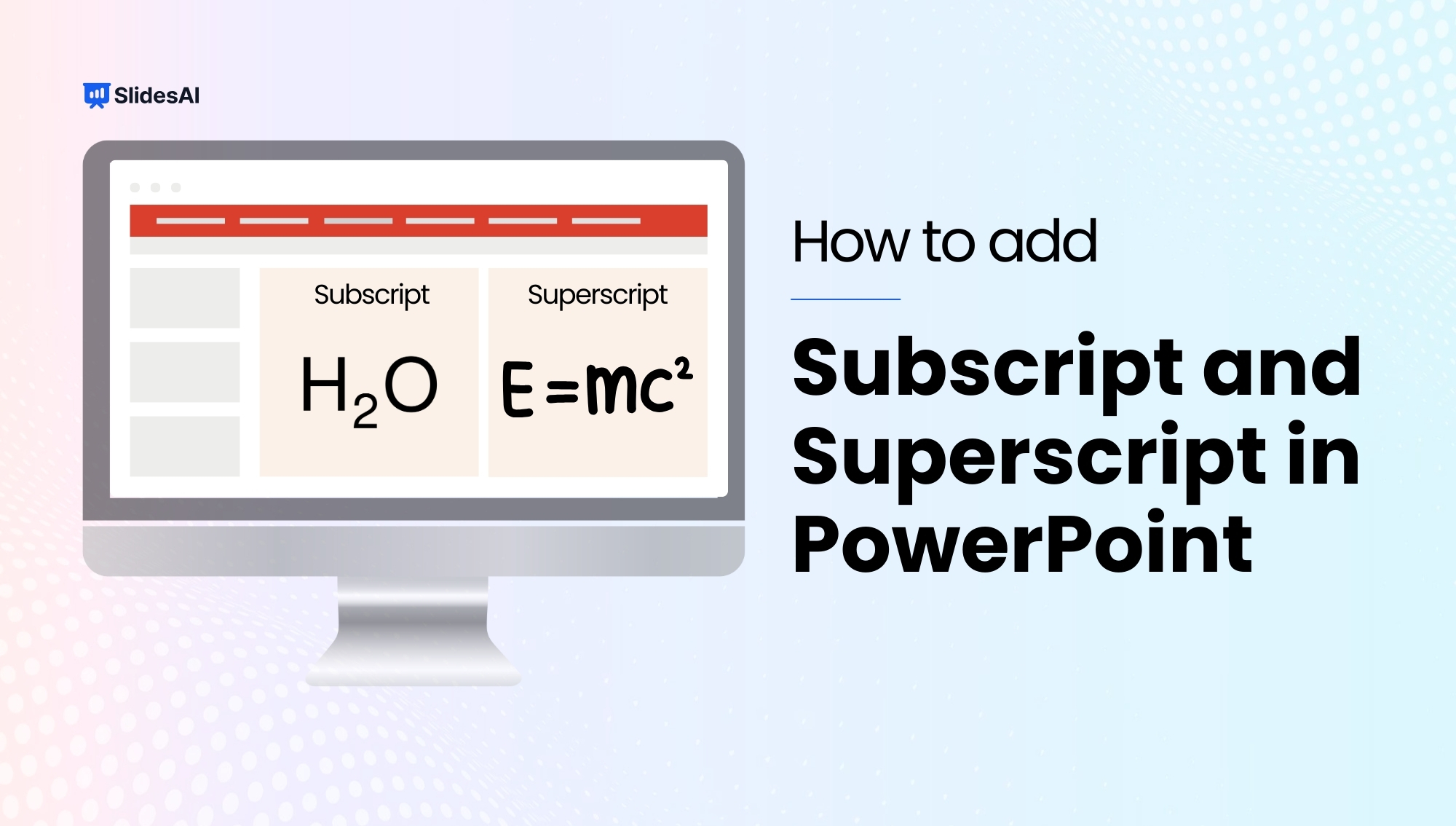
Consider the iconic formula: E=mc², Einstein’s equation of relativity. It wouldn’t carry the same meaning if written as E=mc2, would it? While many use the simpler version because it’s well-known and won’t lead to confusion, the precise notation matters. This is where superscript and subscript come into play. Do you know how to use them in equations, trademarks, or footnotes in your presentations? Let’s explore how.

How to Save Images from Google Slides?

How to Save Images from Google Slides?

Need to reuse an image from your Google Slides presentation, but can’t find it on your computer? Don’t worry, there are a few ways to save the image directly from your Slides document. This guide will explain five simple methods for extracting images from your Google Slides presentation. This way, you can easily grab the […]

How to Add Voiceover on Google Slides?

How to Add Voiceover on Google Slides?

Adding a voiceover to Google Slides helps you explain slides more clearly and make presentations more engaging. Although Google Slides does not have a built-in voice recorder, you can easily add narration by recording an audio file and inserting it into your slides. To add a voiceover to Google Slides, record your audio (MP3 or […]

How to Time Slides on Google Slides?

How to Time Slides on Google Slides?

To time slides in Google Slides, start your presentation and click the three-dot menu in the bottom-left corner. Choose Autoplay, select the desired time interval, and enable Loop if needed. For more control, use “Publish to web” under the File menu to automatically advance slides at a fixed interval. Timing your slides helps you deliver […]

How to Change Background Color and Images on Google Slides?

How to Change Background Color and Images on Google Slides?

Creating a presentation involves more than just the content you share. It’s also about how you present that information in a way that’s engaging and easy to follow. Visually appealing slides can hold your audience’s attention and make your message more memorable. One simple yet effective way to achieve this is by customizing the backgrounds of your slides in Google Slides.

How to Link to a Specific Slides in Google Slides? 5 Simple Steps

How to Link to a Specific Slides in Google Slides? 5 Simple Steps

Let’s say you’ve created a fantastic presentation in Google Slides, but your audience might need to find a specific part quickly. Maybe it’s a detailed look at the financials on slide 15, or a product demonstration waiting for them on slide 8. The good news is, that Google Slides has a handy feature that lets you create links within your presentation.

How to Make a Google Slideshow Run Automatically?

How to Make a Google Slideshow Run Automatically?

Google Slides is a popular choice for creating presentations these days. It’s easy to use and lets you build, edit, and show slideshows that grab people’s attention. One way to make your presentations even more engaging is to set them to play automatically. This can keep things moving smoothly for your audience.

How to Check Word Count on Google Slides?

How to Check Word Count on Google Slides?

Need to track the word count in your Google Slides presentation? While Google Slides is great for making eye-catching presentations, you might sometimes want to know how many words you have in the speaker notes or text boxes. Knowing your word count can be helpful for keeping your presentation within a certain time limit or just getting a general idea of the content length. This guide will show you how to check the word count in your Google Slides presentation. Without waiting further, let’s dive in.

How to Add Narration to Google Slides?

How to Add Narration to Google Slides?

Putting together a presentation can be a creative process. It takes some thought and effort to make your slides informative and interesting. One way to add a little extra something to your Google Slides presentations is by including voiceovers.  Voiceovers are basically recordings of someone speaking, like a narration, that can make your slides more engaging for your audience.  Whether you’re explaining an idea or telling a story, using a voiceover can help bring your slides to life. This blog post will show you how to easily add voiceovers to your Google Slides presentations.

How to Bring an Image Forward in Google Slides?

How to Bring an Image Forward in Google Slides?

Pictures can be a great way to get your point across in a presentation. If you’re using Google Slides, a popular tool for making presentations, you can change how pictures are layered on top of each other. This can be helpful if you want one picture to stand out more than the others. This guide will show you the easy steps to do this in Google Slides. Without waiting further, let’s jump right into it. 

How to Make a Picture Transparent in PowerPoint?

How to Make a Picture Transparent in PowerPoint?

Visuals can really make presentations more interesting! Pictures, charts, and graphs can help break up text, keep viewers engaged, and make a memorable impression. But have you ever used an image where the background takes away from your message?

8 Ways To Make Interactive Google Slides

8 Ways To Make Interactive Google Slides

Google Slides lets you create presentations that are anything but boring. This guide unlocks the secrets to making your presentations interactive and dynamic, keeping your audience engaged from start to finish. We’ll walk you through everything you need to know, from clickable elements that jump to different sections to embedding multimedia that brings your content to life. Get ready to craft presentations that leave a lasting impression!

How to Track Changes in PowerPoint?

How to Track Changes in PowerPoint?

PowerPoint is a great tool not just for making presentations, but also for working together on them.  If you want to share your slides with others and get their feedback, PowerPoint’s Review feature can help you track changes and see comments.

How to Make an Image a Circle in Google Slides?

How to Make an Image a Circle in Google Slides?

Google Slides offers a lot of flexibility when it comes to creating presentations, and one way to make them more visually interesting is by adjusting the shapes of your images.

How to Convert Keynote to Google Slides?

How to Convert Keynote to Google Slides?

Thinking about switching from Keynote to Google Slides but worried about your presentations? Don’t worry, you’ve come to the right place! Converting presentations from Keynote to Google Slides might seem a bit tricky at first, but it’s actually quite simple once you know the steps.

PowerPoint SmartArt: All You Need to Know

PowerPoint SmartArt: All You Need to Know

What is SmartArt? SmartArt is a feature in PowerPoint that lets you turn your information and ideas into visuals. You choose a layout that matches what you want to show. Some layouts, like organization charts or Venn diagrams, are good for specific types of information. Others just make your bulleted lists look nicer. Along with […]

Top 10 Pecha Kucha Ideas for Presentation

Top 10 Pecha Kucha Ideas for Presentation

Ever been sitting in a presentation where the speaker seems to talk forever? You’re not alone. Traditional presentations can sometimes be a bit long, heavy on text, and maybe even a little boring. But there’s a solution! Pecha Kucha is a presentation style that encourages speakers to be clear, creative, and interesting.

How to Flip a Picture in PowerPoint?

How to Flip a Picture in PowerPoint?

Ever added an image to your PowerPoint presentation only to realize it’s facing the wrong way? Don’t worry, fixing image orientation is easy! In this blog, we’ll walk you through the simple steps on how to flip a picture in PowerPoint, whether you need to mirror it horizontally or flip it vertically. With this quick trick, you can ensure your visuals perfectly complement your presentation content.

How to Cite Pictures in PowerPoint?

How to Cite Pictures in PowerPoint?

Pictures can be a great addition to your presentations at work or school. They can help keep your audience interested and make your points clearer. But it’s also important to give credit to the people who created the pictures you use. Knowing how to cite images properly in PowerPoint is a valuable skill, no matter who you’re presenting to.

Pecha Kucha Presentation

Pecha Kucha Presentation

Do you sometimes feel lost in presentations that go on and on with tons of information? There’s a new and interesting presentation format gaining popularity called Pecha Kucha (pronounced peh-chah kuh-chah). This comes from Japan and means “chit-chat”.  Pecha Kucha offers a fresh way to share ideas that’s both short and engaging.

How to Add Word Art in Google Slides?

How to Add Word Art in Google Slides?

Do you ever want your presentations to stand out a bit more? Maybe you’d like something more interesting than just bullet points and plain text. If so, then Word Art in Google Slides might be a good option for you! This feature lets you change your text into fun shapes and styles, making it more eye-catching and helping you emphasize your points. Whether you’re making a presentation for school, work, or even for fun, Word Art can add a creative touch. And the good news? It’s very easy to use! This blog post will show you the simple steps to add Word Art to your Google Slides presentations, so you can take them from ordinary to extraordinary. Without waiting further, let’s dive in.

How to Add Page Numbers in PowerPoint​?

How to Add Page Numbers in PowerPoint​?

Want to give your presentation that extra touch? Adding page numbers can be a simple way to make it look more polished and professional. There are a few reasons why this small detail can be helpful.