Interactivity Ppt Animation

How to Add Animation in PowerPoint (Step-by-Step Guide)

How to Add Animation in PowerPoint (Step-by-Step Guide)

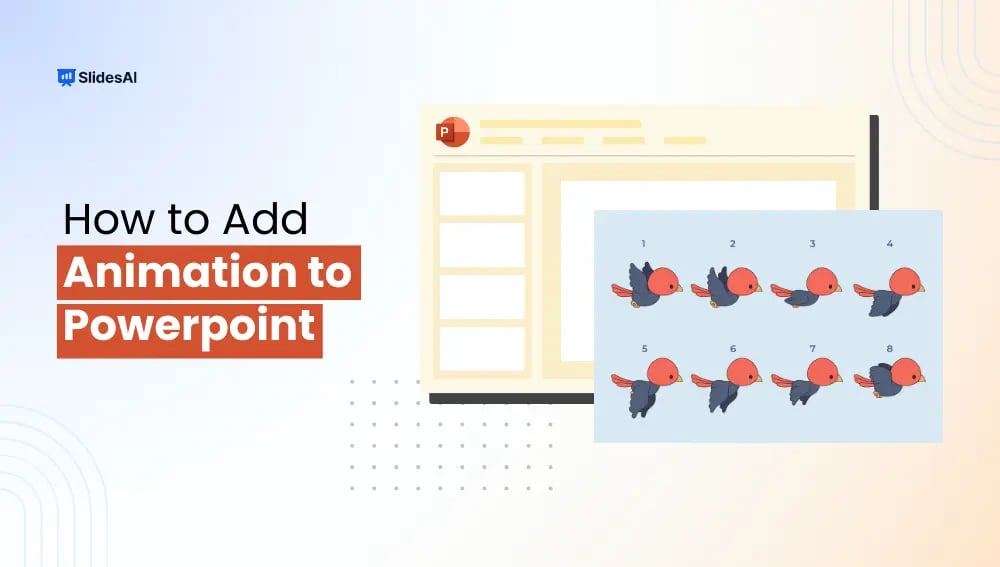
To add animation in PowerPoint, select the object you want to animate (text, image, or shape), open the Animations tab, and choose an animation effect such as Appear, Fade, or Fly In. You can further adjust the effect using Effect Options and control the order, timing, and multiple animations from the Animation Pane to create […]
How to Play PowerPoint Slides Automatically Without Clicking?

How to Play PowerPoint Slides Automatically Without Clicking?

To play PowerPoint slides automatically without clicking, go to the Transitions tab, uncheck “On Mouse Click”, enable “After”, set the time duration, and click “Apply to All.” Then start the slideshow. This feature is especially useful for business presentations, kiosks, webinars, and events where you want slides to move automatically without manual control. In this […]

How to Add a Timer to PowerPoint?

How to Add a Timer to PowerPoint?

To insert a timer in PowerPoint, the easiest method is to use add-ins via Insert > Get Add-ins and search for “Timer” (like Breaktime or Timer for PowerPoint). Alternatively, you can create a custom timer using animations by adding a shape, applying an Exit or Fly Out animation, and setting the duration in the Animations pane.

How to Make a Jeopardy Game on PowerPoint?

How to Make a Jeopardy Game on PowerPoint?

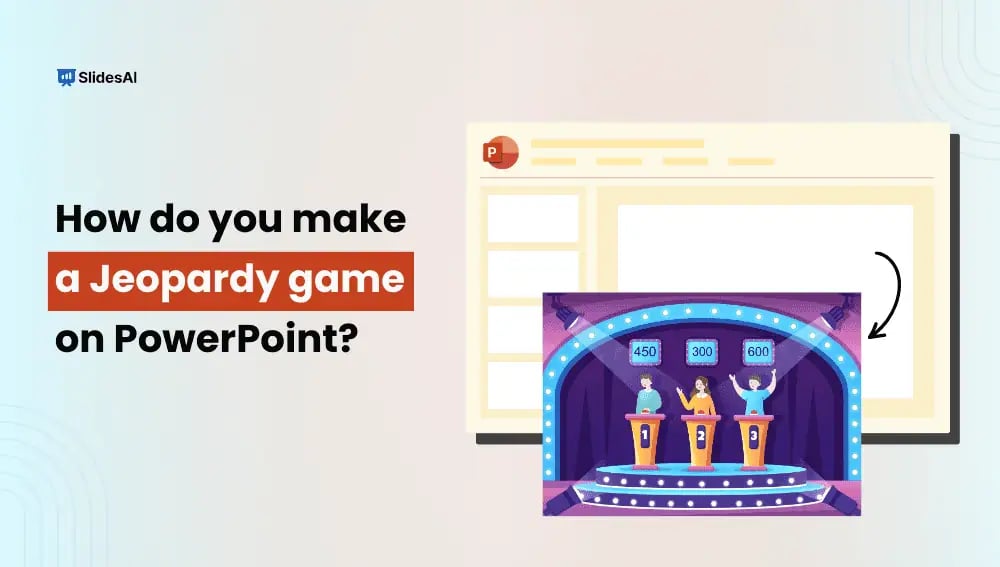
A Jeopardy-style game is a fantastic way to bring fun and excitement to learning, training, or casual gatherings. Whether you’re a teacher looking to make lessons more interactive, a corporate trainer adding engagement to workshops, or just someone who loves trivia nights, creating a Jeopardy game PowerPoint is a great choice. PowerPoint provides the perfect platform to design a game that mirrors the classic Jeopardy; TV show.

What is PowerPoint Progress Bar?

What is PowerPoint Progress Bar?

A progress bar is like a visual tracker that shows how far along a task or process has come. It is a horizontal bar that gradually fills or empties to reflect progress. Think of it as a way to make complex updates simple. When you see the bar, the filled part tells you what’s done, and the empty part shows what’s left to go. Progress bars are a handy way to keep things clear and guide users without overwhelming them with details.

How to Create Action Buttons in PowerPoint?

How to Create Action Buttons in PowerPoint?

In today’s fast-paced digital world, presentations have emerged as an essential tool for efficient communication. Whether you are a business executive attempting to impress stakeholders, an instructor engaging your pupils, or a student communicating your thoughts, how you display your material is critical.

How to Apply Transition to All Slides in PowerPoint?

How to Apply Transition to All Slides in PowerPoint?

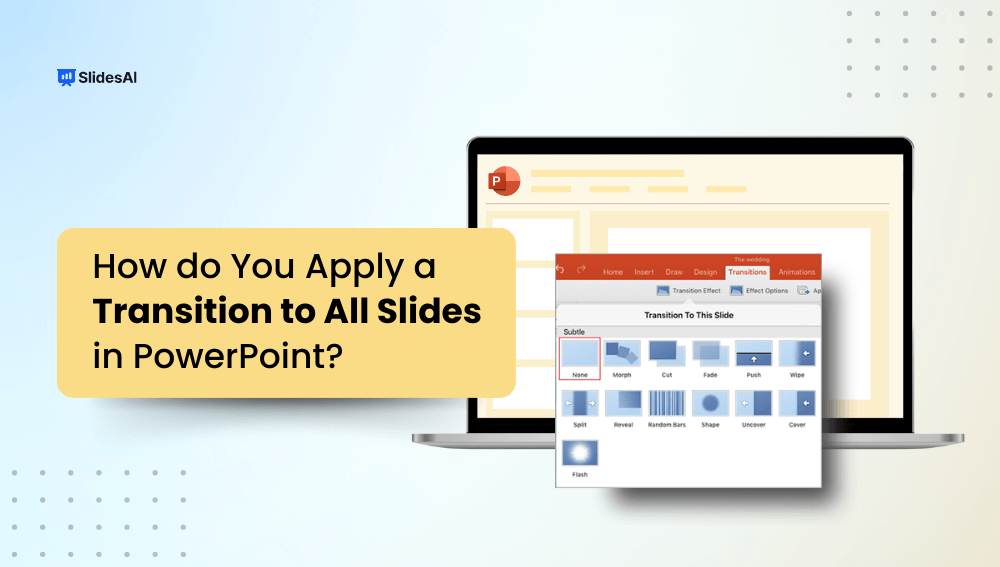
In the realm of presentations, engaging your audience is crucial. Slide transitions are an efficient approach to enhance your PowerPoint presentations while also keeping your audience’s attention. Slide transitions are animations that occur when you go from one slide to the next. Applying transitions to all slides in PowerPoint helps to generate a visual flow […]

How to Create a Word Cloud in PowerPoint?

How to Create a Word Cloud in PowerPoint?

Did you know you can use word clouds as images in PowerPoint presentations? This can be helpful for editors and business writers. For example, a word cloud might show which terms are used too often in your writing, or help you make sure the main points aren’t getting lost. Word clouds can even be a tool for Search Engine Optimization (SEO).

How to Loop a PowerPoint Presentation Automatically?

How to Loop a PowerPoint Presentation Automatically?

If you want your PowerPoint slides to play continuously without manual clicks, you can enable the built-in looping feature. To loop a PowerPoint presentation continuously, go to the Slide Show tab, click Set Up Slide Show, and check the option “Loop continuously until ‘Esc’.”

How to Add a GIF to PowerPoint?

How to Add a GIF to PowerPoint?

Whether you’re presenting at work, school, or to an audience, animated GIF files are one quick way to add fun, humor, and personality to any PowerPoint presentation. These short animations can break up the monotony of text blocks and make complex ideas easier to understand. This guide will show you where to find the perfect GIF (for free!) and how to add a GIF to PowerPoint.

How to Insert Hyperlinks in PowerPoint?

How to Insert Hyperlinks in PowerPoint?

Hyperlinks in PowerPoint can be really helpful. They let you link to other websites, slides within your presentation, or multimedia resources, making your presentations more engaging. Whether you want to add interactive elements, simplify navigation, or just make your presentation more dynamic, knowing how to use hyperlinks is important. In this guide, we’ll explore different ways you can use hyperlinks in PowerPoint to enhance your presentations. You’ll learn how to link to websites and documents, set up navigation, and customize hyperlink colors to make your presentations more visually appealing.