Text Visual Slides Design

How to Strikethrough on Google Slides?

How to Strikethrough on Google Slides?

Strikethrough in Google Slides is a simple yet effective way to indicate revisions, mark completed tasks, or highlight changes without removing content. Whether updating a to-do list, reviewing edits, or presenting progress, learning how to strikethrough text in Google Slides ensures your slides are both clear and visually organized. In this guide, we’ll walk you through multiple methods on how to strikethrough in Google Slides, troubleshooting tips, and mobile instructions to make it a seamless part of your workflow
How to Make a Google Slides Font Metallic?

How to Make a Google Slides Font Metallic?

Fonts are the silent heroes of any presentation. They set the tone, create an emotional impact, and make your content stand out. But what if we told you there is a way to take your text up a notch and make it truly shine?

How to Curve Text in Google Slides?

How to Curve Text in Google Slides?

You can curve text in Google Slides by using text box rotation, Word Art styling, or external design tools to mimic a curved text effect.

How to Format Text in Google Slides? 3 Methods

How to Format Text in Google Slides? 3 Methods

Learn more about how to format text in Google slides using different methods like using Paint Format Tool, Format Options, and other basic formatting techniques.

How to Make the Background More Appealing in Slides?

How to Make the Background More Appealing in Slides?

A well-chosen background can transform your ordinary presentation into an extraordinary one. It’s more than just a pretty picture – it’s a powerful tool that sets the mood, engages your audience, and makes you stand out. A visually appealing background can create a lasting impression, helping you deliver a memorable and impactful presentation. In this blog, we’ll dive into the art of background design, providing practical tips and tricks to help you create slides that are not only informative but also visually stunning.

How to Outline Text in Google Slides?

How to Outline Text in Google Slides?

When creating a presentation in Google Slides, adding an outline to your text can be a simple yet effective way to make your slides more readable and visually appealing. Outlined text helps organize your content, making it easier for your audience to follow along.

How to Highlight on Google Slides?

How to Highlight on Google Slides?

Highlighting text is a common technique used to emphasize key points or draw attention to specific information within a document or presentation. It helps improve readability and makes your content easier to follow. While Google Slides doesn’t offer a traditional highlighter tool like you might find in a word processor, it does provide a “Highlight Color” feature that allows you to color-code your text for emphasis.

How to Subscript and Superscript in Google Slides?

How to Subscript and Superscript in Google Slides?

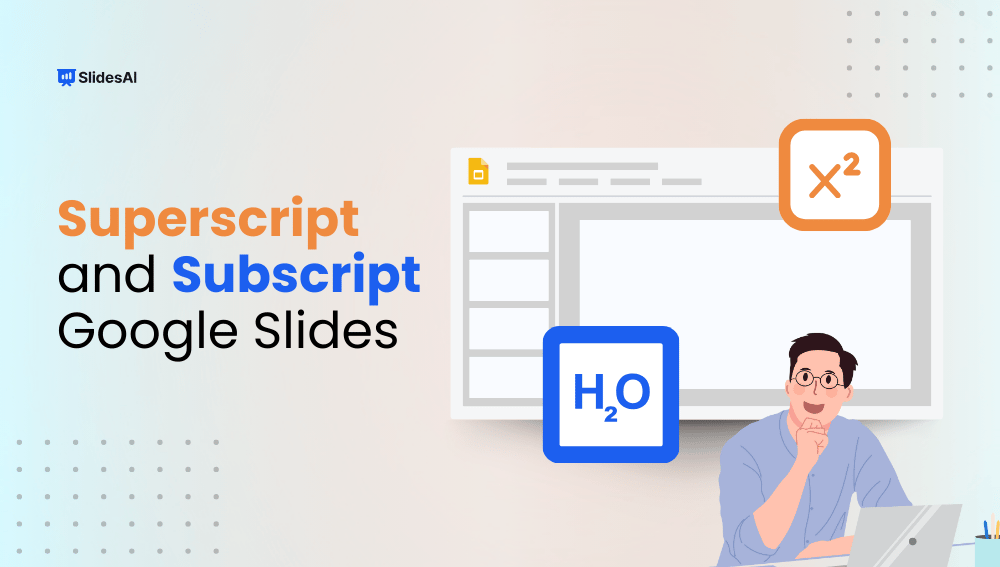
Consider the iconic formula: E=mc², Einstein’s equation of relativity. It wouldn’t carry the same meaning if written as E=mc2, would it? While many use the simpler version because it’s well-known and won’t lead to confusion, the precise notation matters. This is where superscript and subscript come into play. Do you know how to use them in equations, trademarks, or footnotes in your presentations? Let’s explore how.

How to Change Background on Google Slides?

How to Change Background on Google Slides?

Creating a presentation involves more than just the content you share. It’s also about how you present that information in a way that’s engaging and easy to follow. Visually appealing slides can hold your audience’s attention and make your message more memorable. One simple yet effective way to achieve this is by customizing the backgrounds of your slides in Google Slides.

How to Add Word Art in Google Slides?

How to Add Word Art in Google Slides?

Do you ever want your presentations to stand out a bit more? Maybe you’d like something more interesting than just bullet points and plain text. If so, then Word Art in Google Slides might be a good option for you! This feature lets you change your text into fun shapes and styles, making it more eye-catching and helping you emphasize your points. Whether you’re making a presentation for school, work, or even for fun, Word Art can add a creative touch. And the good news? It’s very easy to use! This blog post will show you the simple steps to add Word Art to your Google Slides presentations, so you can take them from ordinary to extraordinary. Without waiting further, let’s dive in.

How to Add Fonts to Google Slides? A Step-by-Step Guide

How to Add Fonts to Google Slides? A Step-by-Step Guide

Some experts say it’s important to use the right amount of text in your presentations. If there’s too much, people might not want to read it all. But if there’s too little, they might ignore the screen altogether.

Once you’ve got the text sorted, choosing the right font is key. A good font balances easy reading with a nice overall look for your design. When everything fits together well, it leaves a positive impression on your audience. They’ll be impressed with how your text appears.

So, in this article, you’ll learn how to change fonts in your presentation. You’ll also discover how to add new fonts in Google Slides.

How to Wrap Text in Google Slides?

How to Wrap Text in Google Slides?

In Google Slides, combining text with images can make your presentations more impactful. While text wrapping isn’t directly available like in some other presentation tools, you can achieve a similar effect by positioning text boxes strategically. This guide will walk you through how to cleverly position text boxes to wrap text around images in Google Slides, enhancing readability and the overall look of your presentations.

How To Do Hanging Indent On Google Slides: 3 Easy Ways

How To Do Hanging Indent On Google Slides: 3 Easy Ways

To create a hanging indent in Google Slides, select your text, go to Format → Format options → Text fitting, and set “Special” to Hanging.