Ppt Design

How to Subscript and Superscript in Google Slides?

How to Subscript and Superscript in Google Slides?

Consider the iconic formula: E=mc², Einstein’s equation of relativity. It wouldn’t carry the same meaning if written as E=mc2, would it? While many use the simpler version because it’s well-known and won’t lead to confusion, the precise notation matters. This is where superscript and subscript come into play. Do you know how to use them in equations, trademarks, or footnotes in your presentations? Let’s explore how.
How to Make a Picture Transparent in PowerPoint?

How to Make a Picture Transparent in PowerPoint?

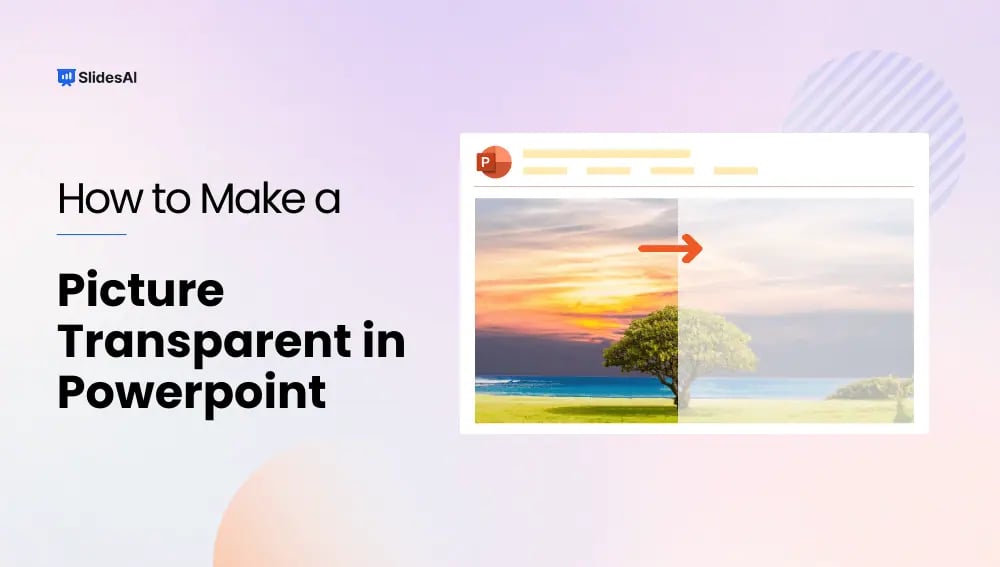
Visuals can really make presentations more interesting! Pictures, charts, and graphs can help break up text, keep viewers engaged, and make a memorable impression. But have you ever used an image where the background takes away from your message?

How to Flip a Picture in PowerPoint?

How to Flip a Picture in PowerPoint?

Ever added an image to your PowerPoint presentation only to realize it’s facing the wrong way? Don’t worry, fixing image orientation is easy! In this blog, we’ll walk you through the simple steps on how to flip a picture in PowerPoint, whether you need to mirror it horizontally or flip it vertically. With this quick trick, you can ensure your visuals perfectly complement your presentation content.

How to Add & Install Fonts to PowerPoint?

How to Add & Install Fonts to PowerPoint?

The font you choose can make a major difference in your PowerPoint presentations. While the default fonts are okay, you might want to add your own for a more specific look. Luckily, adding fonts to PowerPoint is quite easy. This can improve the appearance of your slides and help you get your message across more clearly. In this article, we’ll show you the simple steps to add fonts in PowerPoint, letting you personalize your presentations and keep your audience engaged.

How to Add a Border Design in PowerPoint?

How to Add a Border Design in PowerPoint?

Have you ever noticed how a well-designed slide can grab your attention? One easy way to improve the look of your slides is by adding borders. Borders are simply lines or decorations that go around the edge of your slide content.  They can make your slides look nicer, but they also have some practical uses.  

How to Curve Text in Powerpoint?

How to Curve Text in Powerpoint?

Adding creative design elements to your slideshow presentations can make them more visually appealing. Curved text is one such element that’s both simple and eye-catching. If you often use PowerPoint to create professional slideshows, incorporating curved text can make your presentations look better and keep your audience interested.

Your Ultimate Guide to Master Hanging Indent in PowerPoint

Your Ultimate Guide to Master Hanging Indent in PowerPoint

Do you want your PowerPoint to look really professional and catch people’s eyes? One trick to make it stand out is by using something called a hanging indent. This cool feature helps highlight specific points in your presentation, making them easier to read and understand for your audience. In this article, we’ll show you how to add a hanging indent to your PowerPoint slides, so your presentation can really shine.

How to Wrap Text in PowerPoint?

How to Wrap Text in PowerPoint?

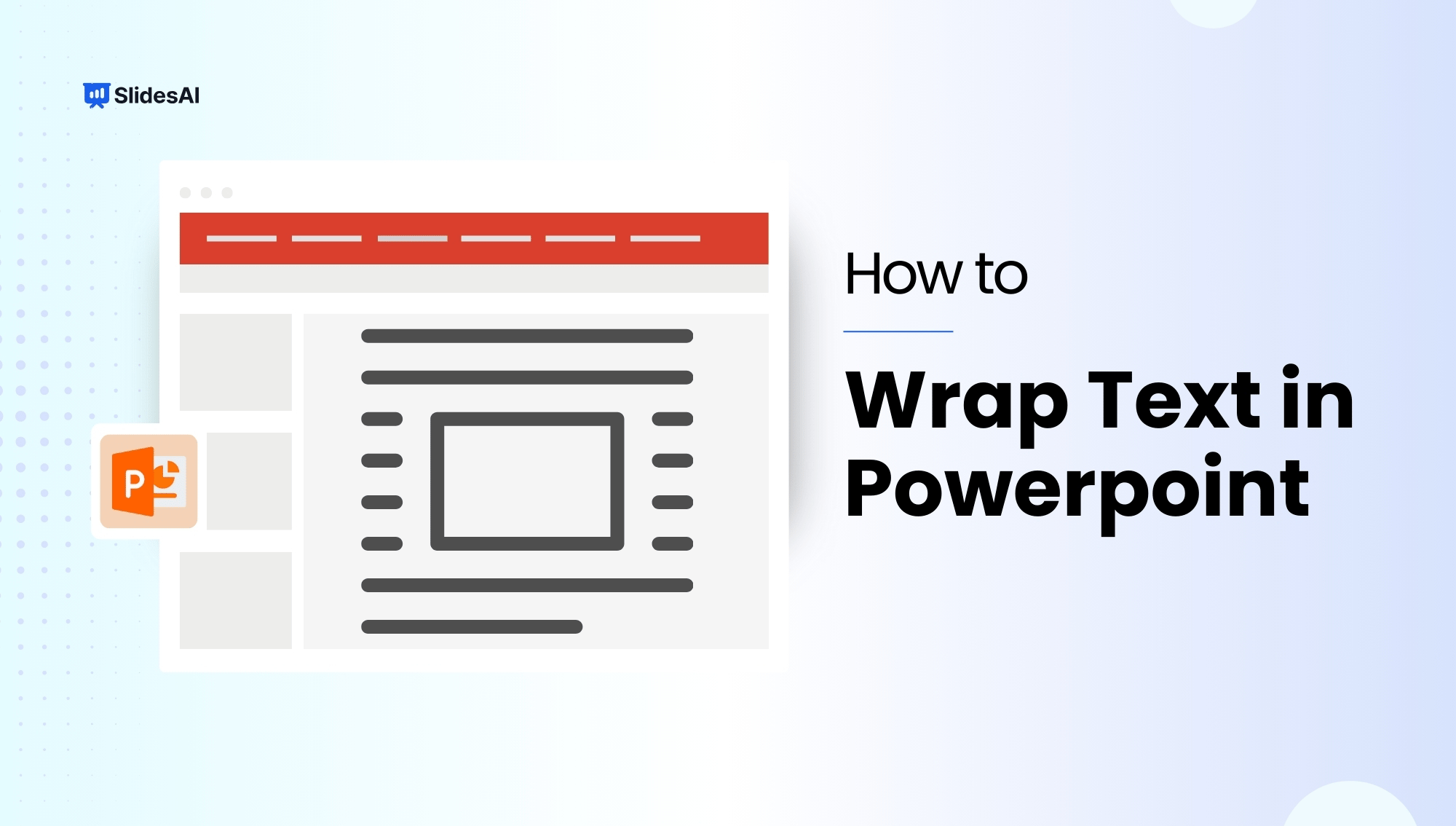
Creating clear and visually engaging presentations is an important part of getting your message across in PowerPoint. Images can be a powerful tool to illustrate your points, but sometimes text can crowd them or obscure important details. While PowerPoint doesn’t have a specific function to automatically wrap text around images, there are a few easy tricks you can use to achieve a more polished and professional look for your slides. This article will walk you through these methods, helping you to integrate text and images seamlessly for a more impactful presentation.

How to Change PowerPoint to Portrait Mode (Windows & Mac)

How to Change PowerPoint to Portrait Mode (Windows & Mac)

PowerPoint slides typically use a landscape orientation, where the width of the slide is wider than its height. This layout has become the norm for presentations because it matches the shape of many projectors and computer screens, ensuring that your content looks its best when displayed to your audience.

How to Change Slide Size in PowerPoint?

How to Change Slide Size in PowerPoint?

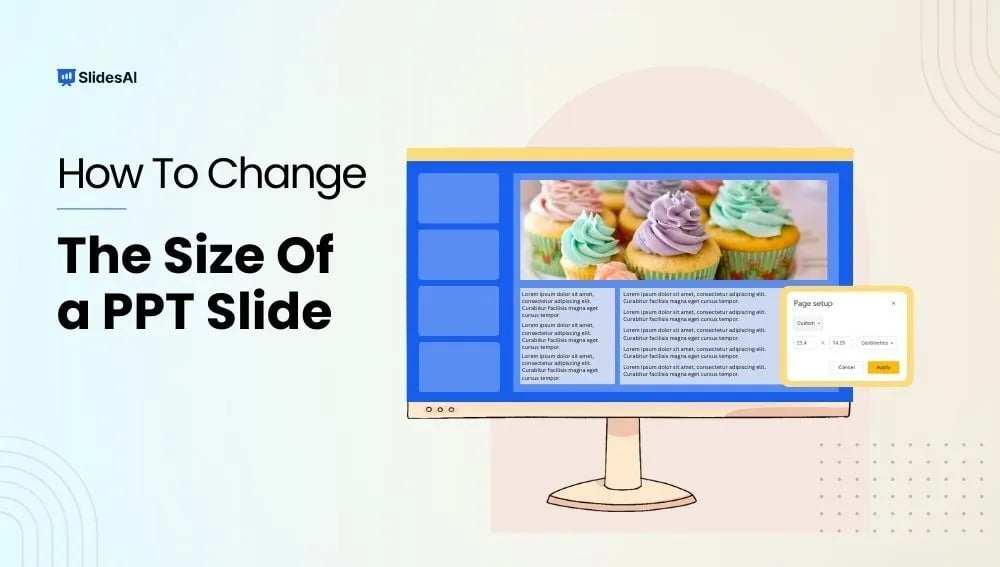
Sometimes, when you often create presentations, you might find yourself in a situation where you need to prepare your slides on one device but present them on another. This can cause your slides to look different depending on the device. It’s a good idea to learn how to adjust the slide size or aspect ratio in PowerPoint to avoid any issues during your presentation. You’ve put in a lot of effort into your project, from researching to practicing your speech, so it’s frustrating to encounter problems like mismatched slide sizes that could have easily been avoided.

How To Merge Shapes In PowerPoint?: A Step-by-Step Guide

How To Merge Shapes In PowerPoint?: A Step-by-Step Guide

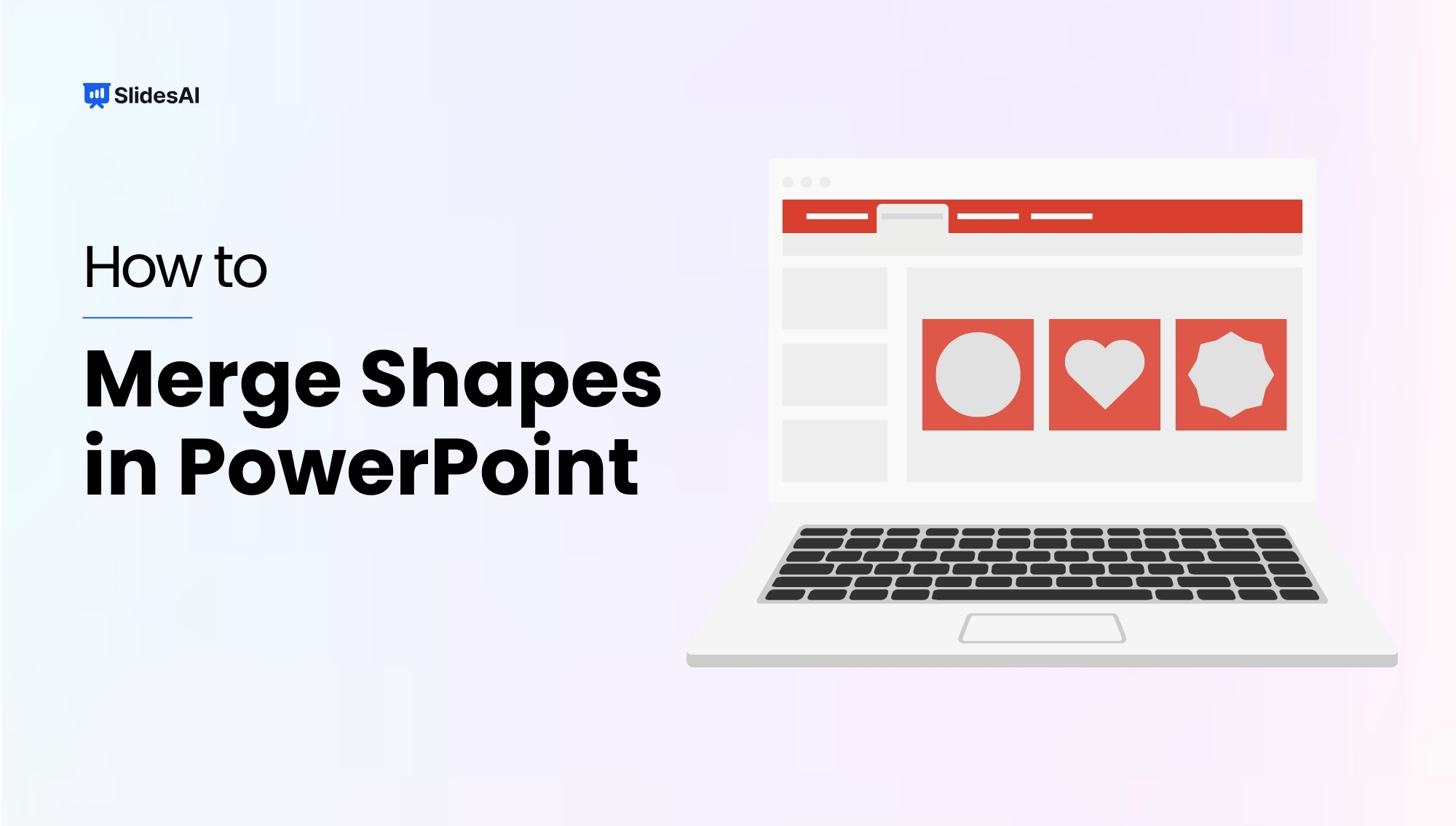
Adding shapes to your PowerPoint presentations can greatly improve their visual appeal, allowing you to create unique graphics and designs that effectively communicate your message. Whether you want to combine shapes, remove parts of one shape from another, or simply make your slides look better, understanding how to use the Merge Shape commands is essential. In this guide, we’ll explore different ways to merge shapes in PowerPoint, starting from the basics and moving to more advanced techniques. By the end of this article, you’ll have the skills to create eye-catching shapes and designs that will engage your audience.

How to Add Watermark in PPT: Add Text & Image Watermarks

How to Add Watermark in PPT: Add Text & Image Watermarks

Have you ever poured your heart and soul into crafting a presentation, only to worry about how your content might be used elsewhere? Fear not!  Adding a watermark to your PowerPoint slides provides a simple yet powerful solution. A watermark not only safeguards your work but also helps you to strengthen your brand identity or flag the document as confidential.

PowerPoint Design Ideas Tool: How to Use it Like a Pro?

PowerPoint Design Ideas Tool: How to Use it Like a Pro?

Ever agonized over choosing the perfect font? Fiddled endlessly with slide layouts trying to make titles fit? Wasted hours manually tweaking colors and misaligning elements? Or worse – made a bland slide deck so boring it put your own audience to sleep?

How to Format a Picture in PowerPoint for Maximum Impact?

How to Format a Picture in PowerPoint for Maximum Impact?

An image carries immense communicative power, a timeless reality when dealing with presentations rich in visuals. Yet, the mere inclusion of an image in your

How to Change Font Color in PowerPoint?

How to Change Font Color in PowerPoint?

Picture this: You’ve poured your heart and soul into creating a presentation for your final college project or an office presentation. It’s got all the right content, relevant images, and even those essential pie charts. But as you step back and look at it, you can’t help but feel like something’s missing. 

How to Highlight Pictures in PowerPoint?

How to Highlight Pictures in PowerPoint?

Picture this — you’re working on a PowerPoint presentation for your quarterly marketing meeting. You’ve got a bunch of pictures, statistics, and text to put

How to Change the Color of an Image in PowerPoint: A Detailed Guide

How to Change the Color of an Image in PowerPoint: A Detailed Guide

To change the color of an image in PowerPoint, select the picture, go to the Picture Format tab, and click Color in the Adjust group.

Mastering PowerPoint: How To Change Color Scheme In PowerPoint?

Mastering PowerPoint: How To Change Color Scheme In PowerPoint?

Ever looked at your PowerPoint presentation and thought it lacked a bit of color pizzazz? Sometimes, a splash of color can make all the difference between an ordinary and an extraordinary presentation.