

You’re working on a presentation in Google Slides and want to make it easier for your audience (or yourself) to navigate, but figuring out how to add a clear, clickable table of contents isn’t always obvious.
The challenge is that Google Slides doesn’t offer a built-in “table of contents” feature. So most users end up manually organizing slides or struggle to create links that actually work during a presentation.
The good news? You can easily create a clean, clickable table of contents with just a few simple steps. In this guide, you’ll learn practical methods to build one quickly, so your presentation feels more structured, professional, and easy to navigate.
Steps to Create a Table of Contents in Google Slides
Method 1: Create Manually
Step 1: Start a New Slide
Begin by opening your Google Slides presentation and adding a new slide. This will serve as the foundation for your table of contents.
Step 2: Add a Text Box
On this new slide, insert a text box. This is where you’ll type the titles of your slides and link them to their corresponding content.
Option 1: Linking Directly from Slide Titles
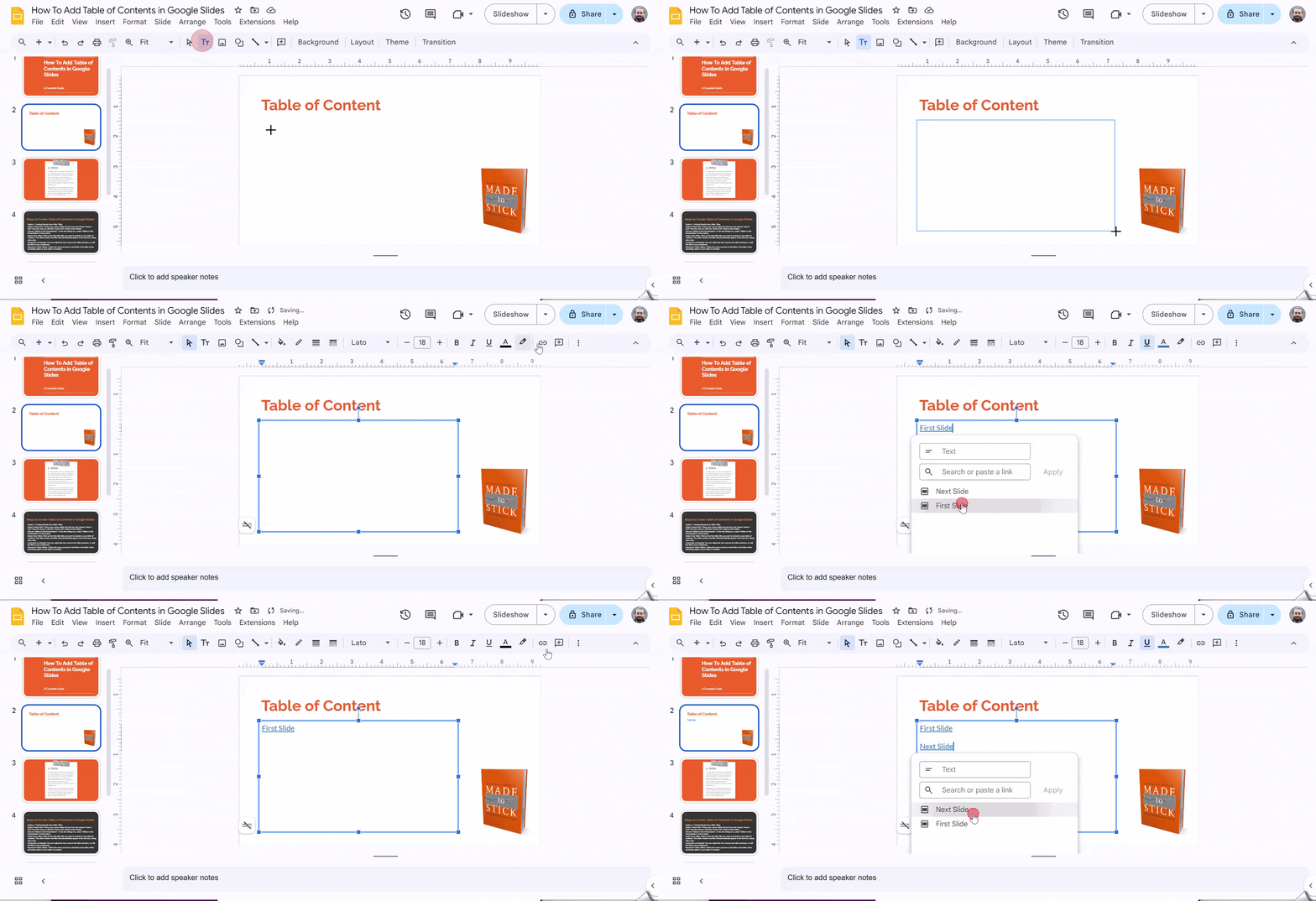
- Select “Insert Link”: Place your cursor within the text box and choose “Insert > Link” from the menu or click the “Insert Link” button in the toolbar.
- Choose “Slides in this Presentation”: In the link dialog box, select “Slides in this Presentation” at the bottom.
- Select Your Slide: Click on the first slide title you want to include in your table of contents. The slide number and title will automatically appear in the text box, along with a link.
- Customize as Needed: You can adjust the text, remove the slide numbers, or edit the title to your preference.
- Repeat for Other Slides: Follow the same process to add links to the titles of the remaining slides in your table of contents.
Related Read: How to Make Columns in Google Slides?
Option 2: Creating Custom Links
- Type Your Text: In the text box, write the text you want to use as a link. This could be a phrase, a word, or even a complete sentence.
- Select and Link: Highlight the text you’ve chosen and then select “Insert > Link” or click the “Insert Link” button.
- Choose Your Slide: In the link dialog box, navigate to the specific slide you want to link to. You can either scroll through the list or use the search bar to find it quickly.
- Verify the Link: Once you’ve selected the slide, the link will be applied to your chosen text. Hover your cursor over the linked text to ensure that the correct slide appears when you click on it.
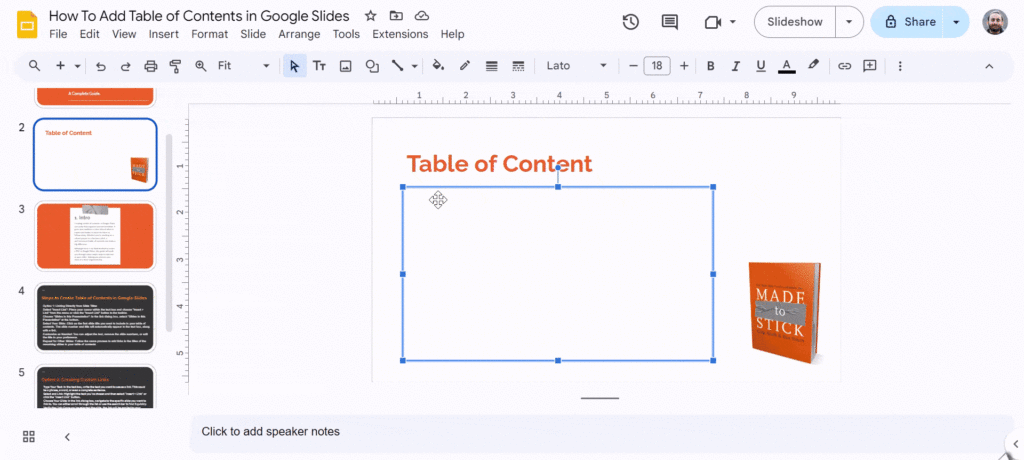
Review Your Table of Contents
Once you’ve finished creating your table of contents, begin the slideshow by clicking the Slideshow button at the top of the toolbar. Move your cursor over the titles to see if a hand symbol appears instead of the regular mouse arrow. If it does, you can click on the titles to jump directly to the corresponding slides.
Also Read: How to Make a Table on Google Slides?
Method 2: Add Table of Contents Using SlidesAI Template
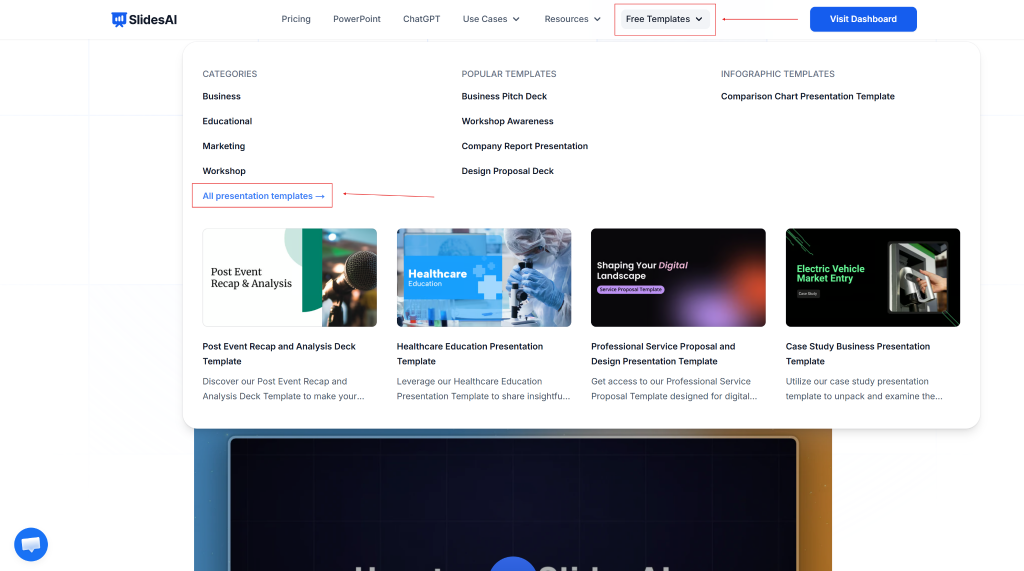
Step 1: Go to SlidesAI
Step 2: Go to resources and select “All presentation templates”
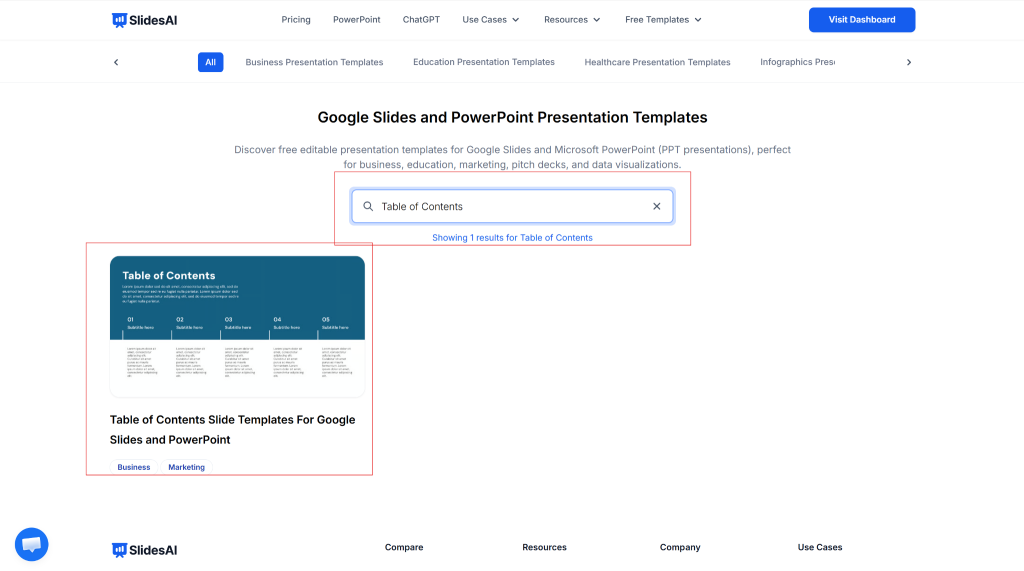
Step 3: Search for the Table of Contents template
Step 4: Click on “Download” drop-down and select Google Slides
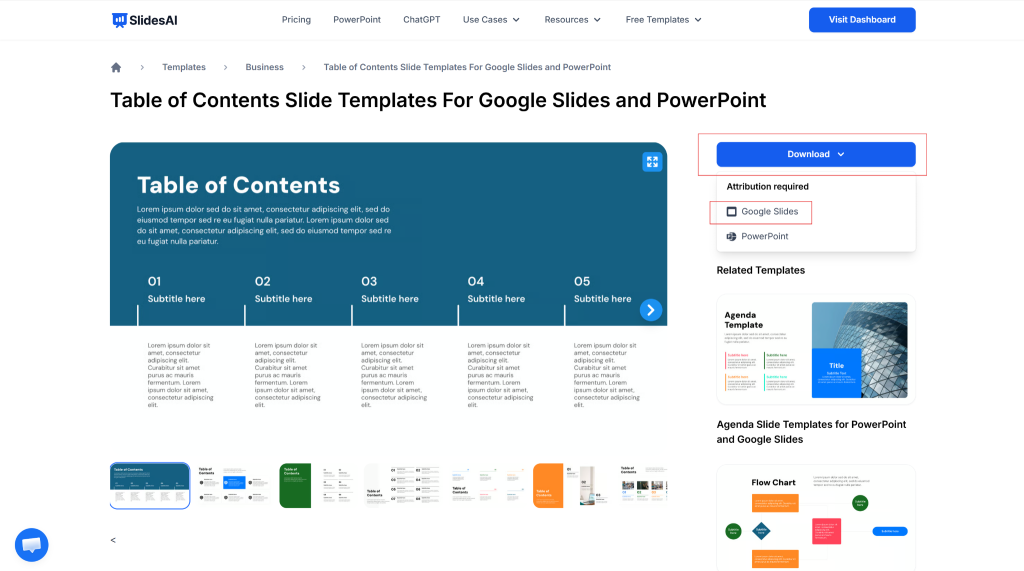
Step 5: On the top right corner, click on “Use template” button
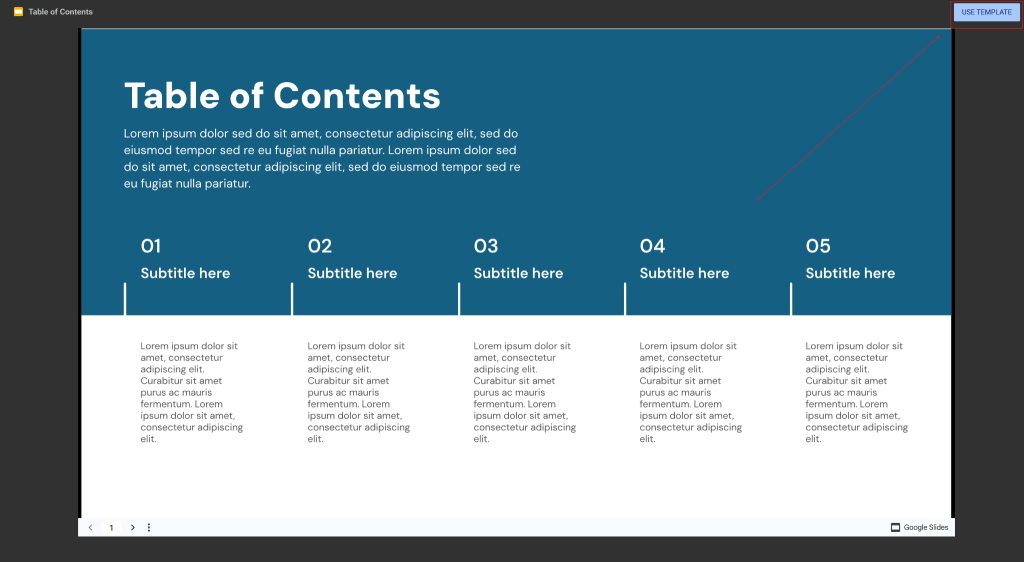
Step 6: The template will be imported into your Google Slides.
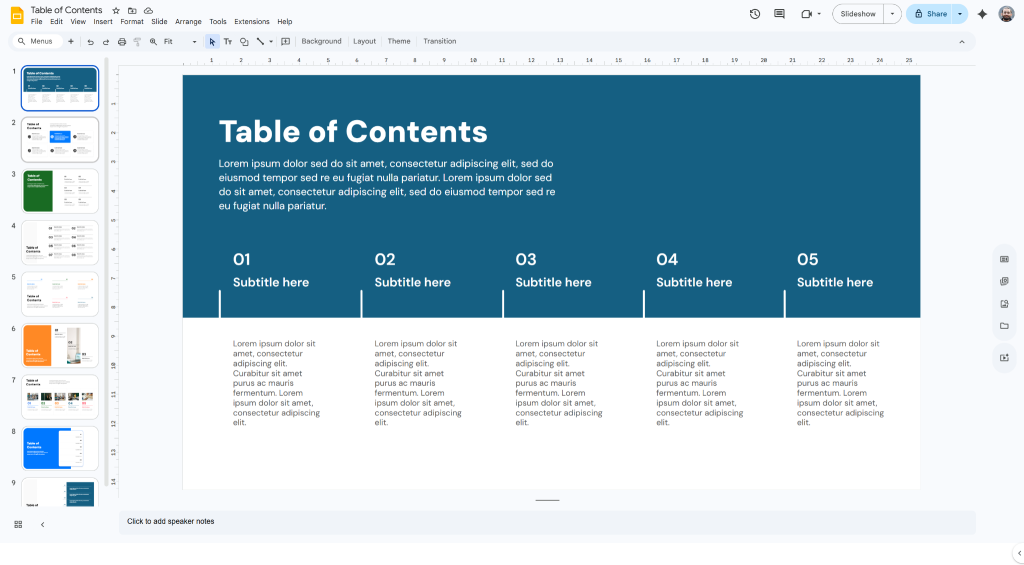
Step 7: Edit the content and review your slide.
Closing Thoughts
A table of contents can enhance your Google Slides presentations by providing clarity and structure. It helps your audience understand the flow of your content, making it easier for them to follow along. By taking a few simple steps, you can create a useful navigation tool that improves your overall presentation experience. Remember, a well-organized slide deck can leave a lasting impression.
Skip manually creating agenda slides and use an AI presentation maker to generate presentation-ready decks with structured sections and a table of contents in minutes.
Create AI presentations directly in Google Slides.
- No design skills required
- 3 presentations/month free
- Save directly in Google Slides

Frequently Asked Questions
1. Can I create a dynamic table of contents in Google Slides?
Right now, there’s no option to automatically create a dynamic table of contents in Google Slides. You’ll need to set it up manually.
2. Is it possible to change how my table of contents looks?
Absolutely! You can change the look of your table of contents by adjusting the font, size, and color of the text. You can also add images or icons to make it stand out more.
3. How can I make my table of contents more appealing to my audience?
To make your table of contents catchier, consider using animations to make it pop visually. Adding hyperlinks lets your audience click on a heading to jump straight to that slide. Also, using a friendly, conversational style when you present it can help keep everyone engaged.
4. Where should a table of contents slide be placed?
The table of contents slide is usually placed after the title slide and before the main content slides.
5. Can you link text to slides in Google Slides?
Yes. Highlight the text, click Insert → Link, choose Slides in this presentation, and select the slide you want to link.
6. Can you add a table layout as a table of contents?
Yes. You can insert a table and place each section title in a cell. Then link each cell to a slide to create a structured navigation table.