
Creating a title page in Google Slides is an easy yet essential part of any presentation. Think of it as the cover of a book—it’s the first thing your audience sees and sets the tone for what’s to come.
A good title page grabs attention, gives the audience a glimpse of what your presentation is about, and adds a touch of professionalism. It’s not just about slapping a title on a slide; it’s about creating something that speaks to the subject matter and prepares your audience for what’s ahead.
Whether it’s for a school project, a business pitch, or any other type of presentation, the title page can make a lasting first impression. So, let’s dive into how to make one in Google Slides that will impress and engage right from the start.
Steps on How to Make a Title Page in Google Slides
Ready to make your presentation stand out right from the start? Here’s a simple guide to creating a title page that grabs attention in Google Slides.
Step 1: Open Google Slides
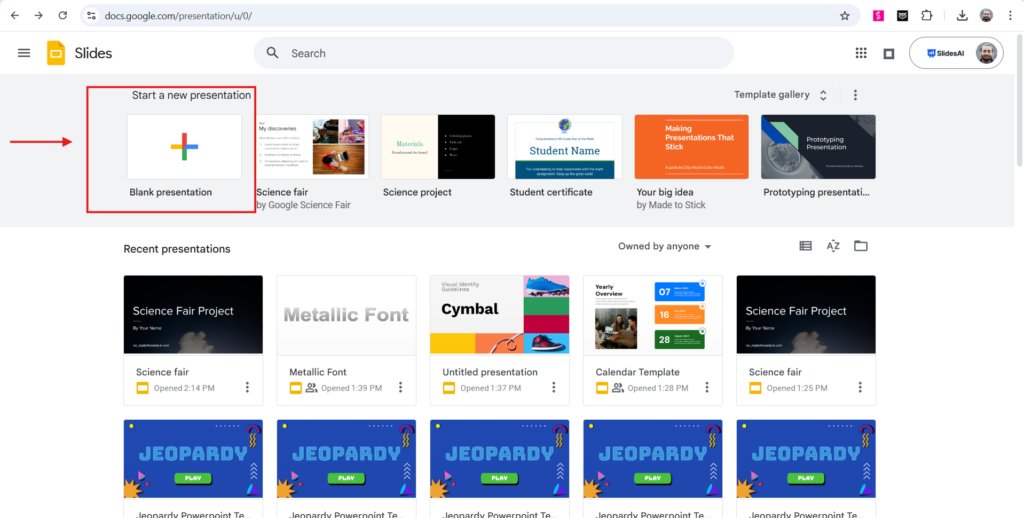
First, open up Google Slides and start a fresh presentation. You can do this by heading over to the Google Slides homepage and clicking on “Blank” to begin.
Step 2: Add a New Slide
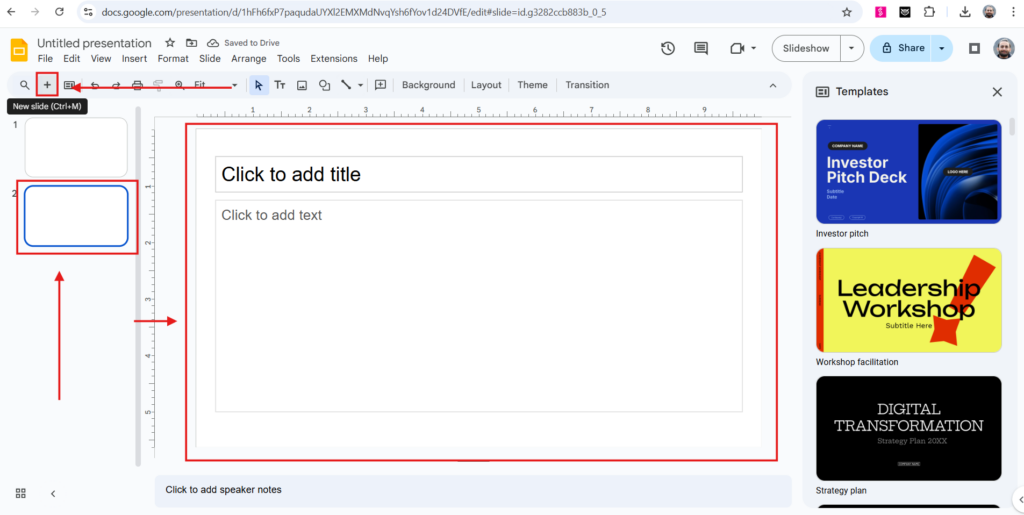
Once you’ve got your new presentation, click on the “+” button in the top-left corner to add a new slide. This is where your title page will take shape!
Step 3: Pick a Layout
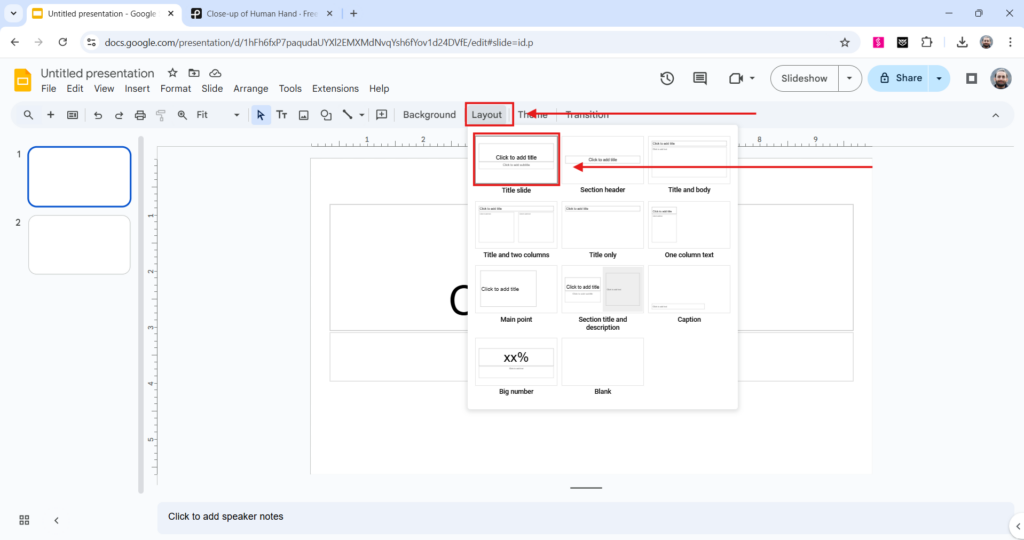
Click on the “Layout” button in the toolbar to explore your layout options. Google Slides offers a bunch of ready-made layouts, so pick one that suits the vibe you’re going for.
Here’s where you get to choose how your title page will look. Some good options include:
- Title Slide: The classic option, featuring a big title and an optional subtitle.
- Title Slide with Picture: Want a background image? This layout allows you to add one.
- Title Slide with Text Boxes: This one is super customizable, so you can arrange text however you like.
Step 4: Customize Your Title Slide
Now it’s time to make it your own! Here’s how:
- Add Your Title: Click the title text box and type in the name of your presentation. Keep it bold and clear so it stands out!
- Add a Subtitle (Optional): If your layout has space for a subtitle, click on it and add a bit more detail about what your presentation will cover.
Personalize Your Text
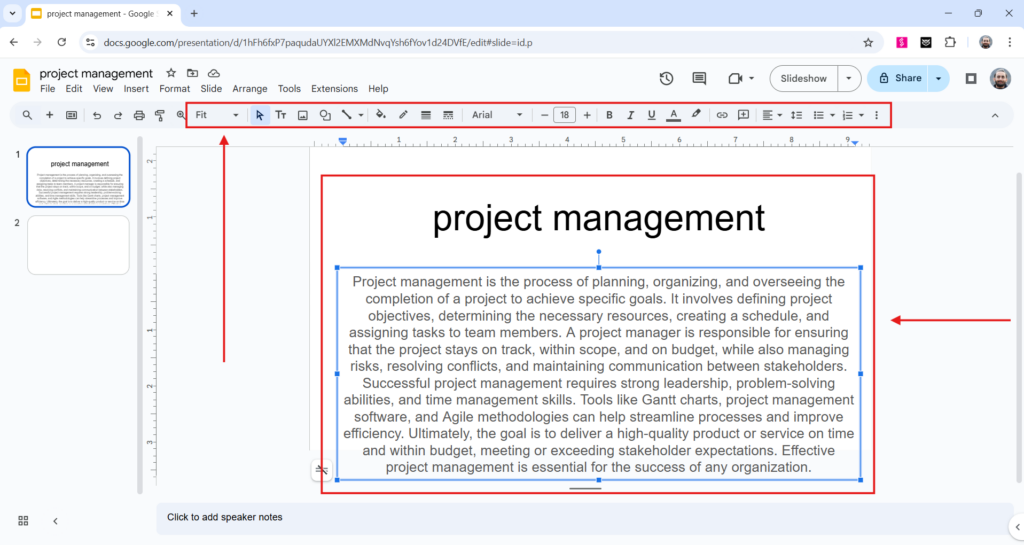
- Font: Play around with the font style, size, and color to match the mood of your presentation. Maybe go with something bold or elegant—it’s up to you.
- Alignment: You can center your text, or shift it to the left or right, depending on how you want it to look.
- Spacing: Adjust the line spacing and make sure the text looks neat and easy to read.
Step 5: Add a Background
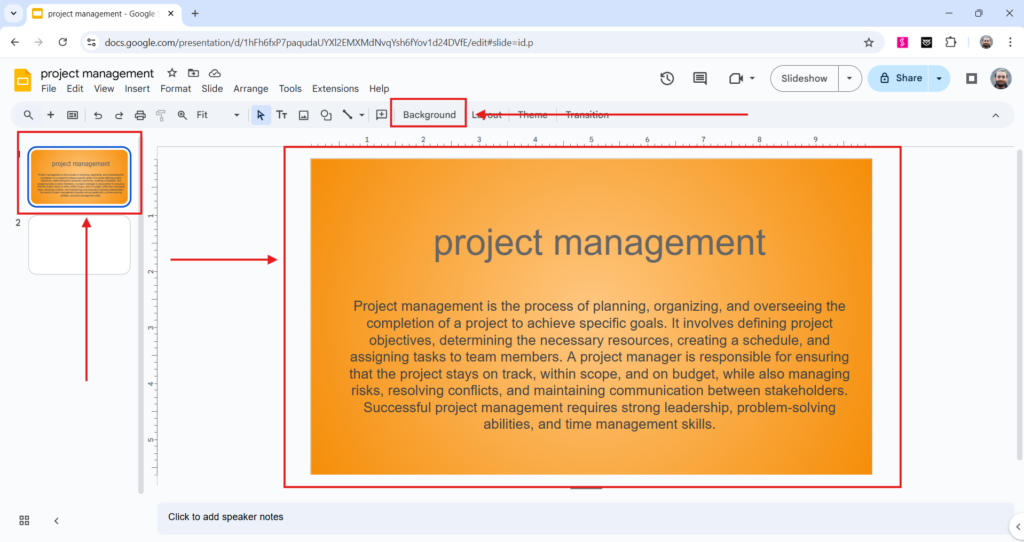
Make your title page pop with a background! You’ve got a few options here:
- Solid Color: Choose a color that works with your theme. Click the “Background” button and select “Solid fill” to pick a color.
- Image: Want a cool background photo? Click “Image” under the Background button and upload an image from your device or use a URL.
- Gradient: Go for something with a little more style by selecting “Gradient fill” and customizing the colors to match the vibe of your presentation.
Step 6: Add Some Visuals
Visuals can make your title page more engaging. Here’s how you can add them:
- Shapes: Add shapes like rectangles, circles, or arrows to frame your title and give it some style.
- Images: If there’s a specific image that ties in with your presentation, go ahead and add it for a bit of personality.
- Icons: Using simple icons can also help represent your ideas or themes without cluttering the page.
Consider using visuals like tables, calendars, or even org charts to add more structure to your slides.
Once you’ve customized everything, you’ll have a title page that’s as unique as your presentation! Don’t forget to review your design and make any final tweaks before moving on to the rest of your slides.
Create AI presentations directly in Google Slides.
- No design skills required
- 3 presentations/month free
- Save directly in Google Slides

Closing Thoughts
Creating a title page in Google Slides is a straightforward and flexible process that gives you plenty of room to get creative. Whether you’re opting for a simple design or something more visually striking, the options are endless, and the same approach works well for all kinds of Google Slides presentations.
Don’t be afraid to experiment with different layouts, backgrounds, and text styles until you find the perfect look for your presentation. With just a few clicks, you can set the tone for the rest of your slides and make a lasting impression right from the start.
So go ahead, have fun with it, and make your title page reflect the vibe of your entire presentation!
Frequently Asked Questions
1. Can I change the title slide later in Google Slides?
Yes, you can edit the title slide anytime. Just click on it, and you can update the text, design, or layout as needed.
2. What font should I use for a title page?
Pick a font that suits the mood of your presentation. If it’s something formal, fonts like Arial or Times New Roman work well. For a more modern or creative feel, try fonts like Roboto or Montserrat.
3. How do I add a logo to the title slide?
To add your logo, click on “Insert” and select “Image.” Then, upload your logo and position it on the slide where it fits best. You can resize it as needed to blend with your design.
4. Can I use animations on the title slide?
Definitely! You can animate text, images, or other elements. Just select what you want to animate, go to “Insert” and choose “Animation,” then pick your desired effect, like fade or slide-in.
5. Are there templates for title pages in Google Slides?
Yes! Google Slides offers several built-in themes with title slides, making it easy to get started. If you want something a bit more personalized, tools like SlidesAI can help you customize your slides with professional touches.