
Manually copying text from PowerPoint slides is not only time-consuming but also frustrating if you have multiple presentations to manage. Fortunately, there are much faster ways to extract text from PowerPoint presentations.
In this guide, you will learn how to export slide text, speaker notes, and presentation content quickly using PowerPoint features, VBA automation, and SlidesAI online tools.
4 Best Ways to Extract Text from PowerPoint Presentations
There are four ways to extract all the text from a PowerPoint presentation. Some methods work best for quick exports, while others are useful for automation and bulk extraction.
Method 1: Export PowerPoint Text Using Built-In Features
This is one of the easiest ways to extract text from PowerPoint slides without using additional tools.
Step 1: Open Your PowerPoint Presentation
Launch Microsoft PowerPoint and open the presentation from which you want to extract text.
Step 2: Open the Export Menu
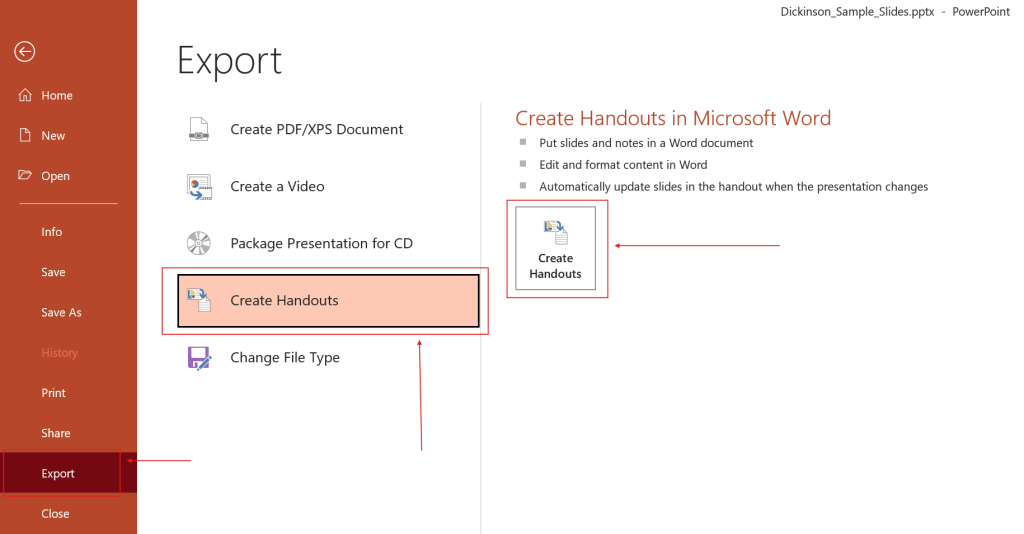
- Go to File → Export and then select Create Handouts → Create Handouts.
- This option allows PowerPoint to export presentation content into Microsoft Word.
Step 3: Select Your Export Format
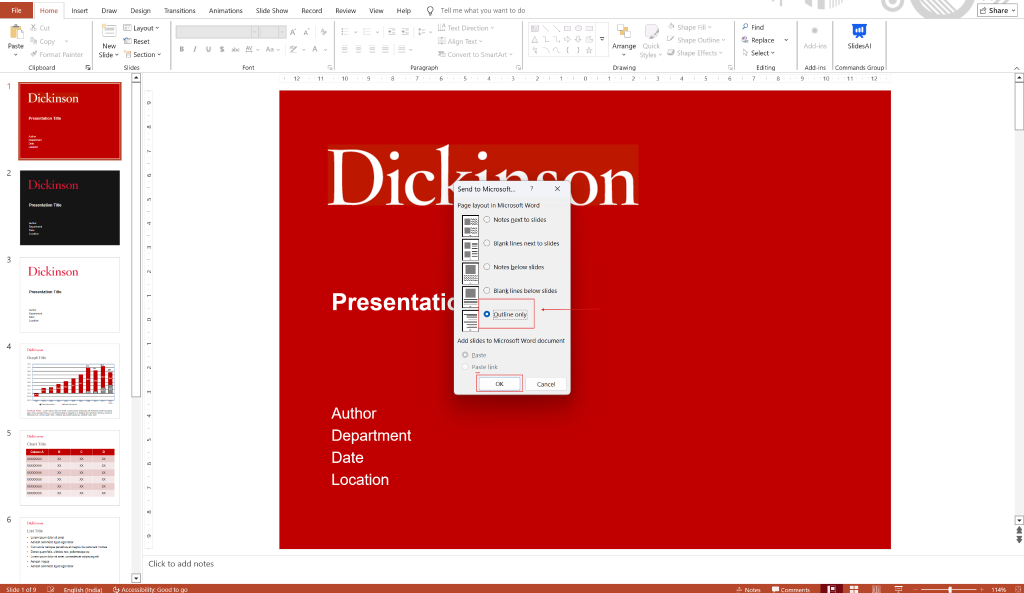
- Choose one of the following options: Outline only or Notes below slides.
- If you want speaker notes along with slide text, choose “Notes below slides” and then click “OK.”
Step 4: Review the Exported Word Document
- PowerPoint will automatically open a Microsoft Word document containing all the extracted presentation text.
- You can now easily edit, copy, save, or reuse the content.
Read Related: Best PowerPoint Add-ins
Method 2: Save PowerPoint as an RTF File
Another simple way to extract all text from a PowerPoint presentation is by saving the file as an RTF (Rich Text Format).
Step 1: Open the PPT or PPTX File
- Launch Microsoft PowerPoint and open your presentation file.
Step 2: Use the Save As Option
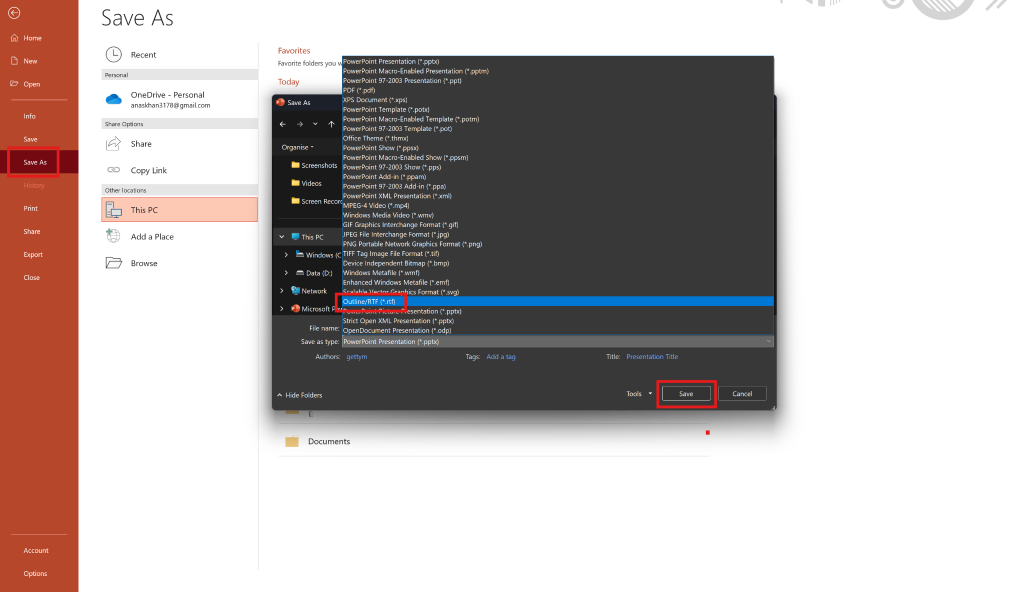
- Go to File → Save As and choose the location where you want to save the file.
Step 3: Select Outline or RTF Format
- In the “Save as type” dropdown menu, select “Outline/RTF.”
- This option exports presentation text into an editable text-based document.
Step 4: Save the File
- Optionally update the file name and location, then click “Save.”
- PowerPoint will create an RTF file containing your slide text.
Read Related: How to Use AI to Improve PowerPoint Presentations
Method 3: Extract PowerPoint Text Using VBA Automation
VBA macros can automate the process of extracting slide text. This method is especially useful for bulk extraction and repetitive workflows.
Step 1: Open Microsoft PowerPoint
- Launch PowerPoint and open the presentation file you want to process.
Step 2: Open the VBA Editor
- Press “Alt + F11” to open the VBA editor.
Step 3: Create a New VBA Module
- Inside the VBA editor, click “Insert” and select “Module.”
- A new code module will appear.
Step 4: Add the VBA Code
- Paste the following VBA code into the module:
Sub ExtractTextWithSaveDialog()

    Dim slide As Slide

    Dim shape As Shape

    Dim textContent As String

    Dim filePath As String

    Dim fileNum As Integer

    ' Open Save File Dialog

    With Application.FileDialog(msoFileDialogSaveAs)

        .Title = "Save Extracted Text File"

        .InitialFileName = "ppt_text_output.txt"

        If .Show <> -1 Then

            MsgBox "Operation cancelled.", vbExclamation

            Exit Sub

        End If

        filePath = .SelectedItems(1)

    End With

    ' Initialize text content

    textContent = ""

    ' Loop through slides

    For Each slide In ActivePresentation.Slides

        textContent = textContent & "Slide " & slide.SlideIndex & ":" & vbCrLf

        For Each shape In slide.Shapes

            If shape.HasTextFrame Then

                If shape.TextFrame.HasText Then

                    textContent = textContent & shape.TextFrame.TextRange.Text & vbCrLf

                End If

            End If

        Next shape

        textContent = textContent & vbCrLf & "------------------------" & vbCrLf & vbCrLf

    Next slide

    ' Save file

    fileNum = FreeFile

    Open filePath For Output As #fileNum

    Print #fileNum, textContent

    Close #fileNum

    MsgBox "Text extracted and saved successfully!", vbInformation

End Sub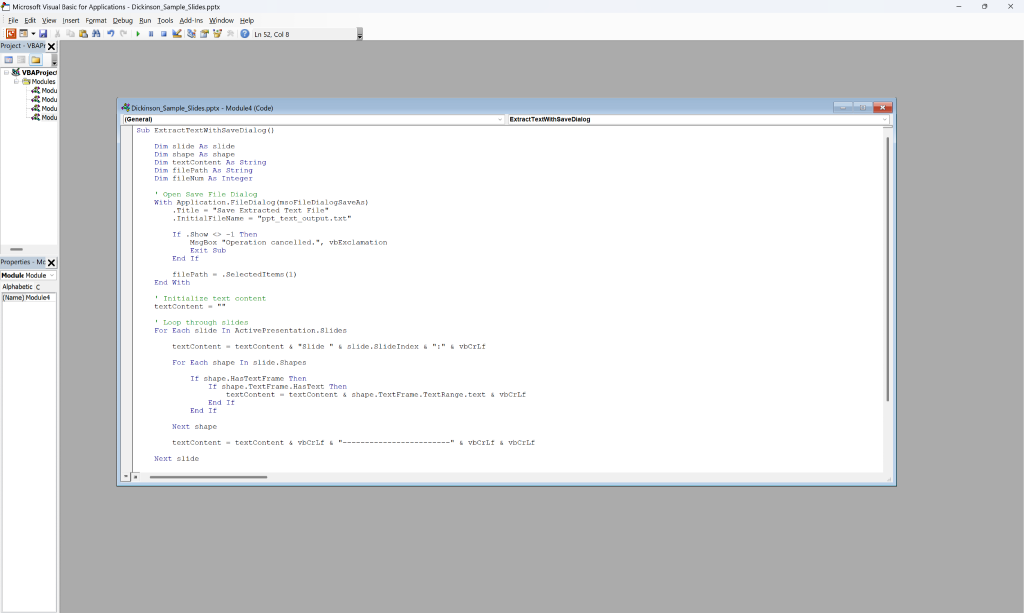
Step 5: Close the VBA Editor
- After pasting the code, close the VBA editor window.
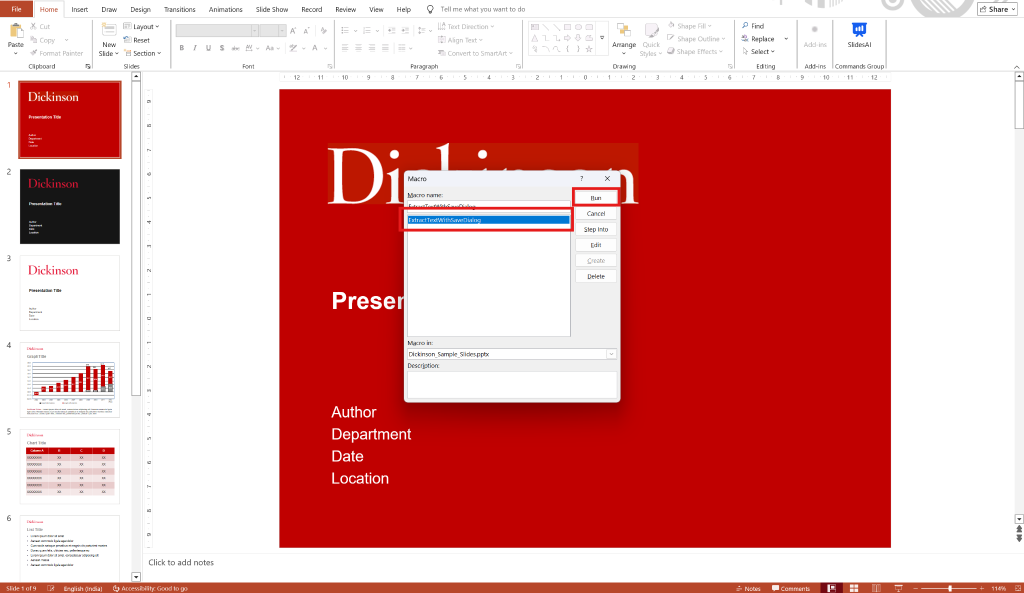
Step 6: Run the VBA Macro
- Press “Alt + F8” and select the macro you created.
- Click “Run,” and the macro will automatically extract all editable slide text and save it as a TXT file.
Note: If the file does not save with a .txt extension automatically, simply add “.txt” manually to the file name.
Extracted your presentation text? Use our AI PowerPoint Maker to create a new deck in minutes.
Method 4: Extract Text Online Using SlidesAI
If you want the fastest method to extract text from PowerPoint without manually doing the work, you can use the SlidesAI tool online. This method also allows you to extract speaker notes and images.
Step 1: Open the SlidesAI PowerPoint-to-Text Tool
- Open the SlidesAI online PowerPoint-to-Text converter.
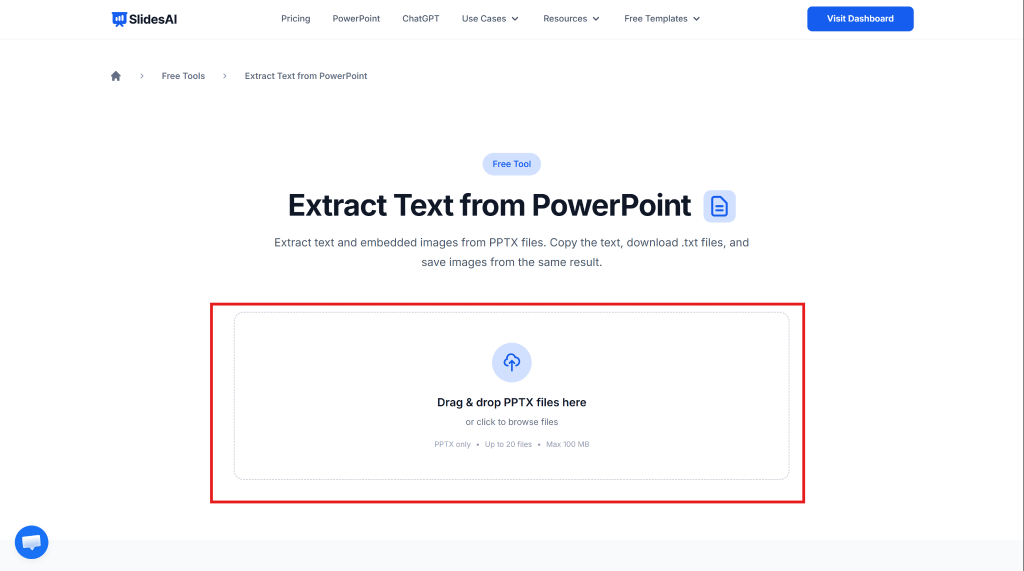
Step 2: Upload Your PowerPoint Files
- Drag and drop up to 20 PPTX files (maximum 100 MB total size) into the upload area or browse files manually.
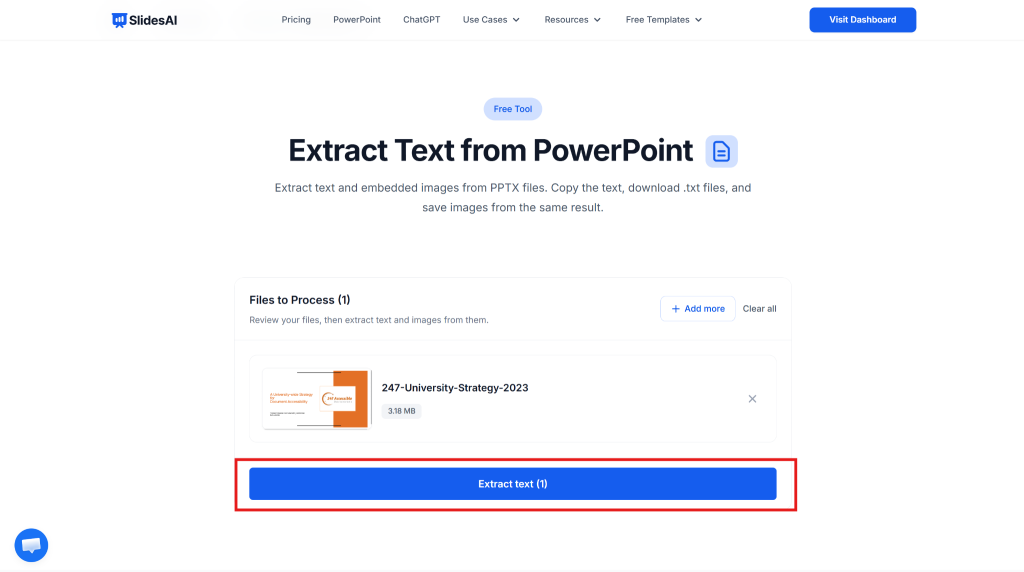
Step 3: Extract Text & Images
- Click the “Extract Text” button.
- SlidesAI will automatically extract slide text, speaker notes (if enabled), and embedded presentation images.
Step 4: Copy or Download the Results
- Once processing is complete, you can copy the extracted text, download it as a TXT file, or save reusable images separately.

This is one of the easiest ways to extract text from PowerPoint presentation files online without installing additional software.
Take Your PowerPoint From Basic to Professional With SlidesAI
- Improve your slide content with AI
- Create polished layouts faster
- Work directly inside PowerPoint

Frequently Asked Questions (FAQs):
1. How can I extract text from a PowerPoint presentation quickly?
You can quickly extract presentation text by using PowerPoint’s “Create Handouts” feature or by saving the file as an RTF document. If you want a faster online method, SlidesAI can instantly extract slide text, speaker notes, and images without requiring manual formatting or setup.
2. How do I extract all text from a PowerPoint file at once?
To extract all text from a PowerPoint presentation, go to File → Export → Create Handouts, and choose “Outline only.” PowerPoint will automatically export all slide text into a Microsoft Word document for easier editing and reuse.
3. Can I extract text from PowerPoint slides without using Word?
Yes, you can. Just save the presentation as an RTF (Rich Text Format) file through the “Save As” option in PowerPoint. This allows you to access and edit the slide text without opening or exporting through Microsoft Word.
4. How can I extract text from PowerPoint using VBA?
Use a VBA macro to automatically loop through all slides and shapes, collect editable text, and save the output into a TXT file. This method is useful for bulk extraction, repetitive workflows, and advanced automation tasks.
5. Can I extract speaker notes along with slide text?
Yes. When using PowerPoint’s “Create Handouts” feature, choose the “Notes below slides” option. This exports both the slide content and speaker notes into the generated Word document automatically.
6. Can I extract text from PowerPoint online without installing software?
Yes. Online tools like SlidesAI allow you to upload PPTX files directly in your browser and instantly extract text, notes, and images without installing additional software or add-ins.
7. How do I extract text from multiple PowerPoint files simultaneously?
SlidesAI supports bulk uploads, allowing you to upload multiple PPTX files together and extract all slide text in a single process. This saves time when working with large numbers of presentations.
8. Does extracting PowerPoint text include images too?
Most built-in PowerPoint methods only extract editable text. However, SlidesAI can also extract embedded images separately, making it easier to reuse presentation visuals alongside the text content.
9. Why is some text missing after extracting from PowerPoint?
Some text may not appear if it is embedded inside images, charts, SmartArt, or non-editable objects. Standard extraction methods usually only capture editable text layers from PowerPoint slides.
10. What is the easiest way to extract text from PowerPoint presentations?
SlidesAI is one of the easiest options because it allows you to upload multiple PPTX files, instantly extract slide text and speaker notes, and download the results within seconds without requiring manual setup or technical knowledge.