

You’ve probably been there — you’ve got a slide with a busy background, and your title text just blends right into it. Or maybe you’re trying to make a heading pop, but changing the font size isn’t quite cutting it. Outlined text is one of those small design tricks that can make a big difference, drawing the eye exactly where you want it and giving your slides a more polished, intentional look.
The tricky part is that Google Slides doesn’t make this obvious. There’s no “outline text” button sitting in the toolbar, and if you’ve been hunting through menus for it, you’re not alone. In this guide, we’ll walk you through two simple methods using Word Art and a text box so you can add and customize text outlines in just a few clicks.
Why Outline Text in Google Slides?
- Make Text Readable on Any Background: A text outline creates contrast between your words and the slide background, so your text stays legible even over busy images or dark colors.
- Draw Attention to What Matters: Outlined text naturally stands out from regular text, making it easy to guide your audience’s eye to titles, key phrases, or important callouts.
- Add a Polished, Designed Look: A subtle border around your text gives slides a more intentional, professional feel without needing advanced design skills.
- Reinforce Your Brand or Theme: By matching the outline color to your brand palette, you can keep your slides visually consistent while adding a layer of style.
How to Outline Text in Google Slides?
Method 1: Add Outline Text in Google Slides using Word Art
To add a visually striking outline to your text in Google Slides, follow these steps:
1. Open Your Google Slides Presentation: Begin by accessing the presentation where you want to include the outlined text.
2. Select the Desired Slide: On the left side of the screen, click on the slide where you’d like to place the text.
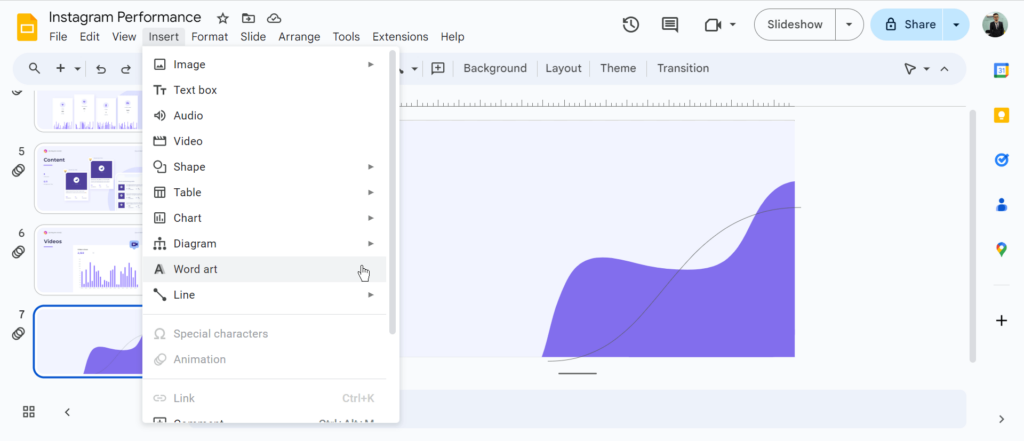
3. Insert Word Art: Navigate to the “Insert” tab at the top of the screen and choose “Word Art” from the drop-down menu.
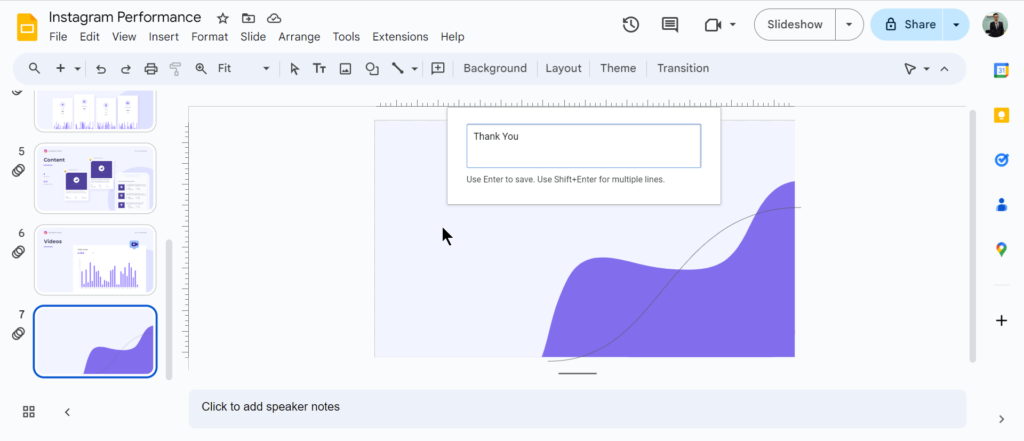
4. Enter Your Text: A text box will appear, prompting you to input the text you want to outline. Type your desired text into the box.
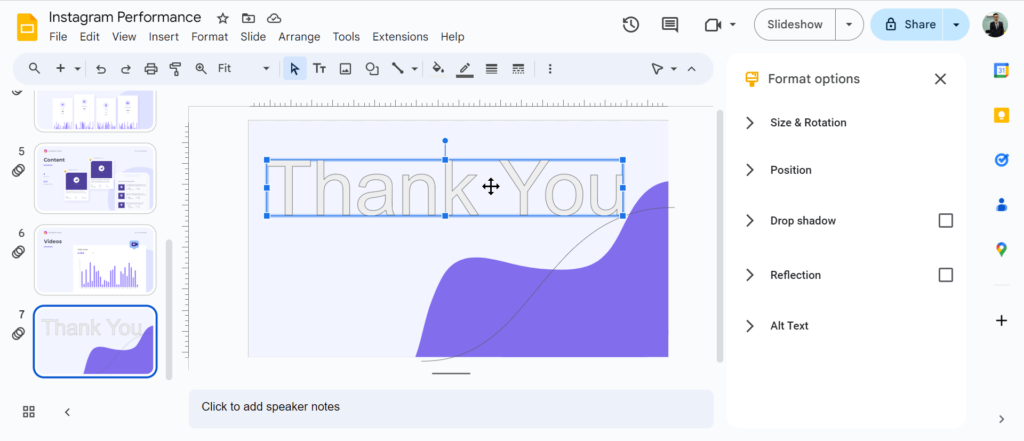
5. Customize the Text: Double-click the Word Art object to access the editing options. Here, you can modify the text, font, size, and other formatting elements.
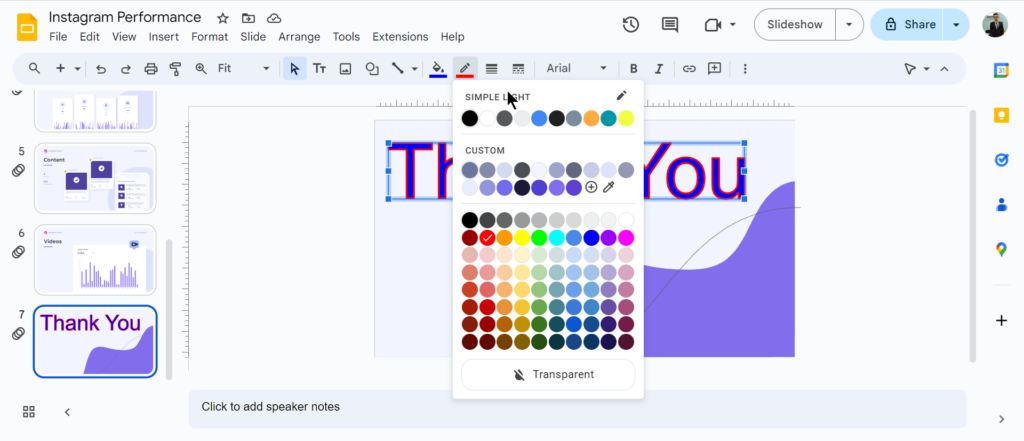
6. Apply the Outline: Once you’ve finalized the text, use the formatting toolbar at the top of the screen to select the desired font color, border color, and border weight. These choices will determine the appearance of the outline.
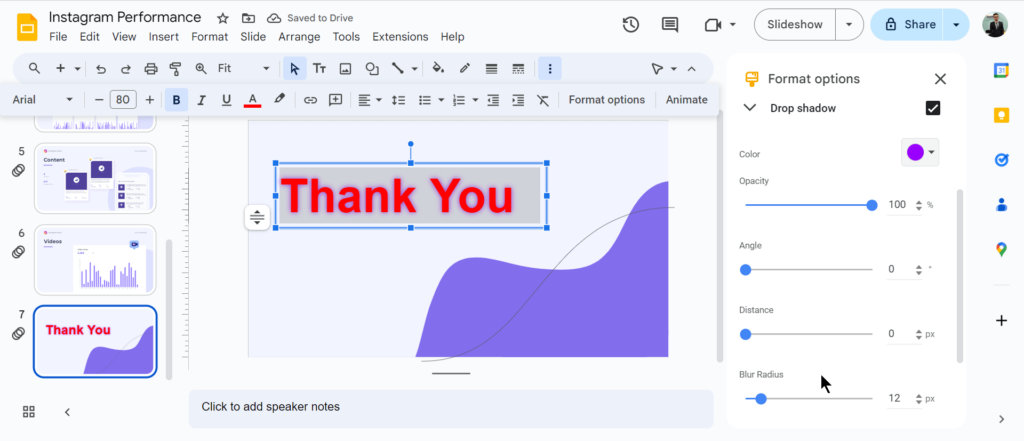
7. Add Effects (optional): For a more sophisticated look, consider adding a drop shadow or reflection to the text. To do this, select the Word Art object and click on the “Format options” button on the toolbar. Alternatively, right-click the text and select “Format options” from the pop-up menu.
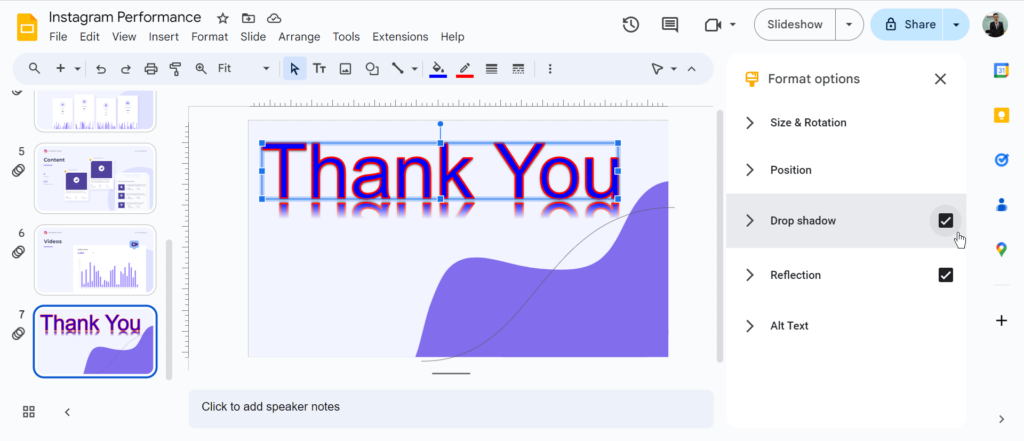
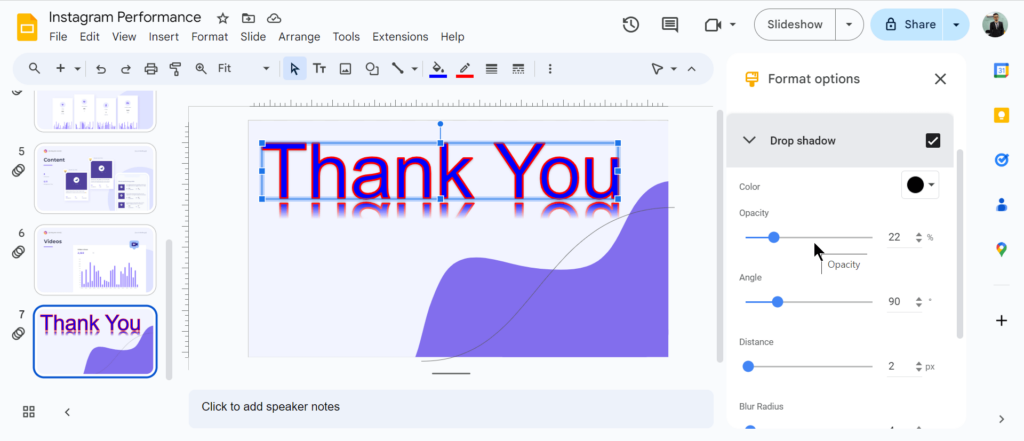
8. Customize Effects: In the “Format options” menu that appears on the right side of the screen, locate the “Drop shadow” and “Reflection” checkboxes. Check these boxes to enable the corresponding effects. You can further customize the appearance of these effects by adjusting the settings below the checkboxes.
Method 2: Add Outline Text in Google Slides using Text Box
1. Open Your Google Slides Presentation: Start by opening the presentation where you want to add the outlined text box.
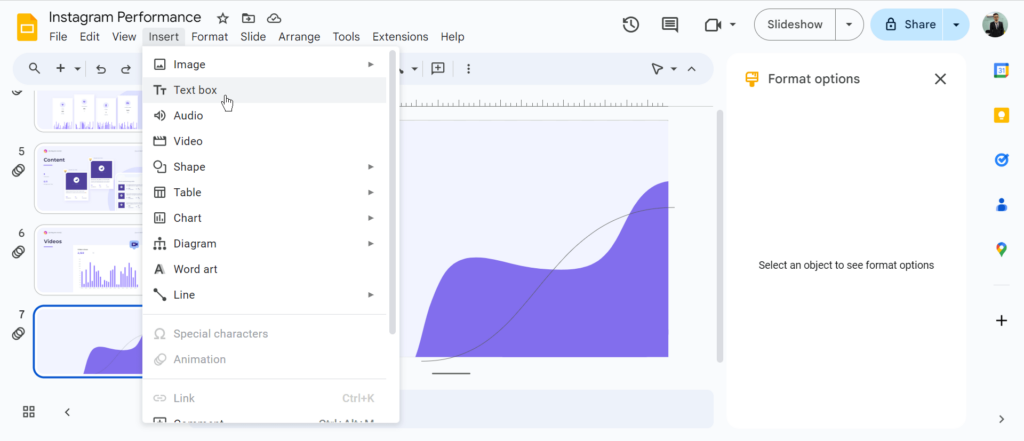
2. Insert a Text Box: Click on the “Insert” menu at the top of the screen and then select “Text box.” A text box will appear on your slide.
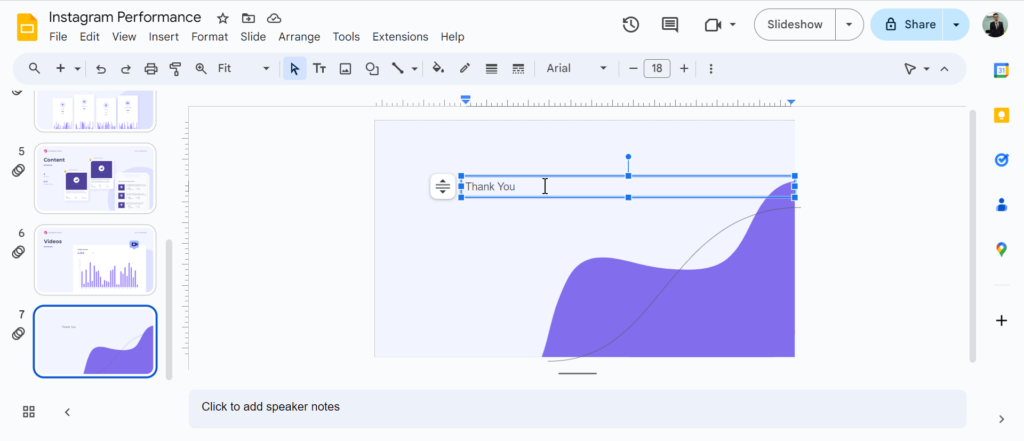
3. Add your Text: Type or paste your desired text into the text box.
4. Customize the Appearance: Use the formatting options on the toolbar to change the font color, border color, shadow, and border weight. This will allow you to personalize the look of your text box and its outline.
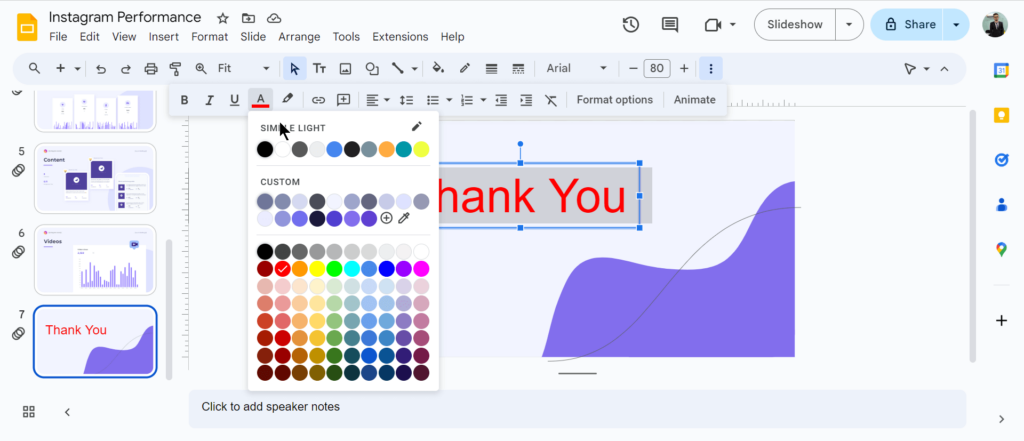
5. Create an Outline: To add an outline to your text box, select the entire box. Then, click on “Format options” in the top menu or right-click the text box and select drop shadow, reflection, or other effects to enhance the overall appearance of your text box and its outline.
Browse presentation templates to create visually stunning Google Slides with professionally designed layouts and typography.
Design Tips for Outlining Text in Google Slides
- Match the outline color to your slide’s accent color: Pulling the outline color from your existing palette keeps the slide cohesive, rather than making the text feel like an afterthought.
- Use a thinner border for body text, thicker for titles: A heavy outline on small text looks cluttered. Save the bold borders for headlines where the size can carry the weight.
- Try a white outline on dark or photo backgrounds: White outlines work universally well on busy or dark slides because they create clean contrast without clashing with the background colors.
- Don’t outline every text element on the slide: Overusing outlined text can diminish its impact. Pick one focal point per slide and let everything else sit flat.
- Leave the fill color transparent for a hollow text effect: Removing the fill and keeping only the border gives your text a modern, editorial look that works well on bold-colored backgrounds.
- Keep the outline subtle on professional or corporate decks: A 1–2pt border in a neutral color adds polish without drawing attention to itself. Save the thick, colorful outlines for creative or casual presentations.
Closing Thoughts
Outlining text in Google Slides is a quick way to make your presentations more engaging and easier to follow. By using Word Art or a text box, you can add a simple outline that highlights key points and improves readability. Give it a try to make your slides stand out with minimal effort.
Need more than outlined text? Use an AI Google Slides Creator to create beautifully designed presentations with professional typography, layouts, and visuals in minutes.
Create Presentations Easily in Google Slides and PowerPoint
14M+Installs
 Install add-in
Frequently Asked Questions About Adding Outlines to Text in Google Slides?
Can I add outlines to my text in Google Slides?
Yes, you can. Google Slides lets you customize your text with outlines in various colors and thicknesses.
Will outlining text change the font style or size?
No, it won’t. Outlines are purely for visual enhancement and don’t affect the underlying text formatting.
Can I adjust the outline thickness?
Absolutely. You can choose from different thicknesses to get the desired look for your text.
Will adding outlines make my presentation file larger?
Usually not. Outlines are typically lightweight and don’t significantly increase file size.
Can I add shadows to my text?
Yes, you can. Just highlight the text and use the Format Options menu to add a drop shadow effect.