
Have you ever added an image to your PowerPoint presentation and found it filled with unnecessary background details? Cropping is a simple way to clean up your images, focusing your audience on the important parts that support your message. By cropping, you can:
- Highlight Important Details: Remove distractions and make sure your audience sees the most important information.
- Improve Visual Design: Cropping can create a cleaner and more balanced look on your slides.
- Make Your Presentation Look Better: A well-cropped image can add a professional touch to your presentation.
Let’s learn how to crop an image in PowerPoint!
How to Crop an Image in PowerPoint?
Step 1: Insert or Select Your Image
- Open your presentation and click on the image you want to crop.
- If the image is not inserted yet, go to Insert → Pictures and choose your file.
Step 2: Open the Picture Format Tab
- Once the image is selected, the Picture Format tab will appear in the ribbon.
Step 3: Click the Crop Button
- In the ribbon, click on Crop. Black crop handles will appear around the image.
Step 4: Adjust the Crop Handles
- Drag the black handles inward to remove unwanted areas.
- Move the image inside the crop frame if needed.
Step 5: Apply the Crop
Press Enter or click outside the image to finalize the crop.
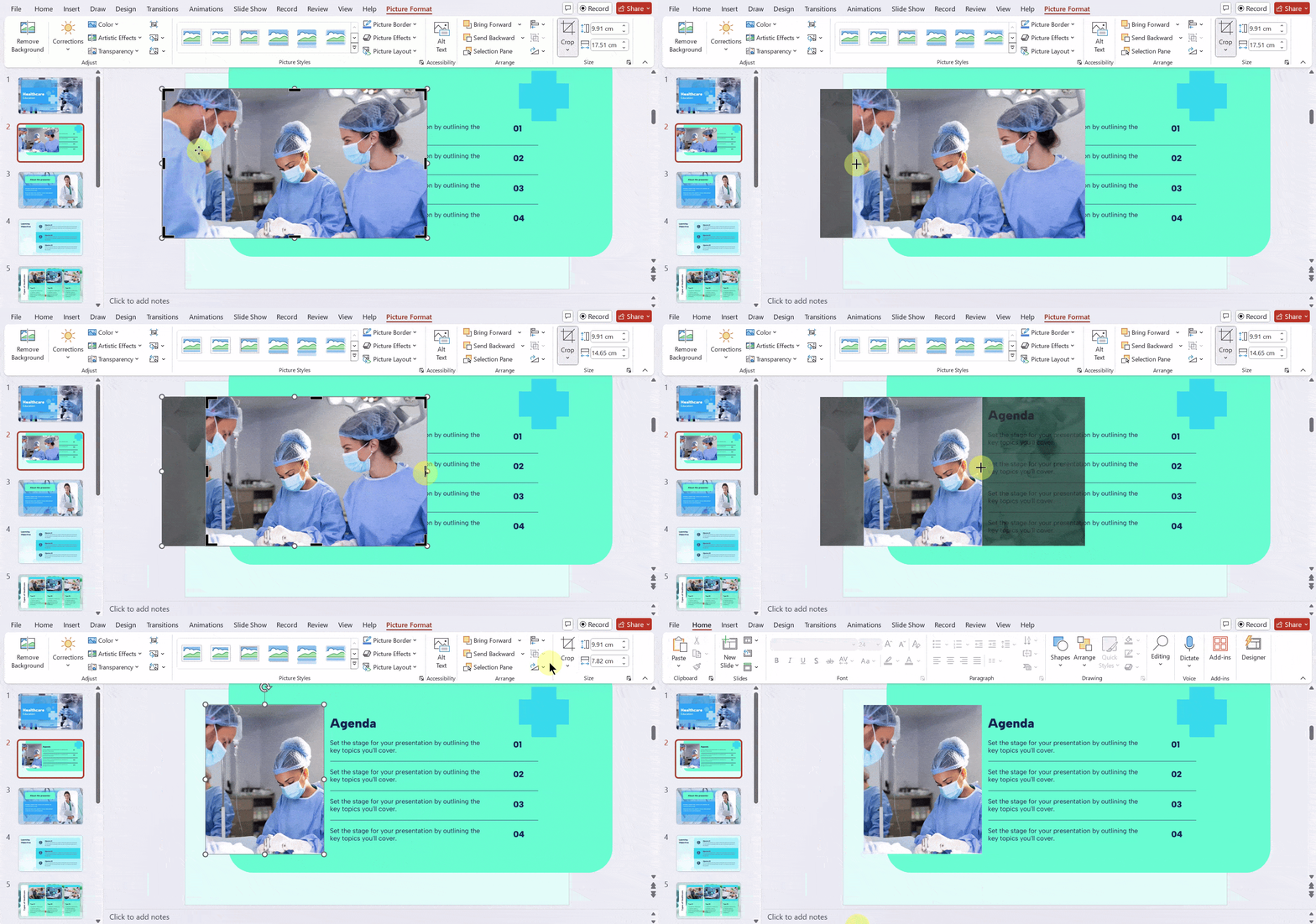
Tip: To maintain the original aspect ratio of your image while cropping, hold down the Ctrl key on your keyboard as you drag a corner handle. This will ensure that the image proportions remain consistent.
How to Crop to an Aspect Ratio in PowerPoint?
PowerPoint provides a convenient way to crop your images to predefined aspect ratios. To do this:
Step 1: Select the Image
- Click on the image you want to crop.
Step 2: Open Crop Options
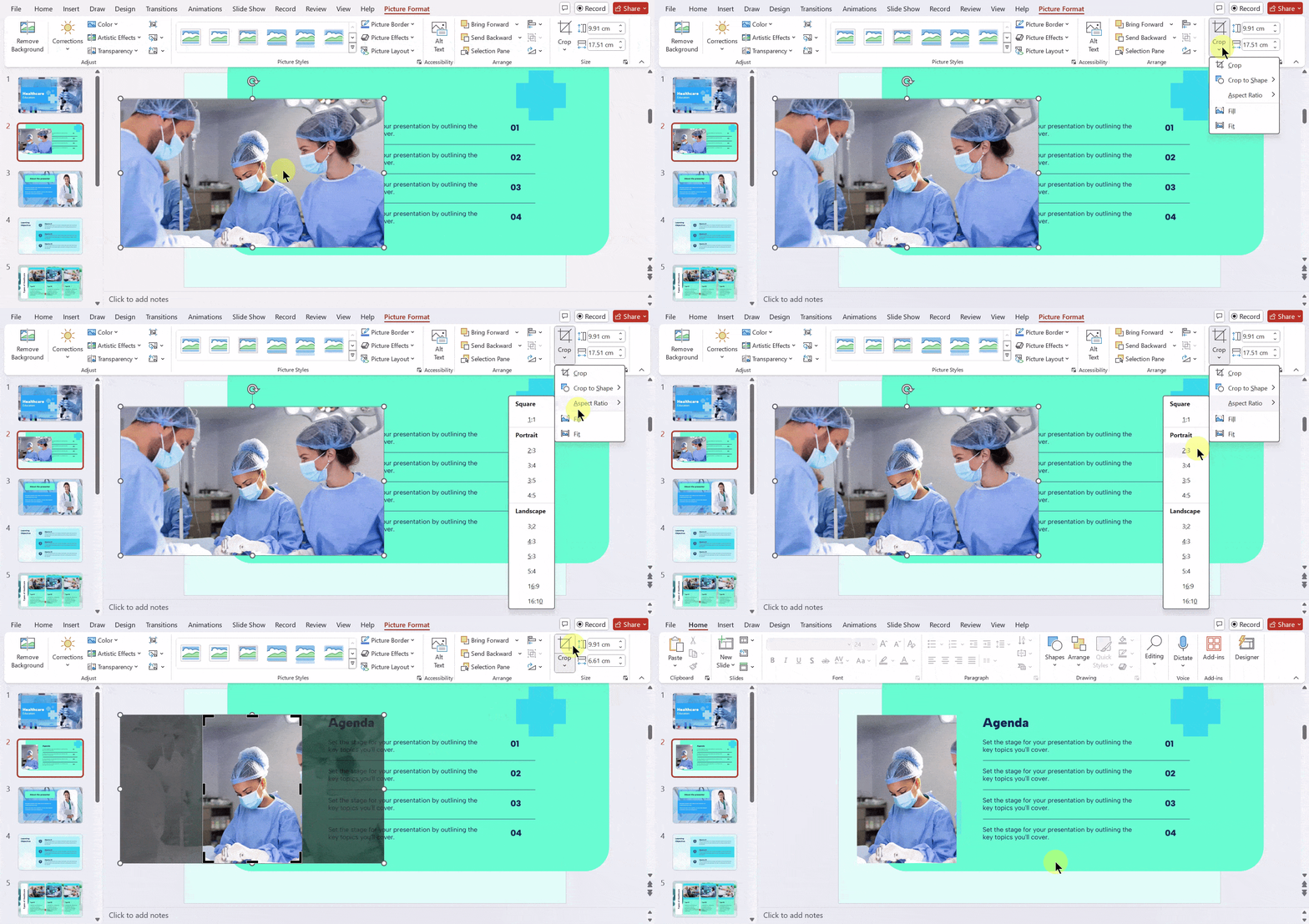
- Go to Picture Format → Crop (dropdown arrow).
Step 3: Select Aspect Ratio
- Click Aspect Ratio and choose your preferred ratio (1:1, 16:9, 4:3, etc.).
Step 4: Reposition and Apply
- Adjust the image placement within the crop frame and click outside to finalize.
Read Related – How to Make a Collage in PowerPoint
How to Crop a Picture to a Shape in PowerPoint?
If you want to give your image a more unique shape, PowerPoint offers the “Crop to Shape” feature:
Step 1: Select the Image
- Click on the image you want to modify.
Step 2: Open Crop Options
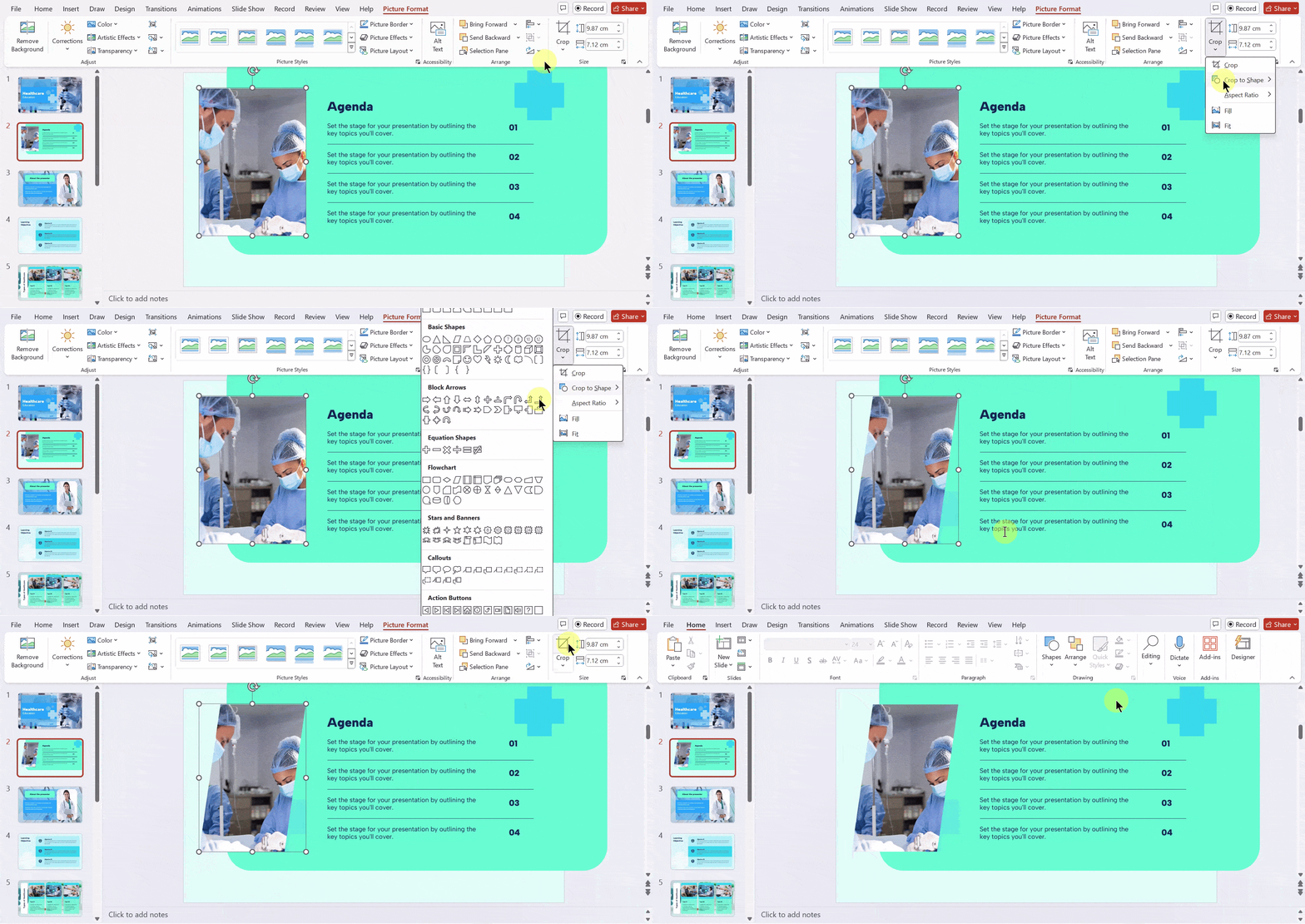
- Go to Picture Format → Crop (dropdown arrow).
Step 3: Choose Crop to Shape
- Select Crop to Shape, then pick your desired shape (e.g., circle, rectangle).
Step 4: Adjust and Apply
- Resize or reposition the image inside the shape, then click outside to apply.
How to Crop to an Aspect Ratio in PowerPoint?
Step 1: Select the Image
- Click on the image you want to crop.
Step 2: Open Crop Options
- Go to Picture Format → Crop (dropdown arrow).
Step 3: Select Aspect Ratio
- Click Aspect Ratio and choose your preferred ratio (1:1, 16:9, 4:3, etc.).
Step 4: Reposition and Apply
- Adjust the image placement within the crop frame and click outside to finalize.
Read Related – How to Format a Picture in PowerPoint
How to Crop Multiple Images at Once in PowerPoint?
Step 1: Select Multiple Images
- Hold Ctrl (Windows) or Cmd (Mac) and click each image you want to edit.
Step 2: Open Crop Options
- Go to the Picture Format tab and click the Crop dropdown arrow.
Step 3: Choose Crop to Shape
- Select Crop to Shape and choose your preferred shape.
Step 4: Apply the Changes
- Click outside the images to apply the crop shape to all selected pictures.
Closing Thoughts
Cropping an image in PowerPoint is a straightforward way to enhance your presentation by focusing on what truly matters. With just a few clicks, you can remove distractions and create a cleaner, more polished look. Try these steps to give your slides a professional edge.
Need polished visuals beyond simple image edits? Create professional presentations faster with an AI PowerPoint generator.
Take Your PowerPoint From Basic to Professional With SlidesAI
- Improve your slide content with AI
- Create polished layouts faster
- Work directly inside PowerPoint


Frequently Asked Questions About Cropping an Image in PowerPoint
How can I undo a crop in PowerPoint?
You can easily undo a crop by pressing “Ctrl + Z” or using the “Undo” button.
Does cropping affect image resolution?
Cropping itself doesn’t change resolution. However, excessive cropping can reduce image quality.
Can I crop multiple images at once?
No, you’ll need to crop each image individually in PowerPoint.
Are there preset aspect ratios for cropping?
Yes, PowerPoint offers common aspect ratios. You can also create custom dimensions.
How do I maintain image proportions?
While cropping, hold down the Ctrl key to keep the original aspect ratio.