Slides Design

How to Change the Layers on Google Slides?

How to Change the Layers on Google Slides?

Layering in Google Slides is a technique where you can arrange objects on top of each other to create a visually appealing and organized presentation. Just like real-world layers, objects placed higher in the stacking order appear on top of those placed lower.

How to Make Aesthetic Google Slides?

How to Make Aesthetic Google Slides?

Are your Google Slides presentations feeling a bit plain? If you want to make them more visually appealing and grab your audience’s attention, creating aesthetic Google Slides can make a big difference.

How to Outline Text in Google Slides?

How to Outline Text in Google Slides?

When creating a presentation in Google Slides, adding an outline to your text can be a simple yet effective way to make your slides more readable and visually appealing. Outlined text helps organize your content, making it easier for your audience to follow along.

How to Make a Brochure on Google Slides?

How to Make a Brochure on Google Slides?

A brochure is a folded, printed document used for advertising or providing information. Whether you’re promoting a product, service, or event, a well-designed brochure can be a powerful marketing tool.

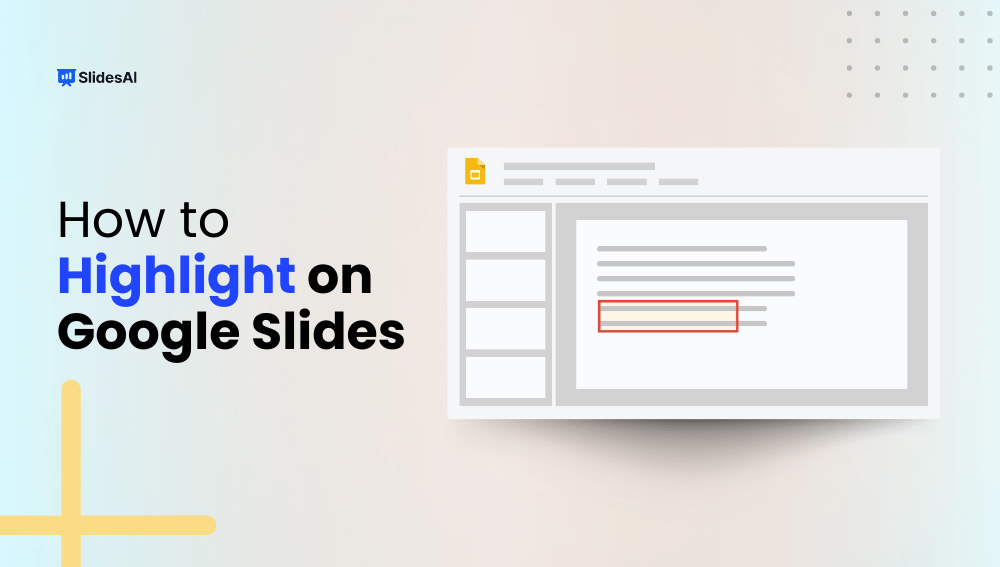
How to Highlight on Google Slides?

How to Highlight on Google Slides?

Highlighting text is a common technique used to emphasize key points or draw attention to specific information within a document or presentation. It helps improve readability and makes your content easier to follow. While Google Slides doesn’t offer a traditional highlighter tool like you might find in a word processor, it does provide a “Highlight Color” feature that allows you to color-code your text for emphasis.

How to Subscript and Superscript in Google Slides?

How to Subscript and Superscript in Google Slides?

Consider the iconic formula: E=mc², Einstein’s equation of relativity. It wouldn’t carry the same meaning if written as E=mc2, would it? While many use the simpler version because it’s well-known and won’t lead to confusion, the precise notation matters. This is where superscript and subscript come into play. Do you know how to use them in equations, trademarks, or footnotes in your presentations? Let’s explore how.

How to Change Background on Google Slides?

How to Change Background on Google Slides?

Creating a presentation involves more than just the content you share. It’s also about how you present that information in a way that’s engaging and easy to follow. Visually appealing slides can hold your audience’s attention and make your message more memorable. One simple yet effective way to achieve this is by customizing the backgrounds of your slides in Google Slides.

How to Bring an Image Forward in Google Slides?

How to Bring an Image Forward in Google Slides?

Pictures can be a great way to get your point across in a presentation. If you’re using Google Slides, a popular tool for making presentations, you can change how pictures are layered on top of each other. This can be helpful if you want one picture to stand out more than the others. This guide will show you the easy steps to do this in Google Slides. Without waiting further, let’s jump right into it. 

How to Make an Image a Circle in Google Slides?

How to Make an Image a Circle in Google Slides?

Google Slides offers a lot of flexibility when it comes to creating presentations, and one way to make them more visually interesting is by adjusting the shapes of your images.

How to Add Word Art in Google Slides?

How to Add Word Art in Google Slides?

Do you ever want your presentations to stand out a bit more? Maybe you’d like something more interesting than just bullet points and plain text. If so, then Word Art in Google Slides might be a good option for you! This feature lets you change your text into fun shapes and styles, making it more eye-catching and helping you emphasize your points. Whether you’re making a presentation for school, work, or even for fun, Word Art can add a creative touch. And the good news? It’s very easy to use! This blog post will show you the simple steps to add Word Art to your Google Slides presentations, so you can take them from ordinary to extraordinary. Without waiting further, let’s dive in.

How to Change the Opacity of a Shape in Google Slides?

How to Change the Opacity of a Shape in Google Slides?

Shapes are a versatile tool in Google Slides, allowing you to create visuals, diagrams, and callouts to enhance your presentations. But sometimes, a completely solid shape might overpower the background content or text. Here’s where adjusting the opacity of your shape comes in. By making your shape partially transparent, you can achieve a more layered and visually appealing presentation.

How To Add Watermark To Google Slides?

How To Add Watermark To Google Slides?

Do you sometimes see a faint logo or text appearing in the background of an image or document? That’s a watermark, a useful way to add a subtle mark of ownership to your digital work. But how do you add a watermark to Google Slides presentations, and why might you want to use one?

How to Crop an Image in Google Slides? The Simplest Way

How to Crop an Image in Google Slides? The Simplest Way

Sometimes, pictures can take up too much space on a slide, making it hard to fit in text or other important elements. Cropping them can tidy things up, giving your slide a more balanced look. In the default and SlidesAI-provided Google Slides presentation templates, you can easily crop and mask images with shapes to improve your design and make sure everything fits just right.

How to Add Fonts to Google Slides? A Step-by-Step Guide

How to Add Fonts to Google Slides? A Step-by-Step Guide

Some experts say it’s important to use the right amount of text in your presentations. If there’s too much, people might not want to read it all. But if there’s too little, they might ignore the screen altogether.

Once you’ve got the text sorted, choosing the right font is key. A good font balances easy reading with a nice overall look for your design. When everything fits together well, it leaves a positive impression on your audience. They’ll be impressed with how your text appears.

So, in this article, you’ll learn how to change fonts in your presentation. You’ll also discover how to add new fonts in Google Slides.
How to Wrap Text in Google Slides?

How to Wrap Text in Google Slides?

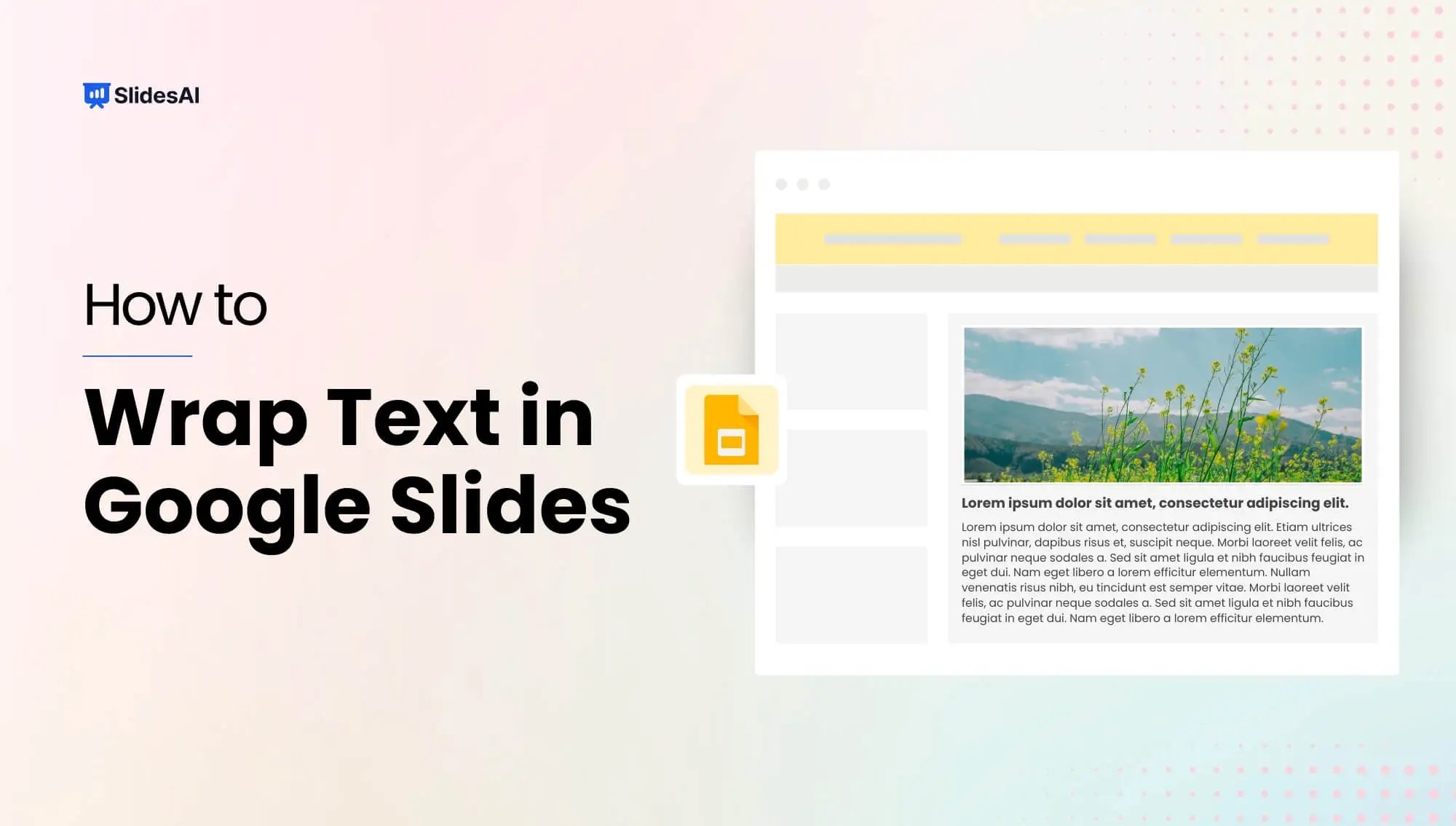
In Google Slides, combining text with images can make your presentations more impactful. While text wrapping isn’t directly available like in some other presentation tools, you can achieve a similar effect by positioning text boxes strategically. This guide will walk you through how to cleverly position text boxes to wrap text around images in Google Slides, enhancing readability and the overall look of your presentations.

How to Group or Ungroup in Google Slides?

How to Group or Ungroup in Google Slides?

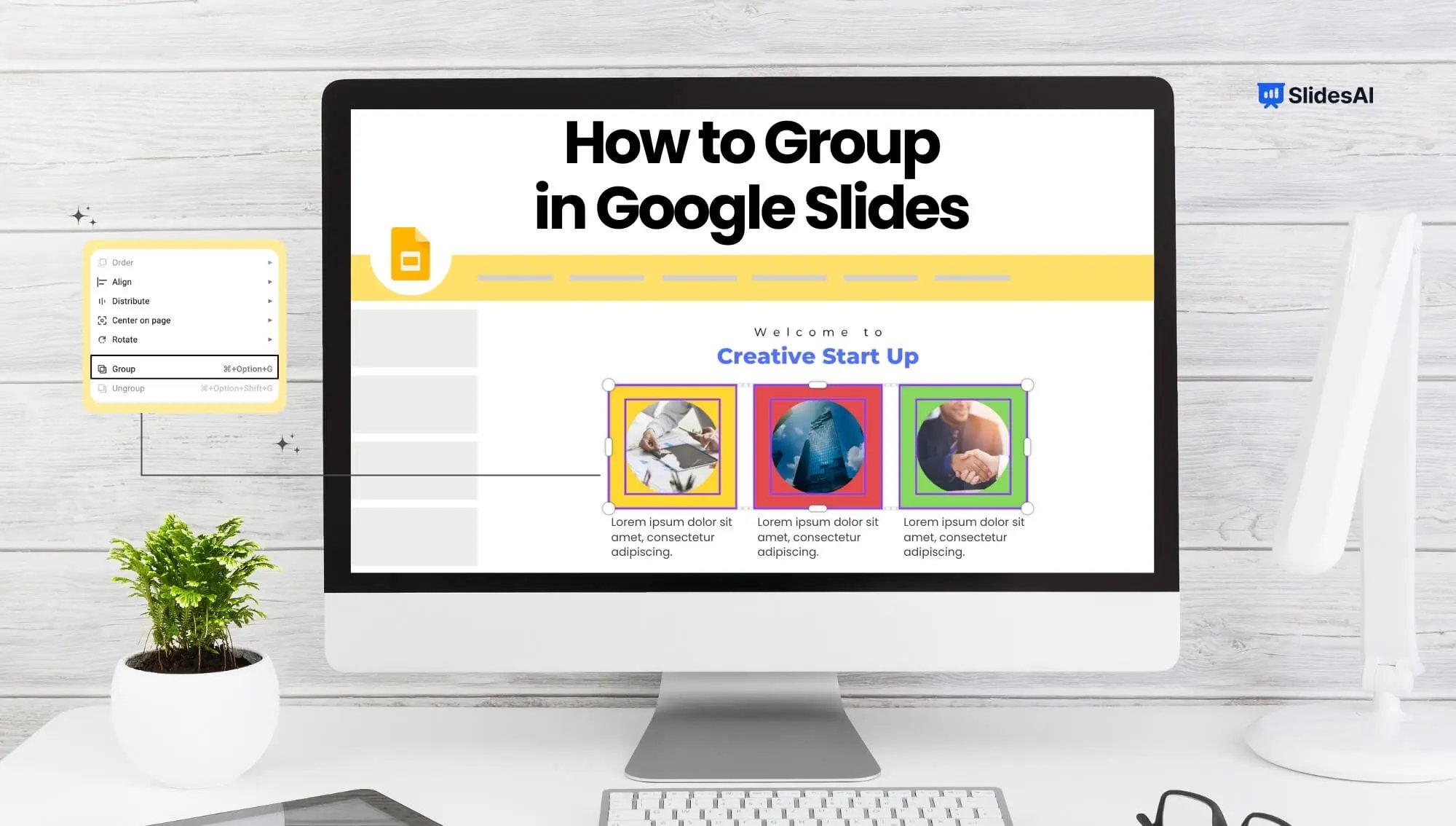
If you’re struggling to organize elements in your Google Slides presentation, this tutorial is here to help. We’ll walk you through the simple process of grouping and ungrouping objects on a slide, making it easier for you to rearrange things.

Lock an Image or an Object in Google Slides

Lock an Image or an Object in Google Slides

Google Slides, a helpful online presentation tool, keeps adding new features to make slides better. One new feature they’ve added lets you lock images and objects in place, which means they won’t move around by mistake when you’re working on a presentation with others.

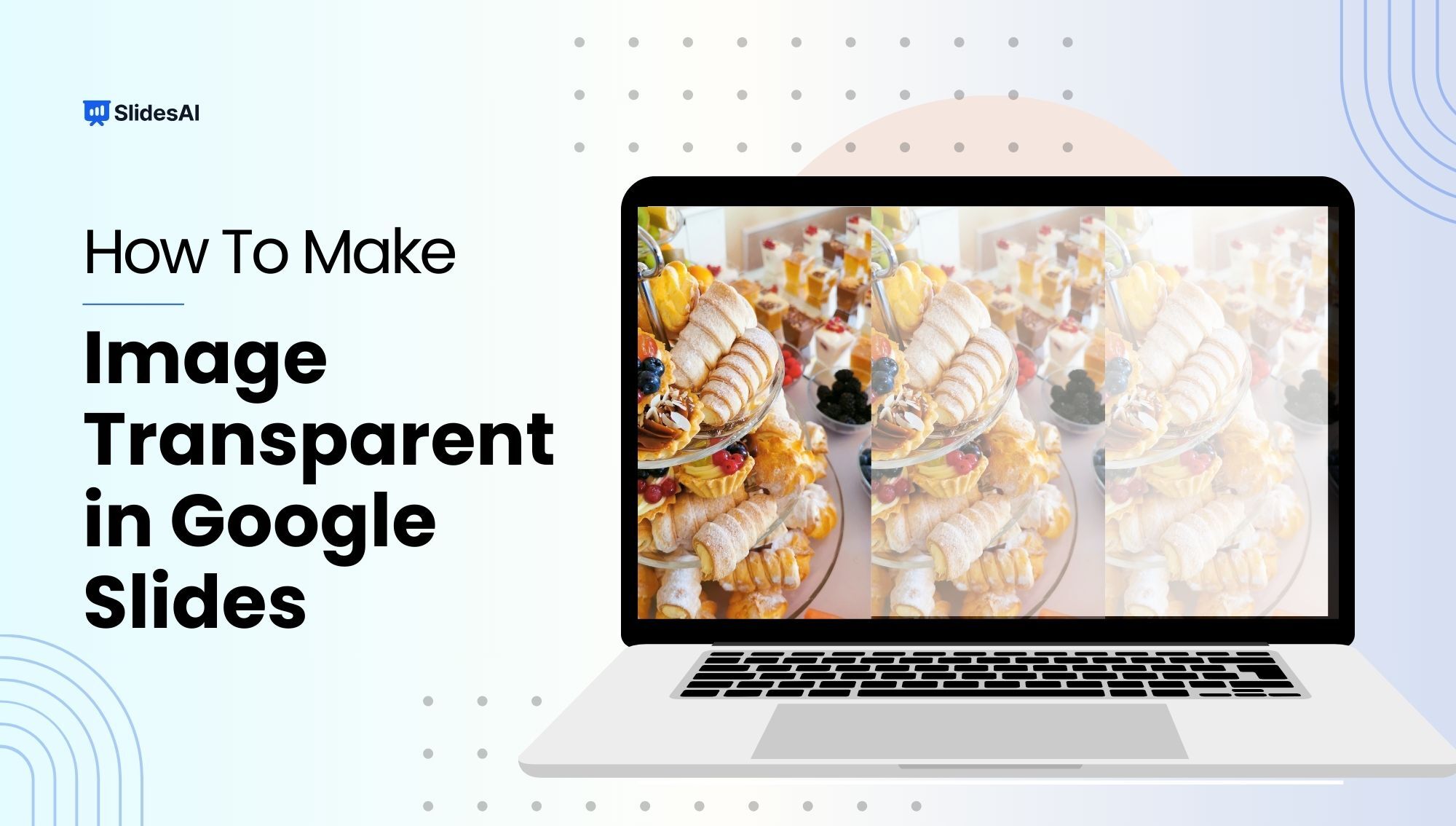
How to Make an Image Transparent in Google Slides​?

How to Make an Image Transparent in Google Slides​?

When making a presentation or a slide, using images is crucial, even in educational settings. It’s important to present a clear idea or objective to the audience. Making sure that the visuals, words, and backgrounds are well-matched helps convey the complete message effectively.

How to Change the Size of a Google Slide? A Step-by-Step Tutorial

How to Change the Size of a Google Slide? A Step-by-Step Tutorial

The size of your slides is crucial, especially when presenting on big screens or for different types of content. For larger screens, using a widescreen format is essential, and you might need to tweak it to fit perfectly. Likewise, certain infographics and illustrations may need adjustments in slide orientation to show up right during your presentation. Just like in PowerPoint, you can also modify slide dimensions in Google Slides.

How to Import Themes into Google Slides – 6 Simple Steps

How to Import Themes into Google Slides – 6 Simple Steps

How long have you been staring at that default white Google Slides theme and wishing you could make your presentations reflect your own style? We’ve

How To Make Google Slides Vertical?

How To Make Google Slides Vertical?

Traditional landscape mode slides are well-suited for laptop or desktop viewing, but they fall short in terms of mobile convenience, limiting the implementation of certain graphics and charts at times. In such cases, you need a vertical aspect ratio.

How To Do Hanging Indent On Google Slides: 3 Easy Ways

How To Do Hanging Indent On Google Slides: 3 Easy Ways

To create a hanging indent in Google Slides, select your text, go to Format → Format options → Text fitting, and set “Special” to Hanging.