Interactivity Slides Animation

How to Make an Object Bounce in Google Slides (Quick Guide)

How to Make an Object Bounce in Google Slides (Quick Guide)

Want to add a fun, eye-catching bounce effect to your Google Slides presentation? While Google Slides doesn’t offer traditional keyframe animation, there’s a clever workaround to make an object bounce in Google Slides via slide duplication. It’s simple, engaging, and perfect for teachers, students, and designers looking to add a creative touch. Don’t want to […]

How to Make a Family Feud Game on Google Slides?

How to Make a Family Feud Game on Google Slides?

Are you teaching a class, running a team-building session, or planning a family night? In any case, turning your slides into a game can make everything way more fun.

How to Create a Quiz in Google Slides?

How to Create a Quiz in Google Slides?

Creating engaging quizzes is more than just putting together a few questions and calling it a day. It’s about crafting an engaging experience that captivates your audience. One of the versatile platforms to create interactive quizzes is Google Slides.

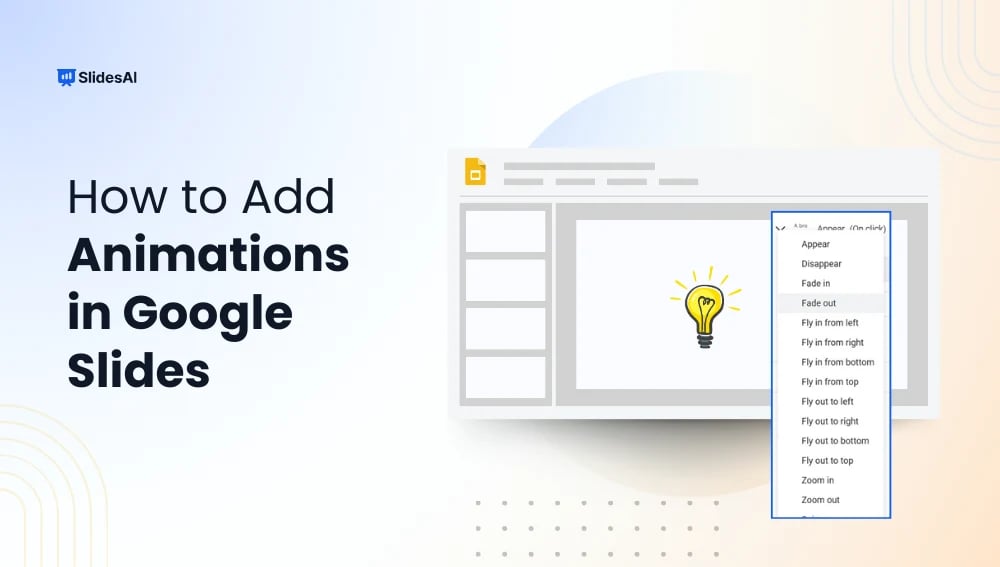
How to Add Google Slides Animations?

How to Add Google Slides Animations?

Learn about Google Slides animations in this easy tutorial. Step-by-step guide to animating text and images, adding GIFs, and looping animations.

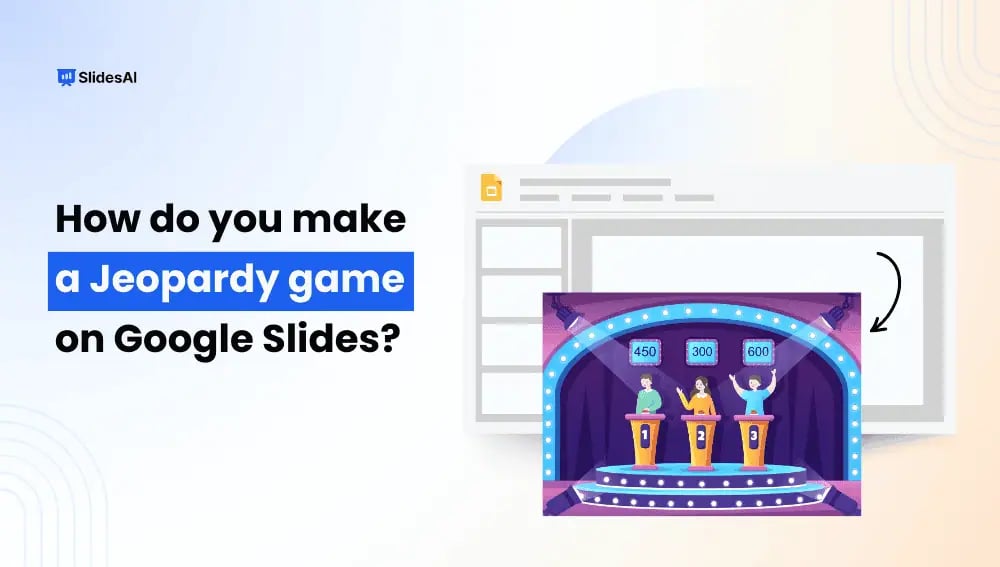
How to Make a Jeopardy Game on Google Slides?

How to Make a Jeopardy Game on Google Slides?

Jeopardy is a fun quiz-style game where players answer questions based on different categories, earning points for correct answers. It’s great for classrooms, training sessions, or even game nights with friends. You can use it to test knowledge, make learning interactive, or just have a good time. Instead of writing questions on a board or using expensive software, you can easily create your own Jeopardy game using Google Slides.

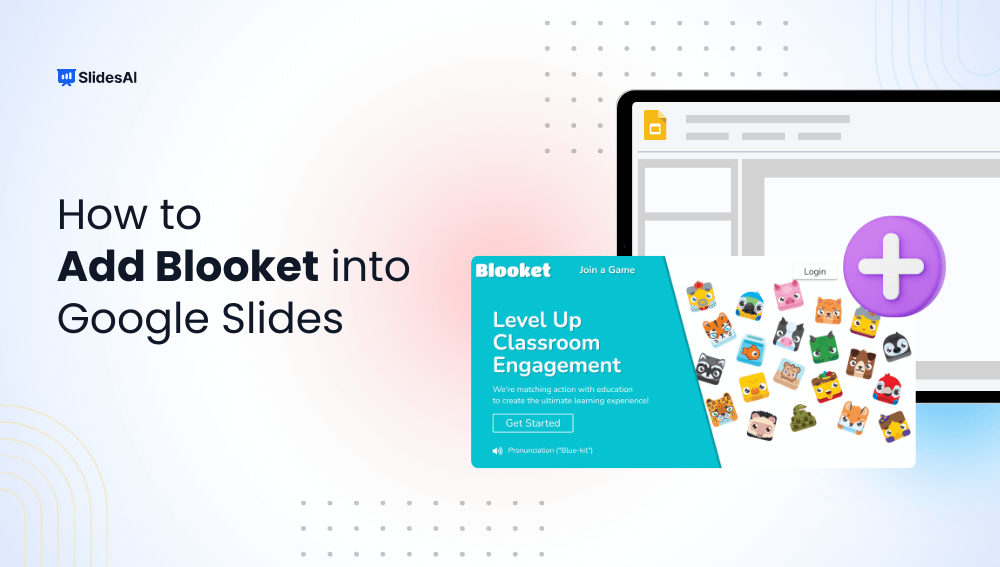
How to Add Blooket Into Google Slides?

How to Add Blooket Into Google Slides?

Adding Blooket to Google Slides is a simple yet powerful way to make your presentations more interactive and engaging. Instead of switching between multiple tabs

How to Play Google Slides on Loop?

How to Play Google Slides on Loop?

Creating presentations in Google Slides is becoming more and more popular. With its many features, even people who aren’t design experts can make professional-looking slideshows.
One of the cool things about Google Slides is that you can make your presentations play automatically. This means your slides will change and animate without you having to do anything. This can make your presentation look smoother and more polished.

How to Time Slides on Google Slides?

How to Time Slides on Google Slides?

To time slides in Google Slides, start your presentation and click the three-dot menu in the bottom-left corner. Choose Autoplay, select the desired time interval,

8 Ways To Make Interactive Google Slides

8 Ways To Make Interactive Google Slides

Google Slides lets you create presentations that are anything but boring. This guide unlocks the secrets to making your presentations interactive and dynamic, keeping your audience engaged from start to finish. We’ll walk you through everything you need to know, from clickable elements that jump to different sections to embedding multimedia that brings your content to life. Get ready to craft presentations that leave a lasting impression!

How to Hyperlink in Google Slides?

How to Hyperlink in Google Slides?

A hyperlink is like a clickable link that takes you to another document, webpage, or even a specific part of a presentation. Adding hyperlinks to your Google Slides presentation can provide your audience with additional information on the topic.

How to Add a Timer to Google Slides? 2 Easy Methods

How to Add a Timer to Google Slides? 2 Easy Methods

In professional presentations, timing is crucial. Adding a timer to your Google Slides can keep you on track and your audience engaged. In this guide, we’ll explore simple ways to integrate timers, like embedding YouTube countdowns or using timer add-ons. These techniques ensure your presentation flows smoothly and captivates your audience from start to finish.

How to Add Transitions on Google Slides?

How to Add Transitions on Google Slides?

Learn how to add transitions to Google Slides to make your presentation more dynamic. Also learn how to set auto-advance timings, and delete transitions.