

Are you teaching a class, running a team-building session, or planning a family night? In any case, turning your slides into a game can make everything way more fun.
Do you know that you can totally recreate the Family Feud game experience using Google Slides? No fancy software. No coding. Just a bit of set-up and you are good to go. If you’ve never done it before, don’t worry! This guide walks you through the whole process step by step.
How to Make a Family Feud Game on Google Slides: A Step-by-Step Guide
Creating your own family feud game presentation from scratch may sound a bit challenging. But, honestly, it’s not too bad once you get going. Here’s how to do it.
Step 1: Pick a Theme or Topic
First things first, figure out what your game is going to be about.
Are you making it for students? Perhaps you’d like to quiz your coworkers on company trivia or simply play with friends. Select a topic that resonates with your audience and is engaging. That helps you come up with great questions.
Step 2: Open Google Slides and Set-up a Welcome Slide
Head to Google Slides and open a blank presentation.
Use the first slide as your game’s welcome screen. You can title it something like “Let’s Play Family Feud!” or whatever matches your vibe. Add a background, some interesting text, and optionally, an image. It’s your call!
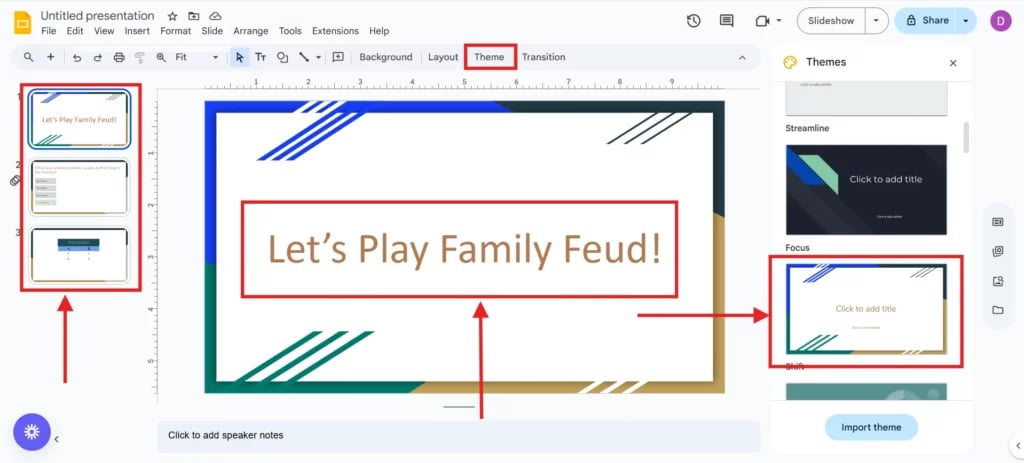
Step 3: Add a Question Slide
Add a new slide for your first game question.
Type your question at the top. You can have something like, what “XYZ” family member does first thing in the morning. Below that, leave some space where you’ll eventually show the answers.
Pro tip: Use individual text boxes where each answer will go later.
Step 4: Add the Real Answers (But Hide Them!)
Now that you’ve got your question, you’ll need the answers.
Type them in, but don’t reveal them just yet! To hide them:
- Add a shape (like a rectangle) over each answer.
- Fill it in with the same color as your background. This makes the text “invisible” until you reveal it during the game.
Keep the suspense while people guess!
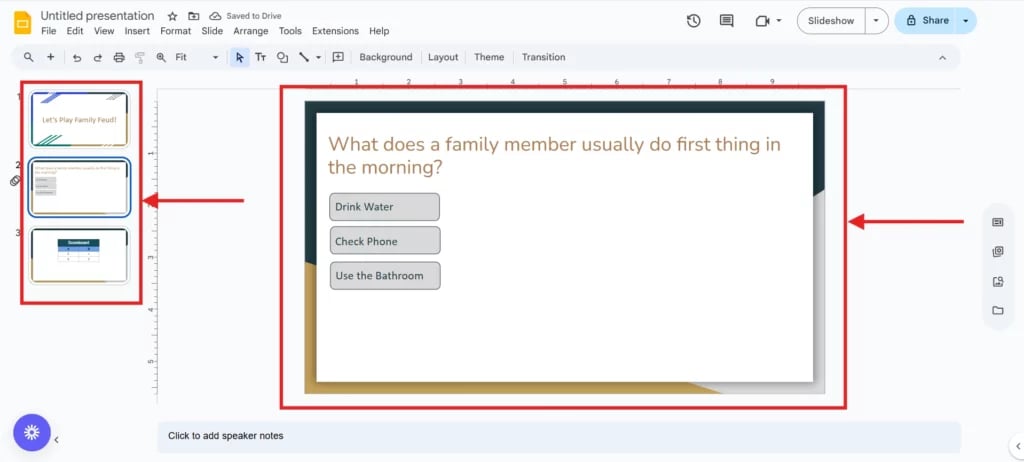
Step 5: Animate the Reveal
Time for a little magic.
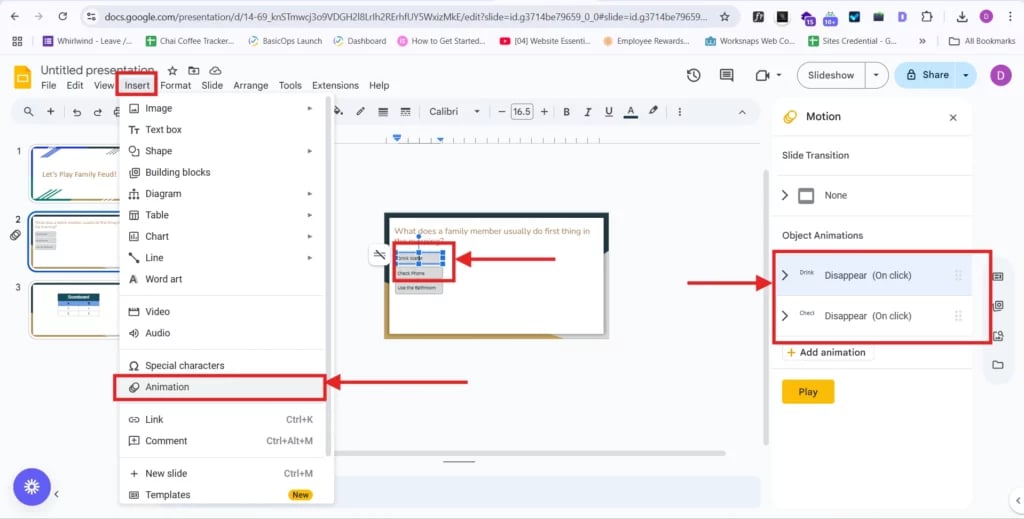
- Click on each shape that’s hiding an answer.
- Go to “Insert” > “Animation”.
- Choose something simple like “Disappear on click.”
Now, when you click during your game, each answer will pop up one by one, just like in the real Family Feud.
Step 6: Set-up a Scoreboard Slide
You’ll want to keep track of who is winning.
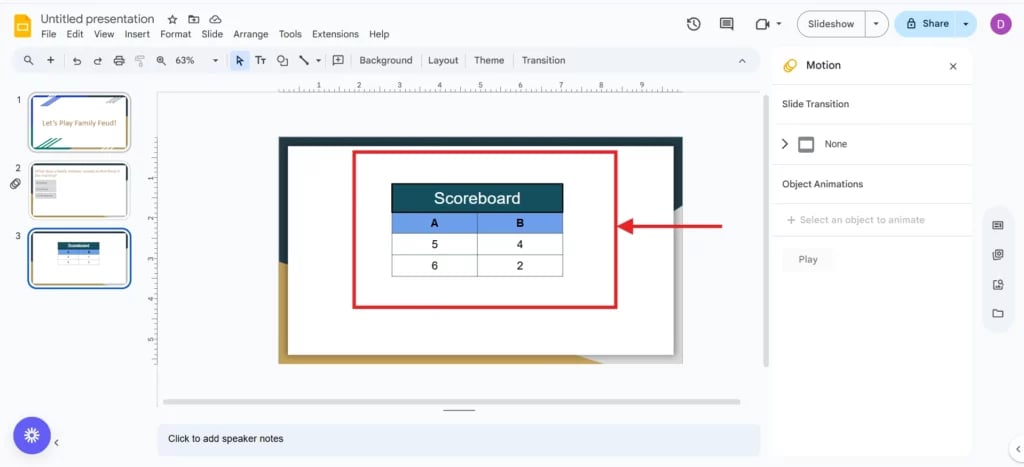
Create another slide and split it into sections for each team. Add boxes or shapes where you can type in points. It doesn’t need to be super fancy. Even a simple score layout works just fine.
You can update scores manually as the game goes on, or just jot them down somewhere else.
Step 7: Add Sounds and Transitions (Optional, But Fun)
Want to take your game up a notch?
- Upload buzzer sounds, dings, or applause (“Insert > Audio”).
- Use engaging transitions between slides to build momentum and excitement.
- Add some icons, GIFs, or flashy fonts to give it more energy.
These little touches can really bring the game to life.
Step 8: Share and Play!
Once you’ve built your Family Feud game presentation, click “Present” and get ready to host.
Playing in person? Connect to a screen or projector. Hosting online? Just share your screen on Zoom or Google Meet.
Tip: Set the file to “View Only” before sharing to keep anyone from accidentally changing stuff.
Make Game Slides Faster With SlidesAI
Let’s be honest! Building a full family feud game for presentations takes time. If you are short on it (or just want something easier), SlidesAI’s pre-desigedn templates can help you out big time.
With SlidesAI, you get:
- Ready-to-go templates for games and quizzes
- Easy customization
- Polished designs that look super professional
You can even explore other fun formats like:
It’s a simple way to turn your ideas into something you are actually proud to present without spending hours designing every little detail.
Create AI presentations directly in Google Slides.
- No design skills required
- 3 presentations/month free
- Save directly in Google Slides

So, now you know how to make a family feud game on Google Slides. Try it once, and it gets easier. You’ll have your go-to format ready for next time, and people love the interactive twist.
Whether you are doing this for fun, work, or school, it is a great way to keep things lively. And if you want to make your game presentations faster (and look better), check out SlidesAI! It seriously saves time and makes everything way smoother.