
Not every presentation starts with the perfect length.
Sometimes you finish your slides and realize you have a 20 minute presentation slot, but your content only covers 10 minutes. Other times, the opposite happens. You prepare a detailed deck, only to find out you need to present everything in half the time.
This situation is common whether you’re a student preparing for a class project, a teacher creating a lesson presentation, or a professional presenting to clients or stakeholders. The challenge isn’t simply adding or removing slides. It’s making sure your presentation stays clear, engaging, and valuable for your audience.
The good news is that adjusting the length of a presentation doesn’t have to be difficult. With the right approach, you can shorten a presentation without losing important information or expand it without filling it with unnecessary content.
Let’s look at some practical ways to make your presentation shorter or longer.
Tips to Make Your Presentation Shorter
1. Cut Anything Unrelated to Your Core Message
One of the easiest ways to reduce presentation length is to remove content that doesn’t directly support your main objective.
As you review each slide, ask yourself a simple question: Does this help my audience understand my main point?
If the answer is no, consider removing it. Extra statistics, side discussions, lengthy background information, or unrelated examples often add time without adding much value.
A focused presentation is usually more memorable than one packed with information.
2. Have No More Than 3 Main Points
Many presentations try to cover too much at once.
Instead of discussing six or seven different ideas, narrow your focus to three main points. This helps your audience follow along more easily and makes your message easier to remember.
Think of your presentation as a story. Every section should support the central narrative rather than introducing entirely new topics.
3. Keep It to 5–10 Slides Max
More slides don’t always mean more value.
In many cases, a shorter presentation with fewer slides creates a stronger impact. Limiting yourself to 5 to 10 slides forces you to focus on the most important information.
This approach also helps avoid rushing through content or overwhelming your audience with too many details.
4. Use Images, Diagrams, and Graphs
A visual can often communicate information faster than several paragraphs of text.
Instead of explaining a process with multiple bullet points, use a simple diagram. Instead of describing trends in words, show them through a graph.
Visuals help audiences understand information quickly while reducing the amount of speaking time required.
5. Restrict the Number of Items in a List
Long bullet point lists can slow down your presentation.
If a slide contains ten different items, consider whether all of them are necessary. In many cases, you can combine similar points or keep only the most relevant ones.
A shorter list is easier to read, easier to explain, and easier for your audience to remember.
6. Remove Unnecessary Stories and Tighten Explanations
Stories can make presentations more engaging, but too many stories can stretch your presentation beyond its intended length.
Keep only the examples that directly support your message. For explanations, look for areas where you repeat the same idea in different ways.
A concise explanation often has more impact than a lengthy one.
7. Rehearse Your Stories and Delivery
Sometimes the problem isn’t the slides. It’s the delivery.
During practice sessions, many presenters discover they spend several minutes expanding on points that only require a few seconds.
Rehearsing helps you identify areas where you tend to overexplain or go off topic. It also improves confidence and allows you to stay within your time limit.
Tips to Make Your Presentation Longer
1. Expand the Depth of Content
If your presentation feels too short, don’t immediately add new topics.
Instead, explore your existing points in greater detail. Explain the reasoning behind your ideas, discuss how they work, or provide additional context.
Adding depth often creates more value than adding completely new sections.
2. Provide Relevant Examples and Case Studies
Examples help audiences connect with information.
If you’re discussing a strategy, include a real-world application. If you’re presenting research, explain how it affected a company, industry, or group of people.
Case studies and examples naturally increase presentation length while making content more engaging.
3. Add Relevant Visuals and Media
Images, videos, infographics, charts, and diagrams can help expand your presentation while improving understanding.
A short video clip, a comparison chart, or an infographic can create opportunities for discussion and explanation that wouldn’t exist with text alone.
Just make sure every visual supports your message rather than serving as decoration.
4. Include Interactive Elements and Audience Engagement
Audience participation is one of the best ways to extend presentation time meaningfully.
You might ask questions, conduct quick polls, encourage discussions, or include short activities related to your topic.
Interaction keeps people engaged and creates a more memorable experience.
5. Improve Your Presentation Structure
Sometimes a presentation feels short because it moves too quickly from one idea to the next.
Adding smoother transitions, section introductions, agenda slides, and summary slides can help create a more complete flow.
These elements provide structure while giving your audience time to absorb information.
6. Repeat Important Points
Repetition, when used carefully, helps reinforce learning.
You don’t need to repeat entire slides. Instead, revisit major takeaways at strategic points throughout the presentation.
This reinforces understanding and ensures your audience remembers the most important information.
7. Strengthen the Introduction and Conclusion
Many presenters spend most of their time on the main content and rush through the beginning and end.
A stronger introduction can provide context, explain why the topic matters, and set expectations. Likewise, a thoughtful conclusion can summarize insights, revisit major points, and encourage action.
Together, these sections can add meaningful length while improving the overall presentation.
How to Make Your Presentation Shorter Using SlidesAI?
Trimming a presentation manually can be one of the most time-consuming and frustrating parts of the process. It’s hard to know where to cut, easy to second-guess every slide, and even harder to rewrite dense text into something concise without losing the core message.
This is where SlidesAI can help.
Instead of manually rewriting every paragraph, you can use SlidesAI’s built-in text editing tools to quickly shorten content while maintaining clarity and meaning.
Step 1: Open Your Presentation
Open your presentation in Google Slides or PowerPoint and make sure your SlidesAI account is installed and set up.
Step 2: Open the Slide You Want to Shorten
Navigate to the slide that contains the text you want to reduce.
Step 3: Open SlidesAI
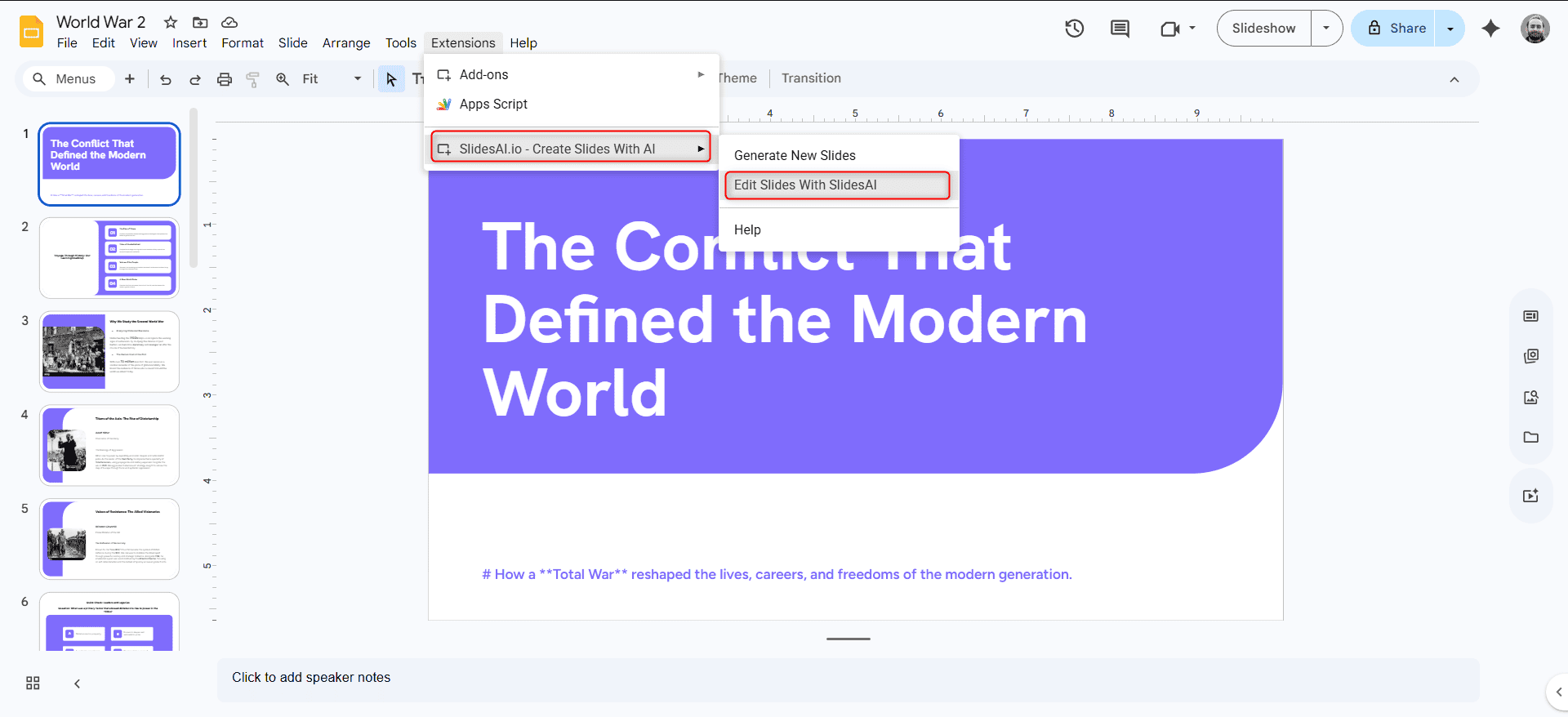
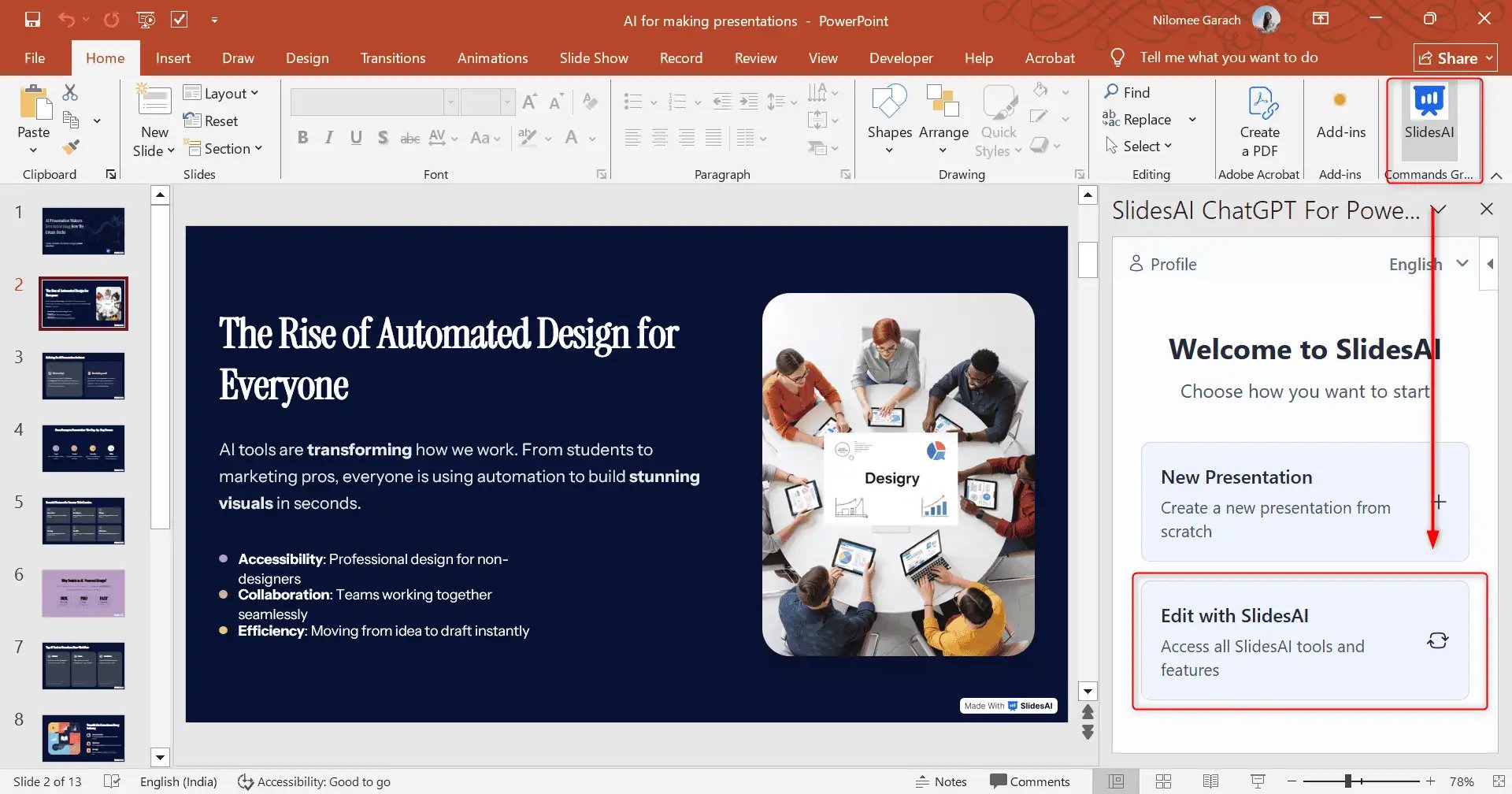
Launch the SlidesAI PowerPoint add-in or Google Slides add-on and select Edit with SlidesAI. A sidebar will open on the right side of your screen.
Alternatively, use the SlidesAI web app to create and edit presentations directly in your browser, without installing an add-in or add-on.
For Google Slides: Go to Extensions → SlidesAI.io → Edit with SlidesAI
For PowerPoint: Go to Add-in → SlidesAI.io → Edit with SlidesAI
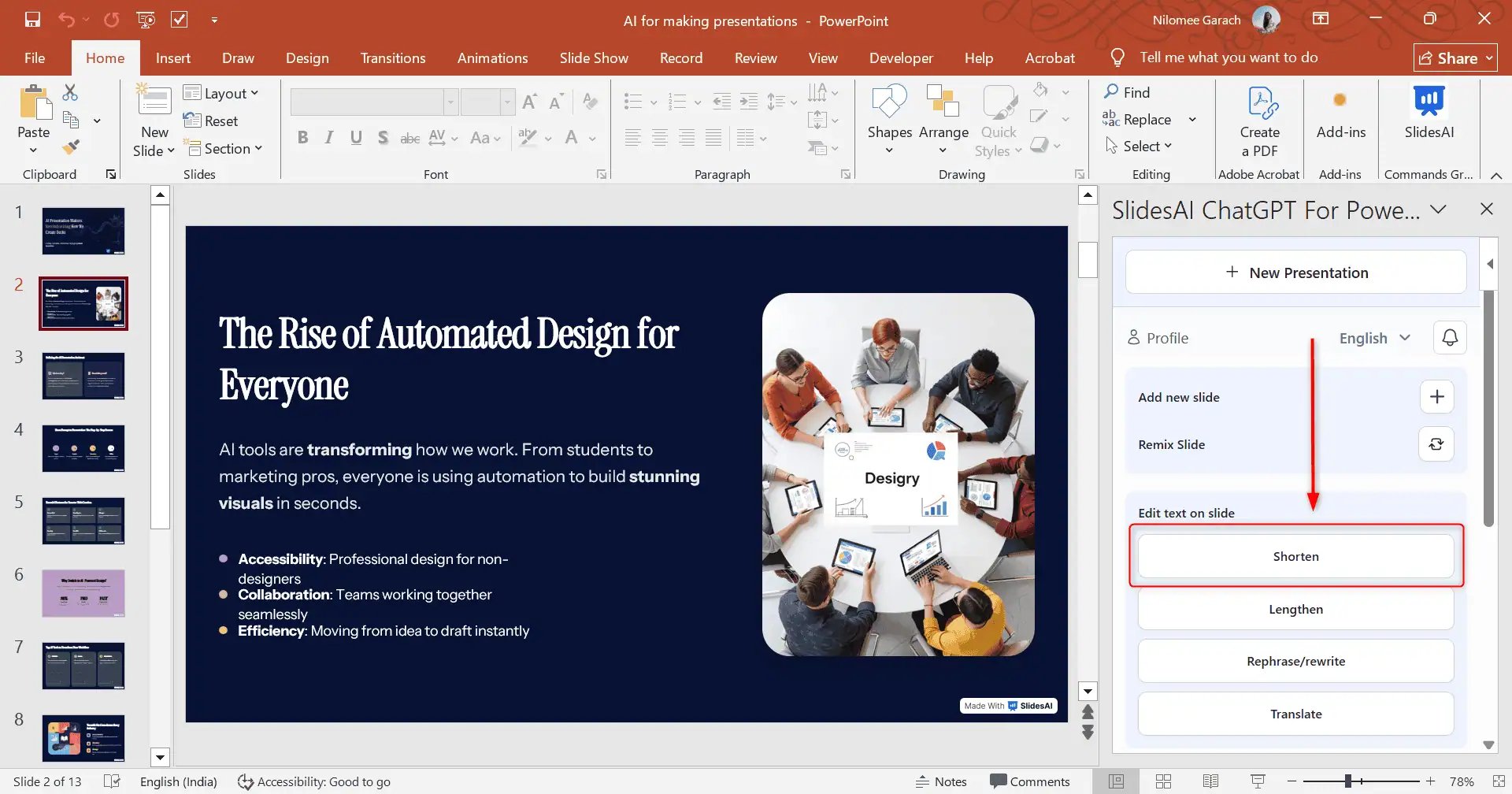
Step 4: Select the Shorten Option
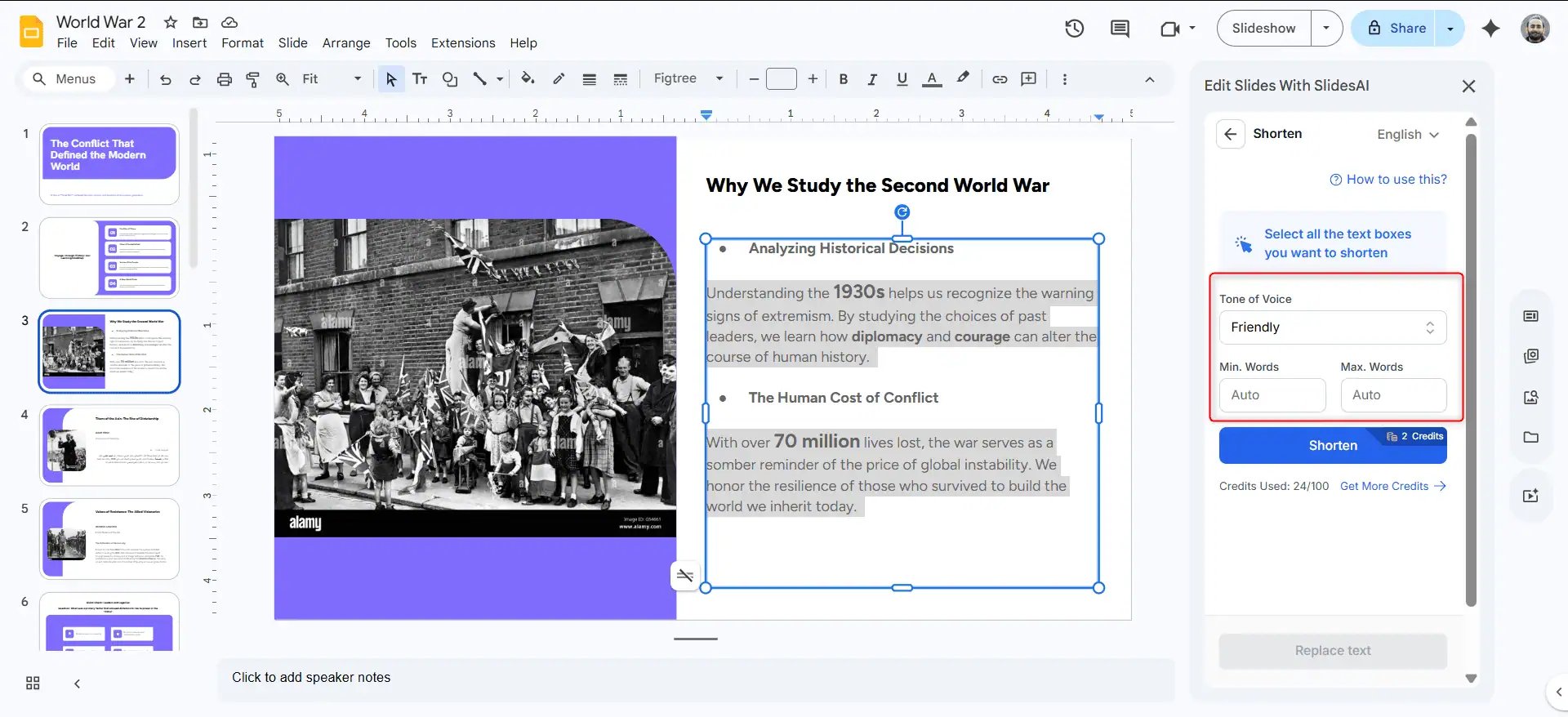
Look for Edit Text on Slide and choose the Shorten option.
Step 5: Configure Your Preferences
Select the text you want to shorten.
Enter the minimum and maximum word count you’d like the content to have. You can also choose the tone that best matches your presentation.
Once everything is set, click the Shorten button.
Step 6: Review and Replace the Text
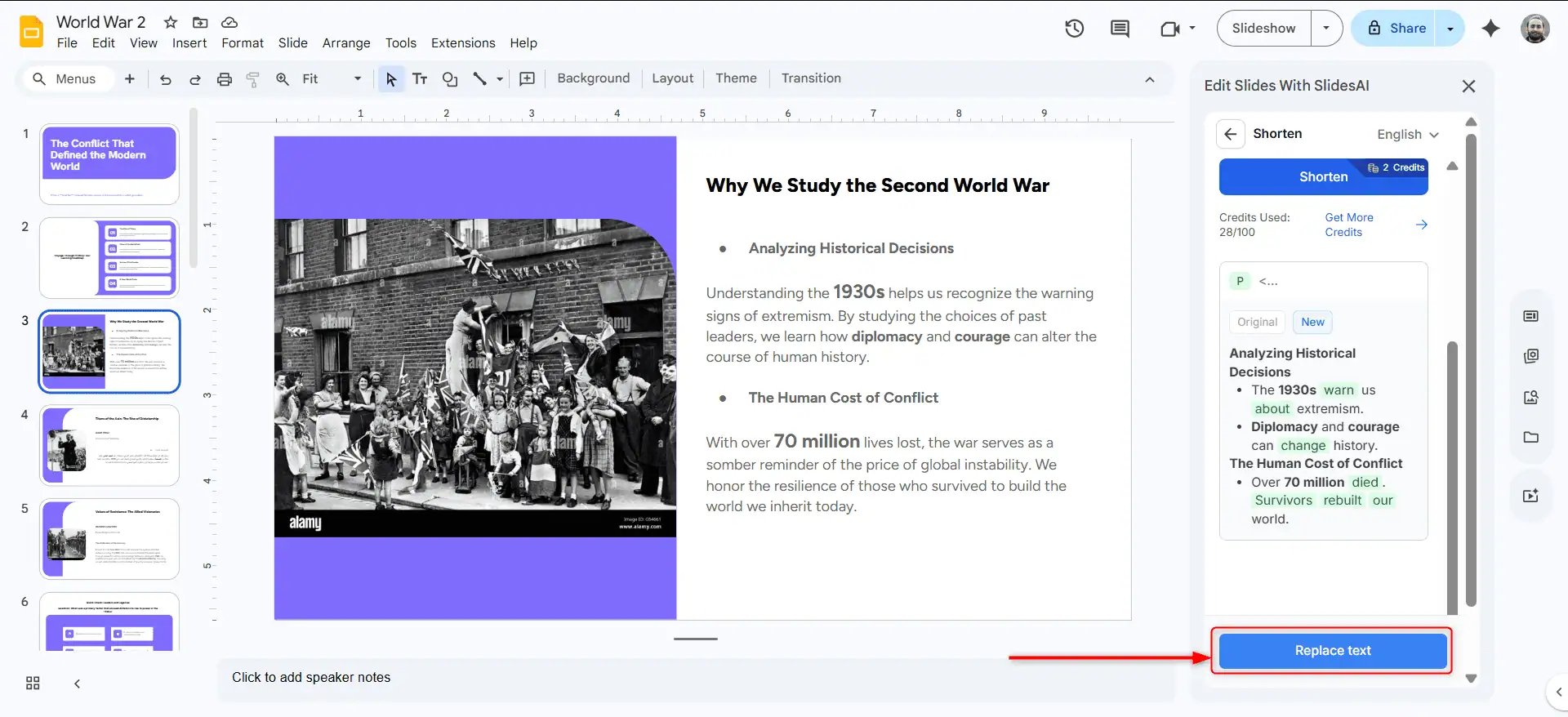
SlidesAI will generate a shortened version of your content.
Review the suggestion to ensure it matches your intended message. If you’re happy with the result, click Replace Text.
Your slide content will be updated instantly.
Repeat the same process for any additional slides that need shortening.
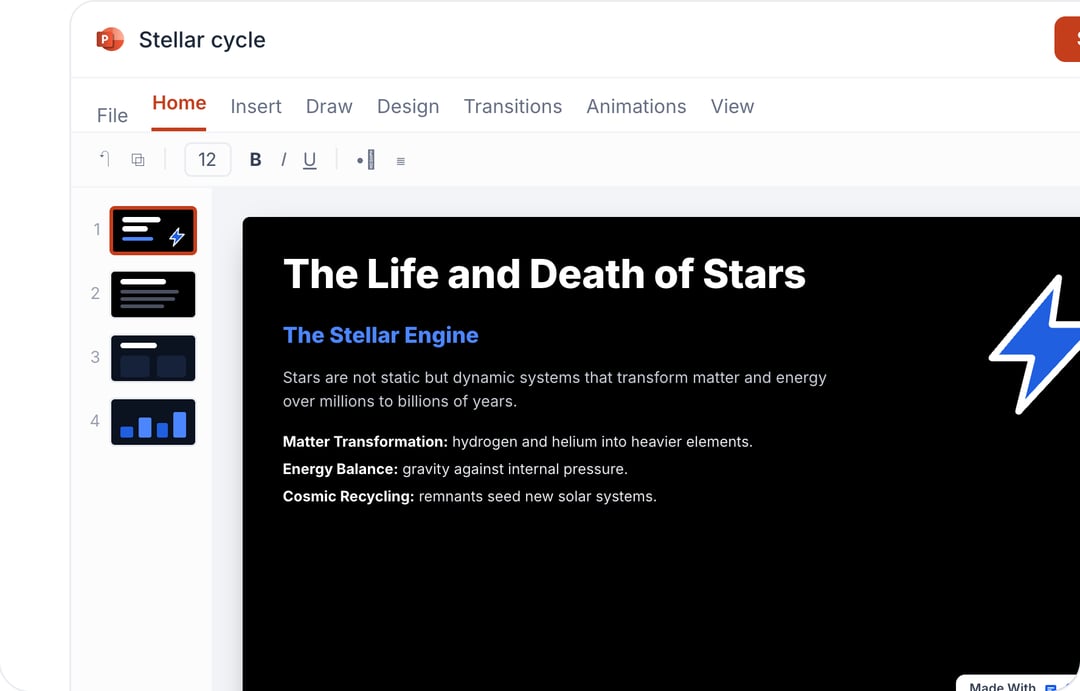
Take Your PowerPoint From Basic to Professional With SlidesAI
- Improve your slide content with AI
- Create polished layouts faster
- Work directly inside PowerPoint

How to Make Your Presentation Longer Using SlidesAI?
Expanding a presentation isn’t as simple as adding more slides. It’s about adding the right content that keeps your audience engaged without padding or fluff.
Many presenters struggle to flesh out thin sections, find supporting points for important ideas, or turn brief bullet points into meaningful explanations. Looking at a half-finished deck and wondering what comes next is a challenge many people face.
This is where SlidesAI can make a real difference.
You can make your presentation longer using two different approaches:
- Adding more slides
- Making existing text longer
Method 1: Adding Slides
Step 1: Open Your Presentation
Open your presentation in Google Slides or PowerPoint and make sure SlidesAI is installed and configured.
Step 2: Launch SlidesAI
Open the SlidesAI add-on and select Edit with SlidesAI.
For Google Slides: Go to Extensions → SlidesAI.io → Edit with SlidesAI
For PowerPoint: Go to Add-in → SlidesAI.io → Edit with SlidesAI
The SlidesAI sidebar will appear.
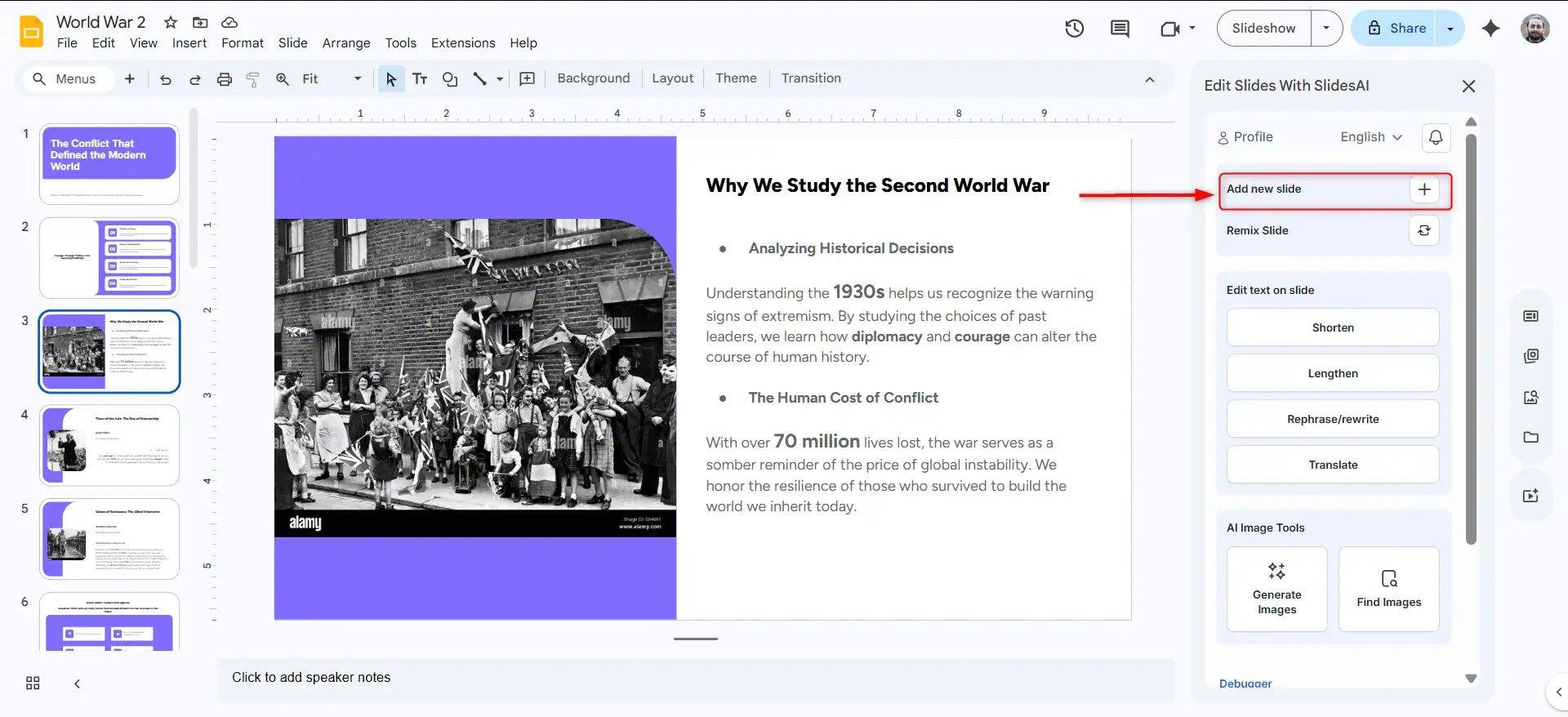
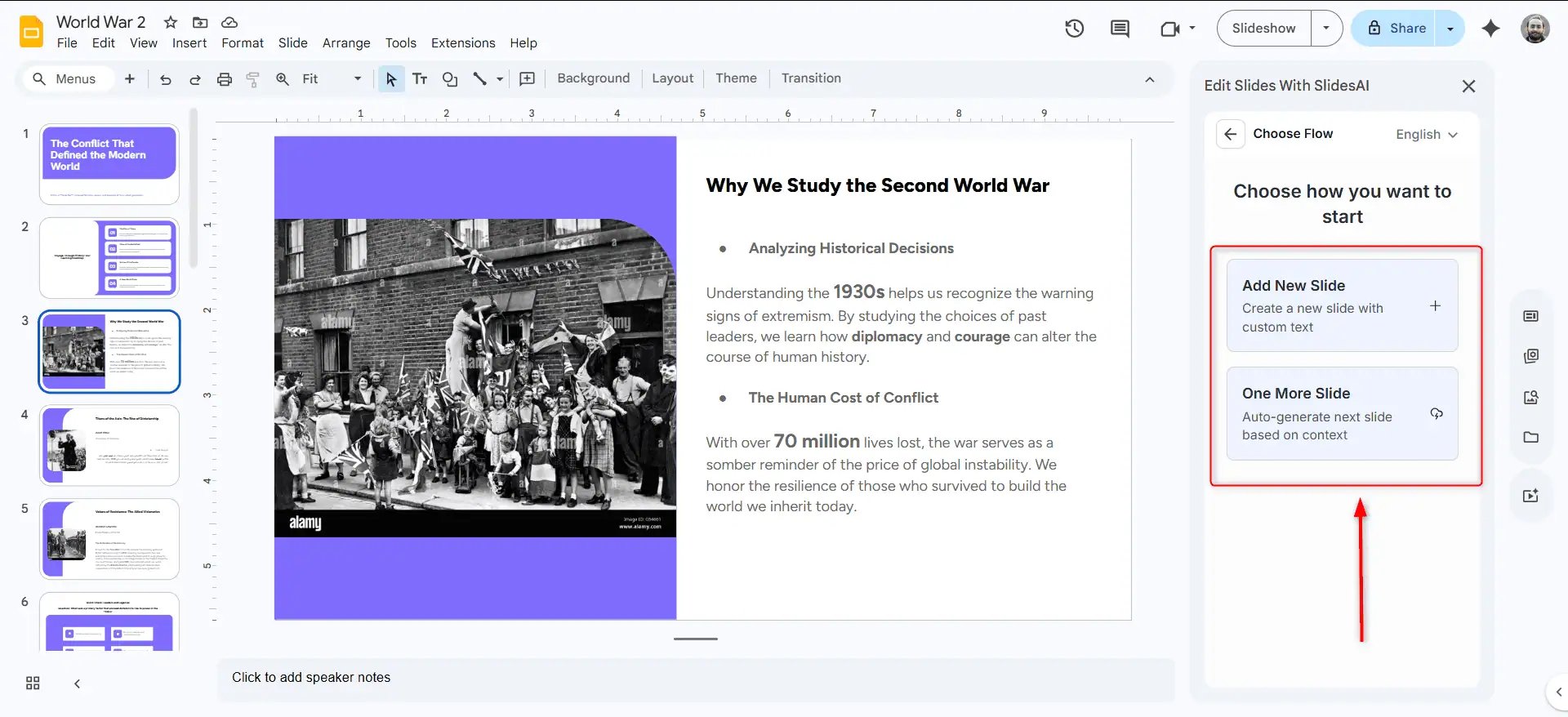
Step 3: Select “Add Slides”
Locate the Add Slides option in the sidebar.
Step 4: Choose the Number of Slides
Select Add Slides if you want to generate multiple slides.
Choose One More Slide if you only need a single additional slide.
Step 5: Describe the Content
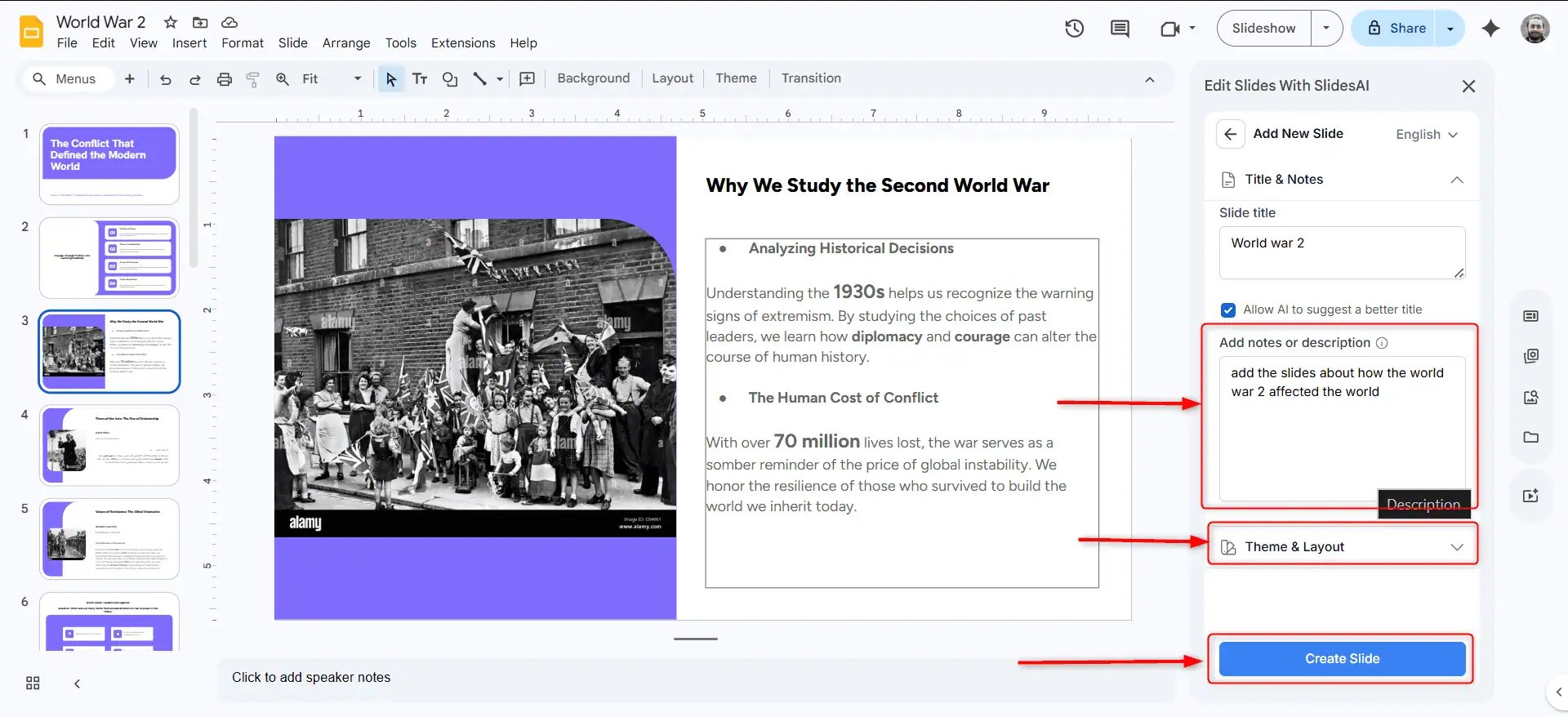
Enter a slide title and add notes or a description explaining what content should be included.
You can also choose the preferred slide layout and design theme.
Step 6: Review the New Slides
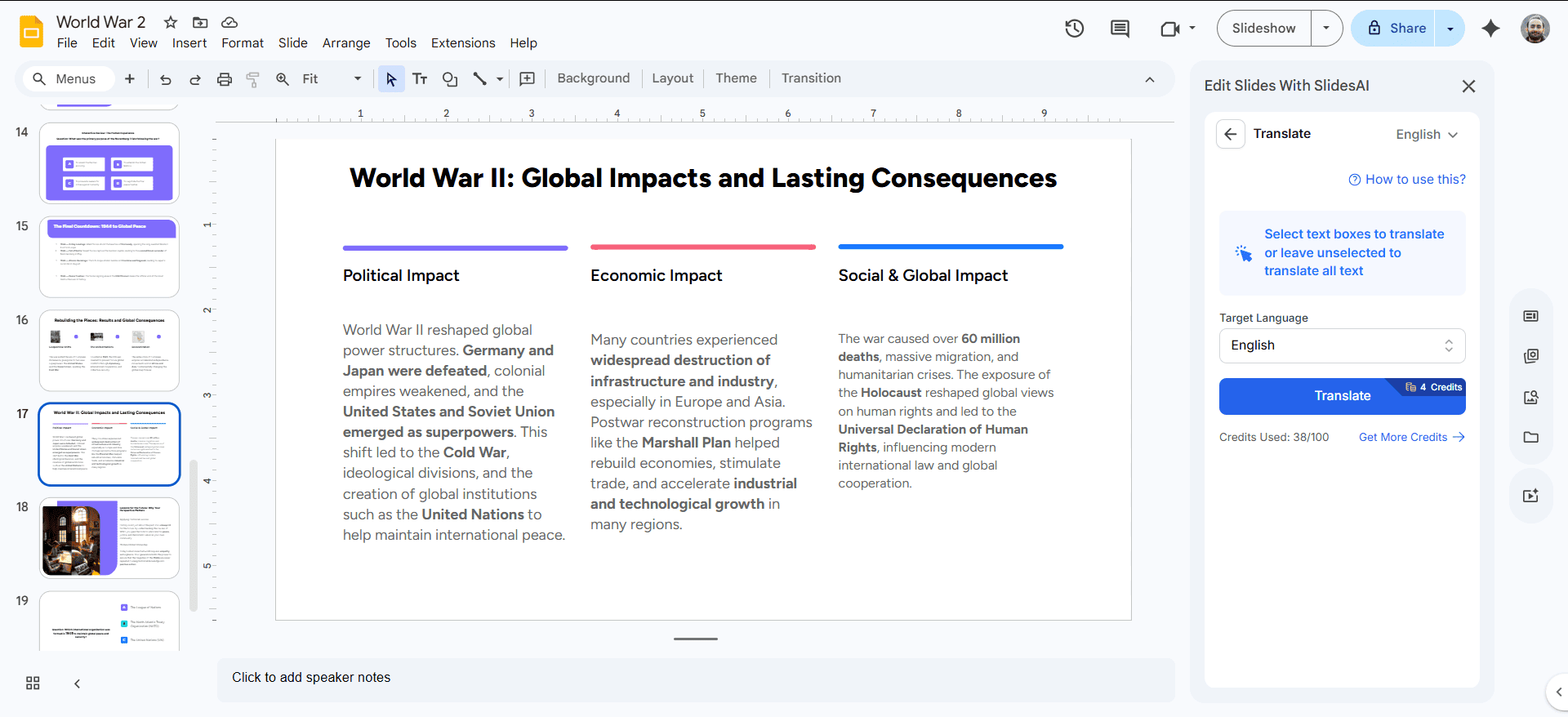
SlidesAI will generate and design the new slides automatically.
Review them and adjust their placement to ensure they fit naturally within your presentation flow.
Method 2: Making Existing Text Longer
Step 1: Open Your Presentation
Open the presentation and navigate to the slide you want to expand.
Step 2: Launch SlidesAI
Open the SlidesAI add-on and select Edit with SlidesAI.
For Google Slides: Go to Extensions → SlidesAI.io → Edit with SlidesAI
For PowerPoint: Click SlidesAI in the Add-in menu and select Edit with SlidesAI.
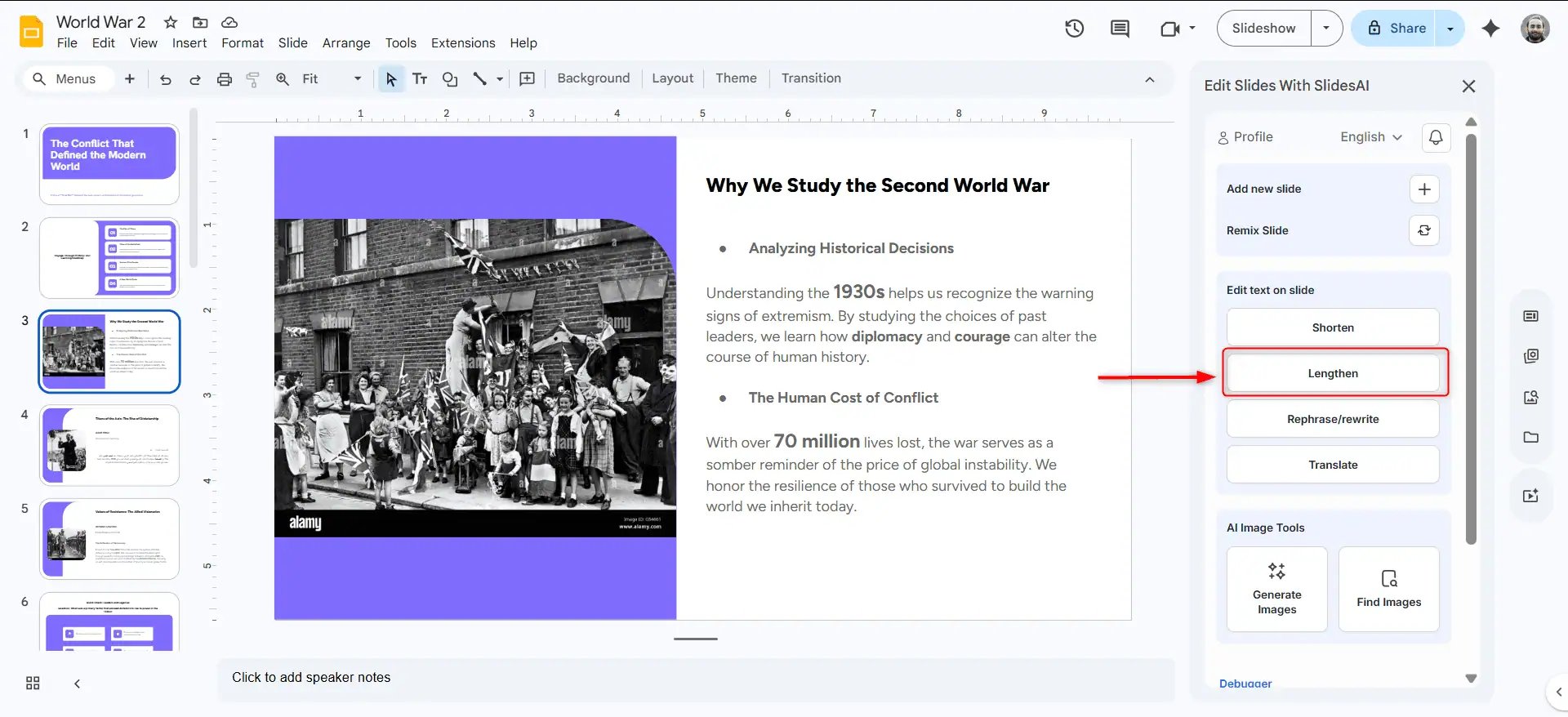
Step 3: Choose the Lengthen Option
Under Edit Text on Slide, select Lengthen.
Step 4: Configure Your Settings
Highlight the text you want to expand.
Set your preferred minimum and maximum word count, choose a tone, and click the Lengthen button.
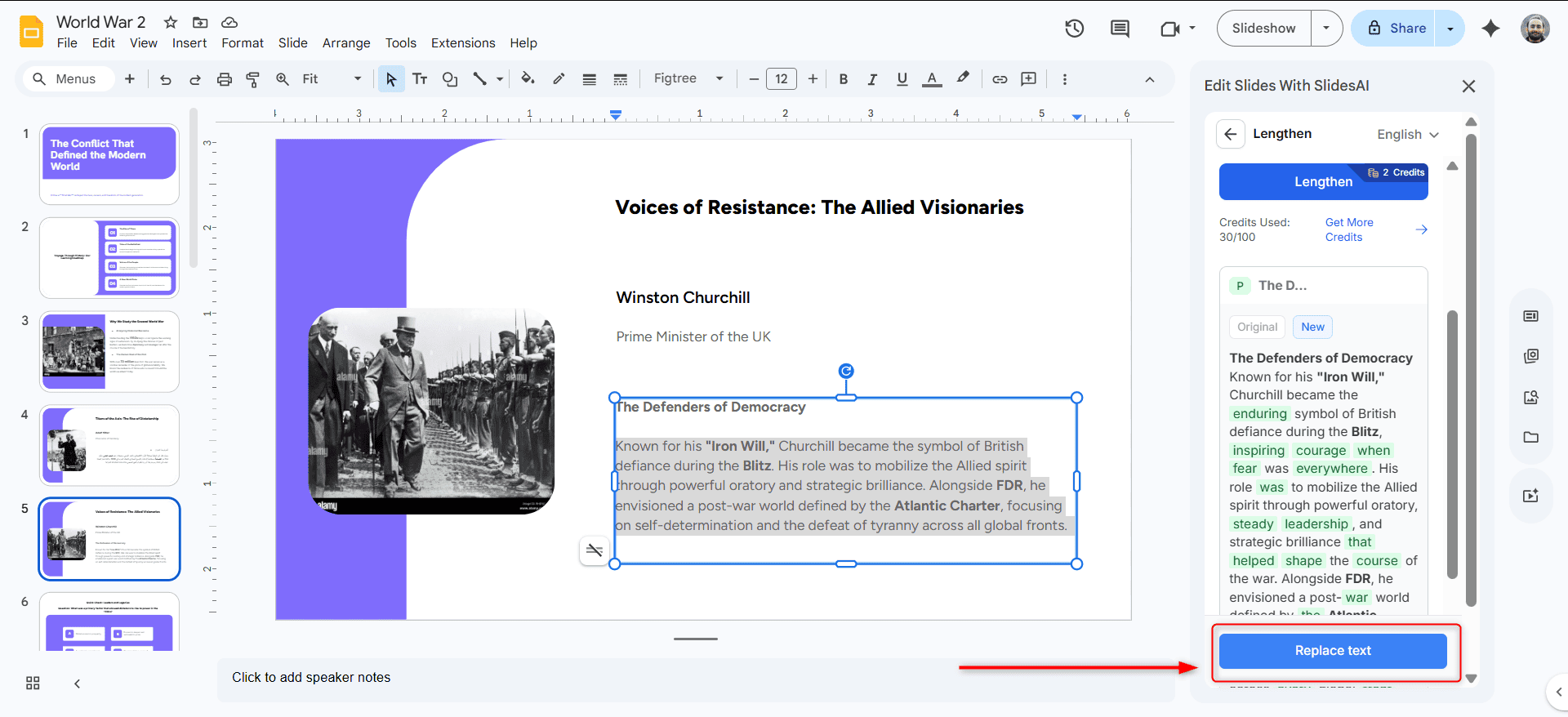
Step 5: Review and Replace
SlidesAI will generate a longer version of the selected text.
Review the suggestion and click Replace Text if you’re satisfied with the result.
The updated content will automatically replace the original text on your slide.
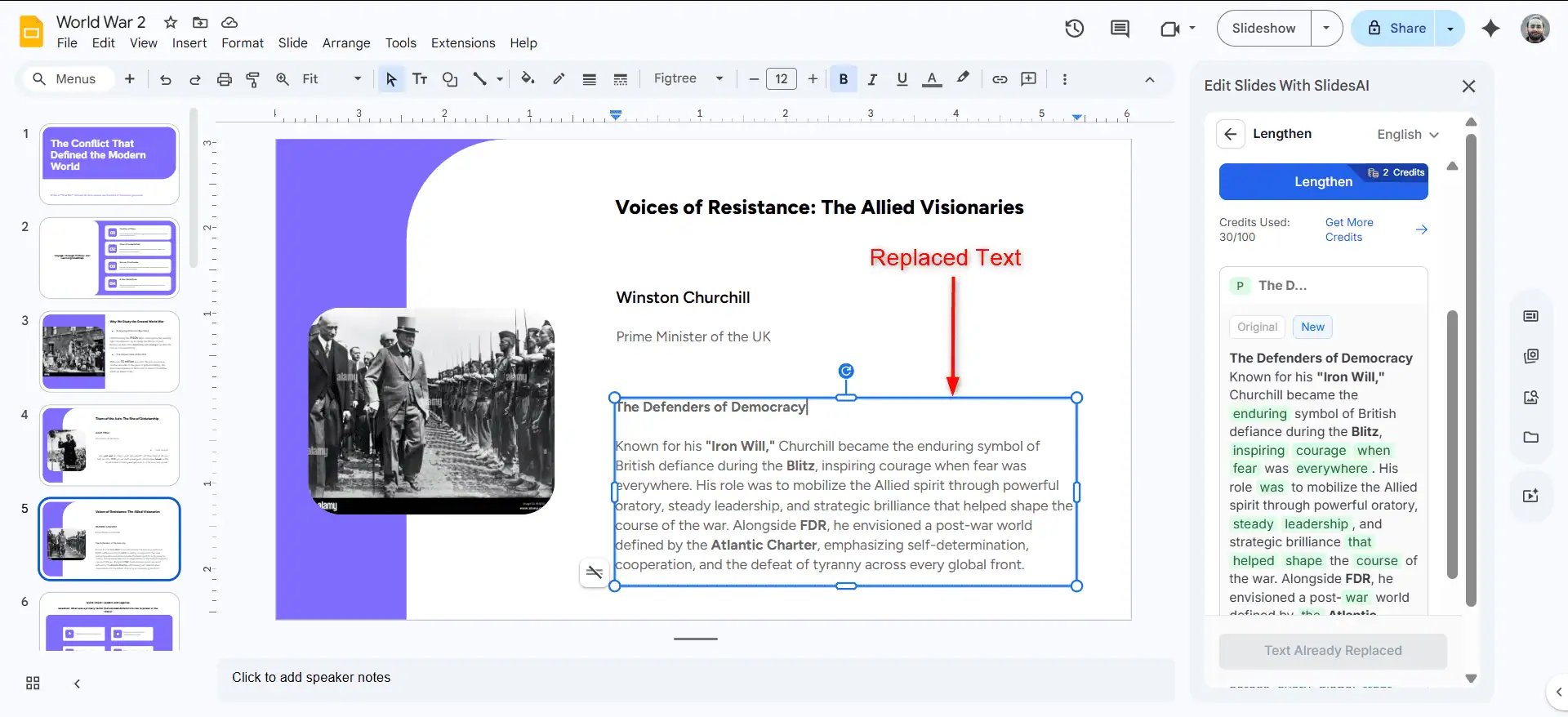
You can repeat the process throughout your presentation to add more depth wherever needed.
Create AI presentations directly in Google Slides.
- No design skills required
- 3 presentations/month free
- Save directly in Google Slides

Closing Thoughts
Finding the right presentation length is often harder than creating the presentation itself.
A presentation that’s too long can lose attention. One that’s too short can leave important questions unanswered. The goal is to find the balance that delivers your message clearly while respecting your audience’s time.
Whether you need to trim unnecessary content or expand your ideas with more detail, examples, and visuals, small adjustments can make a significant difference.
And if you want to speed up the process, tools like SlidesAI can help you shorten, lengthen, and refine your content without spending hours manually editing every slide.