You’ve built a solid coding presentation, and now comes the hard part: showing your code without making the slide look like a mess. Paste it into a text box and the formatting breaks; screenshot it, and you lose the ability to zoom or run anything live. And if your audience expects interactive examples, a static image simply doesn’t cut it. The good news? PowerPoint gives you more options than most people realize. In this guide, we’ll walk you through 4 easy methods to embed code in PowerPoint, from the quickest no-fuss approach to fully interactive, live code examples, so you can pick what works best and never dread the “code slide” again.
Why Embed Code in PowerPoint?
- Higher Engagement: Embed interactive elements like live web content, maps, or working code to make presentations more engaging than static slides.
- Real-Time Updates: Embedded content such as dashboards or online videos can update automatically, keeping your presentation current.
- Better Visual Clarity: Embedding code or web elements helps present technical content in a cleaner and more professional format.
- Rich Media Support: You can directly embed videos from platforms like YouTube or Vimeo, saving storage space and ensuring smooth playback.
- Efficient Workflow: Display live examples or data without needing to frequently update your presentation file.
Explore How AI PowerPoint Generator Creates Presentation in Minutes!
How to Embed Code in PowerPoint? 4 Easy Methods
Method 1: Using an Online Code Sandbox (The Easiest Way!)
If you want to embed HTML in PowerPoint and allow your audience to interact with your code, this is the fastest way.
Websites like:
- JSFiddle
- CodePen
- JSBin
Make it super simple.
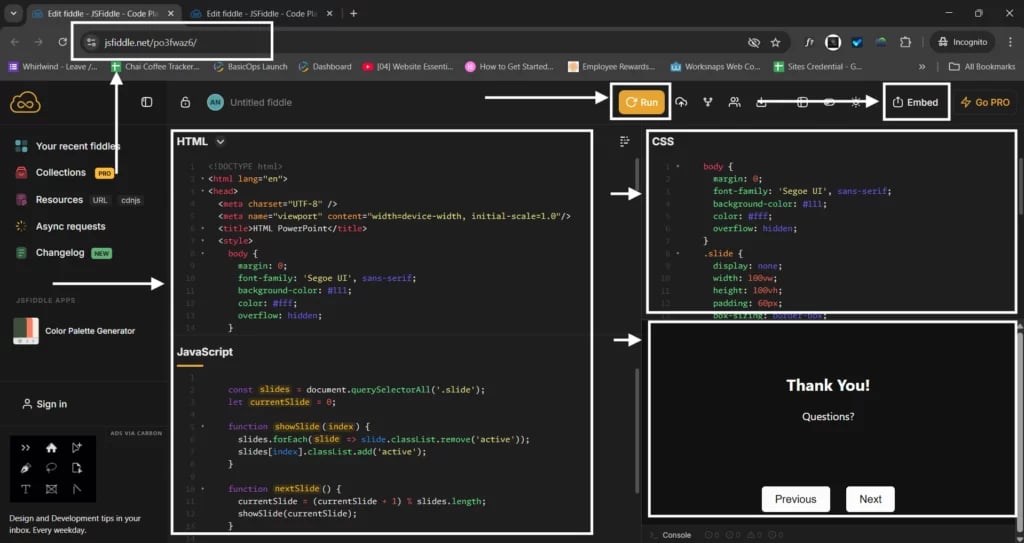
Here’s how to embed code in PowerPoint using these platforms:
- Go to one of these sites and create your code snippet.
- Copy the sharing link (most platforms offer an embeddable link).
- Open PowerPoint and go to your desired slide.
- Click Insert > Link and paste the copied link.
- During your presentation, clicking the link will open your interactive code in the browser.
Why use this? If you’ve been wondering, “Can you embed code in PowerPoint that actually works live?”, this method is your answer.
Create Presentations Easily in Google Slides and PowerPoint
14M+Installs
 Install add-in
Method 2: Embedding a Local HTML File
If you have your code saved as an HTML file on your computer, here’s how to embed the code in PowerPoint from a local file.
Follow these steps:
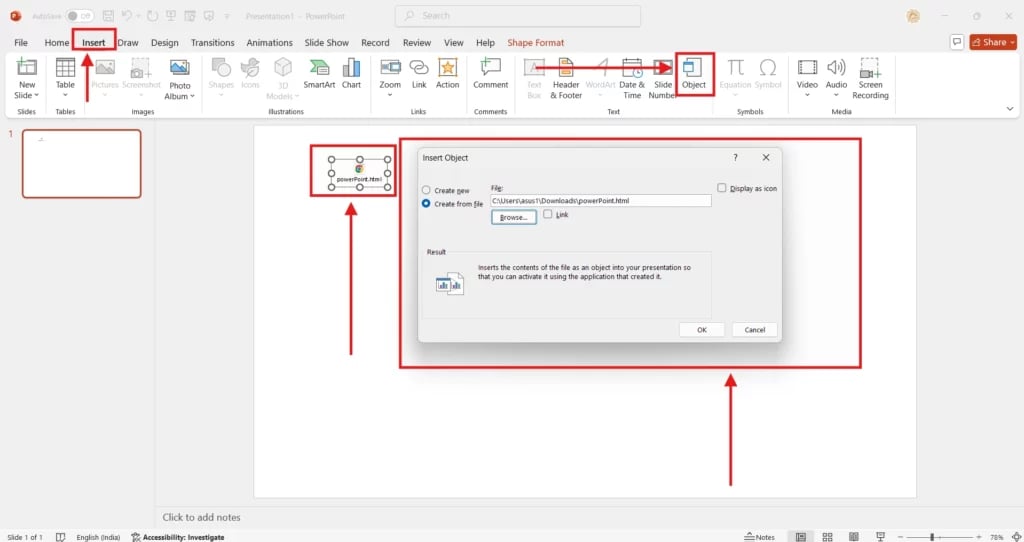
- Create and save your code as an HTML file.
- Open PowerPoint and go to the slide where you want to insert the embed code in PowerPoint.
- Click Insert > Object.
- Select Create from the file and browse for your HTML file.
- Add it to your slide. You can double-click it to open during your presentation.
This method is perfect if you need to embed HTML code in PowerPoint without relying on the internet.
Related Read – How to Embed Code in Google Slides?
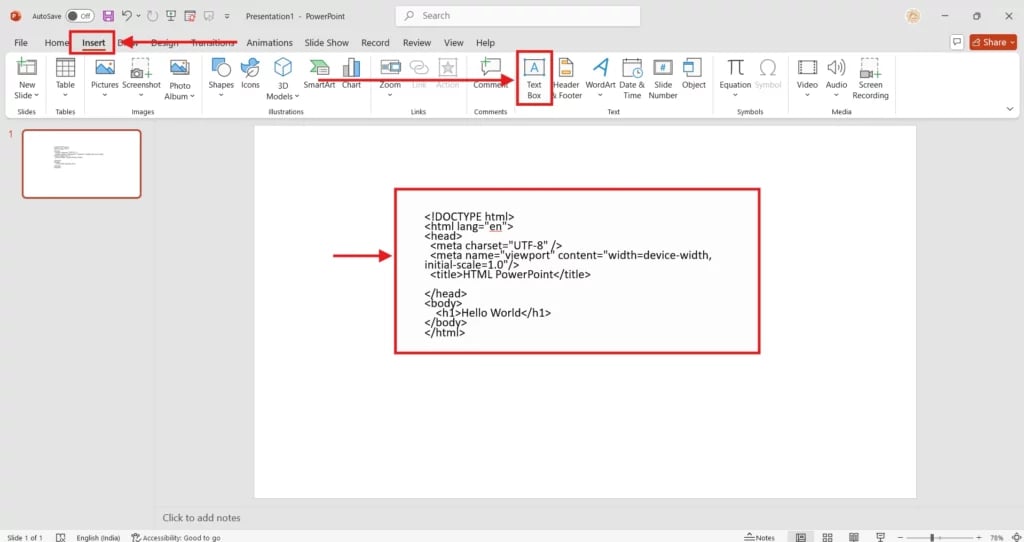
Method 3: Use a Text Box (The Quickest Display Option)
If you just want to show your code as text, you can embed code in PowerPoint by simply pasting it.
Here’s how to paste embed code in PowerPoint as text:
- Go to the slide where you want the code.
- Click Insert > Text Box and paste your code inside.
- Change the font to something like Courier New or Consolas because these fonts make code easy to read.
- You can also add color or backgrounds to make it stand out.
This is the simplest way to embed code in PowerPoint.
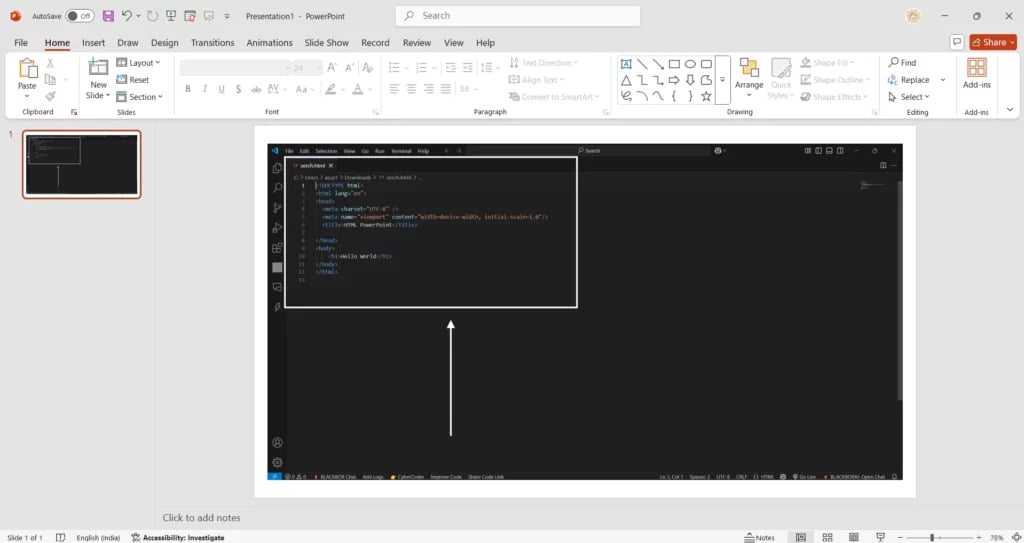
Method 4: Add Code as an Image (For a Clean Look)
Sometimes, the easiest way to embed HTML in PowerPoint visually is by using an image of your code.
Here’s how to do it:
- Open your code in an editor like VS Code or Notepad++.
- Or use a tool like Carbon to make your code look colorful and clean.
- Take a screenshot.
- In PowerPoint, click Insert > Pictures and add the image to your slide.
This is great for professionals and designers who want to insert embedded code in PowerPoint without worrying about fonts or formatting.
You’ve now learned several ways to embed code in PowerPoint. Whether you use an online sandbox, an HTML file, a text box, an image, or an add-in, you now know exactly how to do it and make your slides more exciting.
You can either keep it simple with a text box or screenshot, or go interactive with live code links and add-ins
Go ahead, pick the method that works best for you, and create presentations that stand out.
Build Stunning Slides in Seconds with AI
- No design skills required
- 3 presentations/month free
- Don't need to learn a new software

How SlidesAI can embed code in PowerPoint automatically?
Doing all of this manually takes time, and getting the formatting just right can be frustrating. That’s where SlidesAI comes in. With just a few clicks, SlidesAI can automatically embed and format your code inside PowerPoint, saving you the hassle of tweaking fonts, layouts, or copying embed links yourself.
Here’s how to do it:
Step 1: Open PowerPoint Presentation and install SlidesAI add-in. Log in or set up your Slides AI account.
Step 2: After setting up the account, from the home tab, go to Add-ins and select SlidesAI
Step 3: Select Generate new presentation.
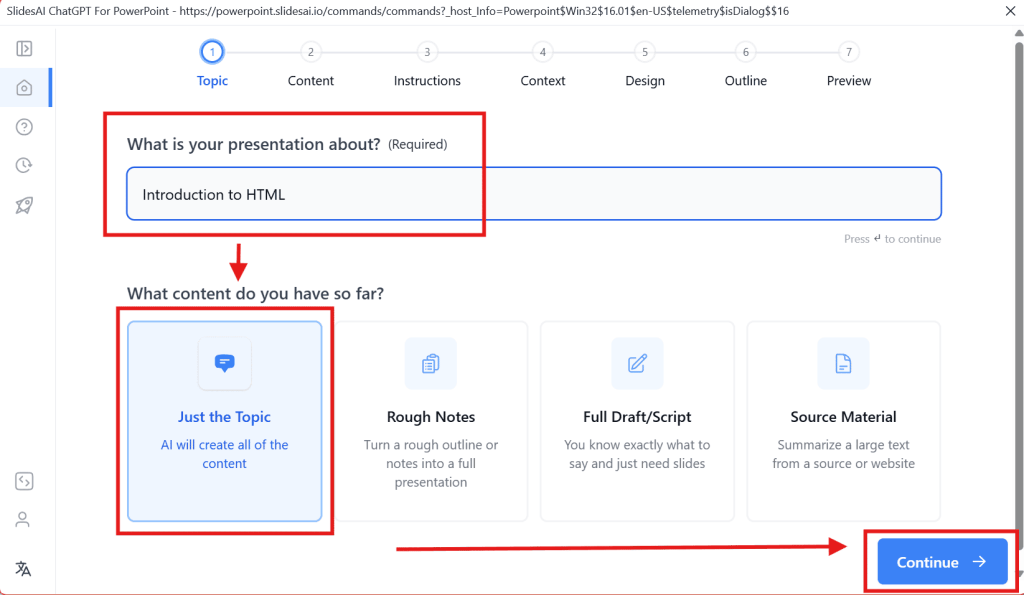
Step 4: Enter the topic of your presentation. For example, here I have entered “Introduction to HTML”
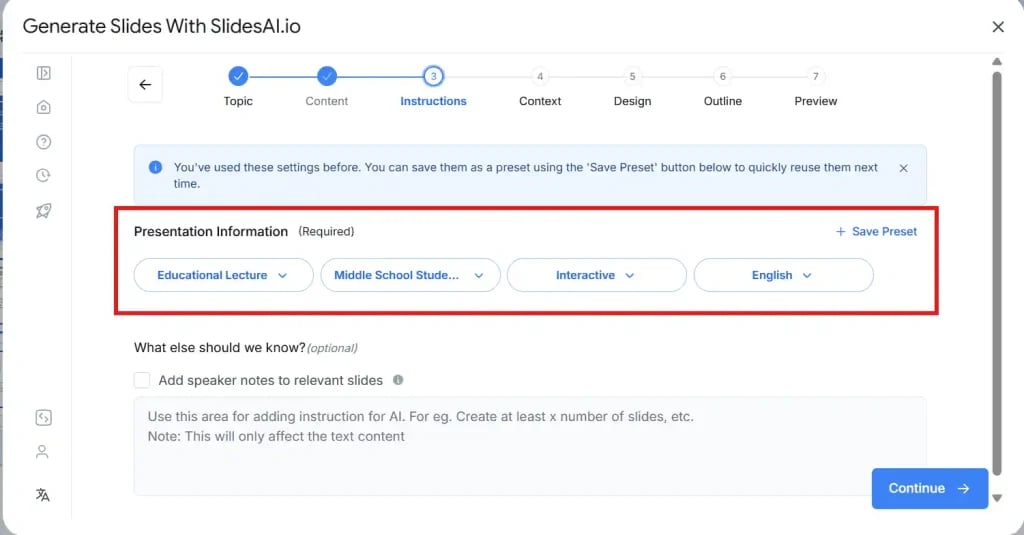
Step 5: Select the Presentation type, Audience, Tone, and language.
Step 6: Under the section “What else should we know?”, add proper instructions to add code in your presentation slide.
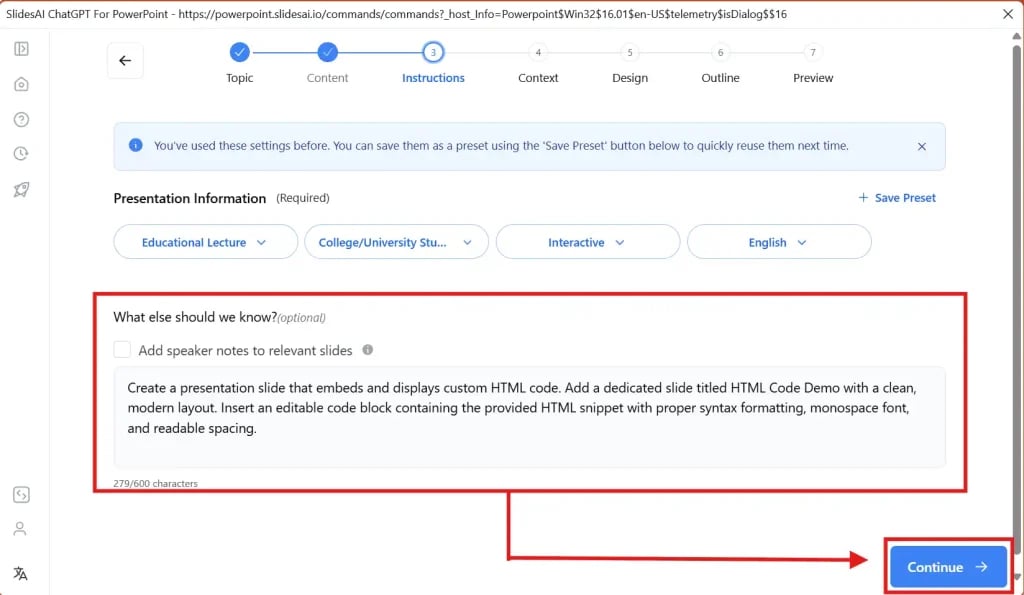
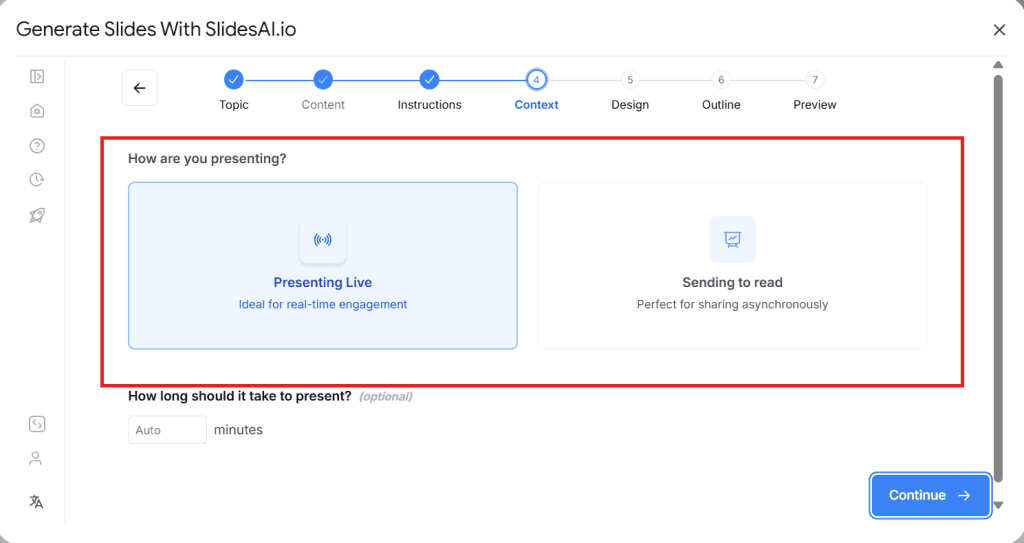
Step 7: Choose how you want to present your presentation.
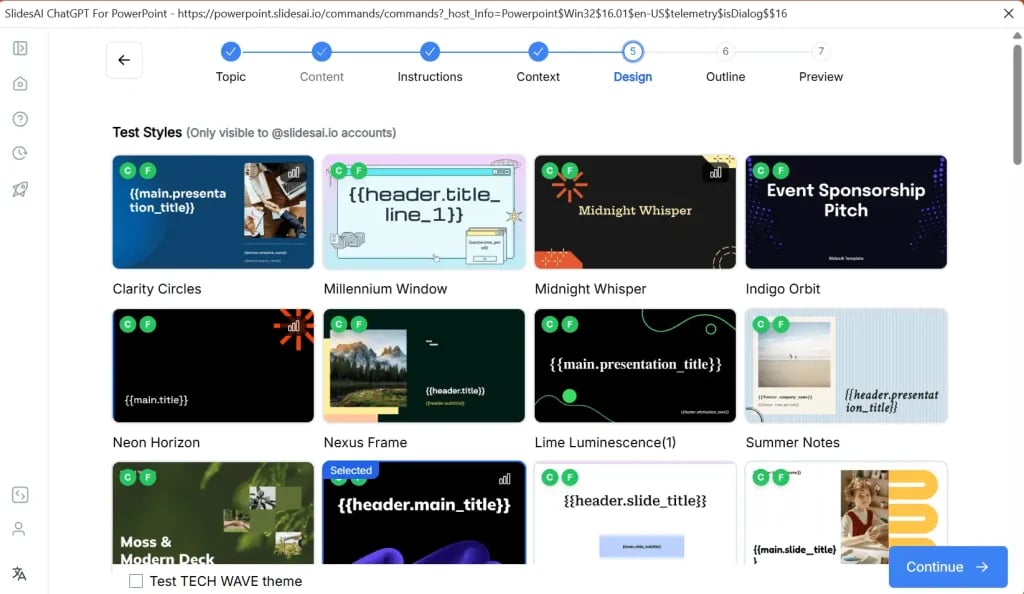
Step 8: Select the presentation template of your choice from the template options
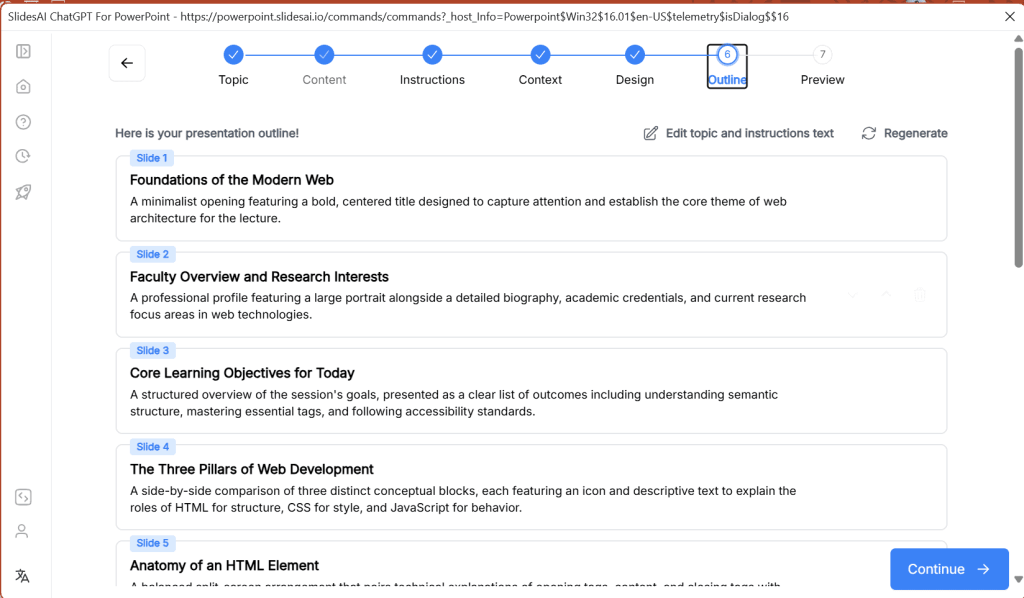
Step 9: SlidesAI will generate an outline for your presentation. Review the outline. Make edits if necessary.
Step 10: Once the outline is final, SlidesAI will now generate the content for your presentation. Review the content before proceeding further, and then click on “Generate Slides.”
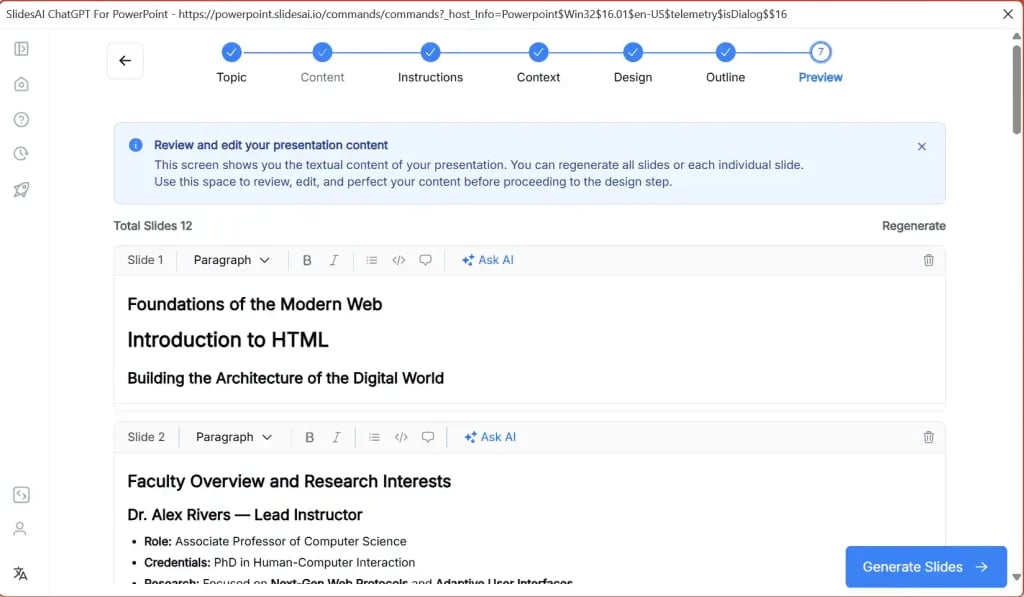
Step 11: SlidesAI will create a whole presentation. Review the slide with your HTML code to make sure it is perfect.
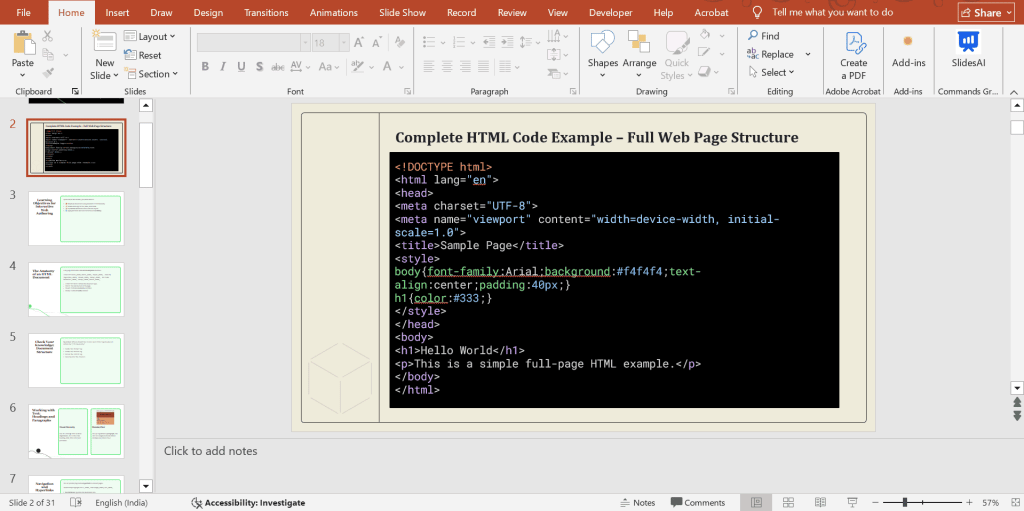
Note: While SlidesAI embeds a code in PowerPoint, you may notice “_x000B_” in the code. Do not forget to review and remove this.
Take Your PowerPoint From Basic to Professional With SlidesAI
- Improve your slide content with AI
- Create polished layouts faster
- Work directly inside PowerPoint
Conclusion
Embedding code in PowerPoint does not have to be a slow or complicated process. Whether you use text boxes, screenshots, HTML files, or online embeds, there are several ways to present code clearly and professionally. But if you want the fastest and easiest option, SlidesAI helps automate the entire workflow by generating polished slides, formatting your code, and saving valuable time. Instead of focusing on design tweaks, you can focus on delivering your message and making your presentation more engaging. Try the method that suits your needs best and turn technical content into slides that truly stand out.
Focus on your code, not slide design. Our AI presentation templates help you create polished technical presentations in minutes.