
Adding a voiceover or narration to Google Slides helps you explain slides more clearly and make presentations more engaging. Although Google Slides does not have a built-in voice recorder, you can easily add narration by recording an audio file and inserting it into your slides.
To add a voiceover to Google Slides, record your audio (MP3 or WAV) using tools like Audacity or a phone recorder, upload the file to Google Drive, and insert it into your slide using Insert → Audio. You can also adjust playback settings such as automatic playback or hiding the audio icon.
How to Add Narration or Voiceover on Google Slides?
Method 1: Using a Separate Audio File
Here’s how to add a pre-recorded voiceover to your Google Slides presentation using a separate audio file:
1. Craft Your Script: Plan your narration beforehand for a clear and engaging voiceover. Write a script that highlights the important points and complements the visuals on each slide.
2. Record Your Audio: Use external tools to capture your voiceover. Options include your phone’s recorder, a screen recorder with audio capabilities, or dedicated audio editing software.
Pro tip: Consider using an AI voice cloning tool for more realistic and customizable voiceovers.
3. Save in a Compatible Format: Ensure your recording saves in a format supported by Google Slides, such as MP3 or WAV. Most recording tools offer format options during the saving process.
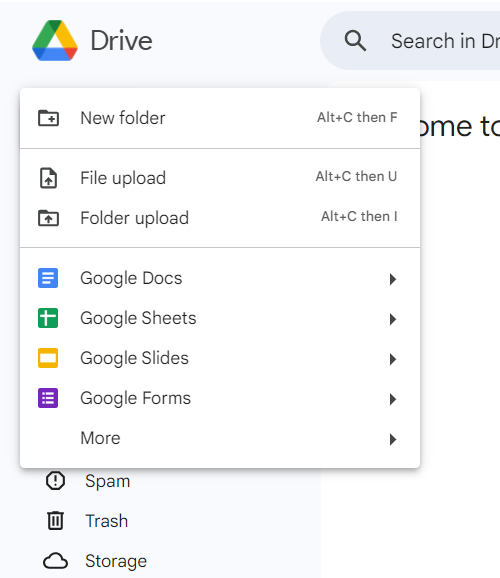
4. Upload to Google Drive: Store your audio file in Google Drive for easy access within Slides. Drag and drop the file or use the upload function in Drive to do that.
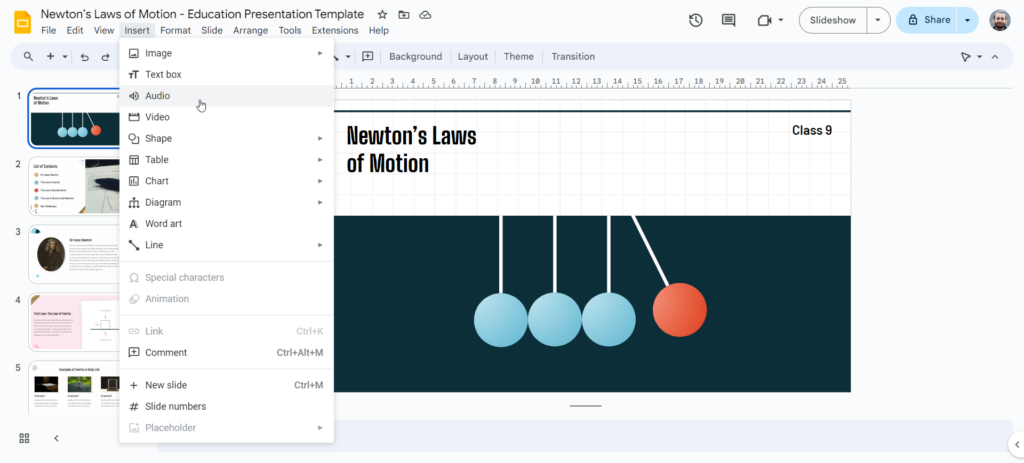
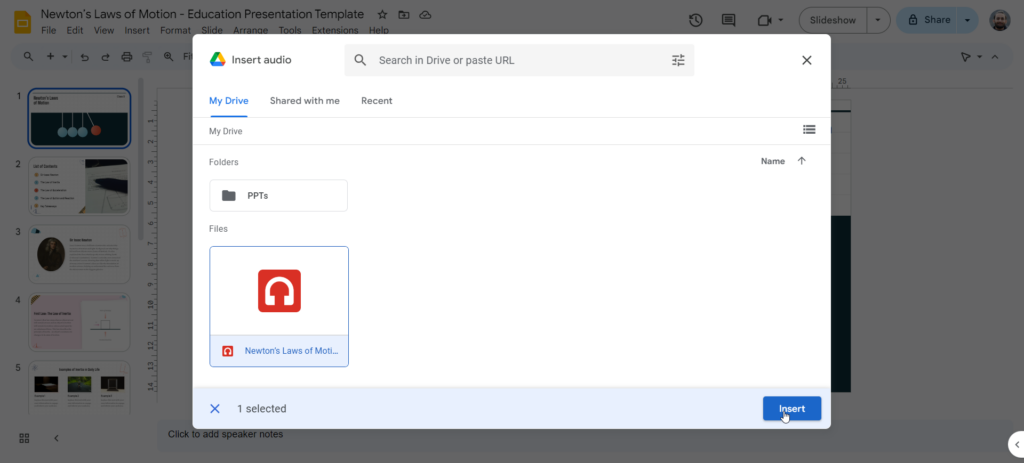
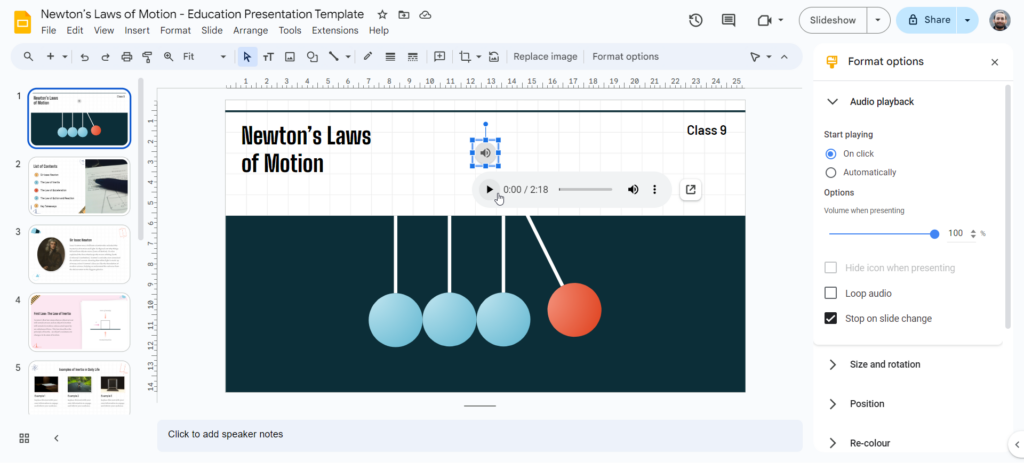
5. Insert Audio into Slides: Navigate to the specific slide where you want the voiceover to play. Go to “Insert” in the menu bar, then select “Audio.” Choose your uploaded file from Google Drive.
6. Fine-tune Playback: Use the audio formatting options to customize how the voiceover plays. You can set the start time to synchronize with your slide transitions, enable looping for continuous playback, and adjust the volume.
Also Read – How to Add Audio to Google Slides?
Method 2: Using Screen Recording with Audio (for Advanced Users)
This method is ideal for users comfortable with screen recording software.
1. Record Your Presentation With Narration: Use your computer’s built-in screen recording tool (or a third-party option) to capture your presentation slides along with your voice narration. Each recording will become a separate video file.
2. Insert the Videos Into Your Slides: Open each video file you created and insert them individually onto the corresponding slides in your Google Slides presentation.
Method 3: Adding Voice-Over While Presenting (Record During Slideshow)
While Google Slides doesn’t have built-in recording, you can narrate your presentation live:
- Access Slideshow Menu: Click “Slideshow” from the top menu bar.
- Start Recording: Select “Record slideshow” and choose your microphone.
- Narrate and Advance Slides: Click the “play” button and speak your narration as you manually click through the slides to advance them.
Things to Consider:
- This method captures all audio during the slideshow, including clicks and background noise.
- It’s a good option for quick narration, but for a polished presentation, you might need to edit the recording afterwards.
How to Share a Google Slides Presentation with Voiceover?
Once your voiceover is added and playback settings are set, here’s how to share the presentation so your audience hears it the way you intended.
- Check Playback Settings First: Before sharing, click on the audio icon and confirm the playback settings (autoplay, on click, or looping). This determines whether your audience hears the narration automatically or has to click to start it.
- Click “Share”: In the top right corner of your presentation, click the blue “Share” button.
- Choose Access Type: Decide how you want people to view it:
-
- “Restricted” to share only with specific people you add by email
- “Anyone with the link” if you want broader access without individual invites
- Set the Permission Level: Make sure viewers are set to “Viewer,” not “Editor” or “Commenter,” so they can’t accidentally change your slides or audio settings.
- Copy and Send the Link: Click “Copy link” and share it through email, Slack, or wherever your audience will access it. Anyone opening the link can play the presentation with the voiceover intact.
- Or Export as a Video (Optional): If you want a more controlled viewing experience with no editing access at all, use a screen recorder to capture the slideshow with narration playing, then export it as an MP4 and share that file instead.
- Test the Link Before Sending: Open the link in an incognito or private browser window to confirm the audio plays correctly and the permissions are working as expected.
A great voiceover makes your slides sound polished. Let AI make the rest of your deck look just as polished, in seconds.Try the AI Google Slides Generator
When Should You Use Voice-Over in Google Slides?
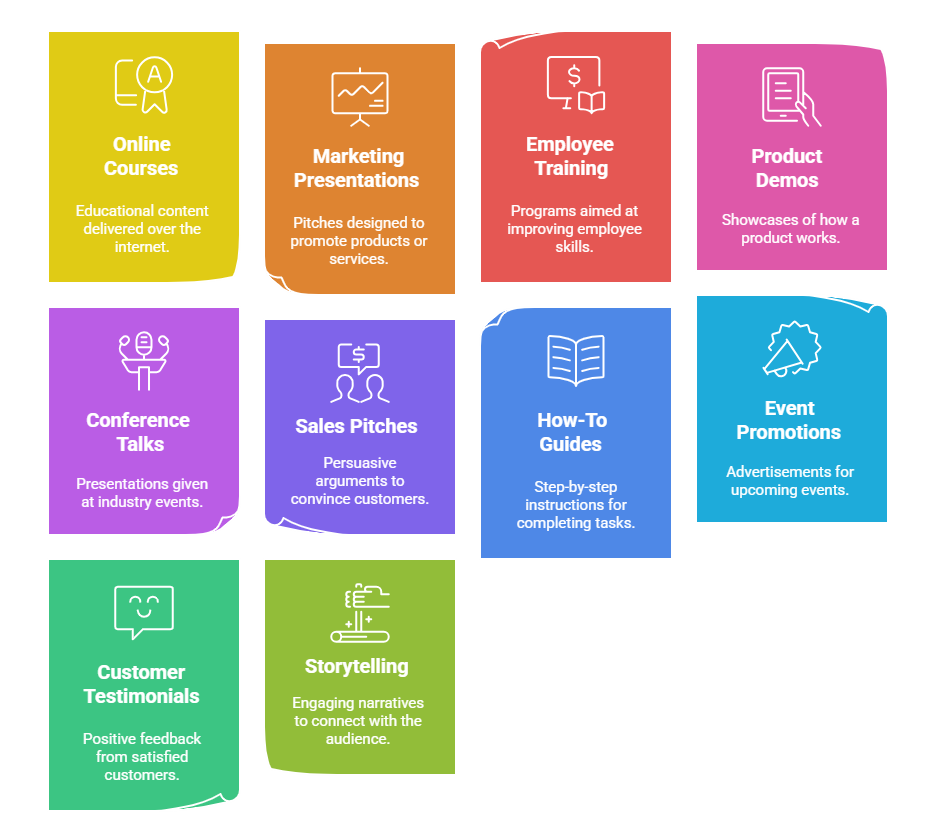
Here are some situations where voice-overs can be helpful in Google Slides presentations:
- Online Courses: Adding narration to your educational slides can create a more complete online learning experience.
- Marketing Presentations: Use voice-overs to explain the important features and benefits of your product or service in a clear and engaging way.
- Employee Training: Create informative training modules with audio instructions for a more streamlined learning process.
- Product Demos: Showcase your product’s functionality with a narrated demonstration that highlights its capabilities.
- Conference Talks: Enhance your presentations by adding a professional voiceover that guides the audience through your content.
- Sales Pitches: Strengthen your sales pitches with persuasive audio narration that emphasizes the value proposition.
- How-To Guides: Provide clear and easy-to-follow instructions by adding voice-over narration to your step-by-step guides.
- Event Promotions: Create engaging presentations for upcoming events that combine visuals with audio narration.
- Customer Testimonials: Share customer testimonials with voice-over narration to add a personal touch and build trust. This approach allows us to delve into a comprehensive customer experience report, highlighting genuine feedback directly from those who’ve interacted with our products or services.
- Storytelling: Combine visuals and audio narration to tell a compelling story that resonates with your audience.
Closing Thoughts
Adding a voiceover to your Google Slides presentation can significantly enhance its impact and audience engagement. Whether you choose pre-recorded narration, screen recording, or live delivery, the steps outlined in this guide will empower you to create informative and engaging presentations that leave a lasting impression. Remember to plan your script, select a high-quality audio format, and use the customization options in Google Slides to refine the playback for a perfect final product.
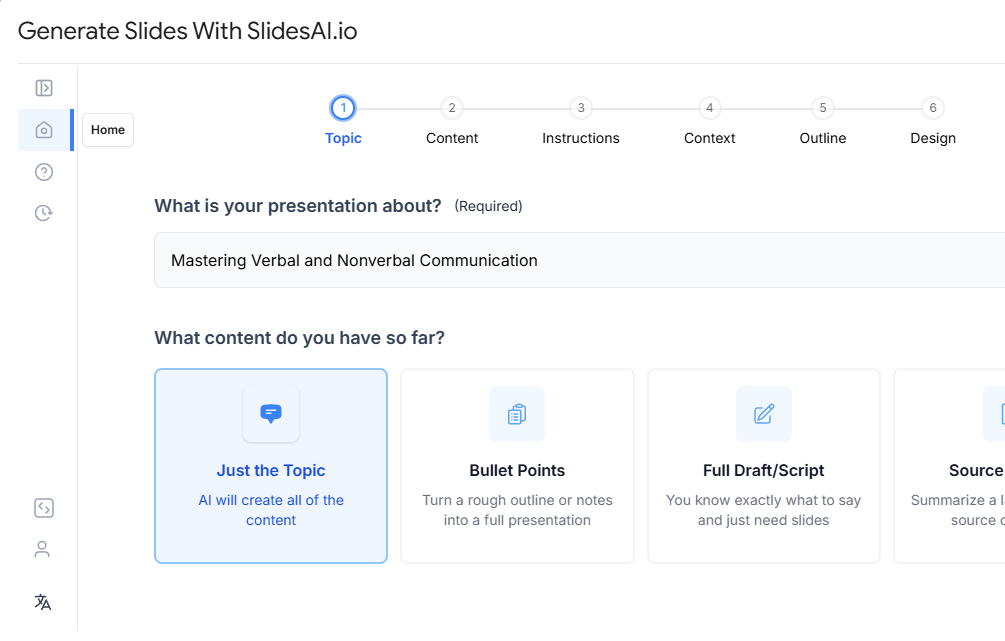
Create AI presentations directly in Google Slides.
- No design skills required
- 3 presentations/month free
- Save directly in Google Slides
Frequently Asked Questions About Adding Voiceover on Google Slides
How long should I keep the narration for each slide?
Keep it concise! The narration should complement the visuals on the slide, not just repeat them. Ideally, aim for under 30 seconds per slide to maintain audience engagement.
What if I have multiple narrators for different parts of the presentation?
While Google Slides can’t assign different audio clips to specific sections within a slide, you can create separate slides with their own narration for each speaker.
Can I control the voiceovers during a live presentation?
You can! Google Slides presenter view lets you navigate between slides and control audio playback (pause, rewind, or fast-forward) for a smoother and more engaging presentation.
Can You Record Directly in Google Slides?
Google Slides does not have a built-in feature to record audio or video directly on your slides. You cannot speak or record yourself within the app itself. This means you need an extra tool if you want to add narration or a video.