
Want to make your lines stand out in Google Slides? Whether you are designing a presentation for work, school, or a pitch deck, tweaking line thickness is a quick design fix that makes a big difference. This guide walks you through how to make a line thicker in Google Slides in just a few clicks.
Instead of starting from scratch, you can also save time by using SlidesAI’s predesigned templates. They are fully customizable and visually polished for any presentation style.
Why Should You Make a Line Thicker in Google Slides?
Using thicker lines in Google Slides helps make your content more visible and easier to follow. They naturally grab attention and can help break up different parts of your slide for better organization. Here’s how:-
- Emphasize Key Elements: Thicker lines help important details stand out.
- Boost Readability: Ideal for big screens or virtual presentations where clarity matters.
- Enhance Visual Appeal: Mixing line weights adds depth and makes your slides look more polished.
- Maintain a Unified Style: Consistent line thickness supports a clean, professional layout.
If you are already customizing your slides with borders, you might also want to add a border in Google Slides or draw freehand on your slides.
How to Make a Line Thicker in Google Slides?
It takes only a few seconds! Click on the line to select it, then head to the toolbar and choose the “Line Weight” option. Pick a thicker size from the list. You can also customize the line’s color and style using other formatting tools. Here’s the fastest, step-by-step way to make a line thicker in Google Slides.
Step 1: Select the Line
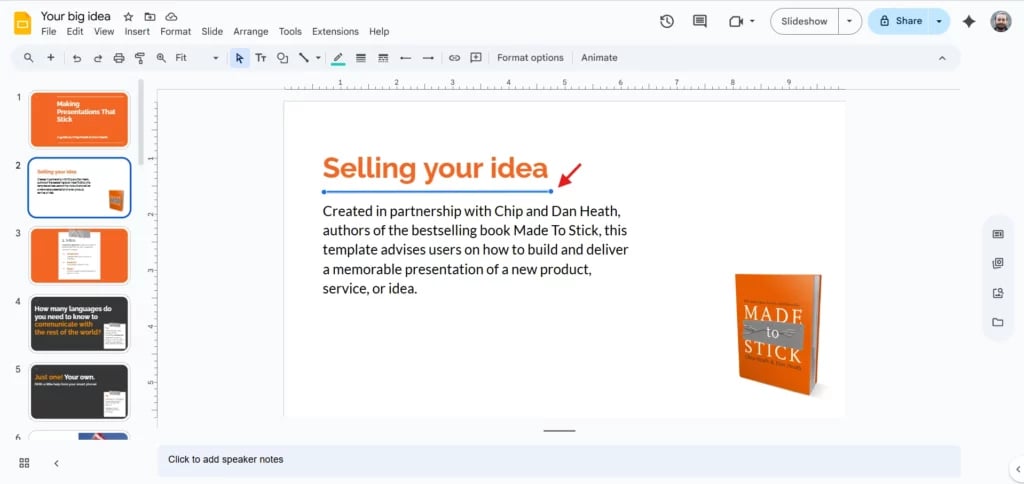
Click on the line you’ve added to your slide. Once selected, you’ll see blue dots on both ends.
Step 2: Open the Line Weight Menu
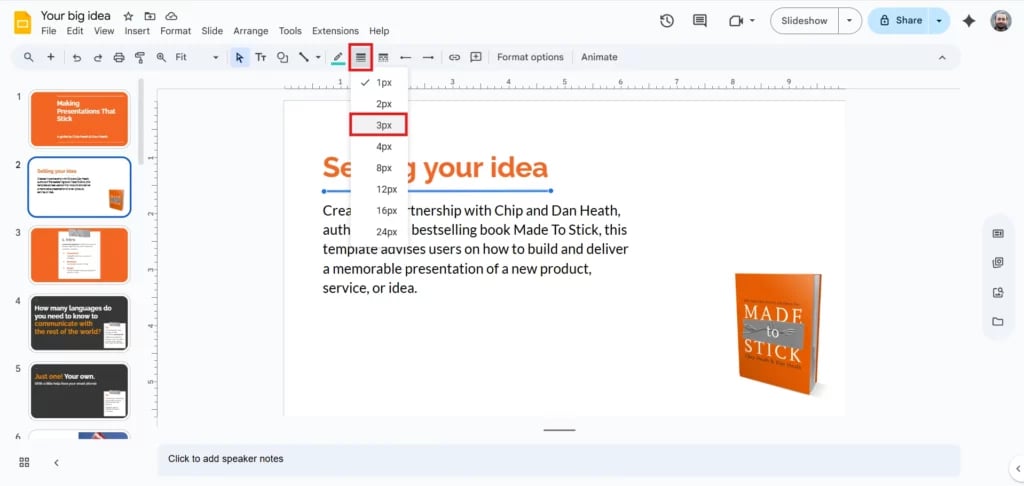
Go to the top toolbar and click the “Line weight” icon. It looks like three stacked lines in different thicknesses.
Step 3: Choose a Thicker Line
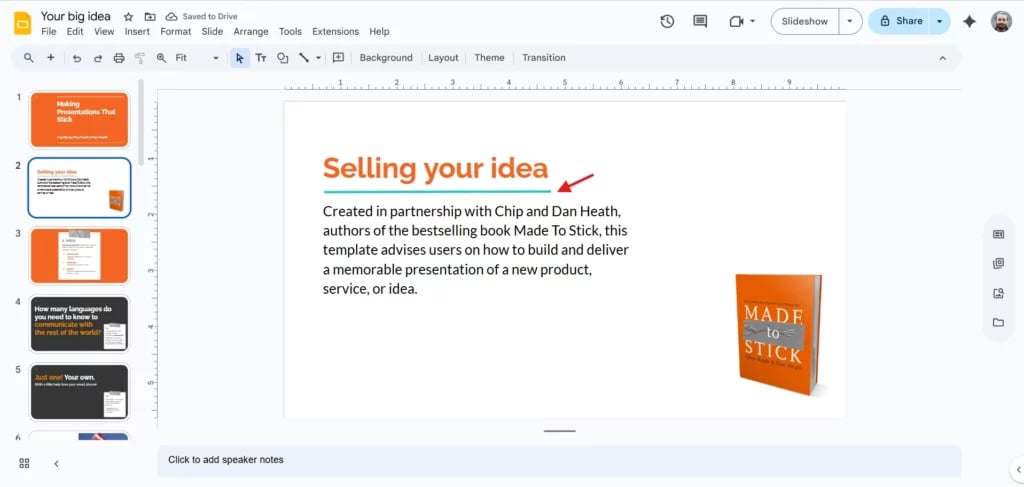
Select your preferred thickness (like 2px, 4px, or 8px). As soon as you click, the line updates instantly.
Need a polished presentation fast? Use SlidesAI’s AI Google Slides Maker to create professional slides in minutes.
Conclusion
Adjusting line thickness in Google Slides is a simple yet powerful way to improve clarity and design. Whether you are creating diagrams, separating sections, or highlighting key points, a thicker line can elevate your entire slide.
If you are looking to save time while designing stunning presentations, SlidesAI can help you generate beautiful, editable slides in seconds. This AI-powered presentation tool handles the layout and design work, so you can focus on refining details like line thickness to match your style.
Build Stunning Slides in Seconds with AI
- No design skills required
- 3 presentations/month free
- Don't need to learn a new software

Frequently Asked Questions About Making Lines Thicker in Google Slides
Can I make a line thicker after I’ve already added it in Google Slides?
Yes, you can. Just click on the line to select it, then use the “Line weight” option in the toolbar to adjust its thickness.
What is the maximum thickness for a line in Google Slides?
You can choose line weights up to 24px, which is the thickest option currently available in Google Slides.
How do I change the line thickness for more than one line at once?
Hold the “Shift key”, click each line to select them together, then adjust the line weight from the top toolbar.
Why isn’t the line weight option showing up in my toolbar?
The “Line Weight” button only appears when a line is selected. Make sure you’ve clicked on the line first.
Are line weight and border weight different in Google Slides?
Not really. Line weight is used for standalone lines, while border weight refers to the thickness around shapes or images, but they work the same way.
Key Takeaways:
- Thicker lines improve visibility, readability, and overall design, making slides look more professional and organized.
- Benefits include emphasizing key elements, enhancing visual appeal, and maintaining a consistent layout style.
- To make a line thicker: select the line, open the “Line weight” menu in the toolbar, and choose a desired thickness (e.g., 2px–8px).
- Google Slides allows line weights up to 24px, and thickness can be applied to multiple lines at once by selecting them together with the Shift key.
- The “Line weight” option only appears when a line is selected; border weight works similarly for shapes and images.
- SlidesAI offers predesigned, customizable templates with professional line styles, helping users save time and create polished slides quickly.