Creating a presentation from scratch can take longer than most people expect. You need to decide the structure, write slide content, organize ideas, and make sure the flow feels natural. Many people spend more time figuring out what goes on each slide than actually presenting.
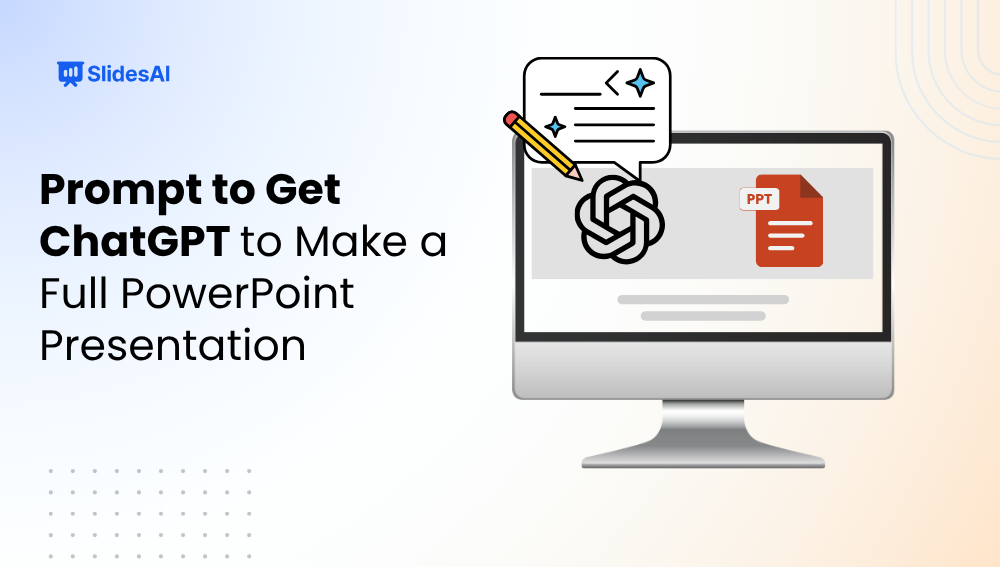
This is where ChatGPT becomes useful. Instead of staring at a blank screen, you can give clear prompts and receive a full presentation structure within minutes. In this blog, we will take a look at how to ask ChatGPT for a complete PowerPoint presentation, the types of prompts that work best, and how to turn AI generated text into polished slides using tools like SlidesAI.
Why Should You Use ChatGPT For Presentations?

Here’s why using ChatGPT for presentations is a good idea:
1. Quick Solution for a Time Consuming Task
Building slides manually can take hours. You need to decide what matters, organize sections, and avoid overcrowding each slide.
ChatGPT reduces that workload. You can ask it to generate an outline, create bullets, suggest examples, or even build speaker notes. Instead of starting from zero, you begin with a ready framework.
2. Choosing Accurate and Useful Information
One challenge during presentation creation is deciding what deserves a slide. Reports, research, and long notes usually contain too much information.
ChatGPT helps narrow the focus. You can ask it to pull out important facts, simplify explanations, or highlight the strongest takeaways for your audience.
3. Planning and Arrangement of the Slides
A presentation needs flow. Random slides make audiences lose interest quickly.
ChatGPT can organize your deck into sections such as introduction, supporting points, examples, insights, and conclusion. This makes the presentation feel more structured and easier to follow.
AI Presentation Makers that Use ChatGPT
Many presentation tools now work alongside AI writing systems. Instead of writing and designing separately, you can combine both processes.
Tools like SlidesAI allow you to take generated text and instantly convert it into designed slides. This removes the need to manually copy content into every layout.
How to Ask ChatGPT to Create a PowerPoint Presentation?
The quality of your presentation depends heavily on how you ask. Generic prompts usually create generic slides. Detailed prompts create better structure, stronger wording, and more relevant content.
Here are the main areas where prompts make a difference.
a. Slide Titles and Headings
Slide titles shape the direction of your presentation. Weak titles feel vague. Strong titles guide the audience through the story.
When asking ChatGPT for titles, include the topic, audience, tone, and purpose. This gives clearer direction and produces headlines that sound more presentation ready.
Examples
- Act as an industry expert and create a full PowerPoint outline on [topic]. Build a [number] slide presentation for [audience]. Keep the tone [professional, educational, persuasive, casual]. Give each slide a strong headline and supporting bullet points.
- Generate slide titles for a presentation about [topic]. Make each title sound clear, engaging, and suitable for a professional audience.
- Suggest section headings for a presentation on [topic]. The titles should feel modern and presentation friendly rather than textbook style.
- Create a sequence of slide headlines that guide the audience from introduction to conclusion.
- Write concise slide titles for a presentation about [topic]. Each title should sound like a takeaway rather than a label.
These prompts help you build a strong presentation structure before writing the details.
b. Generate and Refine Your Content
After slide titles are ready, the next step is filling slides with useful information. This is where follow up prompts become important.
Instead of accepting the first draft, you can refine the output for clarity, audience fit, and stronger examples.
Examples
- Create a complete PowerPoint presentation on [topic]. Include slide titles, 3 to 5 bullets per slide, and short speaker notes.
- Generate slide content for a presentation on [topic]. Keep each slide focused on one idea and avoid long paragraphs.
- Write presentation content for [topic] and then simplify it so the wording feels clear and easy to understand.
- Create slide text for [topic] using concise language. Remove repetition and make each bullet informative.
- Add real world examples people commonly experience when discussing [topic].
- Rewrite the presentation so it sounds more conversational and easier to present aloud.
- Refine this slide content to sound more professional and presentation ready.
- Turn this topic into a complete slide deck with introduction, examples, benefits, challenges, and conclusion.
The best results usually come from asking ChatGPT to improve the output in stages rather than expecting perfection from one prompt.
c. Conclusion and Call to Action
A presentation should not end abruptly. The final slide should remind people what matters and guide them toward a next step.
Strong closing prompts help make your ending feel intentional.
Examples
- Write a closing slide for [topic] that summarizes the main idea and gives the audience a clear next step.
- Create a final slide that includes a headline, short recap, and action focused takeaway.
- Generate a conclusion slide that reinforces the strongest point from the presentation.
- Write a call to action slide encouraging the audience to take action after learning about [topic].
- Build a closing slide that includes urgency, next steps, and a memorable final line.
- Create a final slide that tells the audience what to do, think about, or explore next.
These prompts make presentations feel complete rather than unfinished.
ChatGPT Prompts for Your Next Presentation
Here are prompt ideas that go beyond basic slide creation and help make presentations more engaging.
- Write a title slide for a presentation on [topic] with a strong headline, subtitle, and presenter introduction.
- Create an opening slide that grabs attention using a surprising fact or bold question.
- Suggest visual themes that fit a presentation about [topic].
- Write a discussion question slide that encourages audience participation.
- Create a short story or relatable example connected to [topic].
- Outline a presentation flow that starts with a problem and ends with a solution.
- Find an unexpected statistic related to [topic] that would surprise an audience.
- Suggest an audience poll or interactive activity for this presentation.
- Recommend visual storytelling ideas for slides on [topic].
- Create a timeline slide showing major developments related to [topic].
- Suggest meaningful quotes that support the presentation message.
- Write a slide explaining why this topic matters today.
- List the strongest reasons why people should care about [topic].
- Create a myth versus fact slide that corrects misunderstandings.
- Build a “Did You Know?” slide with interesting trivia.
- Design a before and after comparison slide.
- Suggest a memorable acronym based on the presentation message.
- Create an agenda slide that maps out the presentation journey.
- Write a one sentence takeaway the audience should remember.
- Build a success story slide using real examples.
- Generate a quick facts slide with important numbers.
- Create a closing slide with a clear next action.
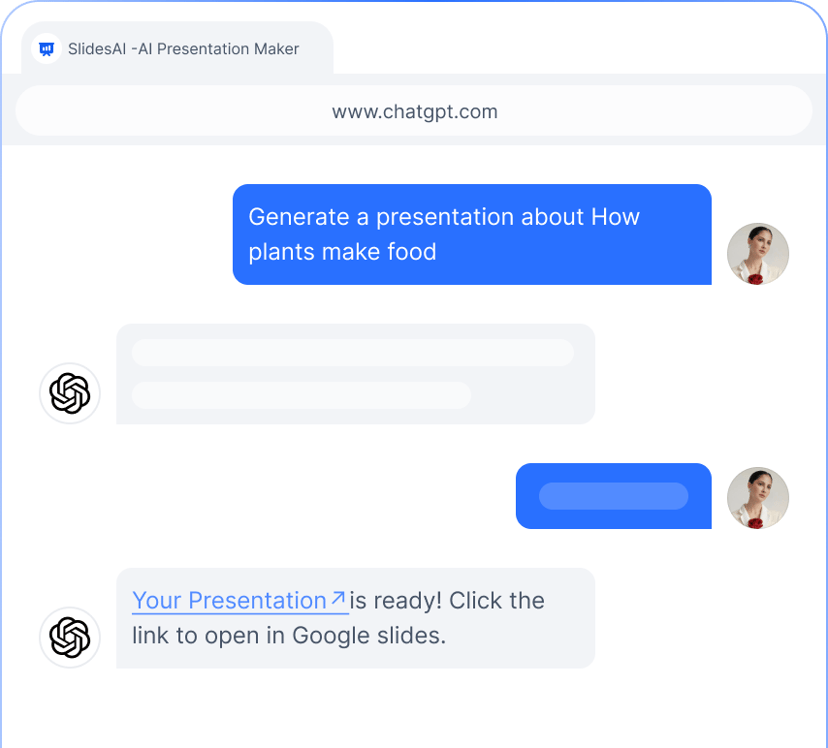
Turn your ChatGPT prompts into complete presentations with the SlidesAI ChatGPT PPT Maker
Create a Preentation Using SlidesAI ChatGPT Presetation Maker
- Open ChatGPT and Click on ‘Explore GPTs’
- Search for SlidesAI and start a Chat
- Provide Your PPT Prompt to ChatGPT
- Follow the prompt chain and select the template.
- Review the Generated Presentation
- Final Review Adjustments and Export or Share Your Presentation
From ChatGPT Content to Finished Slides with SlidesAI
Once you have content from ChatGPT, the next challenge is design. Writing is only one part of presentation building. Formatting slides manually can still take time.
This is where SlidesAI becomes useful.
A typical workflow looks like this:
- Use ChatGPT to create your outline, slide content, examples, and speaker notes.
- Open SlidesAI inside Google Slides or PowerPoint.
- Paste your generated content or enter your topic.
- Let the tool automatically arrange slides, layouts, themes, and visuals.
- Adjust tone, templates, or formatting based on your preference.
- Export the finished presentation as a PowerPoint file.
SlidesAI supports multiple languages, presentation templates, and built in visual suggestions. This means you spend less time arranging layouts and more time refining the message.
For students, teachers, marketers, founders, or business professionals, this workflow removes much of the repetitive work that comes after writing.
Create presentations from your ideas using  SlidesAI in ChatGPT.
- Create presentations from a simple prompt
- Let AI structure your presentation
- Export directly to Google Slides, PowerPoint or PDF
Closing Thoughts
Creating a presentation no longer has to start with a blank slide. With the right prompts, ChatGPT can help you build outlines, generate slide content, refine messaging, and shape a complete presentation much faster.
The real difference comes from how you ask. Clear prompts lead to stronger structure, better flow, and more useful content. When paired with tools like SlidesAI, you can move from rough ideas to finished slides without spending hours formatting everything manually.
If you create presentations often, learning how to prompt ChatGPT properly can make the process smoother, quicker, and far less overwhelming.
FAQs
1. How do you ask ChatGPT to make a PowerPoint presentation?
You can ask ChatGPT by providing a clear topic, audience, slide count, and objective. For example: “Create a 10 slide presentation on digital marketing for small business owners.”
2. How do presentation specialists improve presentations?
Presentation specialists improve structure, storytelling, clarity, and design. They make sure slides are easy to understand while keeping the audience engaged.
3. What are the benefits of using ChatGPT for presentations?
ChatGPT helps save time, organize ideas, simplify research, and create slide content faster. It also helps with headlines, speaker notes, and presentation flow.
4. How does SlidesAI help professionals?
SlidesAI converts written content into presentation slides automatically. It reduces formatting work and helps create polished decks quickly.
5. Are there downsides to relying only on ChatGPT?
Yes. AI generated content may sometimes feel generic or miss audience specific context. It is still important to review, edit, and personalize the final presentation.