

The tone of a presentation plays a major role in how your audience understands and responds to your message. A presentation designed for corporate meetings usually requires a professional tone, while educational presentations, marketing pitches, or creative projects may need a enthusiastic, persuasive, or engaging style. Choosing the right tone helps improve communication, audience engagement, and overall presentation effectiveness.
Changing the tone of a presentation manually can take time because it often involves rewriting content, adjusting wording, simplifying explanations, and restructuring slides. With AI-powered tools like SlidesAI, you can quickly modify the tone of your presentation and generate slides that match your target audience and presentation goals automatically.
In this guide, you will learn how to change the tone of a presentation using SlidesAI, different presentation tones you can use, and why adjusting presentation tone is important for better audience engagement and communication clarity.
How to Customize the Tone of a Presentation in SlidesAI?
SlidesAI allows you to choose the presentation tone before your slides are generated so that your content matches your audience and their communication style from the beginning. Here’s how:
Step 1: Open SlidesAI & Log In
- Visit the SlidesAI platform and log in to your account.
- You can also install the SlidesAI add-on for Google Slides or the PowerPoint add-in if you want to create presentations directly inside those platforms.
Step 2: Start Creating a New Presentation
- Click on “Generate New Slides” to begin creating your presentation.
- This opens the AI presentation workflow, where you can enter your topic and customize your presentation settings.
Step 3: Enter Your Presentation Topic

- Add the topic of your presentation.
- For example, you can enter a topic like “How to Change the Tone of Your Website?”
- SlidesAI will use this input to generate your presentation structure and content.
Step 4: Select Presentation Settings & Tone

- Choose the presentation type, target audience, language, and presentation tone.
- This is the most important step, as choosing the right tone of a presentation ensures your message matches your audience’s expectations.
Step 5: Add Additional Instructions

- Under the “What else should we know?” section, add any extra instructions you want SlidesAI to follow.
- You can include details about the content structure, important talking points, brand guidelines, writing preferences, and audience expectations for more personalized presentation content.
Step 6: Choose the Presentation Style

- Select how you want your presentation to be delivered.
- For example, you can optimize it for live presentations, reports, educational sessions, or other presentation styles.
Step 7: Choose a Template & Visual Preferences

- Select a presentation template that matches your topic and preferred design style.
- You can also personalize the presentation by adding your logo, choosing AI-generated images or stock photos, and adjusting visual preferences to maintain consistency throughout.
Step 8: Review the Presentation Outline

- Once you select your preferences, SlidesAI will automatically generate an outline of the presentation.
- Review it carefully and make edits if needed before continuing.
Step 9: Review the Generated Content

- After generating the presentation outline, SlidesAI will then generate the entire slide content based on your chosen tone and instructions.
- Review it thoroughly and refine any sections if needed before clicking “Generate Slides.”
Step 10: Finalize Your Presentation

- SlidesAI will create the full presentation automatically.
- Review all slides carefully and make final edits to ensure the tone, design, and messaging align with your presentation goals.
How to Change the Tone of Individual Slides After Creating the Presentation?
SlidesAI allows you to edit the tone of specific slides even after the presentation is created. Here’s how to update individual slides:
Step 1: Open the Slide You Want to Edit

- Go to the specific slide whose tone you want to modify.
- On the right side of the screen, open the SlidesAI editor and select the “Rephrase/Rewrite” option.
Step 2: Select a New Tone

- Choose your preferred tone from the dropdown menu.
- SlidesAI will automatically rewrite the selected content while preserving the meaning and structure of the slide.
Create Presentations in Minutes With SlidesAI
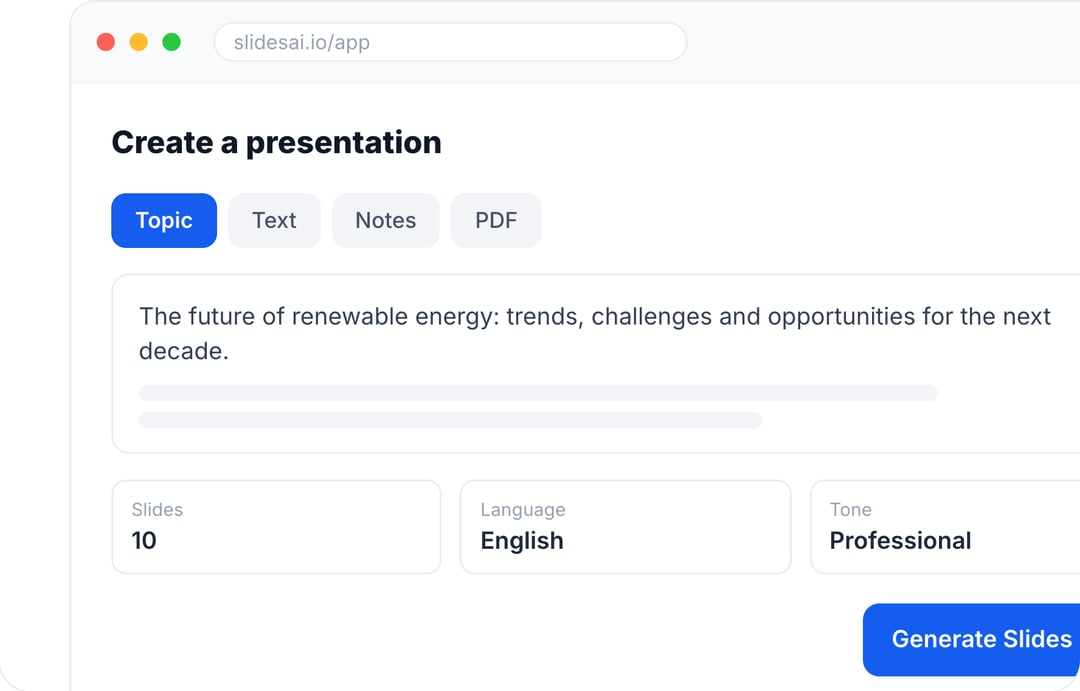
- Start with a topic, text, notes, or PDF
- Generate slides in minutes
- Customize your presentation with ease
What Are the Benefits of Customizing Presentation Tone in SlidesAI?
Customizing the tone of a presentation does not just change the wording but also improves communication quality and audience connection.
Here are some major benefits of using tone customization inside SlidesAI:
- Saves Significant Editing Time: Instead of rewriting slides manually, SlidesAI adjusts the wording automatically based on your selected tone, speeding up the presentation creation process.
- Maintains Consistency Across Slides: AI-powered tone settings help maintain a consistent writing style throughout the presentation, preventing slides from sounding disconnected or uneven.
- Improves Audience Engagement: Different audiences respond better to different communication styles. A conversational tone may work better for students, while a professional tone may fit business presentations more effectively.
- Makes Presentations More Impactful: The right presentation tone emphasizes your key message more clearly, improving audience understanding, trust, and retention.
Create Presentations Easily in Google Slides and PowerPoint
14M+Installs
 Install add-in
What Is the Importance of the Right Presentation Tone?
The tone directly affects how audiences interpret, trust, and respond to your message.
1. Improves Audience Understanding
The right tone makes information easier to understand and follow, improving audience understanding. It helps simplify complex ideas and improves communication.
2. Keeps Audiences More Engaged
Adjusting the tone of the presentation can help maintain audience attention throughout the session.
For example, an enthusiastic tone creates energy, while a conversational tone feels more interactive. Matching the right tone with its audience creates more engagement.
3. Builds Trust & Credibility
A confident and professional tone helps presenters sound knowledgeable and reliable.
This increases audience trust in both the speaker and the message.
4. Aligns with Audience Expectations
Different audiences expect different communication styles.
A formal tone may fit corporate presentations, while a more relaxed tone may work better for creative or educational presentations.
5. Strengthens Message Delivery
The right presentation tone makes key points more memorable and impactful.
It also helps presenters communicate emotion, urgency, or authority more effectively.
What Are the Different Types of Tones in a Presentation?
- Authoritative Tone: An authoritative tone sounds expert-driven, direct, and confident. This works well for leadership presentations, strategic discussions, and business decision-making sessions.
- Confident Tone: A confident tone sounds assured and professional without feeling overly aggressive. It is commonly used in workplace presentations, proposals, and educational presentations.
- Enthusiastic Tone: An enthusiastic tone feels energetic, engaging, and motivating. It works especially well for storytelling, product launches, creative ideas, and classroom engagement.
- Persuasive Tone: A persuasive tone focuses on influencing decisions and encouraging audience action. It is often used for sales presentations, marketing pitches, and proposals.
- Professional Tone: A professional tone of presentation is formal, respectful, and polished. It is ideal for corporate meetings, academic presentations, training sessions, and official reports.
Frequently Asked Questions (FAQs):
1. Can I change the tone of my presentation after creating slides in SlidesAI?
Yes, with SlidesAI, you can modify the tone of individual slides even after the presentation is generated using the “Rephrase/Rewrite” feature.
2. Can different slides use different tones in SlidesAI?
Yes. You can apply different tones to specific slides depending on the content and communication goal of each section.
3. What types of presentation tones does SlidesAI support?
SlidesAI supports multiple tone styles, including professional, conversational, persuasive, confident, and enthusiastic tones.
4. Do I need design or writing experience to use SlidesAI tone settings?
No. SlidesAI automatically adjusts slide wording and tone, so advanced writing or design experience is not required.
5. Does SlidesAI work with both Google Slides and PowerPoint?
Yes. SlidesAI is available as an add-on for Google Slides and as an add-in for Microsoft PowerPoint.