Most presentations do not fail because the topic is boring. They fail because too much information gets packed into too little time, the message becomes unclear, or the delivery lacks energy and direction. You have probably sat through presentations where slide after slide appeared on the screen, yet you walked away unsure of the main takeaway. The good news is that creating a strong presentation does not have to be complicated. Having a clear framework can help you stay focused, organize your ideas, and deliver your message with confidence. In this blog, we’ll look at a practical 5-step framework that can help you plan, prepare, practice, perform, and polish your presentations so they are easier to create and more engaging for your audience.
The 5-Step Framework for Presentation Success
1. Plan: Build a Strong Foundation Before Creating Slides
Many people open PowerPoint or Google Slides and start building slides immediately. The problem is that presentations often become scattered when there is no clear plan behind them. Before creating a single slide, spend some time establishing a solid foundation.
a. Define Your Objective
Start by asking yourself a simple question: Why am I giving this presentation?
Your objective shapes every decision that follows. Are you trying to inform your audience about a topic? Persuade them to support an idea?
Encourage them to take a specific action?
For example, a sales presentation may aim to persuade potential customers, while a classroom presentation may focus on helping students understand a concept. When your objective is clear, it becomes much easier to decide what information belongs in your presentation and what can be left out.
b. Understand Your Audience
A presentation that works well for one audience may completely miss the mark with another.
Think about who will be listening. What do they already know about the topic? What challenges do they face? What questions might they have?
The more you understand your audience, the easier it becomes to choose examples, stories, and explanations that connect with them.
c. Set Boundaries
One of the biggest reasons presentations become overwhelming is trying to cover too much.
Every presentation has limits. There is a time limit. There is an attention limit. There is also a practical limit to how much information people can absorb at once.
Decide on the most important points you want your audience to remember and focus on those. A shorter presentation with a clear message is usually more memorable than a longer presentation packed with unnecessary details.
2. Prepare: Organize Your Content and Supporting Materials
Since you know what you want to achieve, it is time to build your presentation. This stage is where your ideas begin to take shape.
a. Outline Your Core Message
Strong presentations follow a logical flow.
Start with an opening that grabs attention. This could be a surprising statistic, a relatable story, a question, or an interesting fact that makes people curious.
Next, move into the main body of your presentation. This is where you explain your ideas, share supporting evidence, and provide examples that strengthen your message.
Finally, end with a clear conclusion. Summarize the main points and leave your audience with a specific takeaway or action step.
When your presentation follows a clear structure, people can follow along more easily and retain more information.
b. Design Visuals Carefully
Slides should support your message, not compete with it.
Many presenters make the mistake of filling slides with large blocks of text. Instead of helping the audience, this often distracts them.
Keep your slides clean and simple. Use visuals, charts, and graphics where appropriate. Highlight important information instead of displaying every detail.
A helpful guideline is the 7-7-7 Rule:
- No more than 7 lines per slide
- No more than 7 words per line
- Use a minimum font size that remains readable for everyone in the room
This approach keeps slides clear and easy to follow.
Save time with professionally designed presentation templates from SlidesAI. Customize them in minutes and create polished presentations faster.
c. Write Speaker Notes
You do not need a full script for every presentation.
In fact, reading directly from a script can make your delivery sound robotic and less engaging.
Instead, create brief speaker notes or cue cards with important points, reminders, and transitions. These notes help you stay on track while still sounding natural when you speak.
3. Practice: Turn Preparation into Confidence
Even the best presentation can feel uncomfortable if you have not practiced it beforehand. Practice is where preparation turns into confidence.
a. Rehearse Out Loud
Reading through your slides silently is not the same as delivering a presentation.
Speak your presentation out loud several times. This helps you become familiar with your content and identify sections that feel awkward or unclear.
You may also notice places where transitions need improvement or examples need additional explanation.
b. Time Yourself
Many presenters underestimate how long they actually take to speak.
Practice with a timer to make sure your presentation fits within the allotted timeframe. This gives you enough room for audience questions and prevents rushing through important sections at the end.
c. Test Your Technology
Technical problems can quickly disrupt an otherwise strong presentation.
Before presenting, check your slides, audio, videos, internet connection, and presentation software. If you are presenting virtually, test the platform you will be using.
A few minutes of preparation can prevent unnecessary stress later.
4. Perform: Deliver Your Message with Confidence
When presentation day arrives, your focus shifts from preparation to delivery.
This is your opportunity to connect with your audience.
a. Open Strong
First impressions matter.
Instead of beginning with a generic introduction, try opening with something memorable. A compelling story, an unexpected statistic, or thought-provoking question can immediately capture attention.
A strong opening creates curiosity and encourages people to keep listening.
b. Use Positive Body Language
Your audience pays attention to more than just your words.
Maintain eye contact whenever possible. Use natural hand gestures to emphasize important points. Stand confidently and speak clearly enough for everyone to hear.
Small improvements in body language can make your presentation feel much more engaging.
c. Encourage Participation
Presentations work best when they feel like conversations rather than lectures.
Invite questions. Use polls if appropriate. Encourage audience participation throughout the session.
When people become involved, they are more likely to stay focused and remember your message.
5. Polish: Improve Every Future Presentation
The presentation may be over, but the learning process is not.
Every presentation provides an opportunity to improve.
a. Gather Feedback
Ask a trusted colleague, mentor, teacher, or audience member for honest feedback.
You might discover strengths you did not notice or identify areas that need more attention.
Feedback often provides valuable insights that are difficult to spot on your own.
b. Review Your Performance
Take a few minutes after the presentation to reflect.
Which parts worked particularly well? Where did the audience seem most engaged? Which sections felt less effective?
Small improvements made consistently over time can lead to significant growth as a presenter.
How SlidesAI Helps You Create Professional Presentations Faster
Creating a presentation often takes much longer than people expect. Organizing ideas, writing slide content, choosing layouts, and formatting slides can easily consume hours before you even start practicing.
This is where SlidesAI can help.
Instead of starting with a blank slide deck, you can turn your ideas, notes, documents, or prompts into a structured presentation within minutes. This AI presentation maker helps generate presentation outlines, organize content logically, and create polished slides that are ready for further customization.
Whether you are using the SlidesAI web application, its Google Slides presentation maker, PowerPoint generator, or the ChatGPT presnetation maker, the goal remains the same: helping you spend less time building slides and more time focusing on your message.
If you want to create professional-looking presentations faster while maintaining quality and structure, SlidesAI can become a valuable part of your presentation workflow.
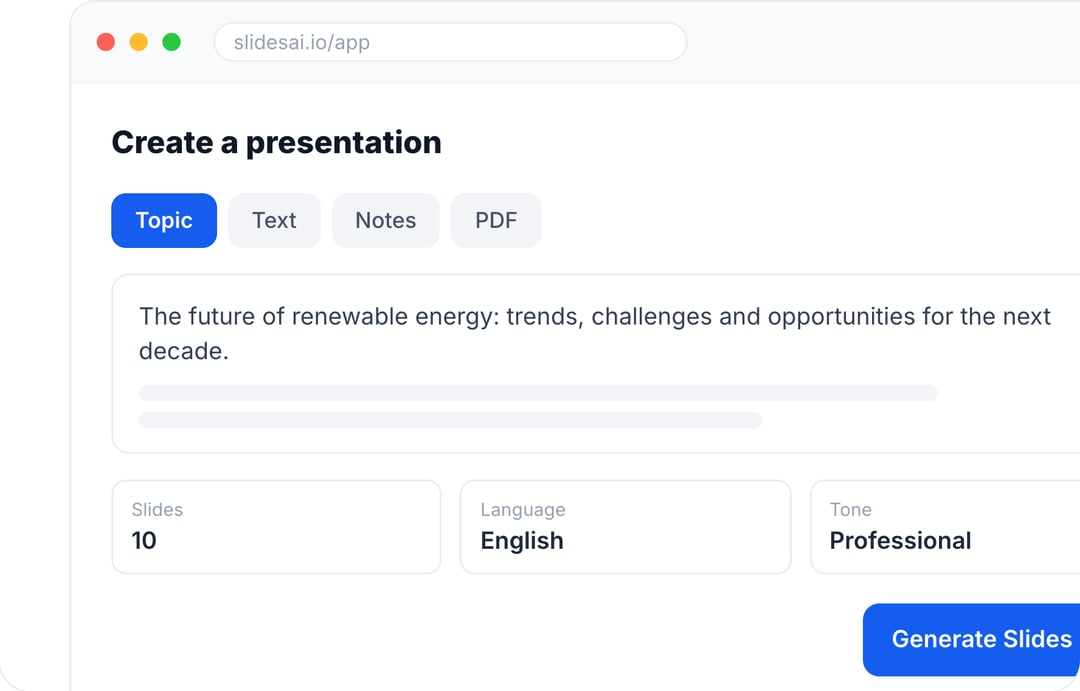
Create Presentations in Minutes With SlidesAI
- Start with a topic, text, notes, or PDF
- Generate slides in minutes
- Customize your presentation with ease
Closing Thoughts
Great presentations rarely happen by accident. They are usually the result of careful planning, thoughtful preparation, consistent practice, confident delivery, and ongoing improvement.
The good news is that presentation skills are not reserved for a select few. Like any skill, they improve with repetition and the right approach.
The next time you prepare for a presentation, follow this 5-step framework. Plan your message, prepare your content, practice thoroughly, perform with confidence, and take time to polish your skills afterward. Over time, you will find that creating and delivering presentations becomes less stressful and far more rewarding.
Ready to create your next presentation? Start creating with the AI Powerpoint maker from SlidesAI and turn your ideas into professional slides in minutes.