Generate presentations that follow your brand from the start.
Creating a presentation that looks professional is one thing. Making sure it consistently reflects your brand is another.
Your brand has its own colours, fonts, logos, images, and visual style. Recreating these elements every time you make a presentation can be time-consuming, especially when you’re working across multiple decks, teams, or clients.
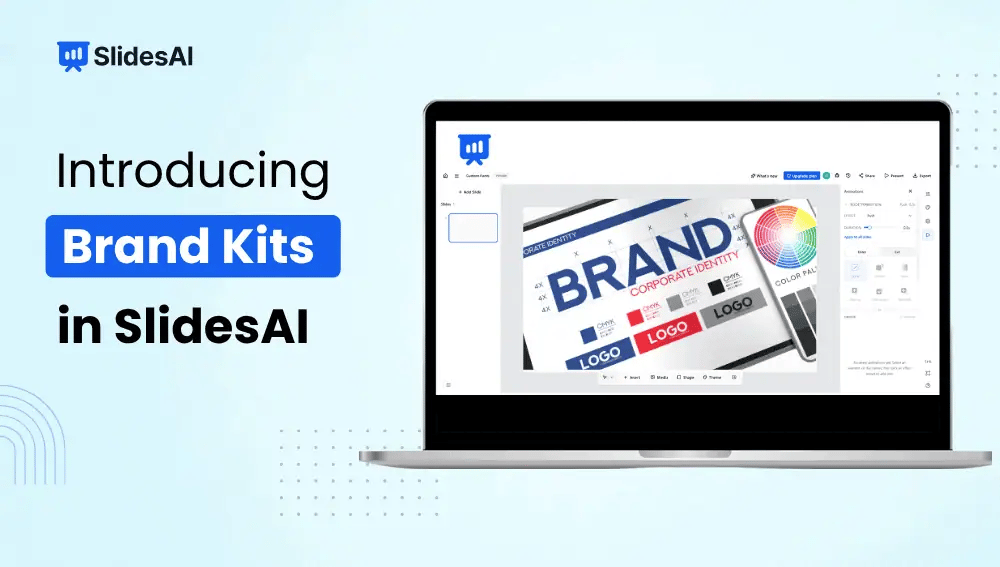
With Brand Kits in SlidesAI, you can save your brand assets and design preferences in one place and reuse them whenever you create a presentation. Instead of adjusting every deck manually, you can start with a brand setup that’s ready to use.
Whether you’re creating presentations for your company, your clients, or different teams, Brand Kits help make it easier to maintain a consistent visual identity.
Bring Your Brand Into Your Presentation Workflow
A Brand Kit brings your key brand elements together so you don’t have to start from scratch every time.
You can save:
- Brand colours to maintain your preferred colour palette.
- Fonts to keep typography consistent.
- Logos and images to use your brand assets across presentations.
- Slide styles and templates to establish a consistent visual direction.
Once your Brand Kit is set up, you can use it when generating new presentations. This helps SlidesAI create decks that are more closely aligned with your brand from the beginning, reducing the need for repeated design adjustments.
Already Have a PowerPoint Template? Make It AI-Ready
If your organisation already has a PowerPoint template, you don’t have to build your Brand Kit from scratch.
SlidesAI lets you import an existing PowerPoint template and make it AI-ready. This allows you to bring your established slide designs into SlidesAI and use them as a foundation for generating new presentations.
The process helps prepare your existing template for AI-generated content, so you can continue using your brand’s visual language while creating new decks.
How to Make Your PowerPoint Template AI-Ready?
- Open Brand Kits: Go to Brand Kits in SlidesAI.
- Select Templates: Choose the option to work with an existing template.
- Upload your PowerPoint file: Import the presentation template you want to use.
- Choose how to handle content that doesn’t fit: Select how SlidesAI should manage content when it doesn’t fit an
- existing slide layout.
- Review the images: Check the images associated with your template.
- Start training: Begin the process of making your template AI-ready.
The training runs in the background, and SlidesAI sends you a notification when it’s ready.
Choose How New Content Is Added
When using an AI-ready template, you can choose between two approaches:
- Design a New Slide: Allows SlidesAI to create a new slide design when the existing layouts don’t fit the content.
- Only Use My Slides: Keeps the presentation within the slides and layouts available in your template.
This gives you control over how closely generated presentations follow your existing template.
Build a Brand Kit From Scratch
If you don’t already have a PowerPoint template, you can create a Brand Kit directly in SlidesAI.
You can set up your brand elements, choose your colours and fonts, add assets, and create slide styles that reflect your preferred look.
How to Create a Brand Kit?
- Create a Brand Kit: Open Brand Kits and select Create Brand Kit.
- Name your Brand Kit: Give it a name so you can identify it easily.
- Choose its availability: Set it up for personal use, a team, or your organisation.
- Add your brand colours and fonts: Enter the colours and select the fonts you want to use.
- Generate slide styles: Create slide designs that follow your brand’s visual direction.
- Add your assets: Upload the logos, images, and other visual elements you want to include.
- Save your Brand Kit: Once everything is set up, save it so it’s ready to use.
You can create separate Brand Kits for different brands, clients, or projects, making it easier to manage multiple visual identities.
Generate a Presentation Using Your Brand Kit
Once your Brand Kit is ready, you can use it when creating a presentation.
Open the Brand Kit you want to use and select Generate Presentation from Kit. Enter your topic or presentation content, then start generating.
SlidesAI uses the selected Brand Kit as the visual foundation for the presentation, helping keep the design aligned with your saved brand elements.
This is particularly useful when you create presentations regularly. Rather than applying the same colours, fonts, and visual styles each time, you can start with your brand preferences already in place.
Who Can Benefit From Brand Kits?
Brand Kits are useful for anyone who creates presentations that need to follow a consistent visual identity.
- Marketing teams and agencies: Maintain brand consistency across campaigns, client presentations, and marketing decks.
- Sales teams: Create proposals, pitches, and business presentations that follow approved brand guidelines.
- Businesses and founders: Keep company presentations consistent without having to manage every design detail manually.
- Teams creating presentations regularly: Save time by reusing established brand elements instead of setting them up for every new deck.
Keep Your Brand Consistent as It Evolves
Brand guidelines and visual identities can change over time. Having your brand elements saved in one place makes it easier to manage those changes and reuse the updated setup across future presentations.
You can also maintain separate Brand Kits for different clients, brands, or teams, rather than trying to manage everything through a single set of design preferences.
Frequently Asked Questions
1. Can I use Brand Kits for recurring business presentations?
Yes. You can save your brand colours, fonts, logos, visual styles, and templates in a Brand Kit and reuse them when generating presentations.
2. Can I create separate Brand Kits for different clients or brands?
Yes. You can create multiple Brand Kits, making it easier to maintain different visual identities for different brands, clients, or projects.
3. Can I use an existing PowerPoint template?
Yes. You can import an existing PowerPoint template and make it AI-ready in SlidesAI. Once the process is complete, you can use it as a foundation for generating presentations.
4. Can I choose how SlidesAI handles content that doesn’t fit my template?
Yes. When preparing an AI-ready template, you can choose between Design a New Slide and Only Use My Slides.
5. Can Brand Kits be shared with a team or organisation?
Yes. When creating a Brand Kit, you can choose whether it is intended for personal use, a team, or your organisation.
6. Can I update my Brand Kit later?
Yes. You can revisit your Brand Kit to manage your saved brand elements as your visual identity or requirements change.
Create Presentations That Look Like Your Brand
Your presentations should reflect your brand without requiring you to repeat the same design work every time.
With Brand Kits in SlidesAI, you can save your brand elements, bring existing PowerPoint templates into your AI presentation workflow, and generate new decks using a consistent visual foundation.
Set up your brand once and make it easier to create presentations that look and feel like yours.