

Want to make your Google Slides presentation more engaging with background music, voiceovers, or sound effects? Adding audio can help you explain complex ideas, create a better storytelling experience, and keep your audience engaged.
Google Slides lets you insert audio files into individual slides and customize how they play. You can start audio automatically, play it when someone clicks the audio icon, adjust the volume, loop a track, or continue playing music across multiple slides.
In this guide, we’ll show you how to add audio and music to Google Slides, play background music throughout your presentation, insert sound effects, and fix common audio playback issues.
How to Add Audio to Google Slides?
Google Slides supports MP3 and WAV audio files stored in Google Drive. Before inserting audio, upload your audio file to Drive and make sure the people viewing your presentation have the required access.
Follow these steps to add audio to your presentation:
-
Upload your audio file to Google Drive: Open Google Drive, select New > File upload, and choose your MP3 or WAV file.
-
Open your Google Slides presentation: Go to Google Slides and open the presentation where you want to add audio.
-
Select the slide: Choose the slide where you want the audio to play.
-
Insert the audio file: Click Insert > Audio in the top menu.
-
Choose your audio file: Select the audio file from your Google Drive and click Select.
-
Position the audio icon: An audio icon will appear on your slide. Move or resize it as needed.
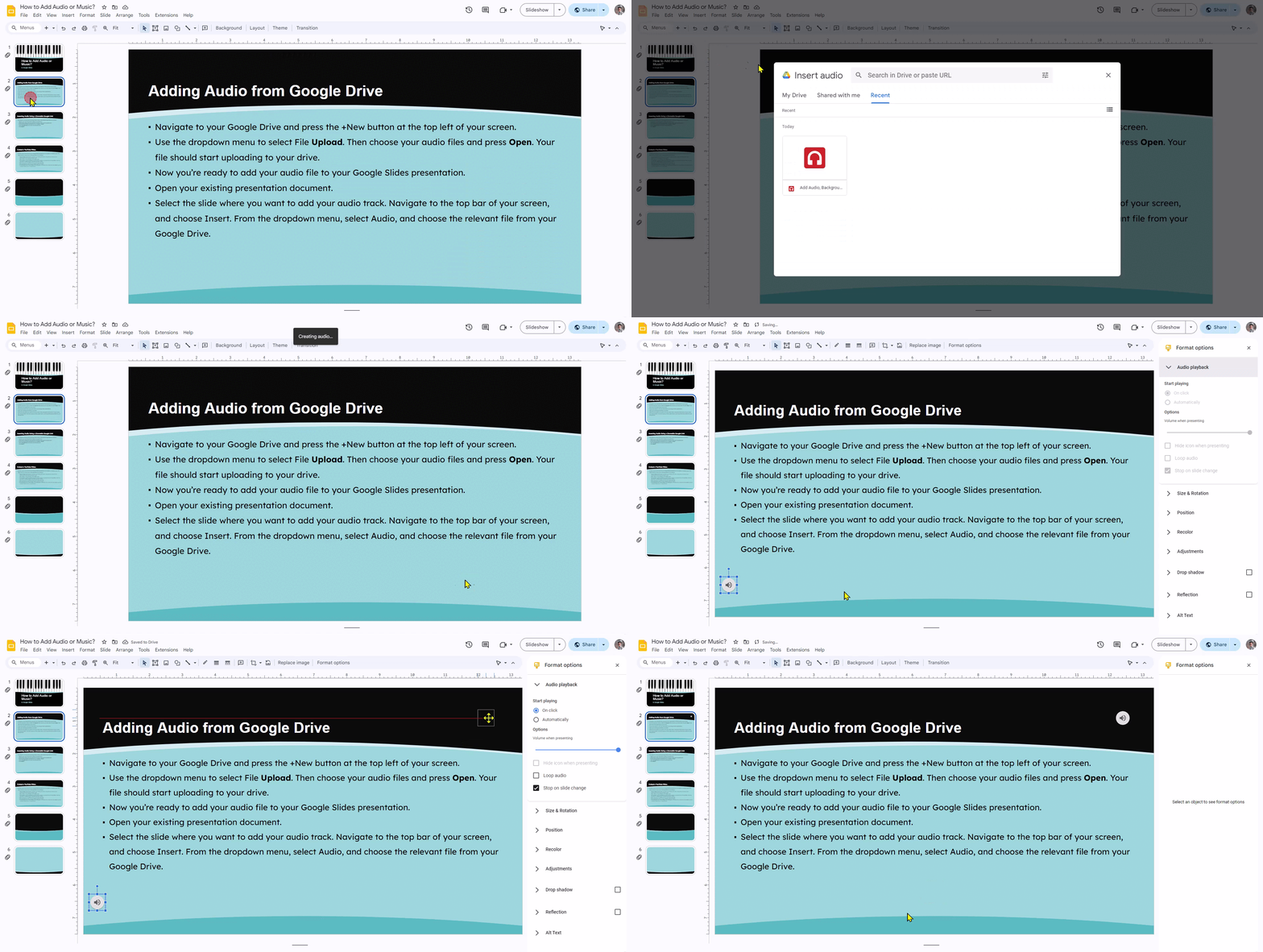
Once you’ve inserted the audio, you can customize its playback settings.
Customize Audio Playback Settings
After inserting an audio file, select the audio icon on your slide. Open Format options from the toolbar or right-click the icon and select Format options.
Under the audio playback settings, you can customize how the audio behaves:
-
Start playing: Choose whether the audio starts automatically or when someone clicks the audio icon.
-
Volume: Adjust the audio volume to suit your presentation.
-
Loop audio: Repeat the audio continuously until playback is stopped.
-
Stop on slide change: Choose whether the audio stops when you move to another slide.
-
Hide icon when presenting: Hide the audio icon during the slideshow if you don’t want it to appear on the screen.
These settings help you control how audio works during your presentation.
How to Add Background Music to Google Slides
Background music can make a presentation more engaging, especially for photo slideshows, product showcases, portfolios, and event presentations.
If you want music to play throughout your presentation instead of stopping after one slide, follow these steps:
-
Upload your background music file to Google Drive. Make sure it is in MP3 or WAV format.
-
Open your Google Slides presentation and select the first slide.
-
Click Insert > Audio and choose your music file.
-
Select the audio icon and open Format options.
-
Under Audio playback, select Play automatically.
-
Enable Loop audio if you want the music to repeat.
-
Turn off Stop on slide change so the music can continue when you move to the next slide.
-
Start your slideshow to check that the music plays as expected.
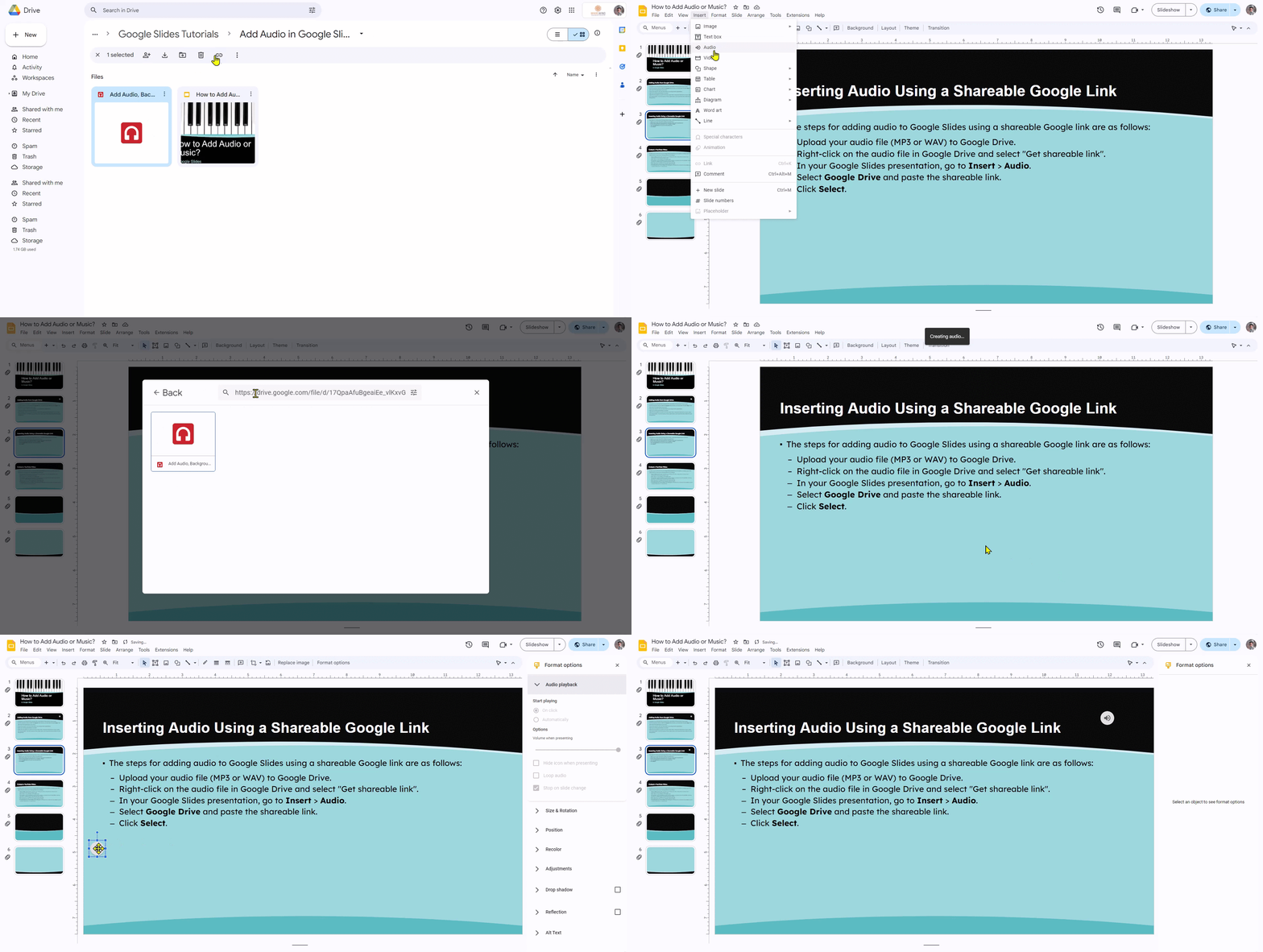
Tip: Use background music at a lower volume so it doesn’t distract your audience from the presentation’s main content. Choose music that matches the tone of your slides.
How to Add Sound Effects to Google Slides
Sound effects can make presentations more interactive. You can use them for product demonstrations, educational presentations, quizzes, or storytelling.
Google Slides lets you insert audio files into slides, which you can use as sound effects.
Here’s how:
-
Find or create the sound effect you want to use.
-
Upload the sound file to Google Drive.
-
Open your Google Slides presentation and select the slide where you want the sound effect.
-
Click Insert > Audio and select your sound file.
-
Click Select to insert it into the slide.
-
Select the audio icon and open Format options.
-
Choose On click if you want to play the sound effect manually, or Automatically if it should start when the slide appears.
-
Adjust the volume and other playback settings.
You can repeat these steps to add different sound effects to multiple slides.
Can You Add Sound Effects to Google Slides Transitions?
Google Slides doesn’t provide a dedicated setting to attach a sound effect directly to a slide transition. However, you can insert an audio file into the slide and configure it to play automatically when the slide appears.
This is useful when you want to add a short sound effect as a slide enters. For better timing, test the effect in slideshow mode and adjust the audio playback settings.
Can You Add Audio to Google Slides Without Google Drive?
Google’s documented method for adding audio to Google Slides uses audio files stored in Google Drive.
To use an audio file from your computer, upload it to Google Drive first. Then open your presentation and select Insert > Audio to choose the file.
If your Google Slides interface offers a direct upload option, follow the prompts shown in your account. Make sure the audio file is available to the presentation and its intended viewers.
Note: The standard Google Slides audio workflow supports MP3 and WAV files. If your audio is in another format, convert it to one of these supported formats before uploading it.
What Audio File Formats Does Google Slides Support?
Google Slides officially supports two audio file formats for insertion:
| Audio format | Supported |
|---|---|
| MP3 | Yes |
| WAV | Yes |
If your audio file is in a different format, such as M4A, AAC, or FLAC, convert it to MP3 or WAV before uploading it to Google Drive.
You can use an audio conversion tool to change the file format. After converting it, upload the new file to Drive and insert it into your presentation.
How to Add YouTube Music to Google Slides
You can also use YouTube content in a Google Slides presentation by embedding a YouTube video.
Here’s how:
-
Open YouTube and find the video you want to use.
-
Copy the video’s URL.
-
Open your Google Slides presentation.
-
Select the slide where you want to add the video.
-
Click Insert > Video.
-
Paste the YouTube URL or search for the video.
-
Select the video and click Insert.
-
Resize and position the video on your slide.
-
Open Format options to customize its playback settings.
You can adjust when the video starts and ends and choose whether it plays automatically or when clicked, depending on the available settings.
Important: A YouTube video is embedded as a video, not inserted as a standalone audio file. If you only need background music without displaying a video, use an audio file in MP3 or WAV format instead.
For more details, read our guide on how to insert YouTube music into Google Slides.
Why Is Audio Not Playing in Google Slides?
Sometimes, audio may not play as expected during a presentation. This can happen because of file access permissions, unsupported formats, playback settings, or browser issues.
Here are some common problems and how to fix them.
1. Check the Audio File Format
Google Slides supports MP3 and WAV files. If your audio file is in another format, convert it to MP3 or WAV and upload it again.
2. Check Google Drive Permissions
Make sure the people viewing your presentation have permission to access the audio file.
Google Slides may use Access Checker to suggest the necessary sharing permissions. Review these suggestions and choose the appropriate access level for your audience.
3. Check Audio Playback Settings
Select the audio icon and open Format options. Check whether the audio is set to play automatically or on click.
If you expect the audio to play automatically, make sure the correct playback option is selected.
4. Check the Volume
The audio may be playing at a very low volume. Select the audio icon, open Format options, and adjust the volume.
Also check your device’s system volume and make sure it isn’t muted.
5. Check the Internet Connection
If your presentation uses audio files stored in Google Drive or embedded online videos, an unstable internet connection may affect playback.
Check your connection and try presenting again.
6. Test the Presentation in Slideshow Mode
Some playback behavior may differ between the editing screen and the actual presentation.
Click Slideshow to test the audio. Check whether it starts at the right time, continues across slides when required, and plays at the expected volume.
Tips for Using Audio in Google Slides Presentations
Adding audio can improve your presentation, but it should support your message rather than distract from it.
Keep these tips in mind:
-
Choose relevant audio: Select background music and sound effects that match your presentation’s topic and tone.
-
Keep background music subtle: Lower the volume so your audience can focus on the content.
-
Use short sound effects: Avoid long or repetitive sounds that interrupt the flow of your presentation.
-
Check audio permissions: Make sure your audience can access the audio files.
-
Test before presenting: Run the entire slideshow to check audio playback, volume, and transitions.
-
Use audio responsibly: Make sure you have the necessary rights or permission to use music and sound effects in your presentation.
Create Professional Presentations Faster with SlidesAI
Adding audio can make your presentation more engaging, but creating well-structured slides is just as important.
With SlidesAI, you can turn text, prompts, and documents into presentations without having to build every slide manually.
Whether you’re preparing a business presentation, classroom lesson, project report, or pitch deck, SlidesAI can help you get started faster.
Create your next presentation with SlidesAI and spend more time refining your ideas and less time building slides from scratch.
Try AI Google Slides Generator by SlidesAI
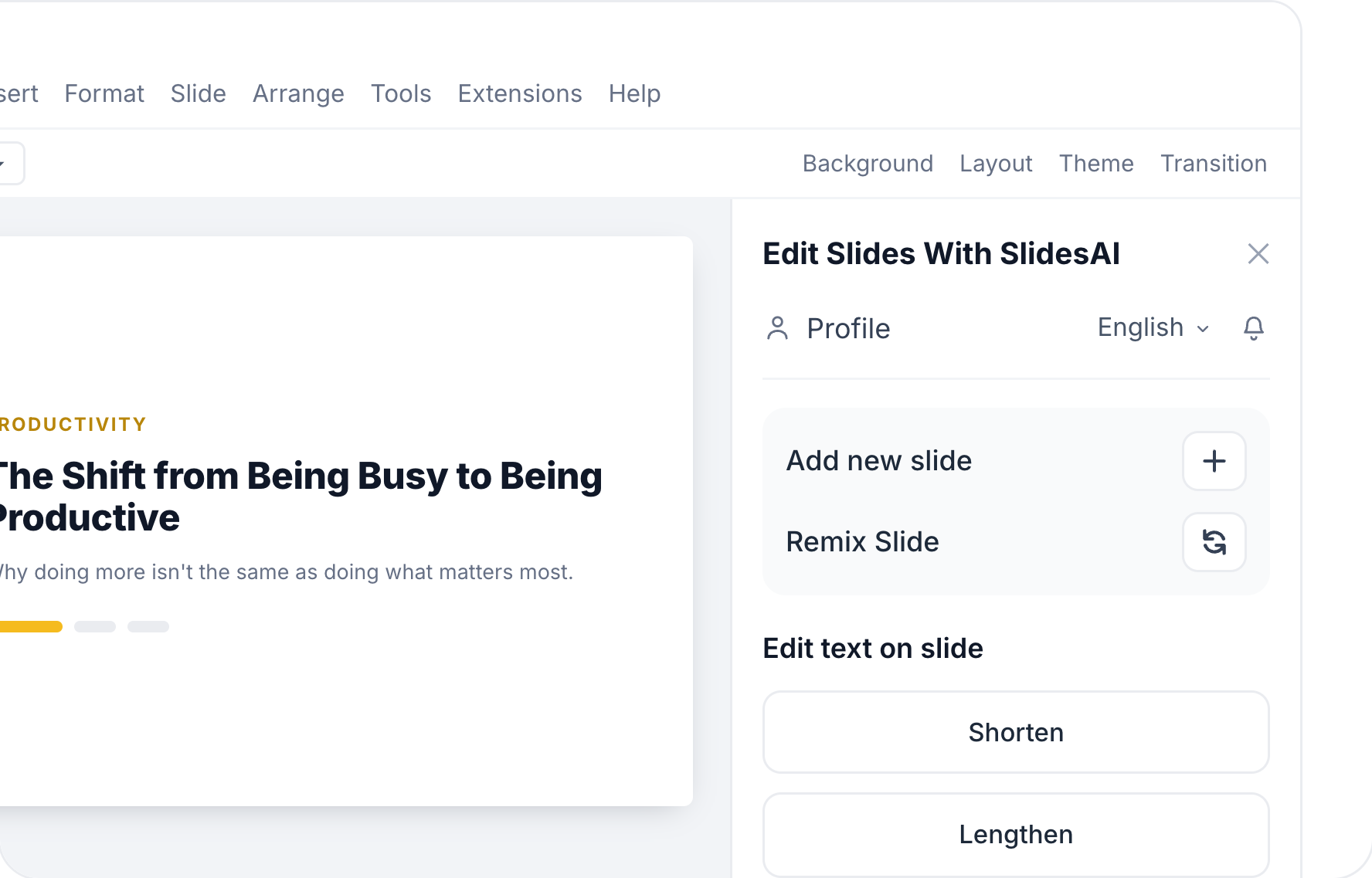
- Create presentations directly in Google Slides
- Add, remix, and rewrite slides with AI
- No design skills required
Conclusion
Adding audio or music to Google Slides is a simple way to make your presentations more engaging. You can insert MP3 and WAV files from Google Drive, customize playback settings, add background music, and use sound effects on individual slides.
If you want music to continue throughout your presentation, remember to enable looping when needed and turn off Stop on slide change. Before sharing your presentation, test the audio and check that your audience has access to the files.
With the right audio and a well-organized presentation, you can create a more engaging experience for your audience.
Frequently Asked Questions About Adding Audio or Music to Google Slides
1. Can you add audio to Google Slides?
Yes. Google Slides supports MP3 and WAV audio files stored in Google Drive. You can insert an audio file by selecting Insert > Audio and choosing the file you want to use.
2. Can you add multiple audio files to one Google Slides presentation?
Yes. You can insert multiple audio files into a presentation. Add each file to the slide where you want it to play and customize its playback settings.
3. How do I make audio start automatically in Google Slides?
Select the audio icon on your slide, open Format options, and choose Automatically under the audio playback settings. The audio will start when the slide appears during the presentation.
4. Can I adjust the volume of audio in Google Slides?
Yes. Select the audio icon and open Format options. You can adjust the volume using the available audio playback settings.
5. Can I fade in or fade out audio in Google Slides?
Google Slides does not provide built-in fade-in or fade-out controls for inserted audio. If you need these effects, edit the audio file using an audio editing tool before uploading it to Google Drive.
6. Where can I find free music for Google Slides?
You can find music and sound effects from royalty-free music libraries and audio platforms. Always check the usage license before adding a track to your presentation, especially if it will be shared publicly or used commercially.
7. Can I make audio play automatically in Google Slides?
Yes. Select the audio icon, open Format options, and choose Automatically under audio playback. Test the presentation in slideshow mode to confirm that it starts as expected.
8. How do I make music play across all slides in Google Slides?
Insert the music file into your first slide. Open Format options, select Automatically, enable Loop audio if you want the track to repeat, and turn off Stop on slide change so the music continues as you move through the presentation.
9. Can I add sound effects to Google Slides transitions?
Google Slides doesn’t have a dedicated option for attaching sound effects directly to transitions. You can insert an audio file into the slide and set it to play automatically when the slide appears.
10. Can I add audio to Google Slides on an iPhone or Android phone?
Google Slides is available on mobile devices, but the audio insertion workflow is designed for desktop browsers. You can add audio from a computer and then present the slideshow on a supported mobile device.