Key Takeaways
- You can use ChatGPT to create a presentation through automated tools, code-based methods, or manual workflows.
- SlidesAI helps turn ChatGPT output into real slides inside Google Slides and PowerPoint.
- ChatGPT is ideal for managing the content and structure of a presentation, while design tools handle visuals and layout.
Creating a presentation can often take more time than expected, especially when you are stuck structuring ideas or deciding what each slide should say. This is where ChatGPT becomes a useful assistant that helps you think faster when used correctly.
In this guide, you will learn how to create a presentation using ChatGPT with practical methods that suit different needs and tools.
How to Make a Presentation Using ChatGPT?
ChatGPT generates slide outlines, bullet points, speaker notes, and summaries, which you can then turn into slides using the method that fits your workflow.
Method 1: Creating Slides Through SlidesAI’s ChatGPT Integration
This method works best if you want speed and minimal manual effort. By using SlidesAI, a ChatGPT presentation maker, you can follow guided prompts inside ChatGPT to define your topic, audience, and style, then turn those inputs directly into structured slides, making it easy to go from text to a finished presentation.
Step 1: Access GPTs Inside ChatGPT
Open ChatGPT and click on the “Explore GPTs” option to view available GPT-based tools designed for specific tasks.
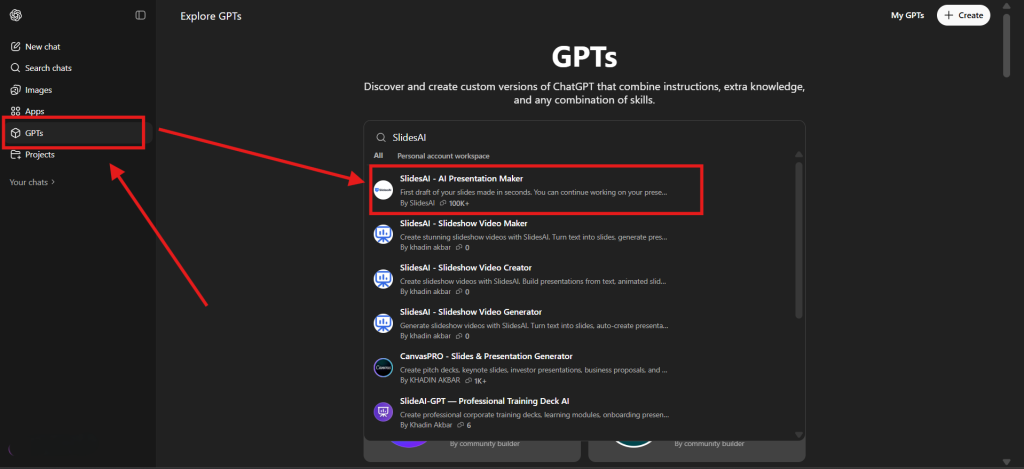
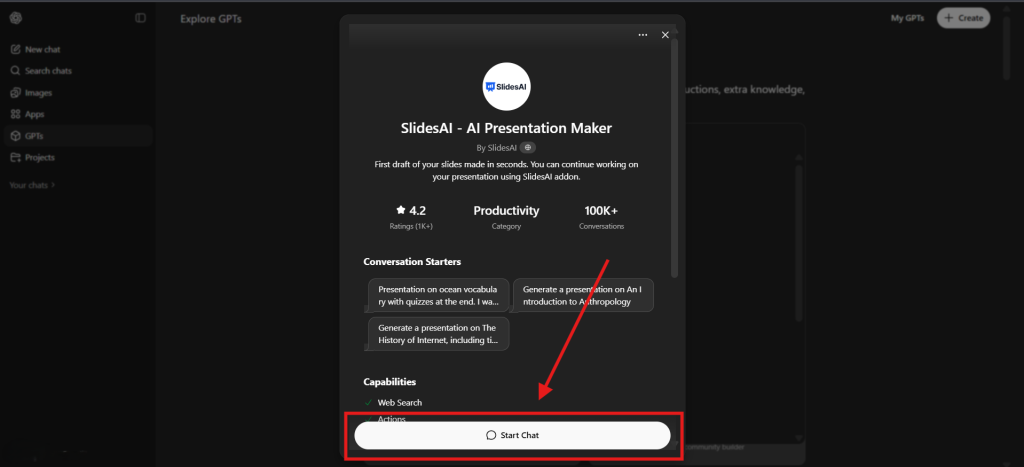
Step 2: Find SlidesAI & Start a Conversation
Search for SlidesAI in the GPT directory and open a new chat to begin creating your presentation.
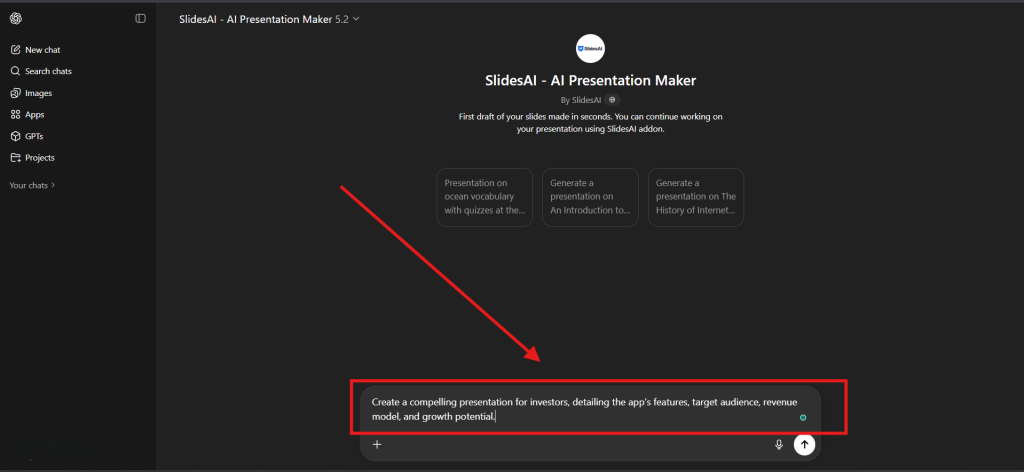
Step 3: Enter a Clear Presentation Prompt
Describe your topic, target audience, slide count, and tone so ChatGPT understands exactly what kind of presentation you need.
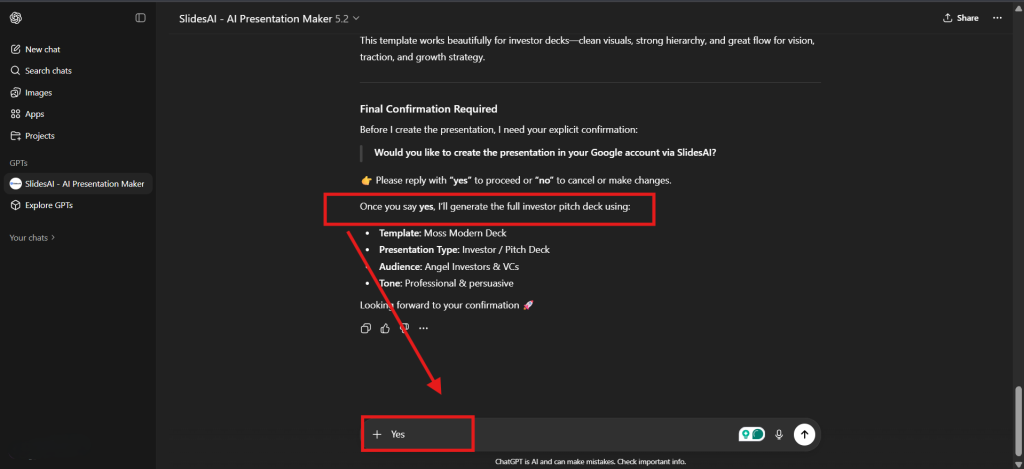
Step 4: Follow the Guided Prompt Flow & Choose a Theme
Respond to the follow-up questions and select a suitable presentation template when prompted.
Step 5: Review the Generated Slides
Check the slide titles, bullet points, and structure to ensure everything aligns with your goal.
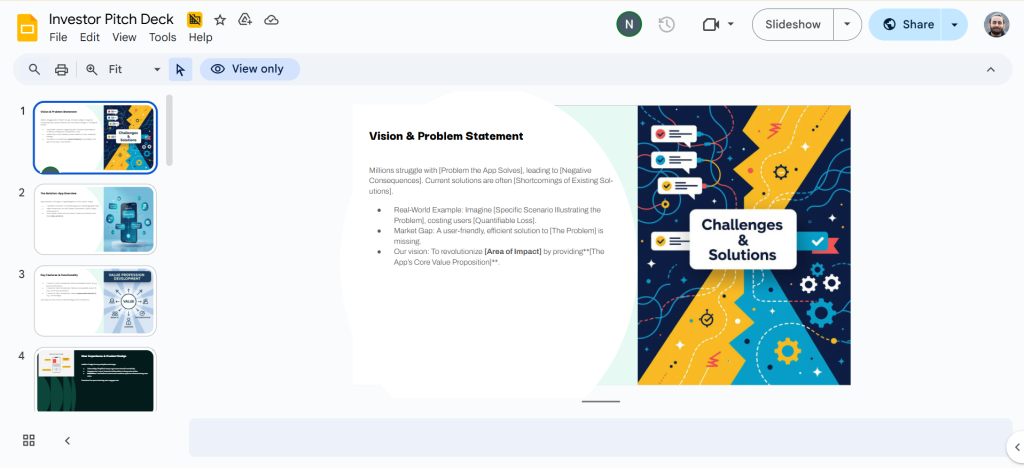
Step 6: Make Final Edits & Export or Share
Apply final adjustments, then export or share your presentation directly through Google Slides or PowerPoint.
Related Read: How to Create a Presentation Script Using AI
Who is this for: This option is ideal if you want speed and minimal manual effort. It works best for users who want ChatGPT content turned into slides inside Google Slides or PowerPoint with basic design already applied.
Create Presentations Easily in Google Slides and PowerPoint
14M+Installs
 Install add-in
Method 2: Using ChatGPT with VBA Code for PowerPoint
This approach works well for PowerPoint users who are comfortable using basic code and want automated slide creation without third-party tools.
Step 1: Ask ChatGPT for a VBA Script
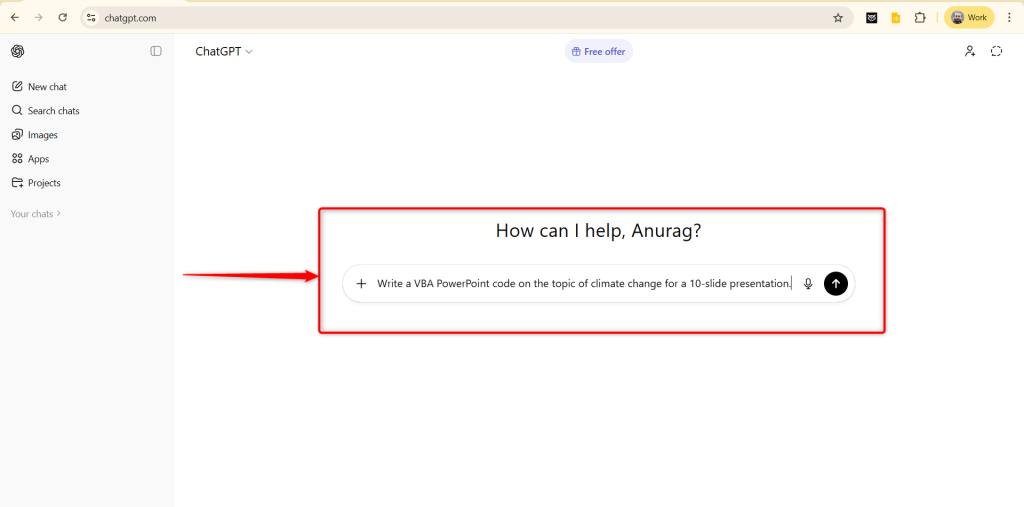
Prompt ChatGPT with a request such as, “Write a VBA PowerPoint code on the topic of climate change for a 10-slide presentation.”
Step 2: Copy the Generated Code
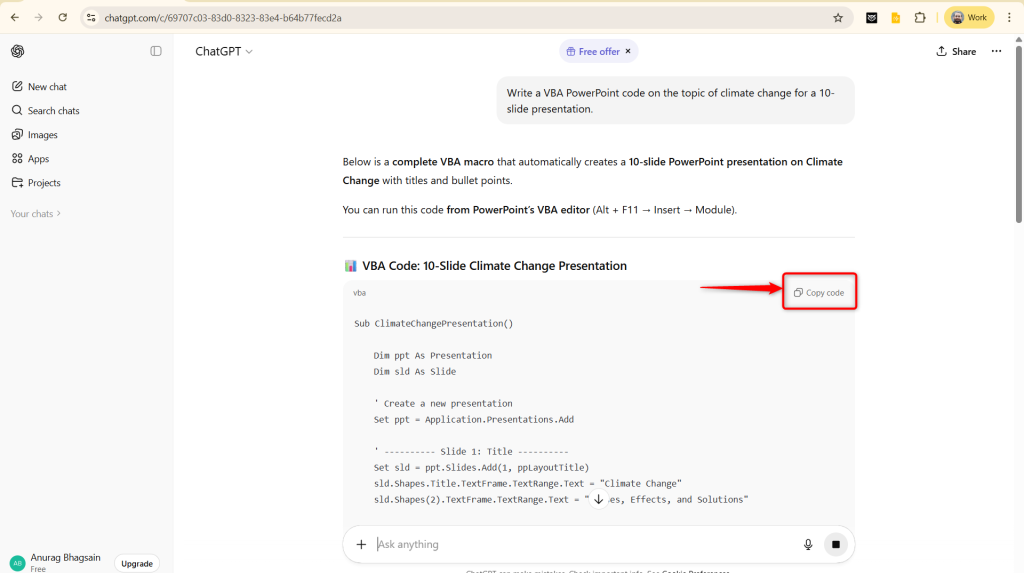
Review the code and copy it carefully from ChatGPT.
Step 3: Run the Code in PowerPoint
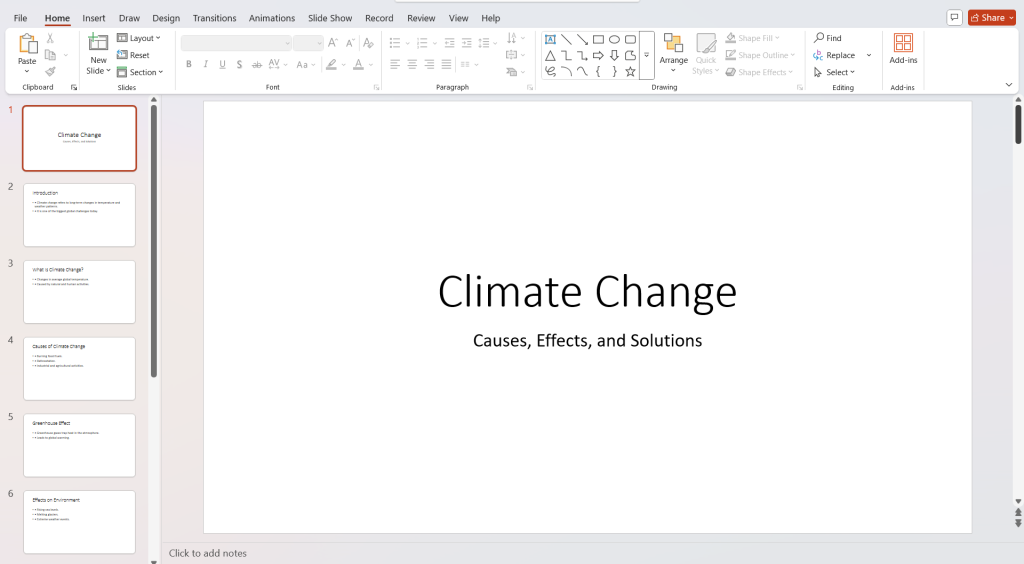
Open PowerPoint, press Alt + F11 to access the VBA editor, insert a new module, paste the code, and run it to generate slides.
Who is this for: This approach suits advanced PowerPoint users who are comfortable running scripts. It offers automation but requires technical knowledge and additional cleanup after the slides are generated.
Method 3: Manual Copy-Paste with Structured Outlines
This method is flexible and works well if you want full control over content formatting and slide design.
Step 1: Enter Your Presentation Prompt
Ask ChatGPT to create a detailed outline with slide titles and bullet points.
Step 2: Generate a Clean Slide Outline
Review the outline and refine sections that need clearer messaging.
Step 3: Format Content in Word
Paste the content into Word, apply Heading 1 for slide titles and Heading 2 for bullet sections, and save the file as a .docx document.
Step 4: Import the Outline into PowerPoint
Use PowerPoint’s “Slides from Outline” option to convert the Word file into slides automatically.
Also Read: 75+ Prompts to Make Presentations with AI
Who is this for: This method works well if you want complete control over slide structure and formatting. It takes more time, but it is flexible and easy to customize for detailed or high-stakes presentations.
Why Should You Use ChatGPT to Create Presentations?
ChatGPT removes the initial confusion felt when creating a presentation. Where to start, how to decide on a slide, and what to do – these are some of the questions that ChatGPT can help you tackle when creating presentations. Here are some reasons why it may work for you:
- Faster Drafting & Planning: ChatGPT reduces the time spent brainstorming slide ideas and structuring content.
- Clear Content Organization: It helps arrange ideas into logical sections that flow naturally from one slide to the next.
- Improved Clarity & Language: ChatGPT can also help you rewrite complex ideas into simpler language that works well for presentations.
- Creative Support When You Are Stuck: It can also suggest examples, talking points, and transitions when your ideas run dry.
- Support for Research-Based Slides: ChatGPT can summarize long documents or notes into concise slide-ready points, which is perfect for information-heavy research-based presentations.
- Easy Integration with Presentation Tools: ChatGPT works alongside tools like PowerPoint, Google Slides, and SlidesAI, helping you design visually appealing layouts while streamlining your design process.
Simplify the way you build slides with the ChatGPT presentation maker and turn your ideas into professional presentations in just a few clicks.
Practical Tips for Using ChatGPT to Create Better Presentations
Using ChatGPT for presentations requires thoughtful prompts and realistic expectations. Here are some tips to make the best use of this tool:
- Share Detailed Context in Your Prompt: Always include the audience, slide count, tone, and purpose so ChatGPT produces usable content.
- Understand What ChatGPT Can & Cannot Do: ChatGPT can handle content and structure well, but it does not design slides or apply branding automatically. So, make sure you still give your human input when refining your presentations.
- Build a Smooth Workflow: Use ChatGPT for ideation and structure, then rely on slide tools for visuals, layout, and final polish.
Frequently Asked Questions (FAQs)
1. Can I use ChatGPT to create a Google Slides presentation?
Yes, ChatGPT can generate outlines, bullet points, and speaker notes that you can easily copy into Google Slides and format as needed.
2. Are there AI tools that can create full presentations?
Yes, tools like SlidesAI, Canva, and Beautiful.ai generate complete slide decks, while ChatGPT focuses on content and structure.
3. Does ChatGPT generate plagiarism-free presentation content?
ChatGPT produces original content, but you should always review and verify facts, especially for academic or professional use.
4. What is the best prompt to use ChatGPT for presentations?
The best type of ChatGPT prompt for presentations is the one that clearly defines the topic, audience, slide count, tone, and goal of the presentation. Basically, your prompt should give every detail that will work to make your slides better.
5. Is ChatGPT useful for academic or thesis presentations?
Yes, ChatGPT helps summarize research, structure arguments, and refine academic language for slides.
6. Can ChatGPT improve an existing presentation?
Yes, you can improve an existing presentation in ChatGPT by pasting slide content into it and asking it to rewrite, shorten, or reorganize it.
7. Do I still need design tools if I use ChatGPT?
Yes, ChatGPT focuses more on the content and the structure of your presentation. You will still need design tools like Canva or Google Slides to handle the visuals and layout.
8. Is it ethical and acceptable to use ChatGPT for presentations?
Yes, using ChatGPT as a content assistant is acceptable as long as you review, customize, and cite the output when necessary.