On average, it takes 30-60 minutes to make one basic slide in Google Slides, and 2 to 20 hours to create a 10-slide deck.
The biggest culprit is design. Trying to manually beautify a slide takes a lot of time, even when using premade templates.
The best way to reduce this time is to use artificial intelligence. There are AI tools that integrate directly with Google Slides and help you write content, design slides, create graphs, and more.
I spent the last two weeks testing the best AI tools for Google Slides, and I’m ready to share my top 8 that will skyrocket your productivity. I will also explain how to choose the best tool for you and your team.
Keep reading.
TL;DR
- The best AI tools for Google Slides are:
- SlidesAI
- Google Gemini
- Gamma
- Plus AI
- Instant AI for Google Slides
- ChatGPT for Google Workspace
- Alayna AI
- MagicSlides
- An AI tool for Google Slides helps you create slides, write content, and generate graphics. The AI generates an output based on the given prompt.
- When choosing an AI tool for Google Slides, check the ease of use, content and design quality, collaboration, security, and pricing.
Best AI Tools for Google Slides Compared
| Tool | Ease of Use | Content Source Options | Customization Level | Cloud/File connectivity | Starting Price | Designed For |
|---|---|---|---|---|---|---|
| SlidesAI | Very Easy | Text prompts, notes, topics, website, PDF, Word document, PPTX | Very High | Google Drive, OneDrive, or SharePoint | $0/month (Individual) | Entrepreneurs who want to create professional presentations without spending too much time on design and structure. |
| $0/month (Team) | ||||||
| Google Gemini | Very Easy | Prompts, images, PDFs, videos, Word, PPTX, text file | High | Google Drive | $0/month | Marketing teams that need an AI assistant to create highly visual and informative slides. |
| Gamma | Very Easy | Prompts, URLs, PDF, notes, outlines, PPTX, Word document | Very High | Amazon Web Services | $0/month (Individual) | Marketers who want to create presentations that focus more on attention-grabbing visuals and text. |
| $20/month (Team) | ||||||
| Plus AI | Easy | Prompt, Word document, PDF, PPTX, text file | High | Google Drive | $10/month | Teams that want to quickly create slides within Google Slides while focusing on branding consistency. |
| Instant AI for Google Slides | Fair | Prompt | Low | $0/month | Entrepreneurs looking for an AI presentation tool designed specifically for sales and investor pitches. | |
| ChatGPT for Workspace | Easy | Prompts, PDFs | High | Google Drive | $9/month | Freelancers who need a single tool that works across the entire Google Workspace suite. |
| Alayna AI | Very Easy | Prompts, PDFs, YouTube links | High | Google Drive, Microsoft OneDrive | Free for teachers (depending on plan) | Educators who need a tool to quickly turn educational materials into engaging slides and lesson plans. |
| MagicSlides | Fair | Prompts, URLs, PDF, images, PPT, video, audio | High | Google Drive, Microsoft SharePoint, Microsoft OneDrive, | $16/month | Business professionals who want flexibility to create slides from any source. |
How We Selected These AI Tools?
To make sure this guide gives you the most value, we carefully assessed many platforms to find the best options available.
Here’s the criteria we used to select the AI tools Google Slides users can trust:
- Top integration with Google Slides: We focused on AI tools you can use directly inside Google Slides. We also tested tools that have built-in slide generators but let you export the presentation to Google Slides.
- AI content quality and accuracy: We tested the content quality that each AI tool generated. We checked the accuracy of the data and how well the tool followed our instructions.
- Design quality: Beautiful designs capture the audience’s attention. We spent time reviewing and comparing designs between the tools.
- Use cases: We selected AI tools that covered the needs of different use cases, from entrepreneurs to educators.
8 Best AI Tools for Google Slides
The best AI tools for Google Slides are:
- SlidesAI
- Google Gemini
- Gamma
- Plus AI
- Instant AI for Google Slides
- ChatGPT for Google Workspace
- Alayna AI
- MagicSlides
Let’s review each tool in more detail.
1. SlidesAI
| Personal ratings: ⭐️⭐️⭐️⭐️⭐️ 5/5 | Free trial: ✅, offers 1 presentation/month with 10 AI credits | AI Quality: Excellent (Generated slides required little editing and message matched stock photos and infographics) | Templates: Extensive, 150+ templates |
SlidesAI is first on my list of the best AI tools for Google Slides.
It’s an AI-powered Google Slides add-on that integrates directly into your workflow. That way, you don’t need to export, import, or learn a new platform.
You can instantly create stunning slide decks in minutes by feeding the AI any raw material, including short 5-10-word prompts, rough drafts, notes, PDFs, and even website URLs.
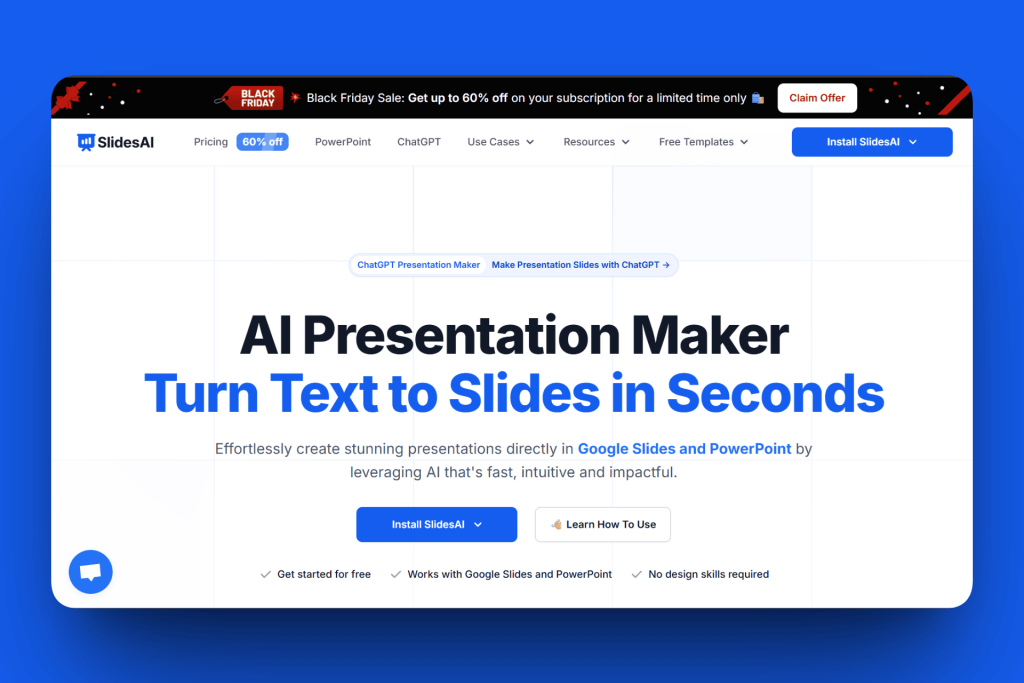
SlidesAI’s Generate New Slides feature turns your input into a well-structured deck in minutes.
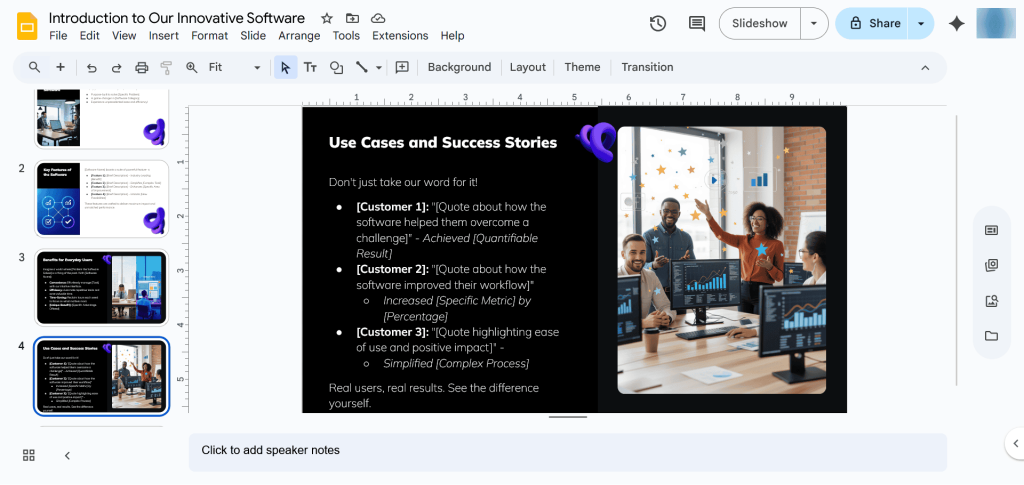
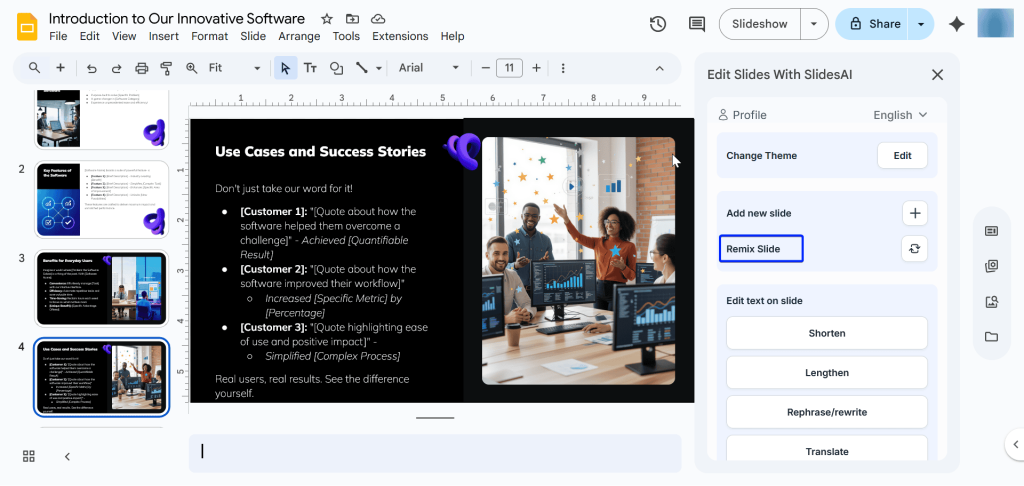
It also has the Remix feature, which allows you to change a slide’s existing theme, layout, and design in minutes.
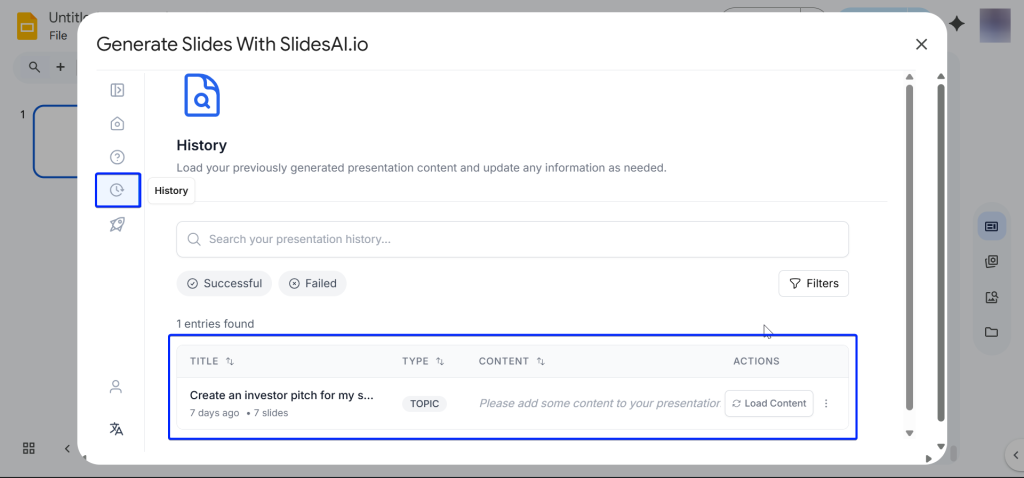
The History feature lets you keep a record of past presentations, which you can easily load and edit.
Why 10+ Million Users Love SlidesAI
1. Generate New Slides
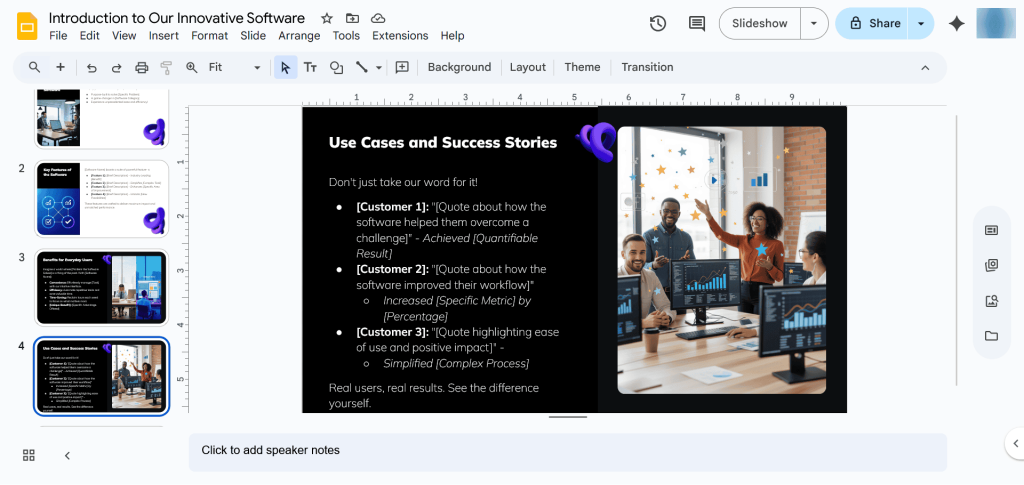
The Generate New Slides feature instantly turns prompts, raw text, notes, and URLs into a structured and well-designed presentation deck.
Let’s see how it works:
First, you have to install SlidesAI.

Next, in Google Marketplace, add SlidesAI as an extension.
Head over to Google Slides and open a new presentation.
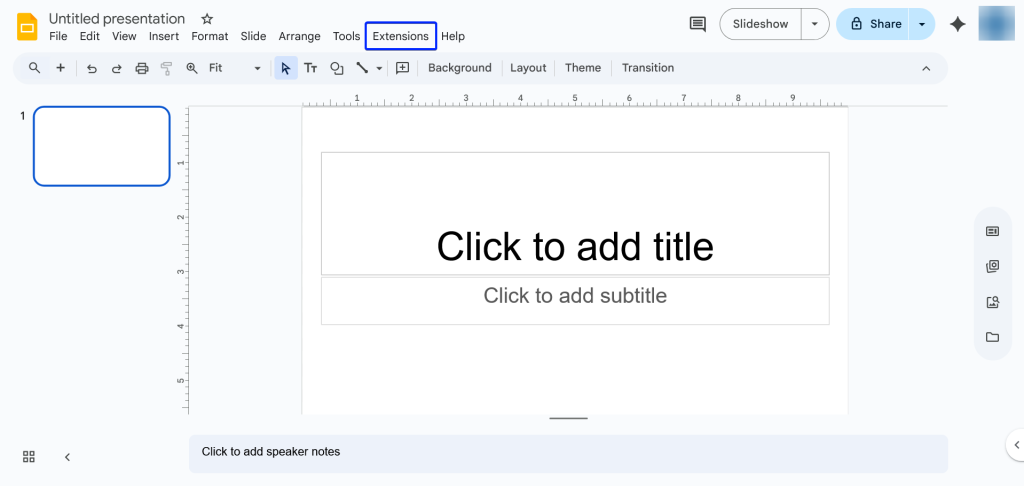
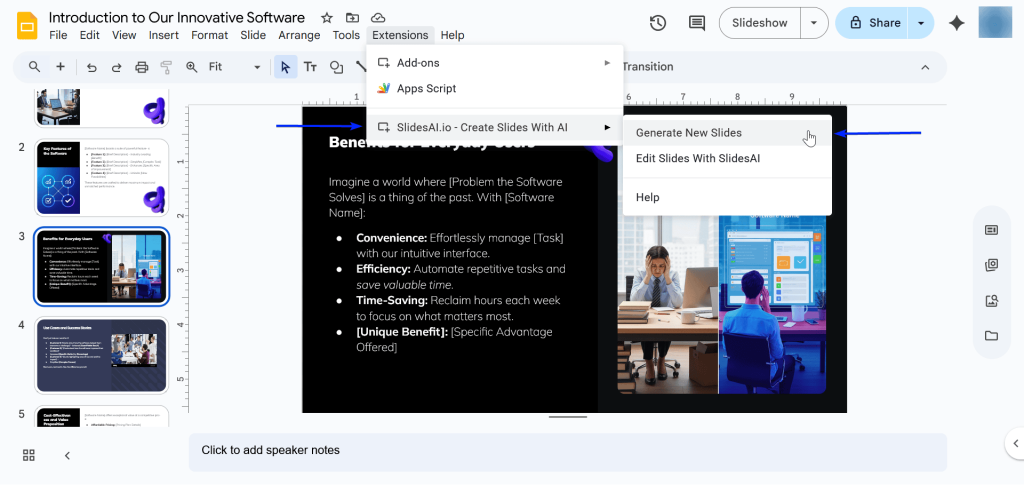
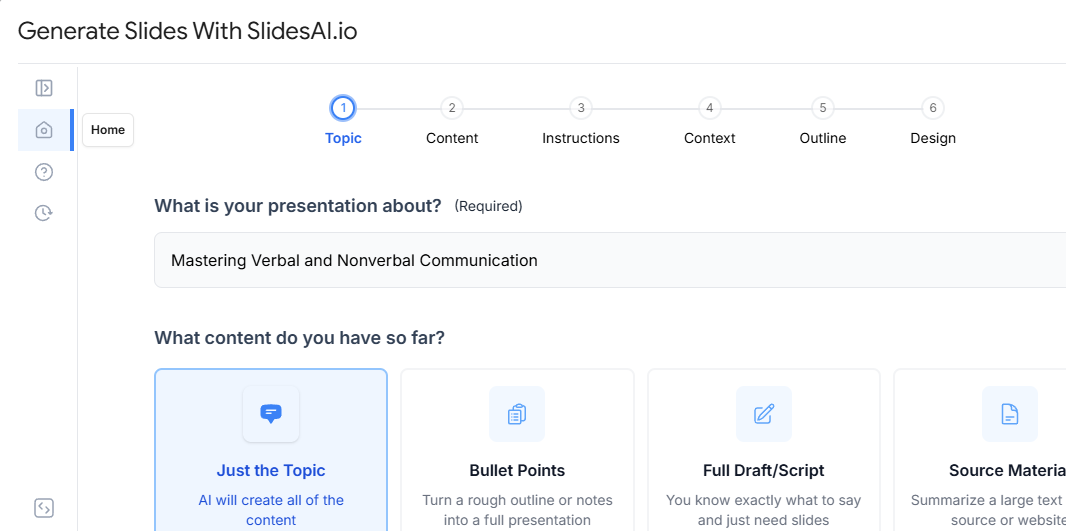
Click “Extensions → SlidesAI.io-Create Slides With AI → Generate New Slides.”
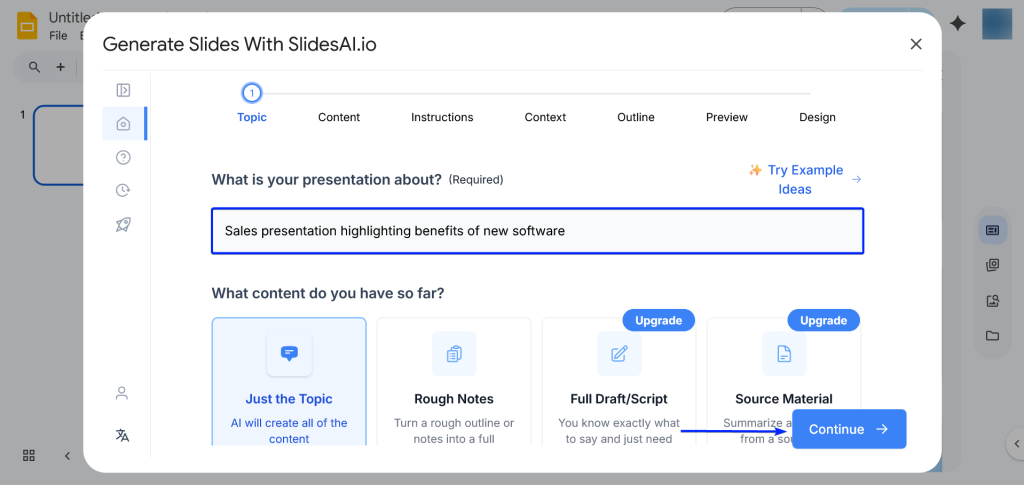
Then you enter your 5-10-word prompt.
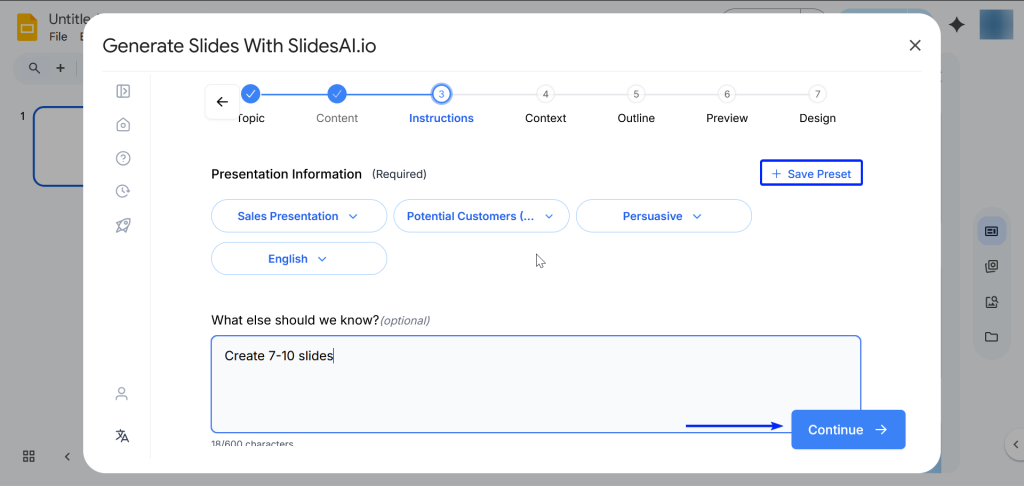
After that, you can add more information, including the type of presentation, audience, tone, and language.
SlidesAI will then give you a preview of your presentation, which you can edit.
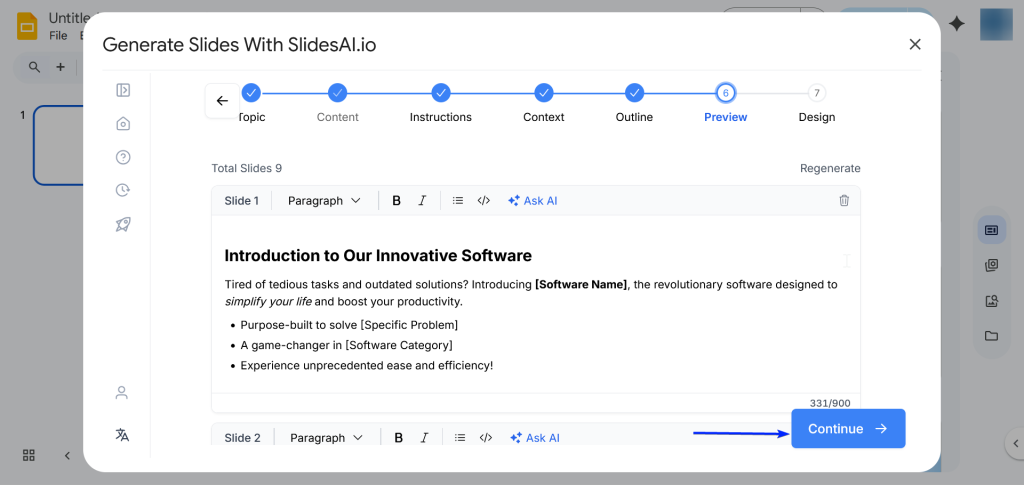
Once you’re done, the tool will instantly generate your slides for you.
2. Remix
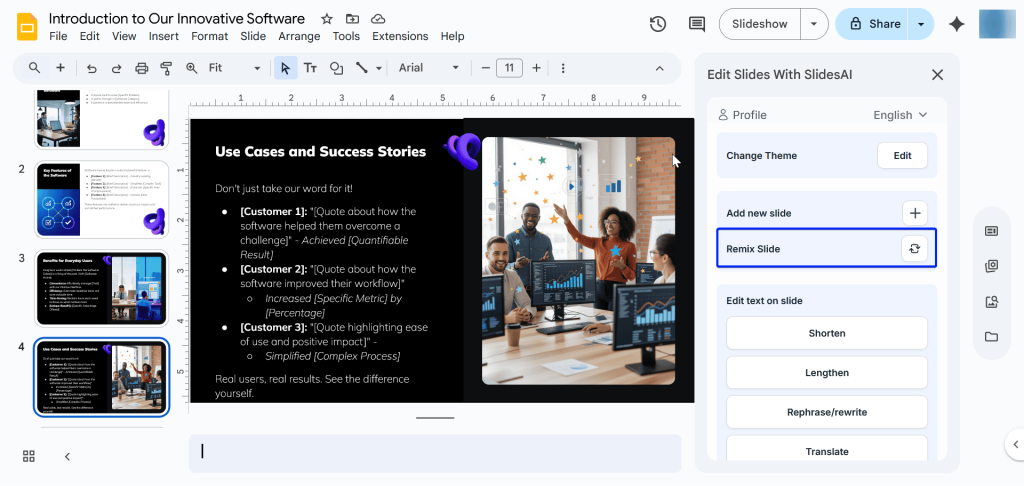
The next feature is Remix, which lets you completely change the layout, theme, and text of your slides with a few clicks.
Let’s take a walk through:
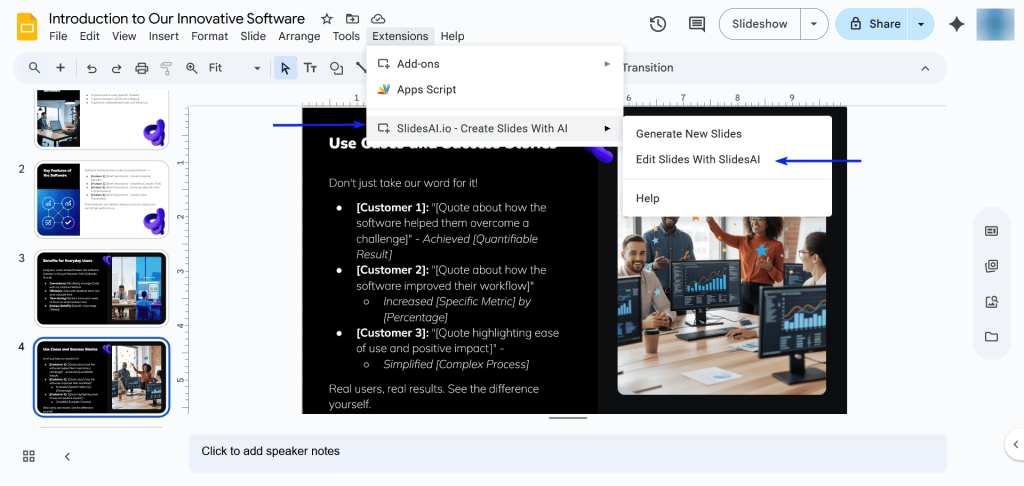
Click “Extensions → SlidesAI.io-Create Slides With AI → Edit Slides With SlidesAI.”
Next, select “Remix Slide.”
After that, you can choose a new theme.
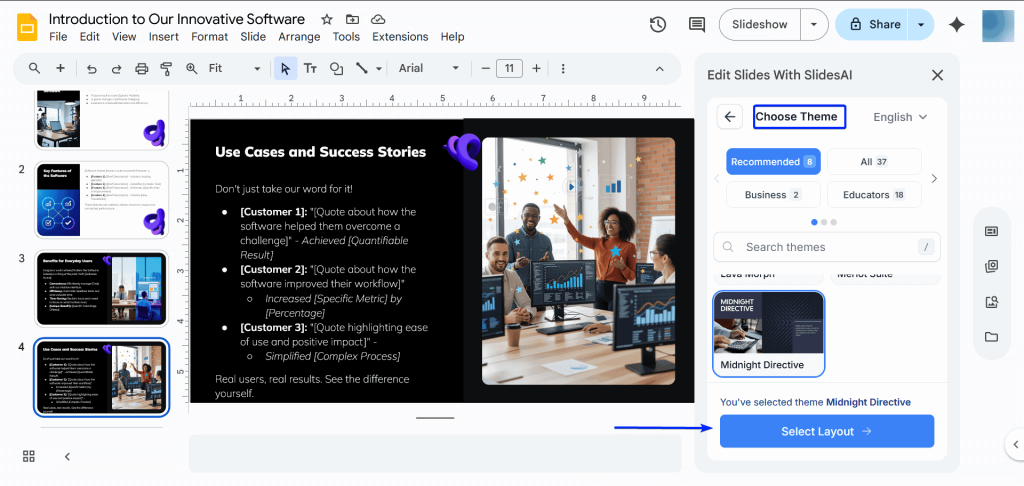
And then, choose a new layout and “Edit Slide.”
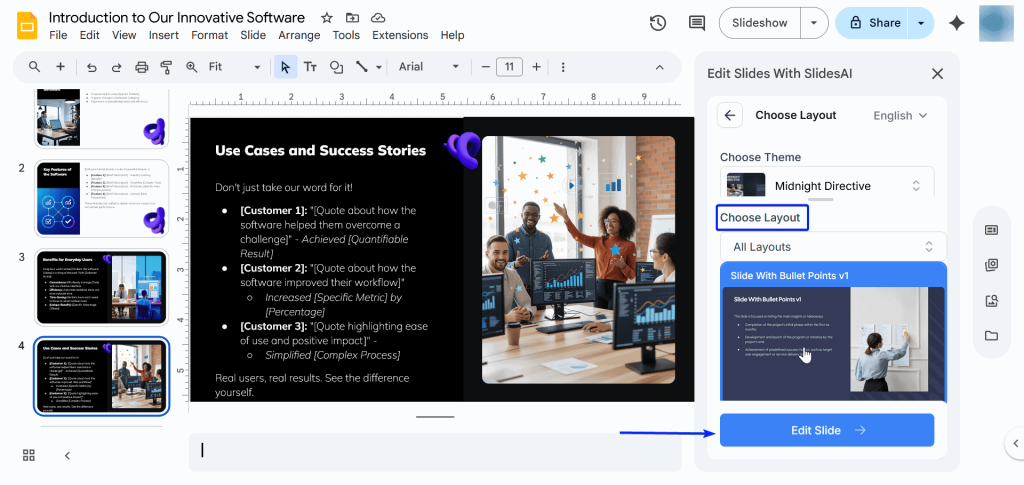
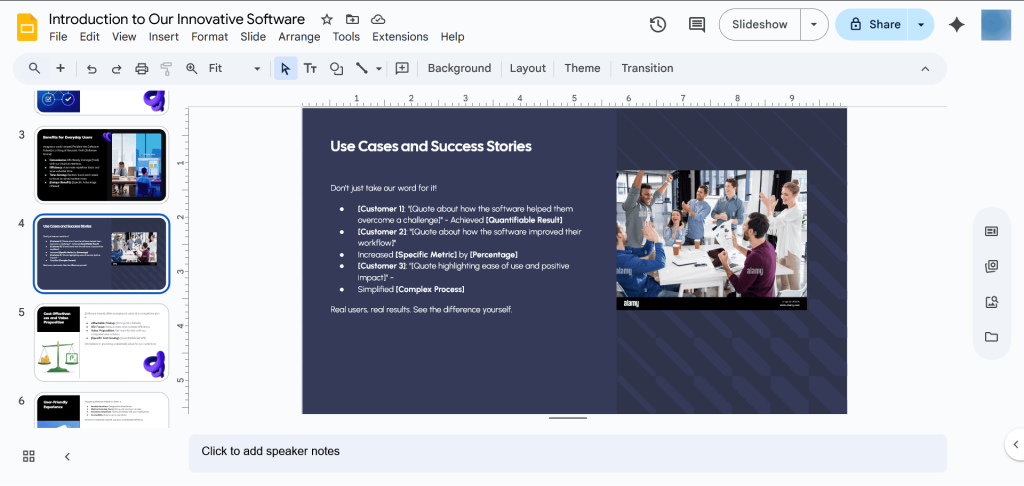
After about a minute, SlidesAI will edit that particular slide.
3. History
The last feature to cover is History.
It lets you keep records of all your presentations in one place. What’s so great about it is that you can load the presentations at any time and edit them.
Let’s see how it works:
Go to “Extensions → SlidesAI.io-Create Slides With AI → Generate New Slides.”
On the sidebar, click the history button. It appears as a clock icon.
You will find a table of your presentations.
Click “Load Content.”
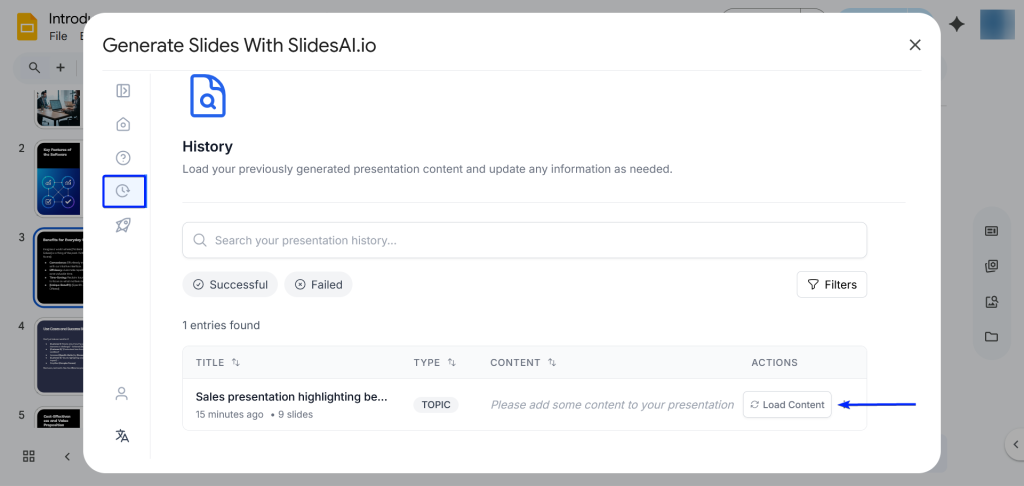
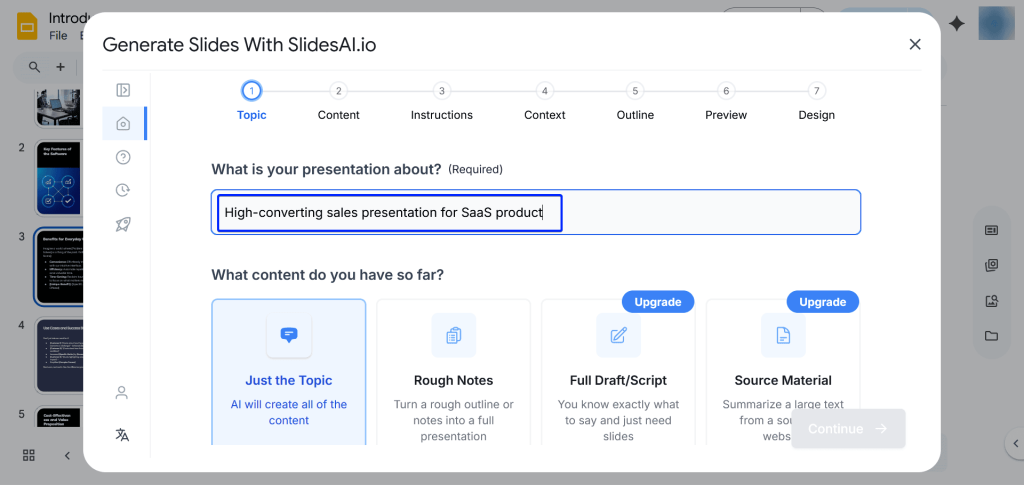
You’ll be redirected to the slide generation page, where you can update your presentation.
What I Loved vs What I Struggled With
| What I Loved 👍 ✅ Its native integration feature allows you work directly inside Google Slides so you don’t have to switch tools. ✅ Slide creation is high-speed. You can generate presentations in about 2 minutes. ✅ You can create presentations through multiple sources, including prompts, raw text, URLS, and PDFs. ✅ It has multiple export options, including PPTX, ODP, JPEG, PNG, PDF, MP4, SVG, and Plain Text. | What I Struggled With 👎 ❌ Basic plan allows users to create only one presentation per month, but under the Premium plan, you can create an unlimited number of presentations. ❌ Requires more manual editing to complete your presentations, but it gives you a solid starting point. |
Best For
- Entrepreneurs who want to create professional presentations without spending too much time on design and structure.
Pricing
1. For Individuals:
- Basic: $0/month
- Pro: $10/month
- Premium: $20/month

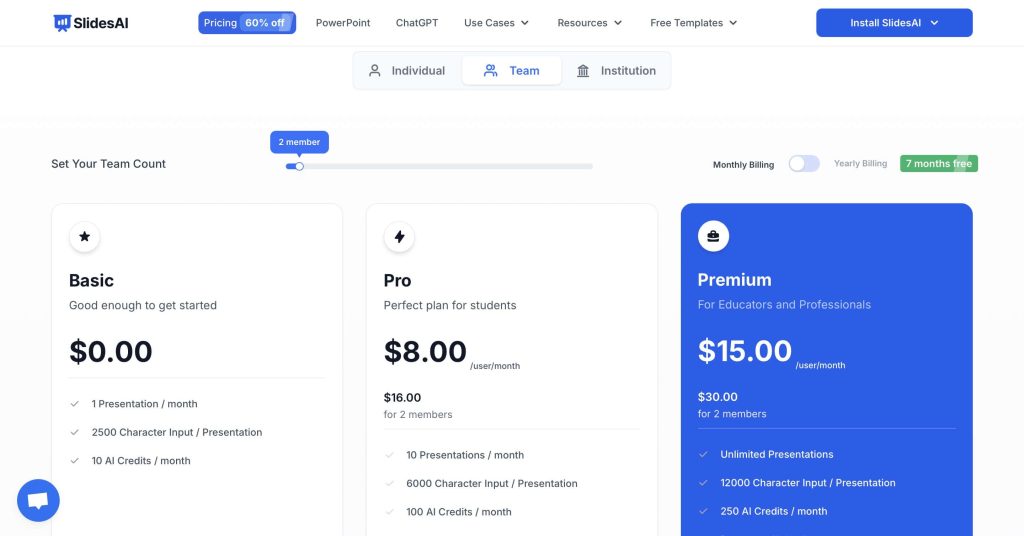
2. For Teams:
- Basic: $0/month
- Pro: $8/month
- Premium: $15/month
3. For Institutions
- Custom: Contact for pricing
Create AI presentations directly in Google Slides.
- No design skills required
- 3 presentations/month free
- Save directly in Google Slides

2. Google Gemini
| Personal ratings: ⭐️⭐️⭐️⭐️ 4.8/5 | Free trial: ✅(Permanent free tier) | AI Quality: Excellent (Text is clear and easy to understand. Generates high-resolution visuals in less than 2 minutes) | Templates: N/A |
Second on my list of the best AI tools for Google Slides is Google Gemini.
It’s Google’s AI assistant, and it can generate ideas, summarize ideas, or help with tasks inside web-based platforms like Google Slides.
Under a paid plan, Gemini is an integrated feature that you can access directly through the “Ask Gemini” button in the top-right corner of your Slides page.
Think of it as a smart helper built into your Google Workspace.
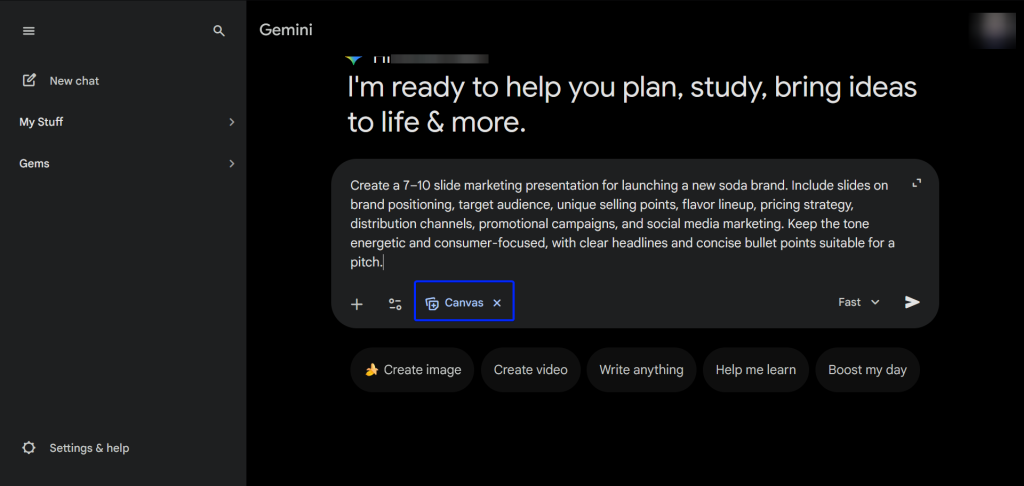
The Canvas feature is a work tool in Gemini that’s used for drafting and exporting documents.
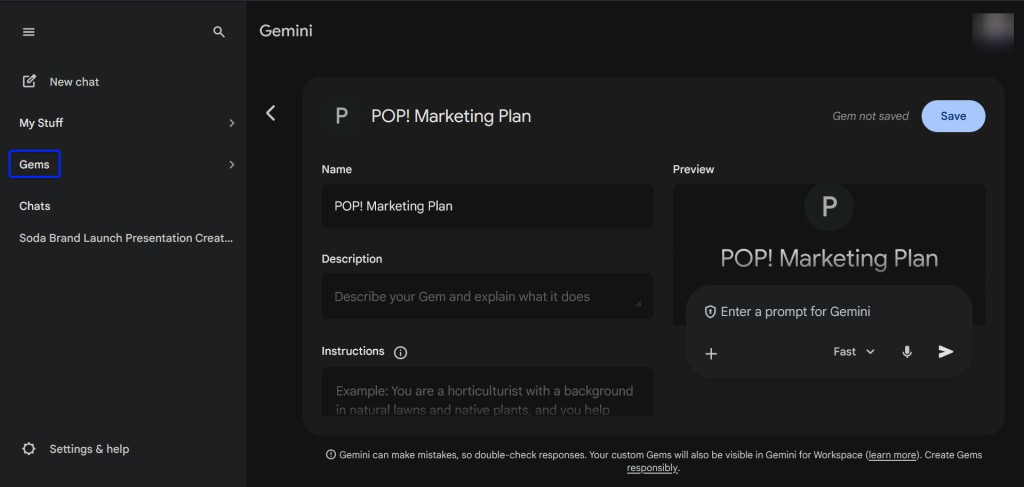
The next feature is Gems, which lets you create custom AI assistants that have been given specific instructions to generate smarter answers.
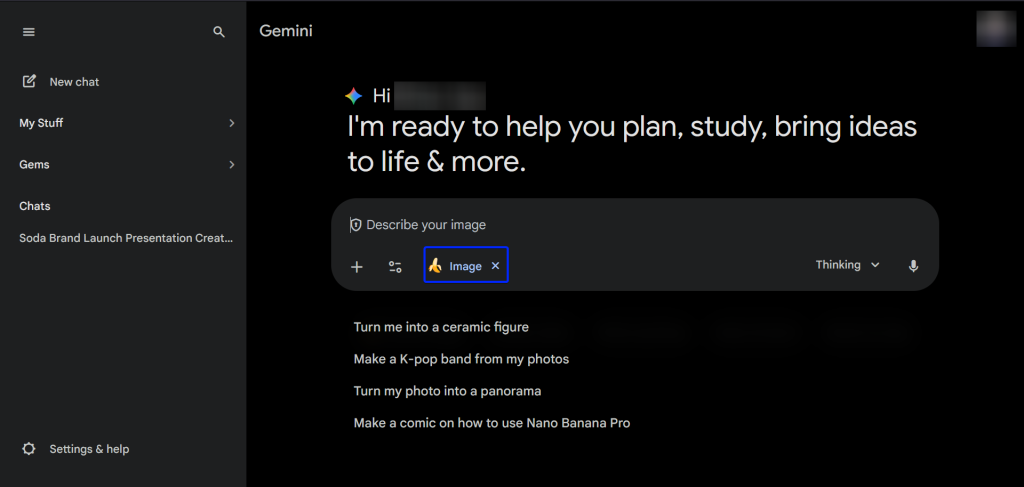
Finally, the Create Image feature lets you create unique visuals, which you can upload or copy and paste into your presentations.
What I Loved About Google Gemini
1. Canvas
Canvas is a workspace within Gemini where you can create and export the content you create.
For example, in Canvas mode, you can ask Gemini to create a complete deck presentation with specific instructions.
Let’s see how it works:
First, click “Tools” and select “Canvas.”
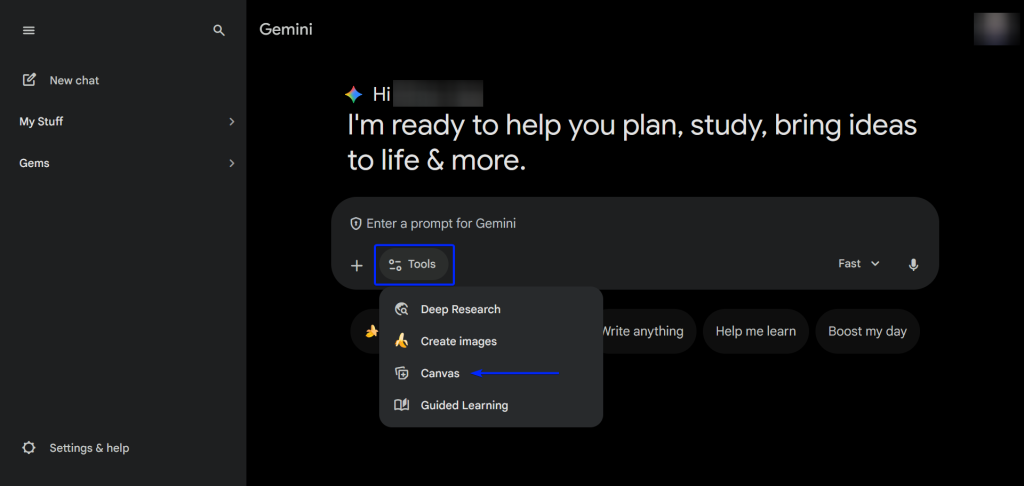
Now that you’re in Canvas mode, enter your prompt and hit “Submit.”
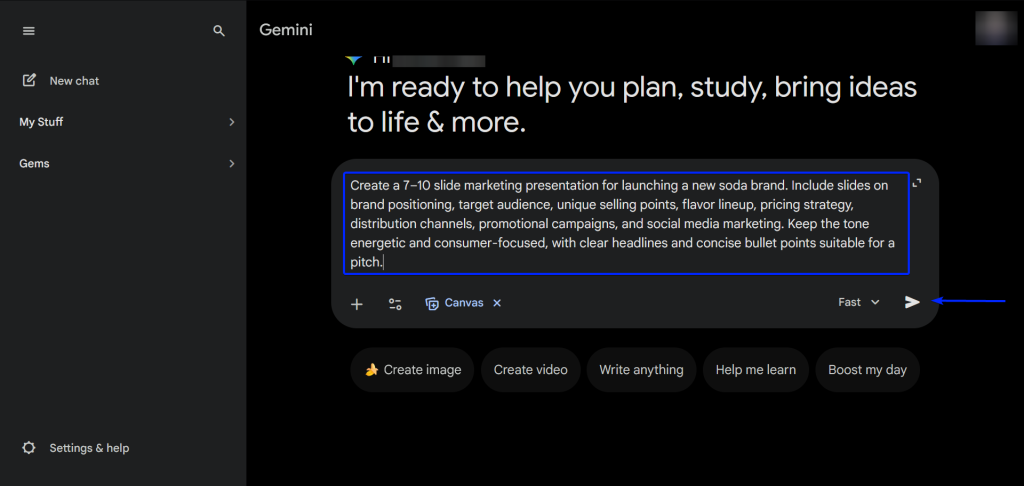
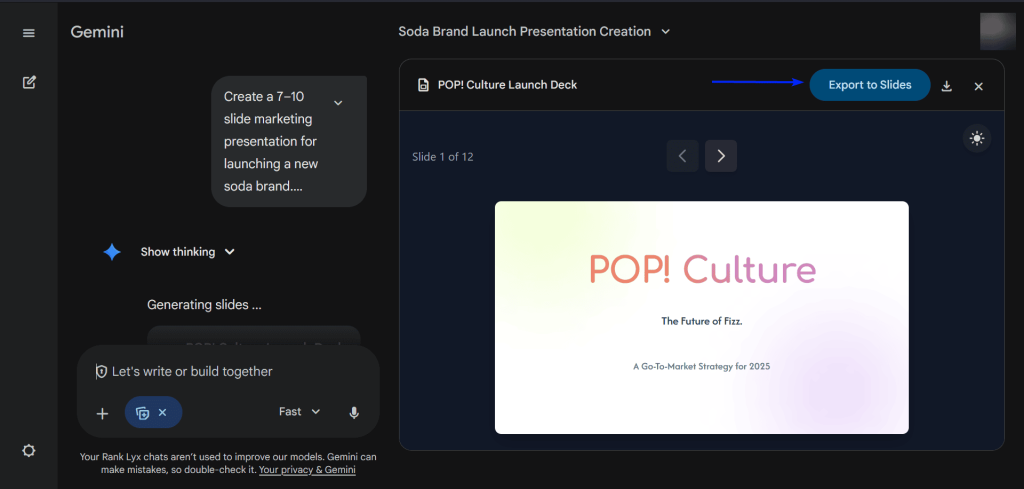
After about 2-3 minutes, Gemini will generate your slides, which you can directly “Export to Slides” or download.
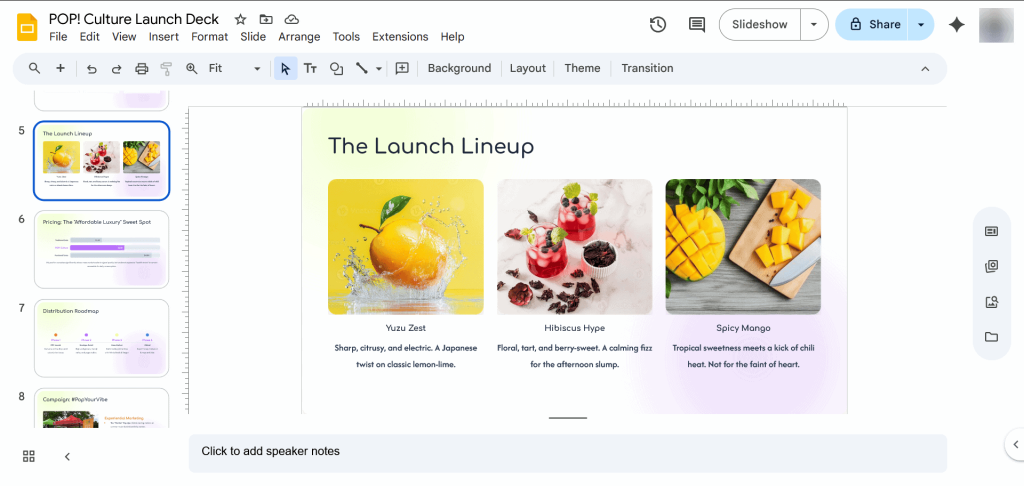
And you can continue editing when you export to Google Slides.
2. Gems
Up next is Gems.
It’s a feature that lets you create special AI assistants for projects (like a marketing expert). Then, let you give them specific instructions on how to behave for more unique responses.
Let’s check it out:
Click “Gems” from the sidebar and then hit the “+New Gem” button.
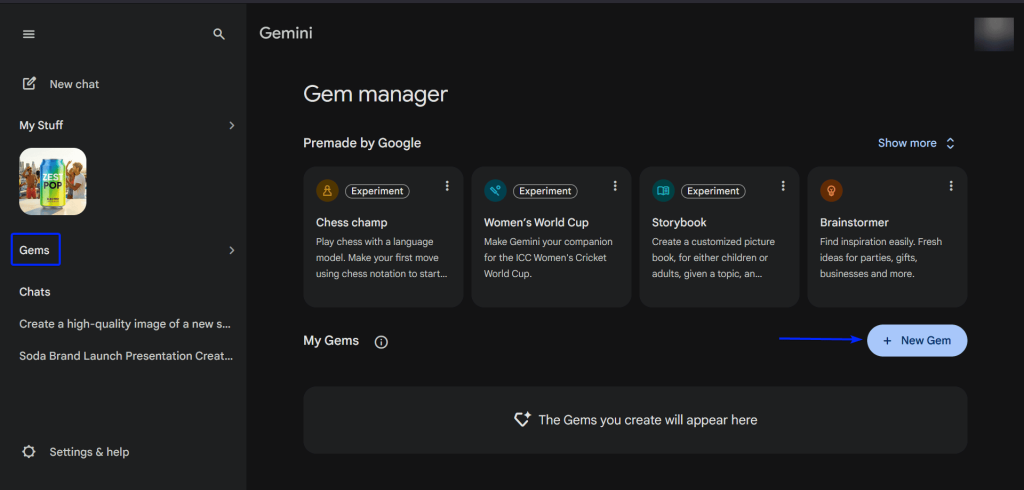
Then enter the required details, such as the name of Gem and a brief description. You can leave instructions on how you want it to act as your assistant. And you can also feed it with extra knowledge by uploading documents.
Hit “Save” when you’re done.
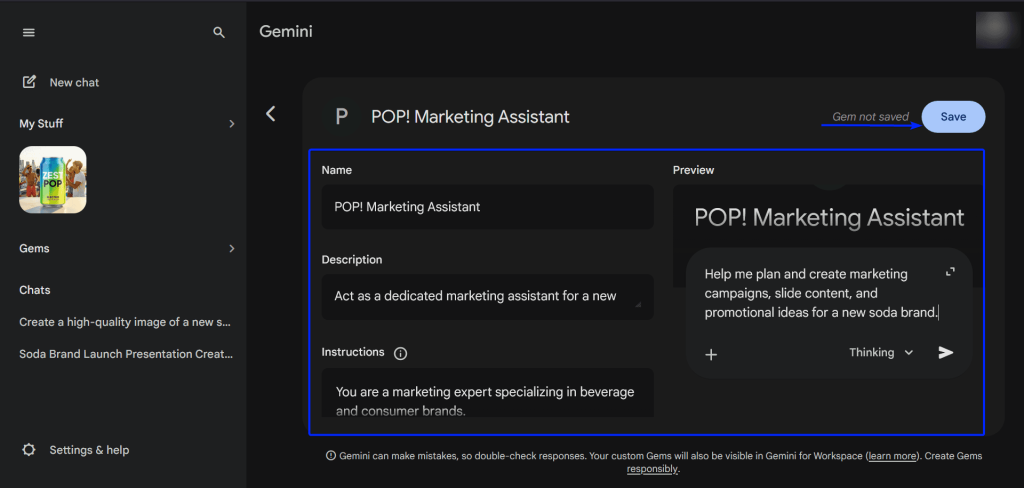
After that, you will have created your very own AI assistant, and you can ask it anything about your project.
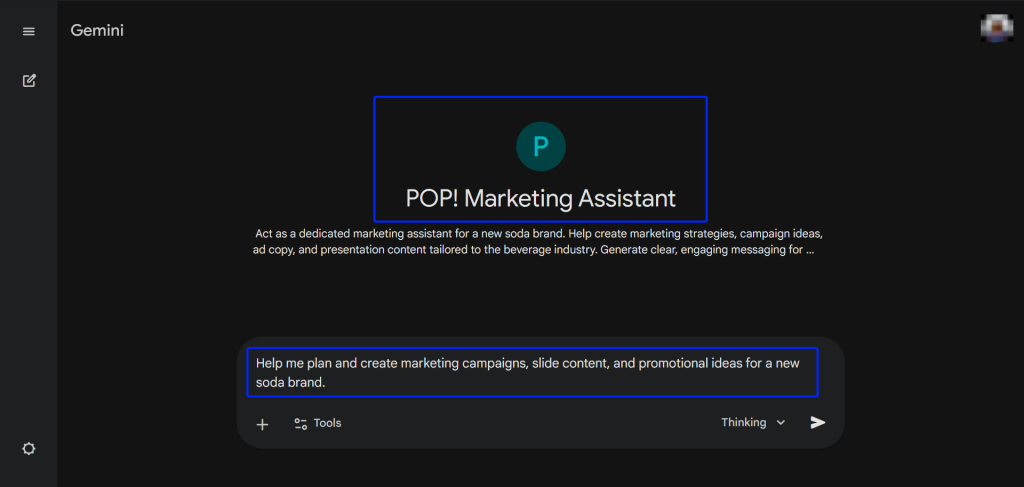
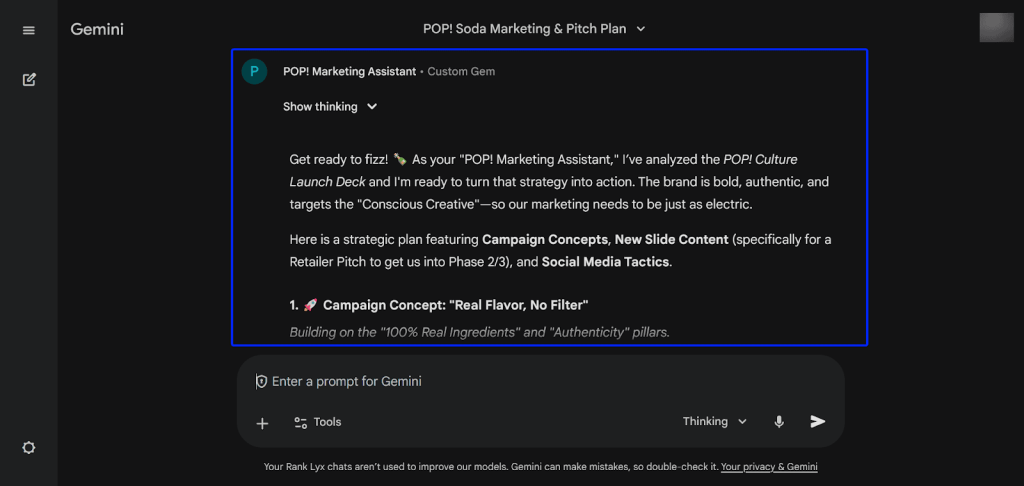
And your AI assistant will provide you with expert answers.
3. Create Image
Gemini’s Create Image is a feature that lets you create unique visuals (images, charts, and illustrations) instantly.
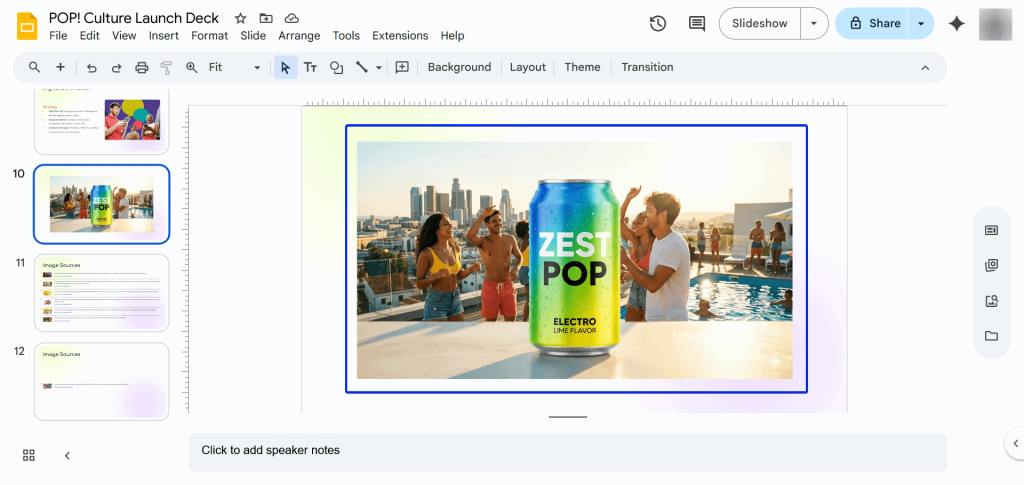
Under a paid plan, you can do that directly inside Google Slides. But you can also generate images in Gemini and upload or copy/paste them into your presentations.
Here’s how it works:
First, click “Create image.”
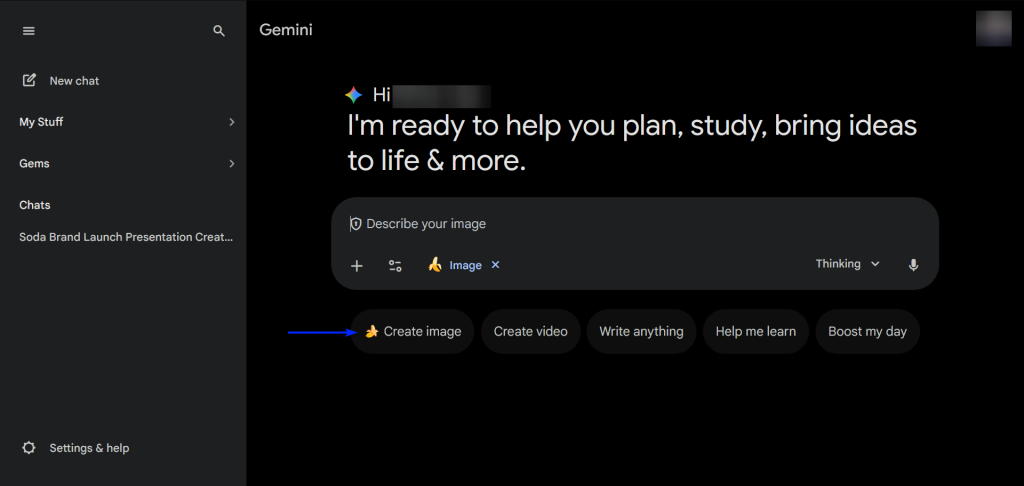
Next, enter your prompt.
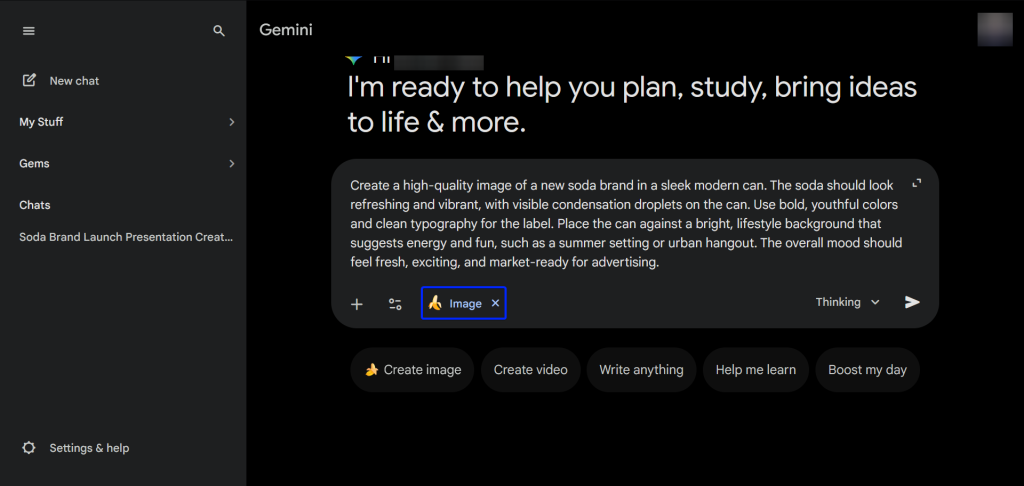
After that, Gemini will generate your image in about 2-3 minutes. You can download the image or copy it.
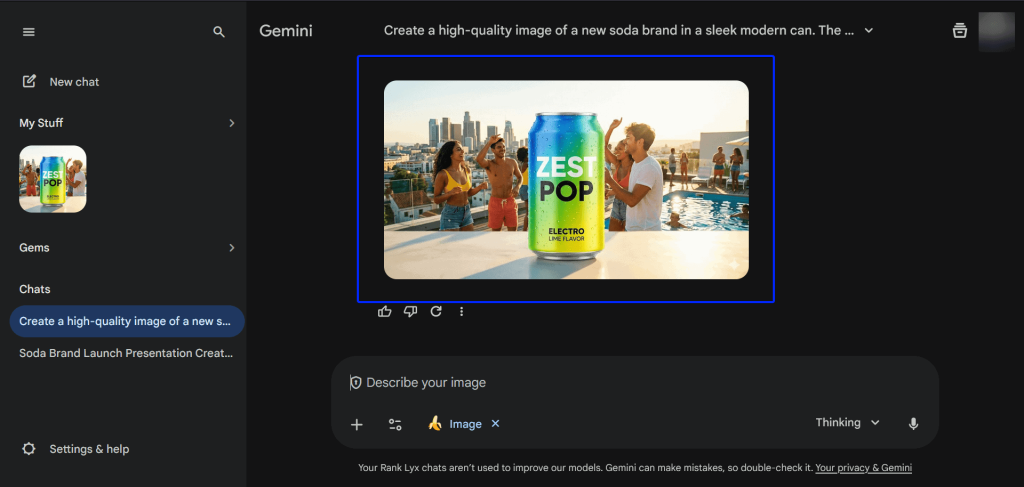
Finally, you can directly paste the image into your presentations.
What I Loved vs What I Struggled With
| What I Loved 👍 ✅ Native to Google, so it integrates seamlessly with Google Workspace tools like Slides, Docs, and Sheets. ✅ Takes about 2-3 minutes to generate ideas, outlines, and slide content quickly. ✅ Gems offer more tailored responses for your individual projects. | What I Struggled With 👎 ❌ Requires a paid Gemini subscription to be able to work directly in Slides. ❌ You will still have to manually finalize and refine content. |
Best For
- Marketing teams that need an AI assistant to create highly visual and informative slides.
Pricing
- Free: $0.00/month
- Google AI Pro: $0.00 for one month ($19.99/month after)
- Google AI Ultra: $124.99/month for 3 months

3. Gamma
| Personal ratings: ⭐️⭐️⭐️⭐️ 4.4/5 | Ease of use: ⭐️⭐️⭐️⭐️⭐️ 5/5 | Free trial: ✅ Yes (400 credits) | AI Quality: Excellent (Generated images do not look generic) | Templates: Extensive, 40 modern presentations, documents, websites, and 100+ themes |
At number three on my list of the best AI tools for Google Slides is Gamma.
It’s a web-based presentation platform that exports to Google Slides.
With Gamma, you can generate presentations and website landing pages from a single prompt, notes, or documents.

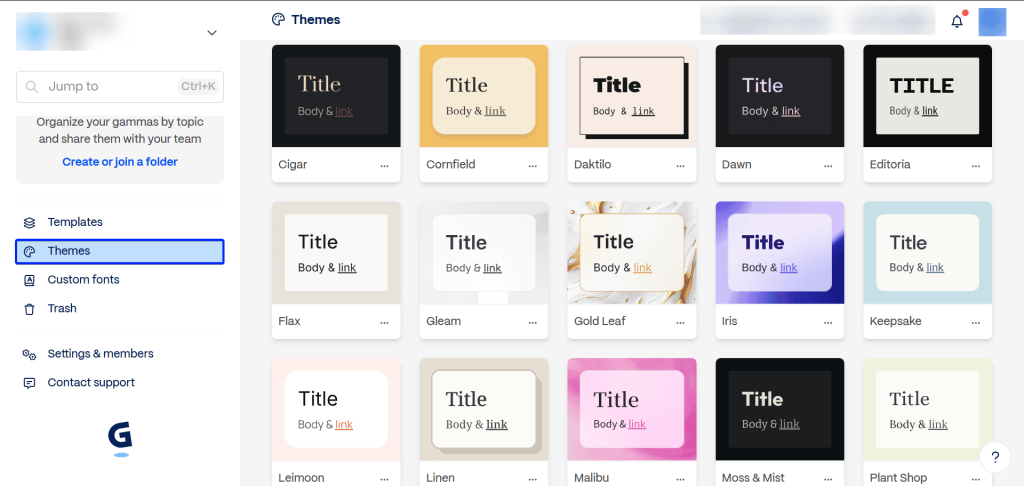
Gamma has an extensive range of 100+ pre-made themes. You can quickly change your presentation style in seconds.
“Gammas” is another word for projects or presentations within the platform.
You can create modern and interactive presentations that look like webpages.

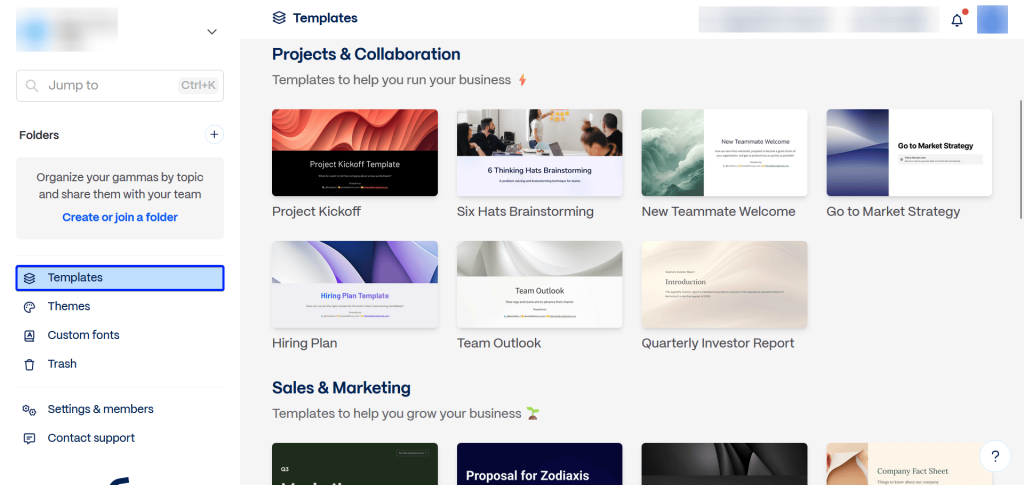
With Gamma’s Templates feature, you have access to a collection of 28+ pre-made slides. This gives you a head start when creating slides.
What I Loved About Gamma
1. Themes
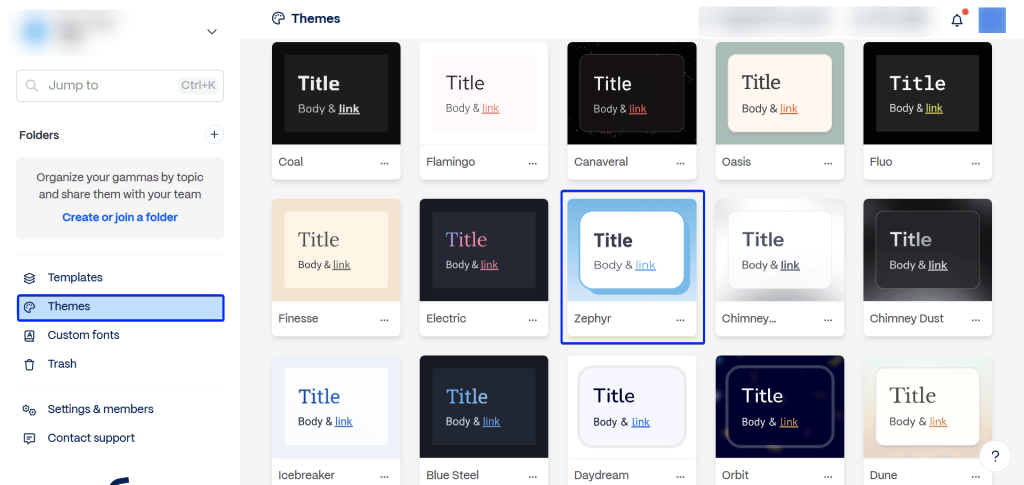
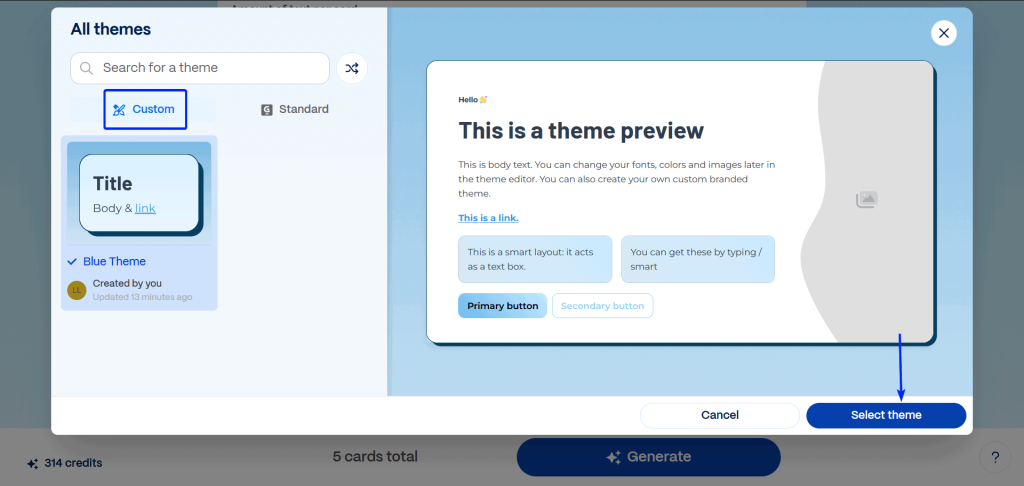
Themes is a feature that lets you change your presentation’s entire visual style with just one click. Gamma has over 100 pre-made themes to choose from. And you can create your own special theme for brand consistency in your presentations.
Let’s walk through how to edit a pre-made theme in Gamma:
First, head to “Themes” and select a theme you would like to edit.
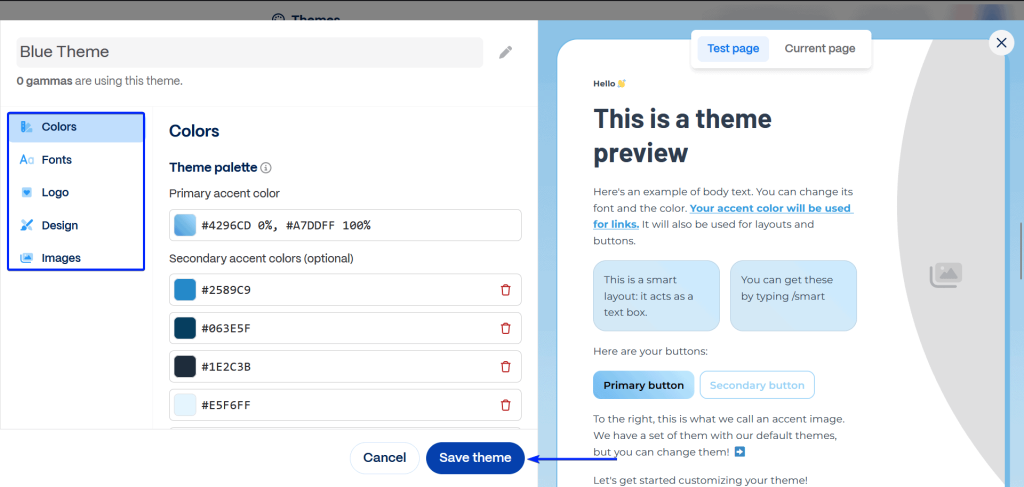
Give your theme a name and edit the details.
You can set your preferred fonts, upload your logo and position it, choose your layout, and the type of images you want to use.
For example, you can upload your own images or let Gamma’s AI tool generate images for you.
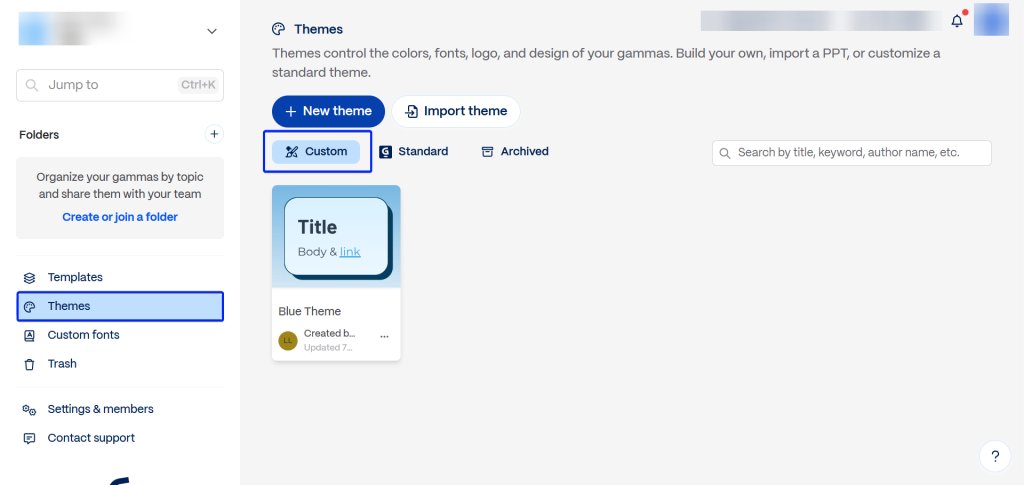
After saving your theme, it will appear under “Custom” in the “Themes” section.
Now, you can apply your theme when creating your presentations.
2. Gammas
Up next is Gammas, which is just another word for presentation.
Gammas are scrollable presentations that look like webpages. That’s what sets it apart from other AI-powered presentation makers.
It even calls its slides “cards,” which come in different shapes and sizes for your presentations. You can also embed media, forms, and buttons, as well as webpages, into the deck.
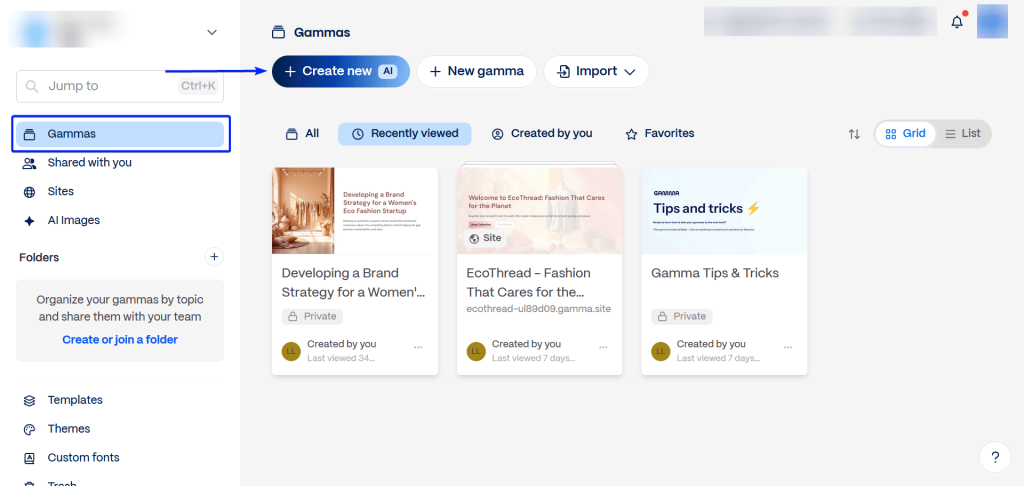
Here’s how you can quickly create gammas:
Head to “Gammas” and click “Create new.”
Next, enter your prompt and click “Generate outline.”
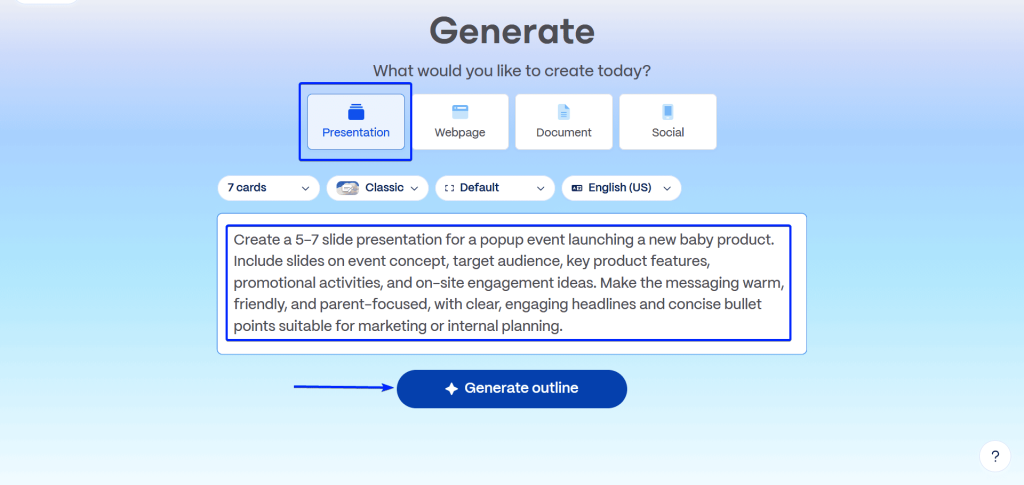
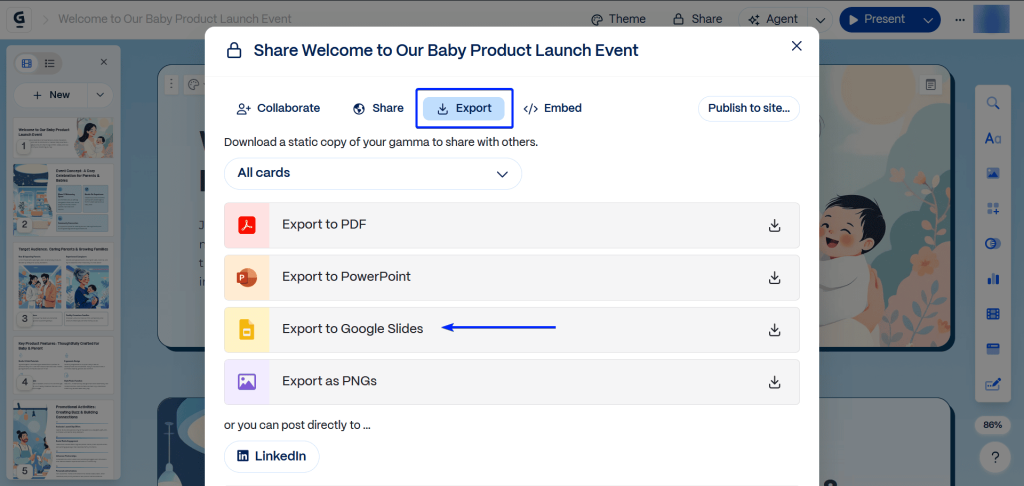
Gamma would share the presentation outline with you, which you can rearrange, delete, or edit.

When you’re done, you can export your presentation to Google Slides.
And there you have it!

3. Templates
The last feature to cover is Templates.
These are pre-built presentation formats that you can use to create slides without having to start from scratch. Currently, Gamma has 28 available templates for users.
Let’s walk through how to edit a template:
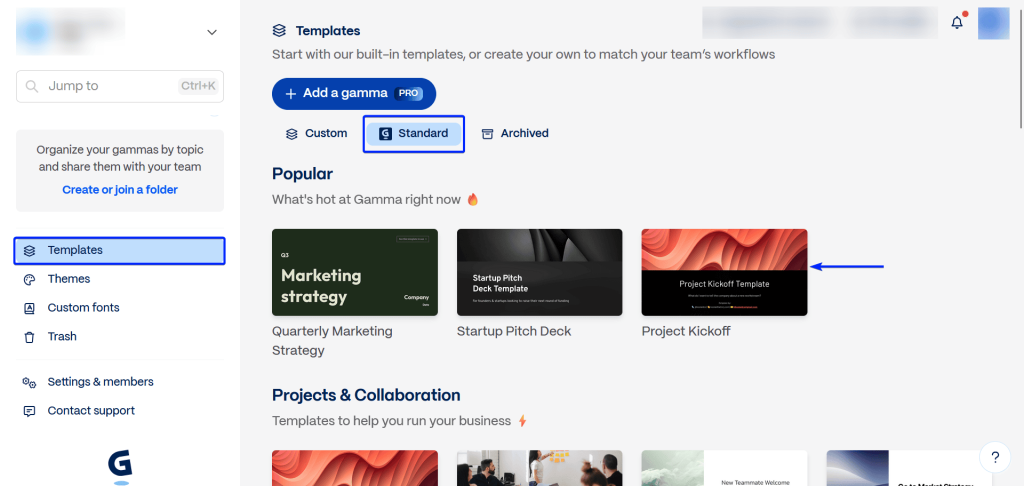
Go to “Templates” and then “Standard.”
Then, you select the template you want to edit.
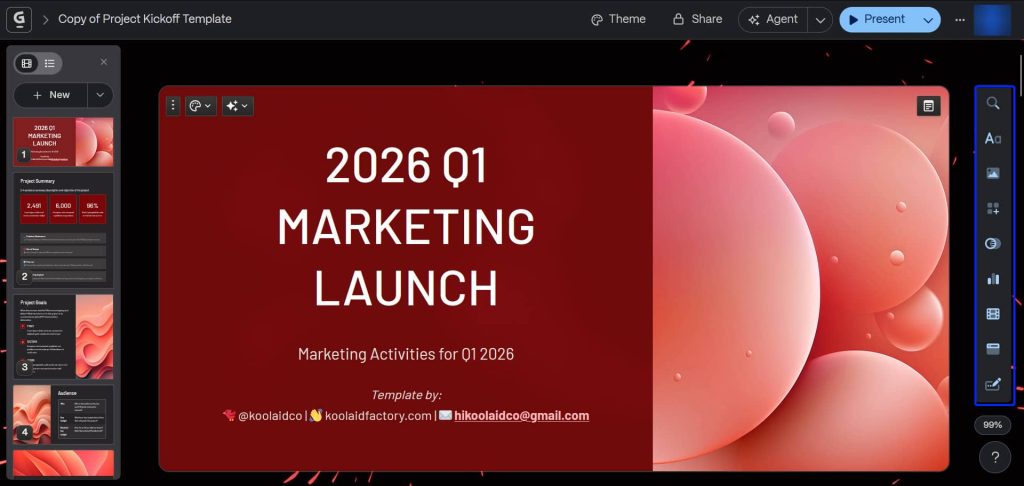
In edit mode, you can change the font, colors, images, and layout.
It already has text blocks, so you can start filling the slides with your text or use the AI tool to help you.
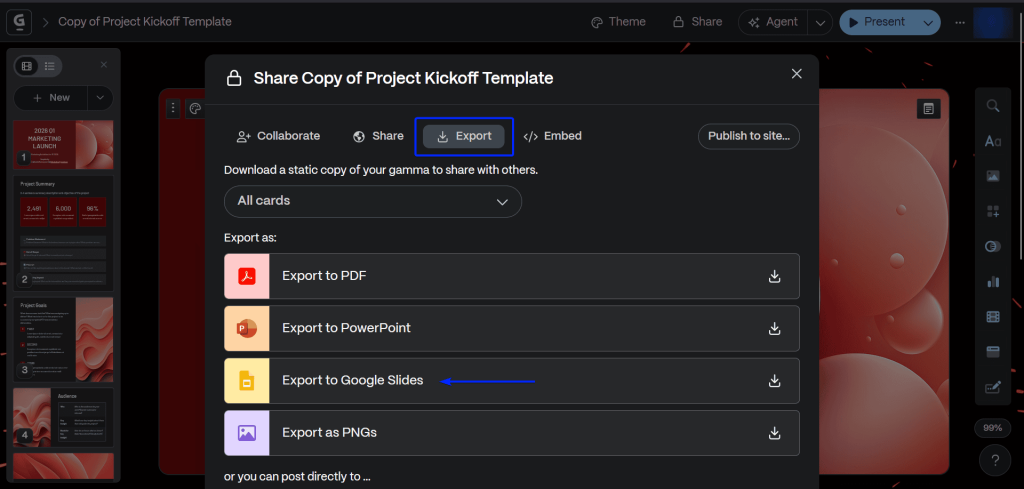
Once you’re done editing, you can export the final document to Google Slides.
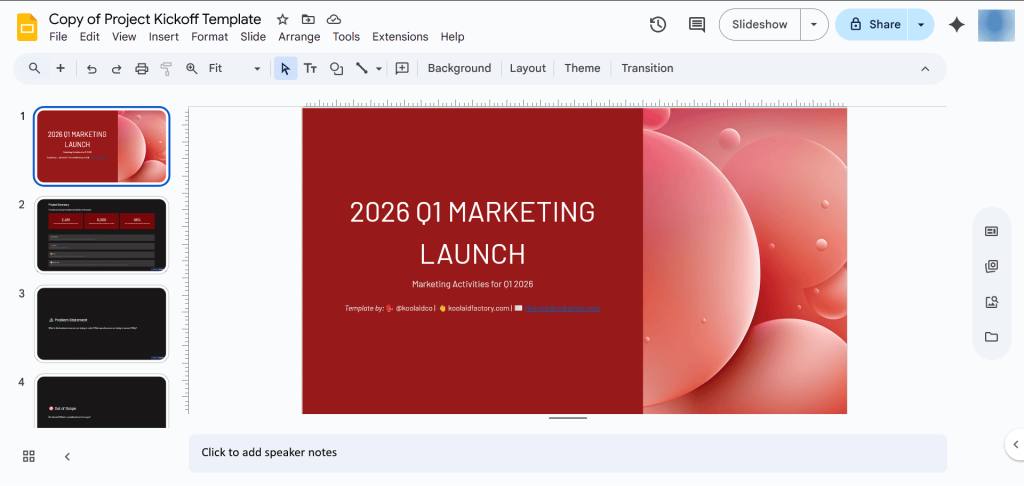
Here’s the final version of the presentation in Google Slides.
What I Loved vs What I Struggled With
| What I Loved 👍 ✅ Generates modern and interactive presentations that are different from traditional slide decks. ✅ Although it’s not a Google Slides add-on, it exports seamlessly with no design or layout issues. ✅ Supports embeds like media (video and images), forms and buttons, as well as webpages, into the deck | What I Struggled With 👎 ❌ Doesn’t allow for non-native integration with Google Slides. You would have to export your presentations. ❌ Gamma has a limited number of just 28 templates. |
Best For
- Marketers who want to create presentations that focus more on attention-grabbing visuals and text.
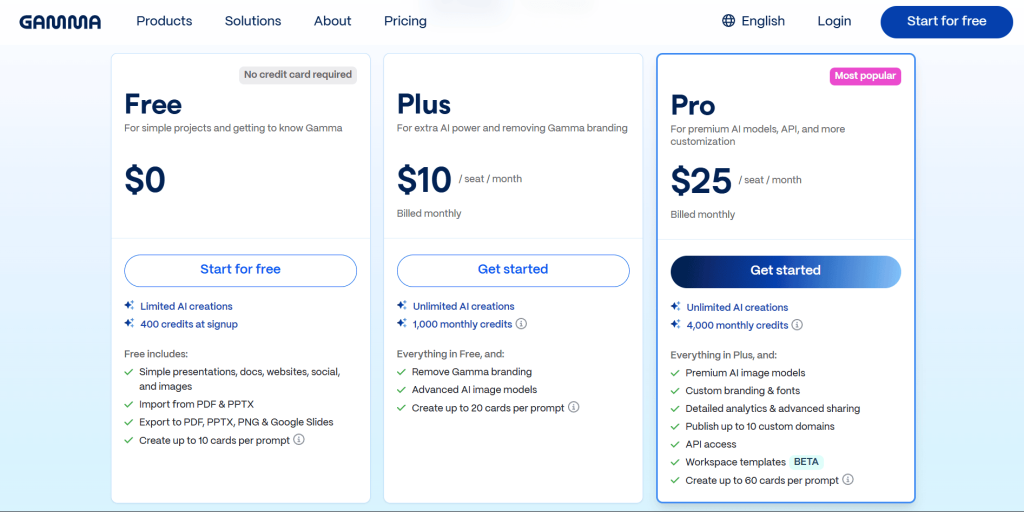
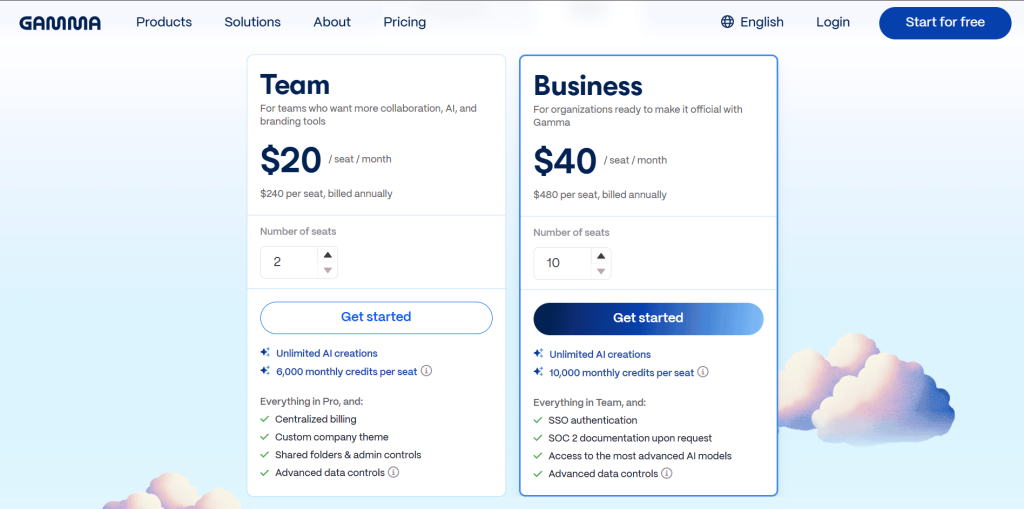
Pricing
1. For Individuals:
- Free: $0.00/month
- Plus: $10.00/month
- Pro: $25.00/month
2. For Teams:
- Team: $20.00/month
- Business: $40.00/month
4. Plus AI
| Personal ratings: ⭐️⭐️⭐️ 3.8/5 | Ease of use: ⭐️⭐️⭐️⭐️ 4/5 | Free trial: ✅, 7 days | AI Quality: Good (Generated slides required further editing) | Templates: Extensive, 100+ templates and 54 standard themes |
Plus AI comes in next on my list of the best AI tools for Google Slides.
It works right inside Google Slides as an add-on, just like SlidesAI.
The difference between the two platforms is that Plus AI is focused on maintaining brand consistency.

Plus AI comes with an AI Presentation Generator that lets you enter a prompt or upload documents to generate slides.
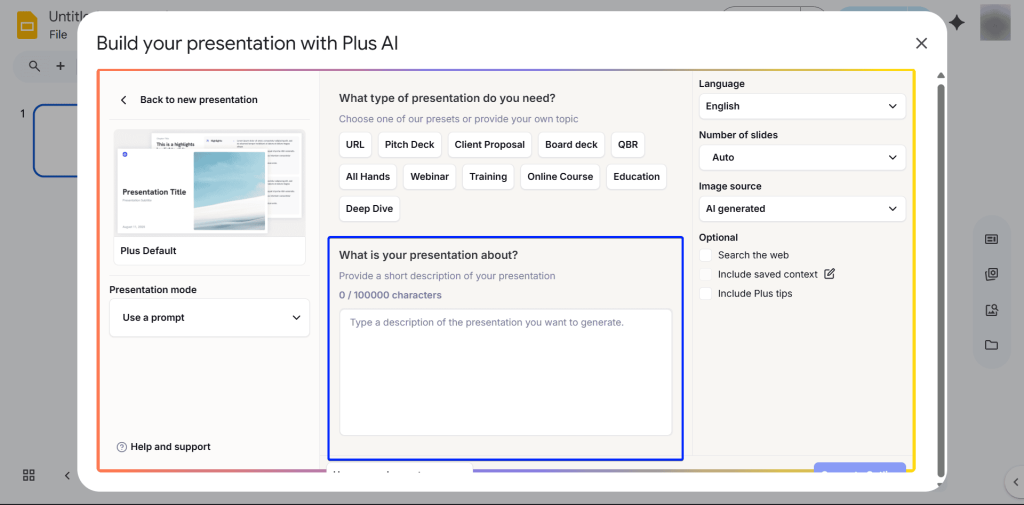
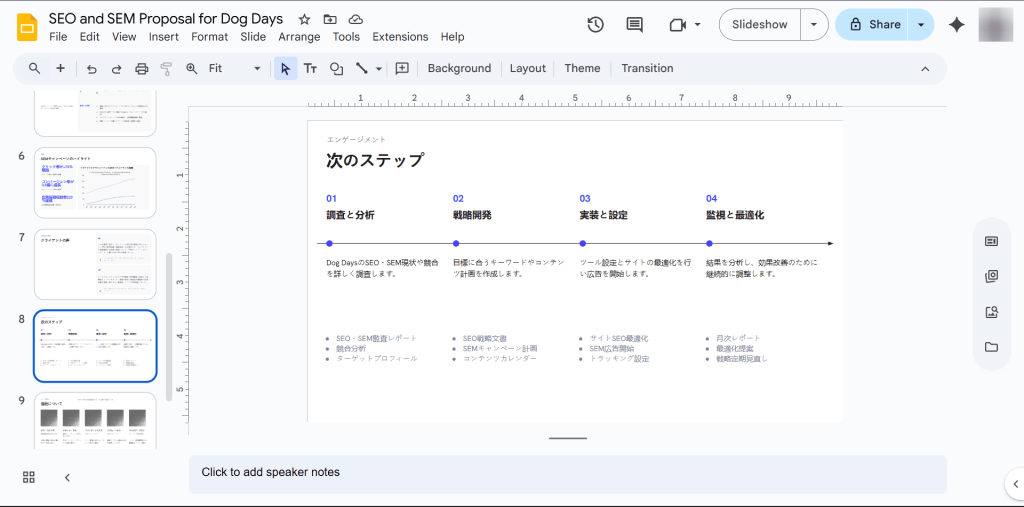
Need to send a presentation to clients in Japan? No worries. You can create and translate presentations in over 100 languages with Plus AI.
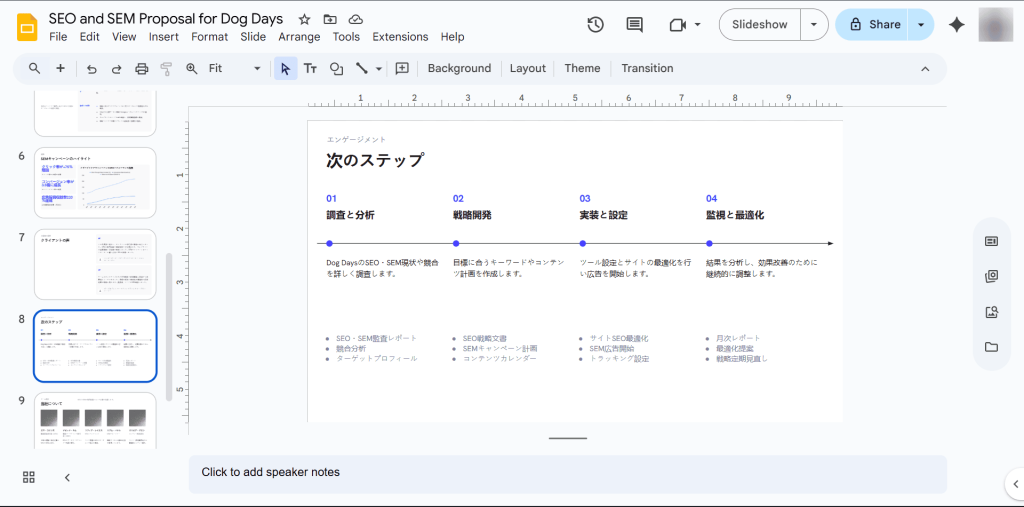
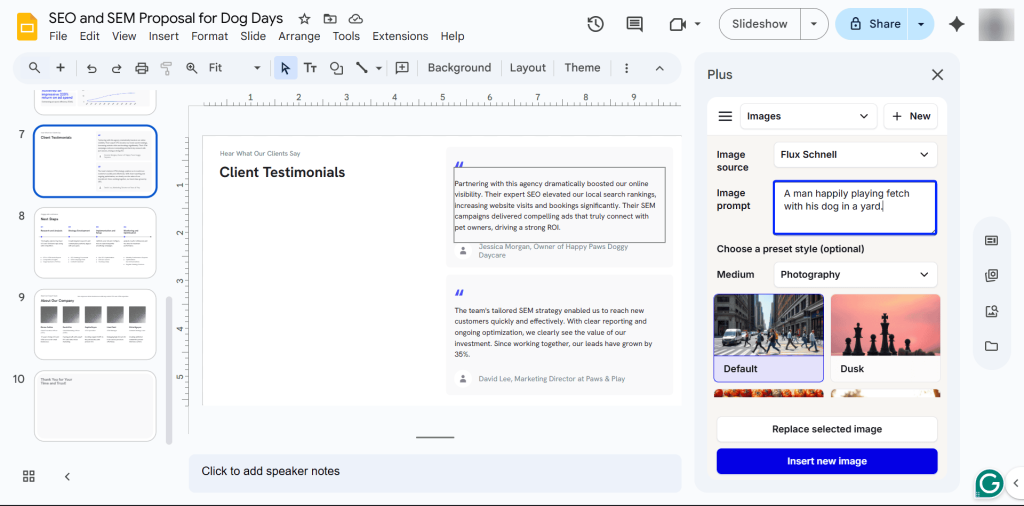
Finally, you can also use Plus AI to generate more images to add to your presentations.
What I Loved About Plus AI
1. AI Presentation Generator
Plus AI’s AI Presentation Generator is a feature that lets you turn prompts and documents into structured presentations in Google Slides quickly.
Because it focuses on brand consistency, you can upload your design elements and create templates, so your slides always align with your brand.
Let’s take a look at this feature:
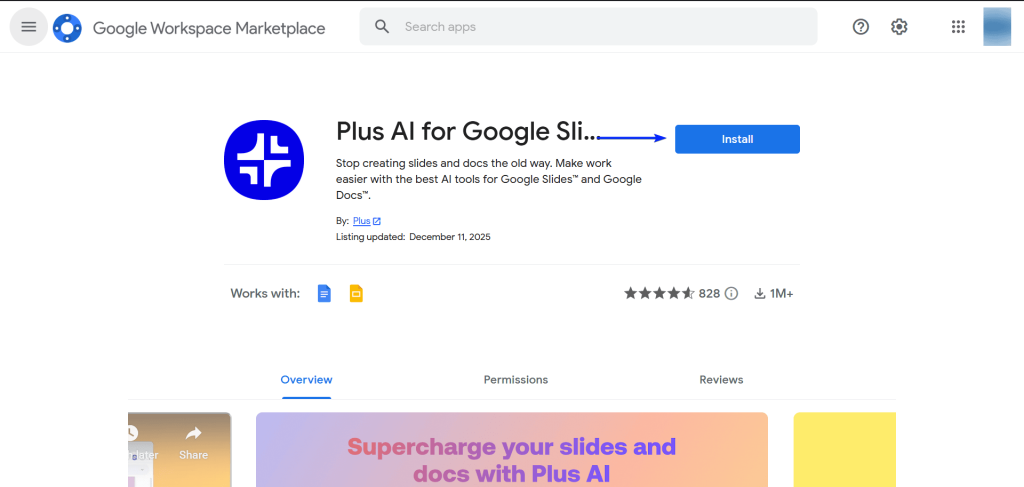
First, you need to install Plus AI as an add-on from the Google Workspace Marketplace.
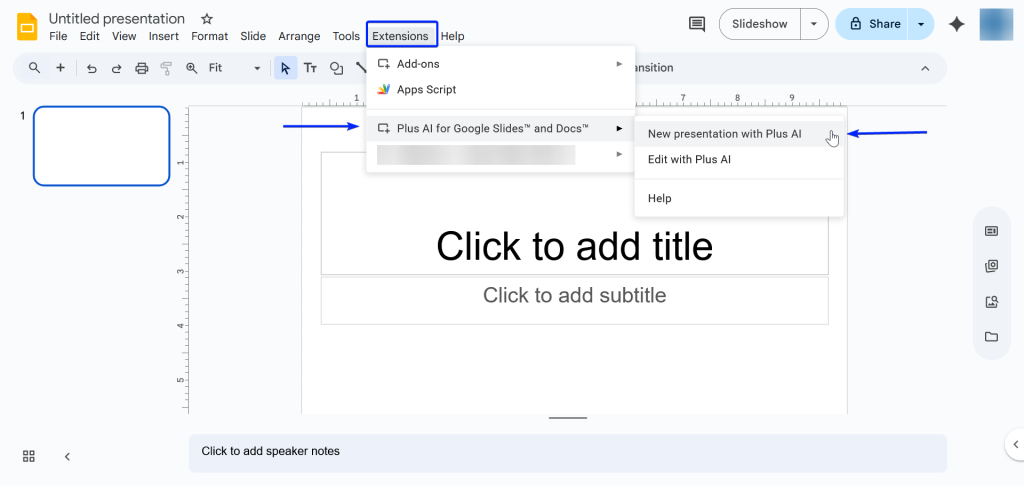
Then, open a new Google Slides document and head on over to “Extensions → Plus AI for Google Slides and Docs → New Presentation with Plus AI.”
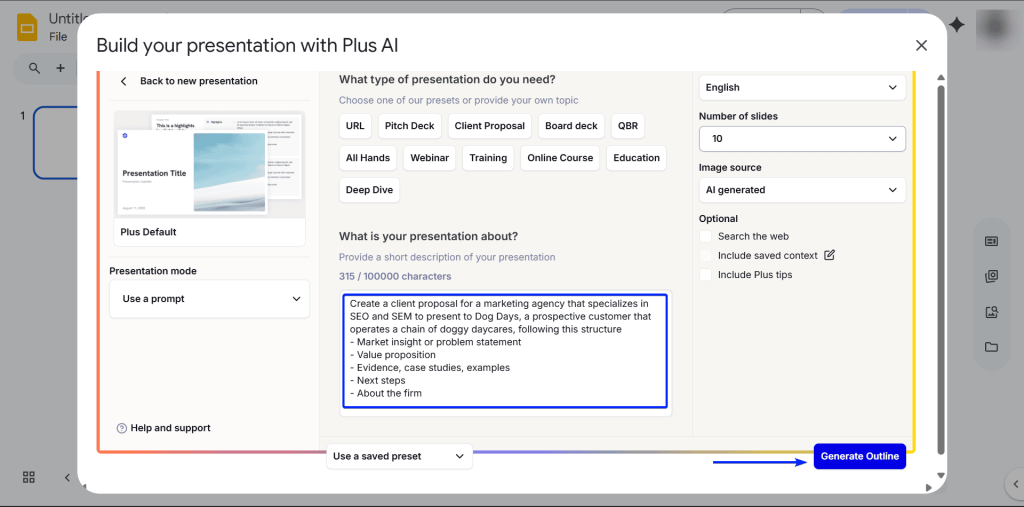
After that, you type in your prompt.
You will also have to choose the type of presentation you need from the presets listed above the prompt box.
In Plus AI, presets are pre-saved prompts that instantly let you generate specific prompts without having to type them repeatedly.
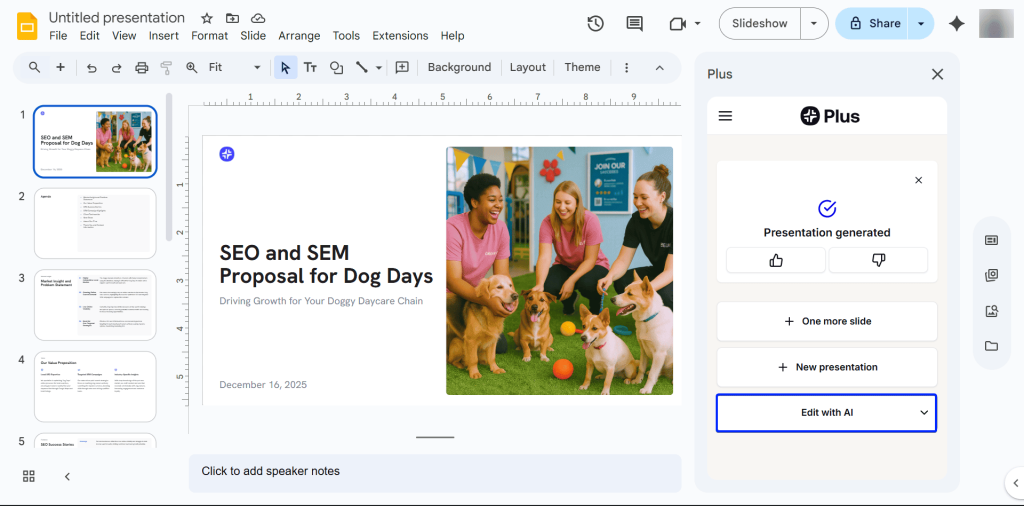
When you’re done, hit “Generate Outline.”
Once you approve the outline, Plus AI will generate the presentation in Google Slides, where you can make edits.
2. Languages
Plus AI has over 100 languages, so you can create presentations for audiences nearly everywhere in the world.
Let’s see how to translate text with this tool:
When you generate a presentation, click “Edit with AI.”
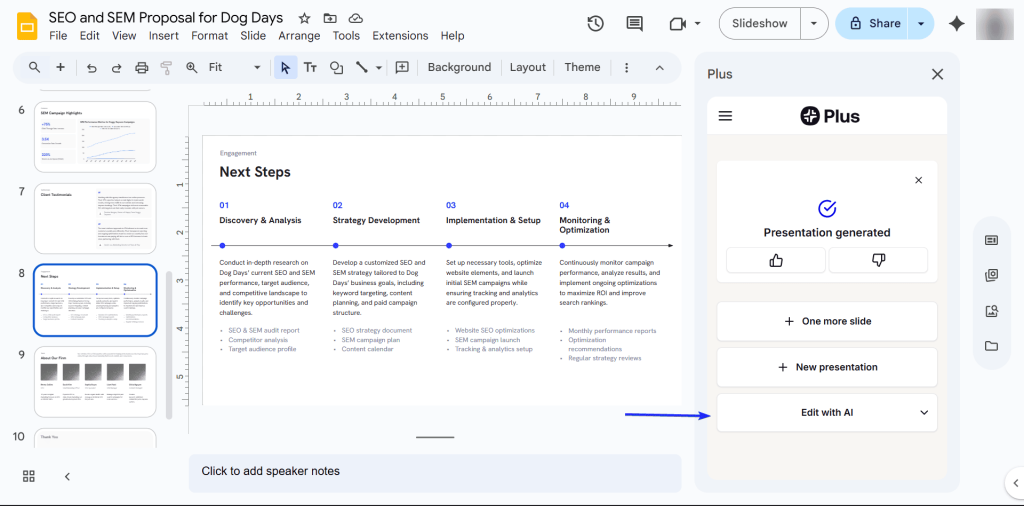
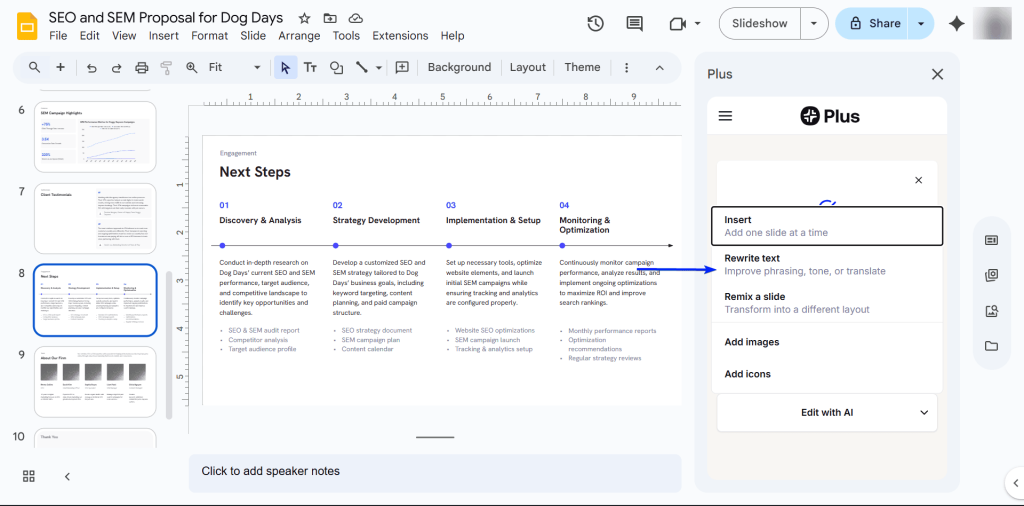
Next, you select “Rewrite text.”
Then, you set your language instructions.
I set the translation from English to Japanese.
You will also have to choose a tone preset, which will automatically create a prompt for you.
Once you’re done, click “Rewrite all slides.”
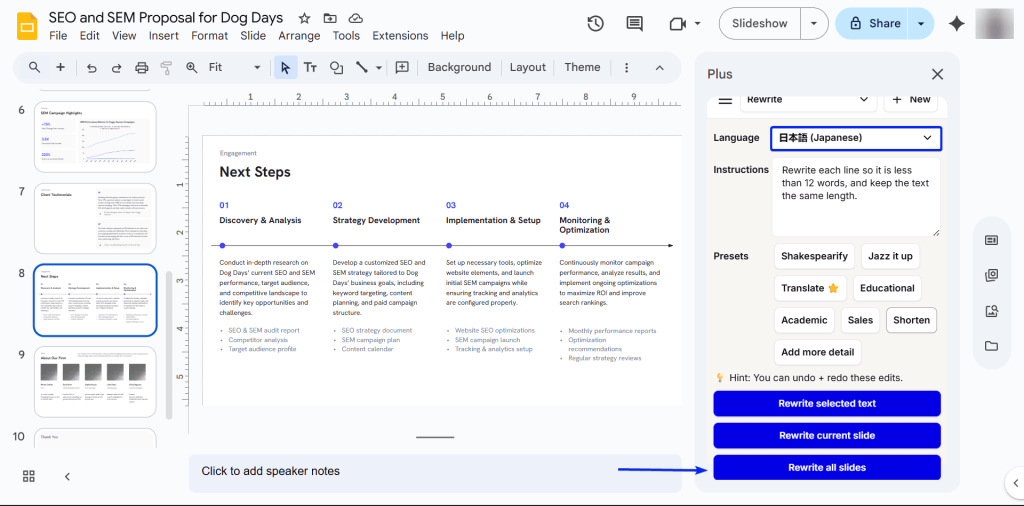
It takes about 3 minutes for Plus AI to translate the entire presentation.
3. AI Image Generator
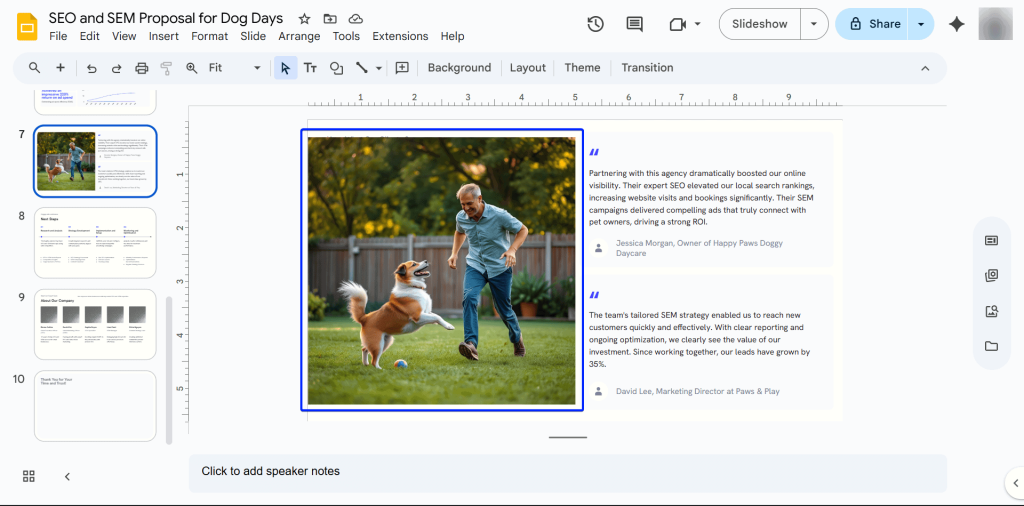
Plus AI’s AI Image Generator lets you instantly create unique visuals from a text prompt to match your slide content.
Let’s check it out:
While in edit mode, click “Add images.”
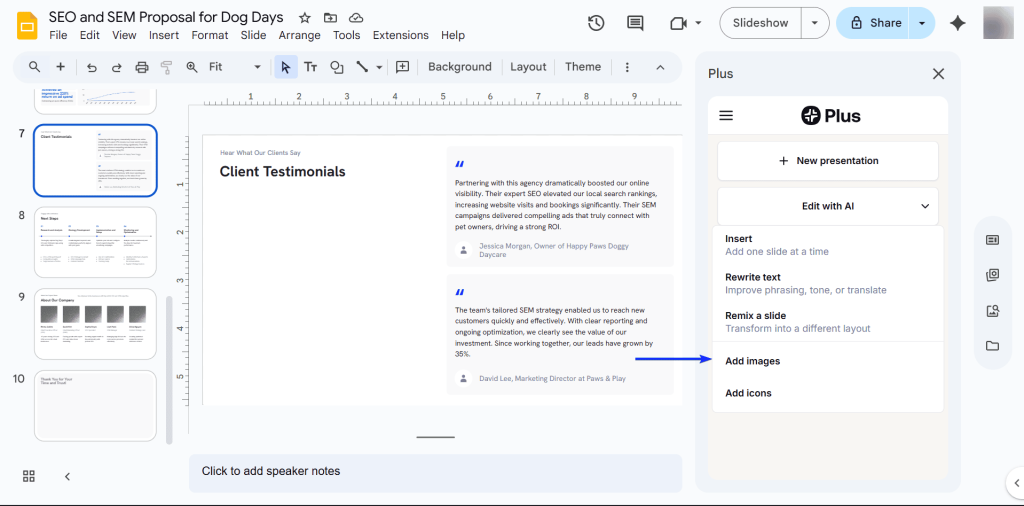
Next, enter your image prompt and click “Insert new image.”
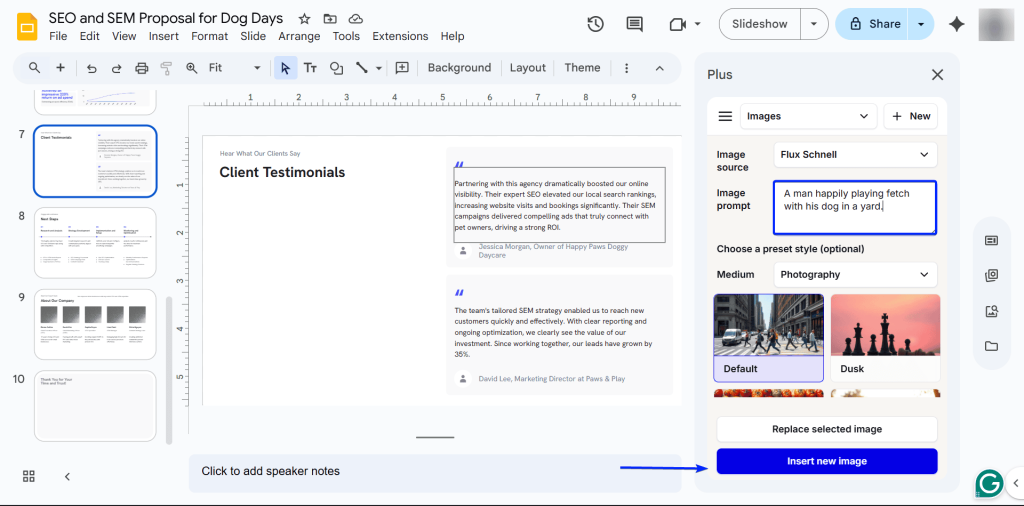
Plus AI will generate an image for you.
What I Loved vs What I Struggled With
| What I Loved 👍 ✅ It integrates natively with Google Slides, just like SlidesAI. Users can work in one space. ✅ It has a smooth language translation process, and users have access to 100+ languages. ✅ The AI image generator creates high-quality visuals that align with the prompts. | What I Struggled With 👎 ❌ Custom branding (which is a core differentiator from SlidesAI) requires being on a higher tier and a more expensive plan. ❌ AI generation runs about a minute slower than SlidesAI. |
Best For
- Teams that want to quickly create slides within Google Slides while focusing on branding consistency.
Pricing
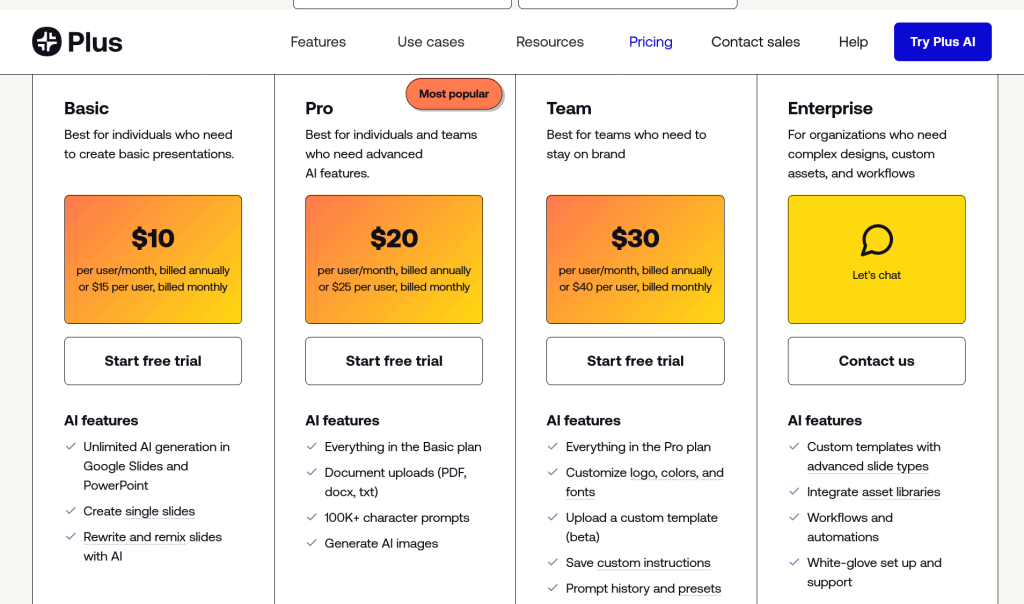
- Basic: $10.00/month
- Pro: $20.00/month
- Team: $30.00/month
- Enterprise: Contact for pricing
5. Instant AI for Google Slides
| Personal ratings: ⭐️⭐️ 2/5 | Ease of use: ⭐️⭐️ 2/5 | Free trial: ✅, users can generate a 15-slide document once | AI Quality: Entry-level (Too many text and structural inconsistencies) | Templates: Extensive, 100+ templates |
Fifth on my list of the best AI tools for Google Slides is Instant AI.
It’s a Google Slides add-on that focuses on letting users create slide decks as quickly as possible.
It’s designed specifically for entrepreneurs and startup teams that need simple presentations without the design fuss.

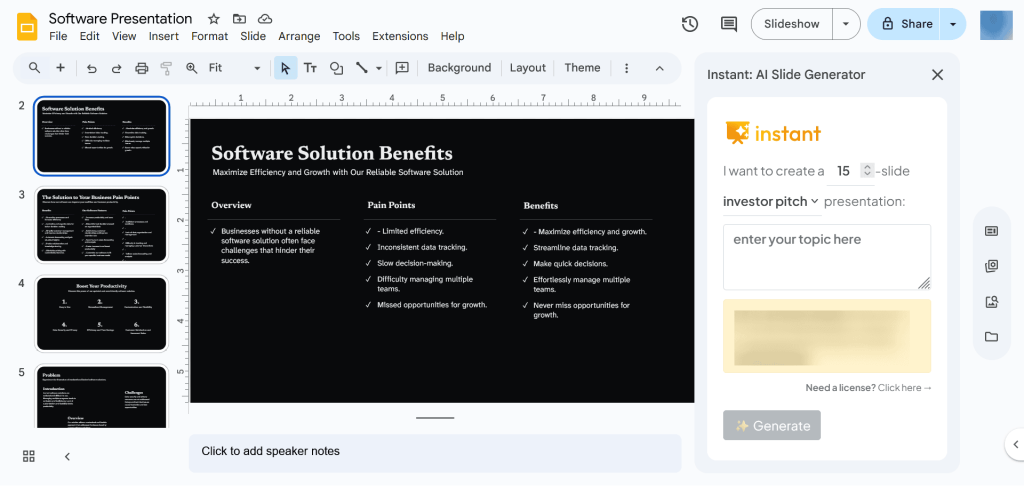
Instant AI’s slide generation feature lets you enter a short prompt on any topic.
Then it creates a detailed outline for you to approve before you generate slides.
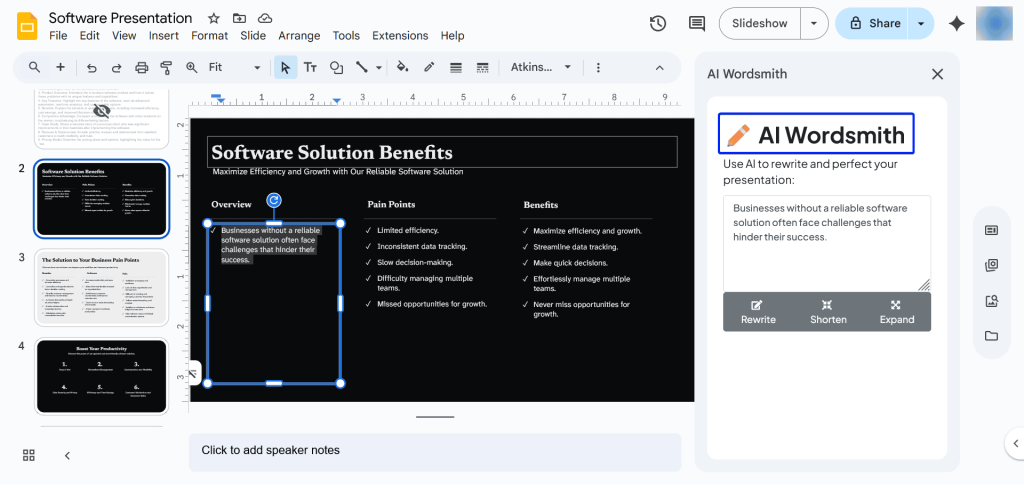
Up next is the AI Wordsmith feature.
Think of it as your personal editor within Google Slides.
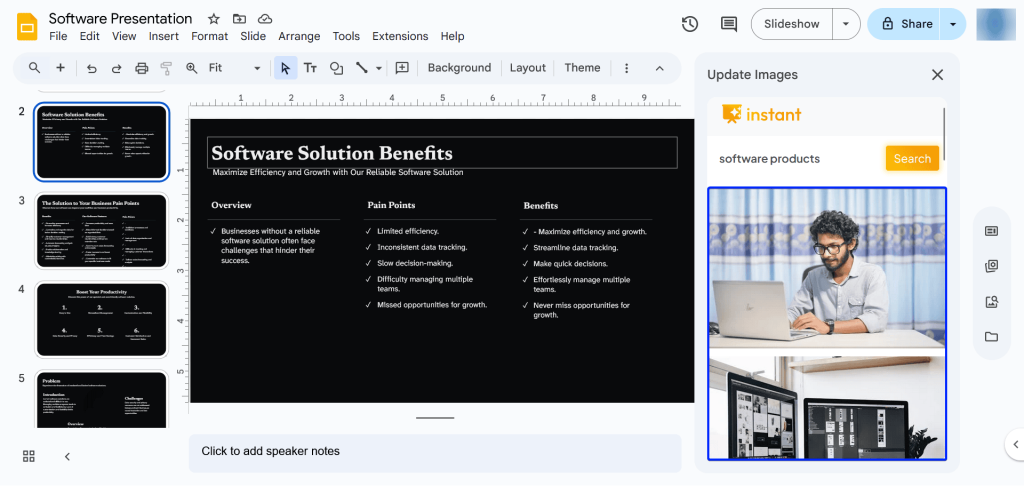
Finally, the Update Images feature lets you add pictures to your presentation.
What I Loved About Instant AI for Google Slides
1. AI Slide Generation
AI Slide Generation is one of Instant AI’s features that lets you generate slides in minutes, all from a prompt.
It creates a detailed outline of your topic, which you can edit before generating your presentation for you.
Let’s check out how it works:
First, you have to install Instant AI for Google Slides in the Google Workspace Marketplace.
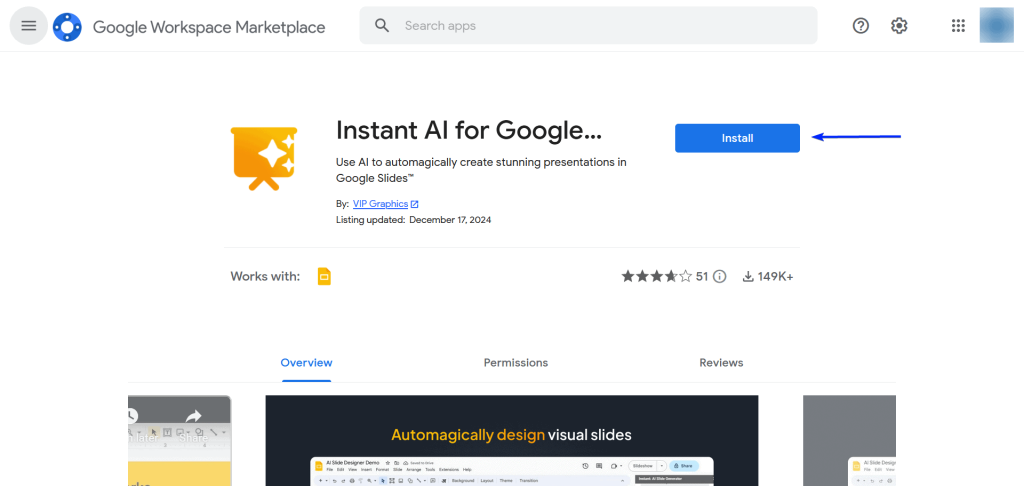
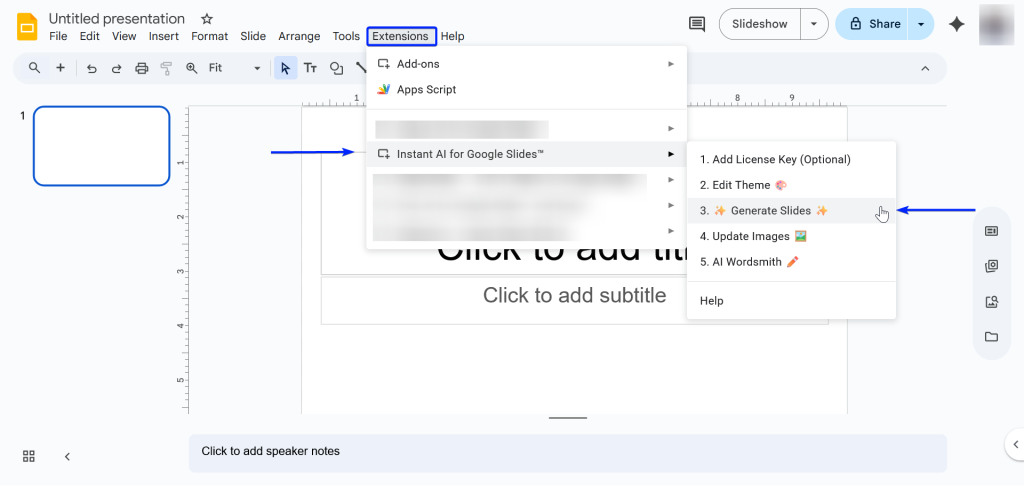
Once you’re done, head to a blank presentation in Slides and go to Extensions → Instant AI for Google Slides → Generate Slides.
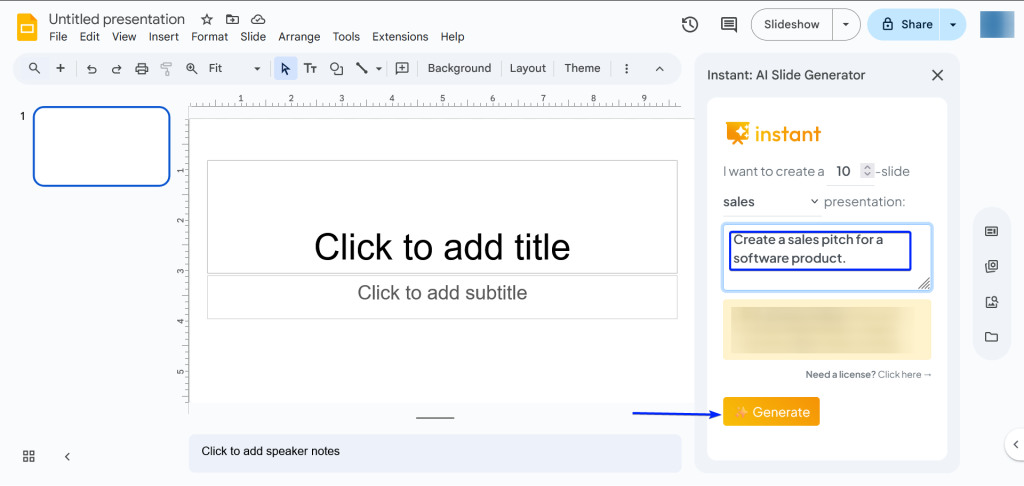
Next, you enter your prompt.
Here, you can also set the number of slides for your presentation and the type as well.
Hit “Generate” when you’re done.
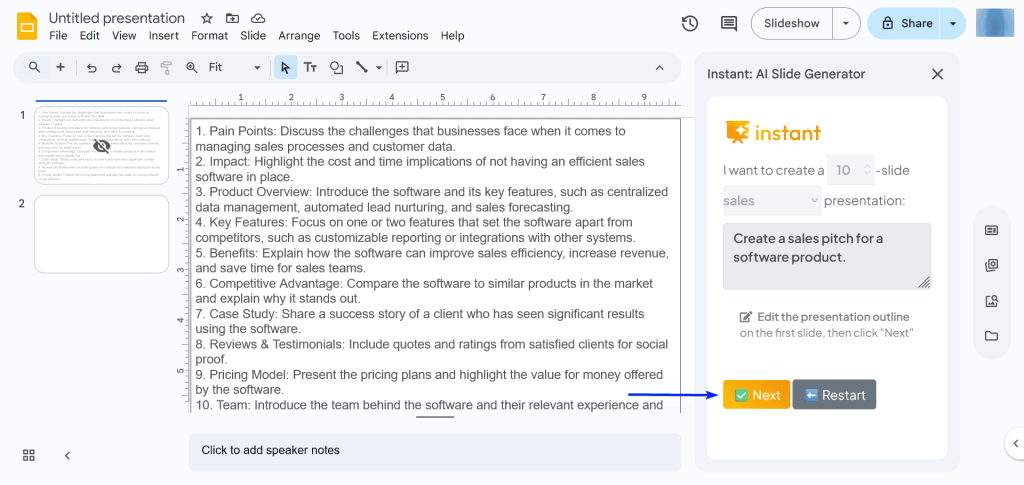
After that, Instant AI will generate an outline for you to review. When you’re done, click “Next.”
And now, you have your slides.
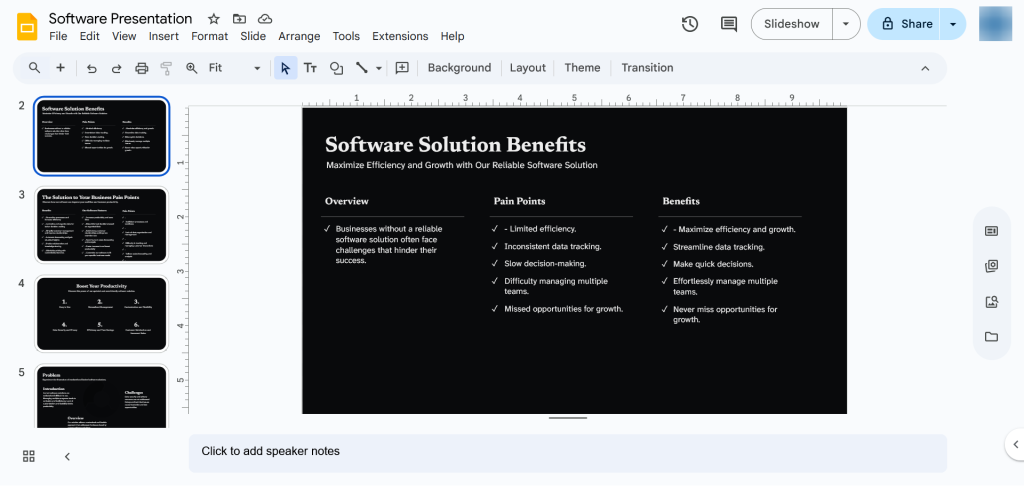
2. AI Wordsmith
AI Wordsmith acts like your personal editor in Google Slides.
If a slide has too much or too little text, you can use this feature to rewrite, shorten, or expand the text.
Here’s a walkthrough on how to use Wordsmith:
First, select the text that you want to edit.
Then, head to Extensions → Instant AI for Google Slides → AI Wordsmith.
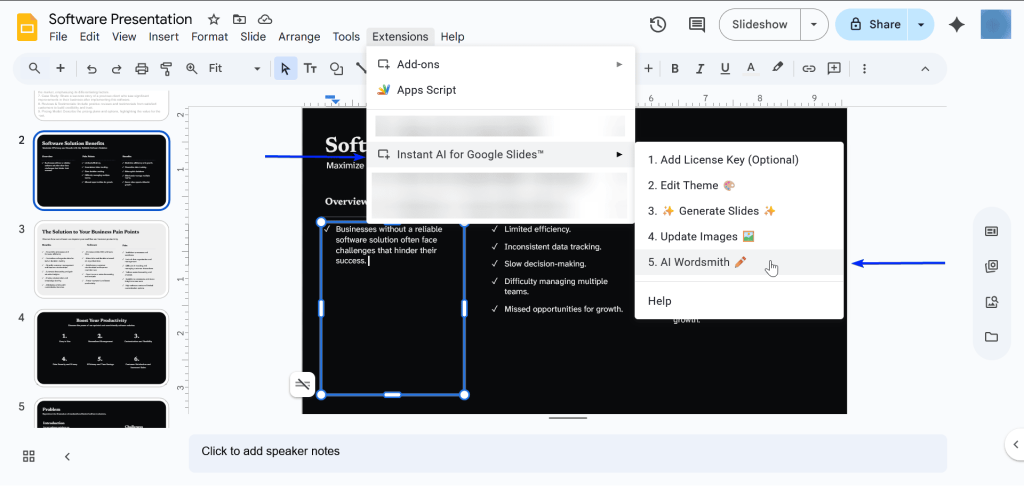
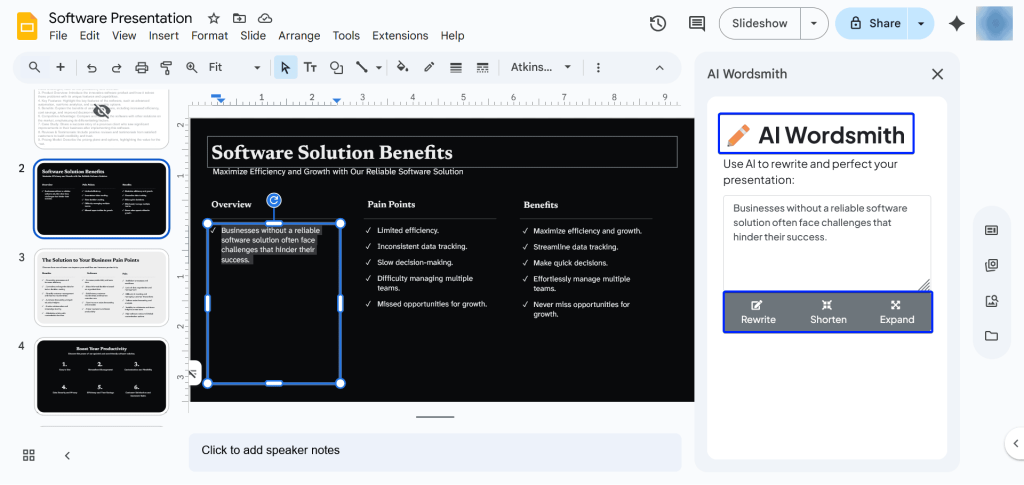
You can now choose what you want to do with the text. You can ask AI Wordsmith to rewrite, shorten, or expand it.
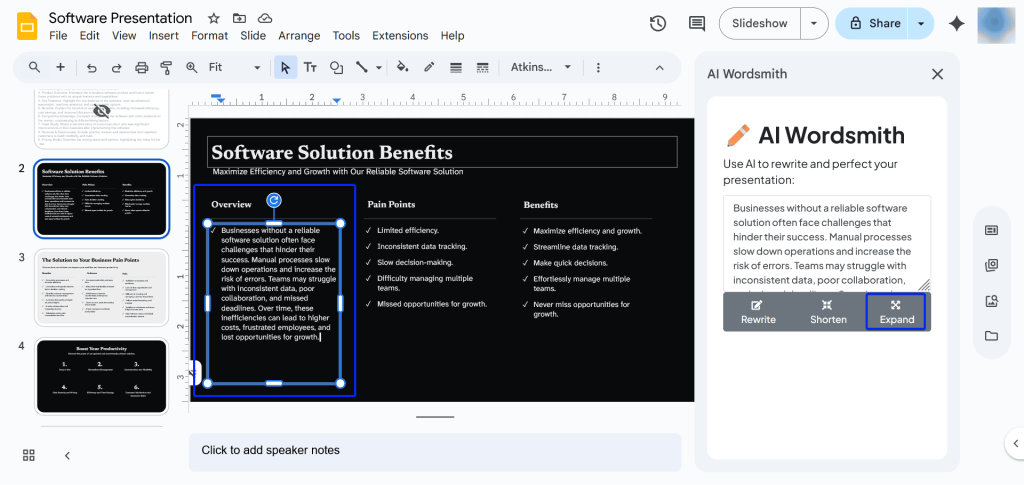
Let’s go with expanding the text.
Once you’re done, the expanded text will appear in your slide.
3. Update Images
The last feature to cover is Update Images.
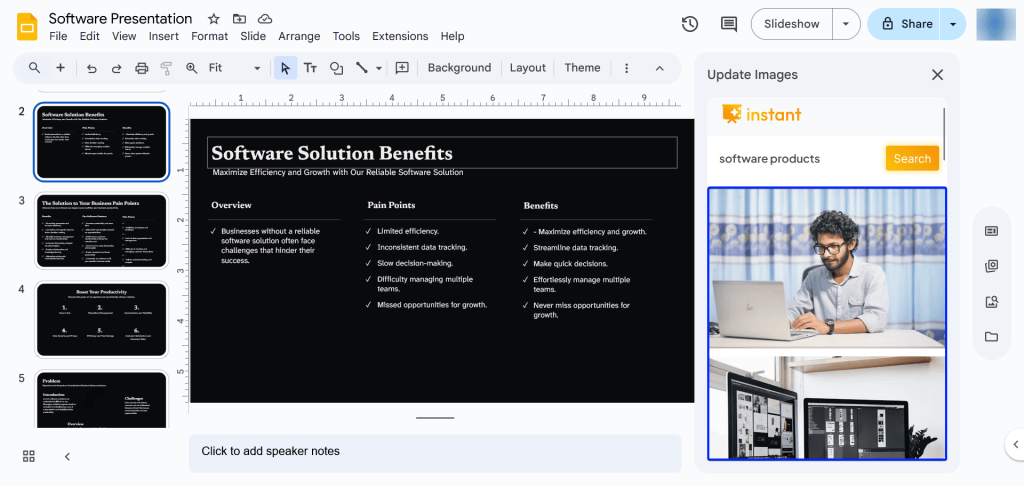
Instant AI integrates with Pexels, a stock image library. That means you can directly access images from Pexels without having to visit the site.
Let’s have a look at it:
Head to Extensions → Instant AI for Google Slides → Update Images.
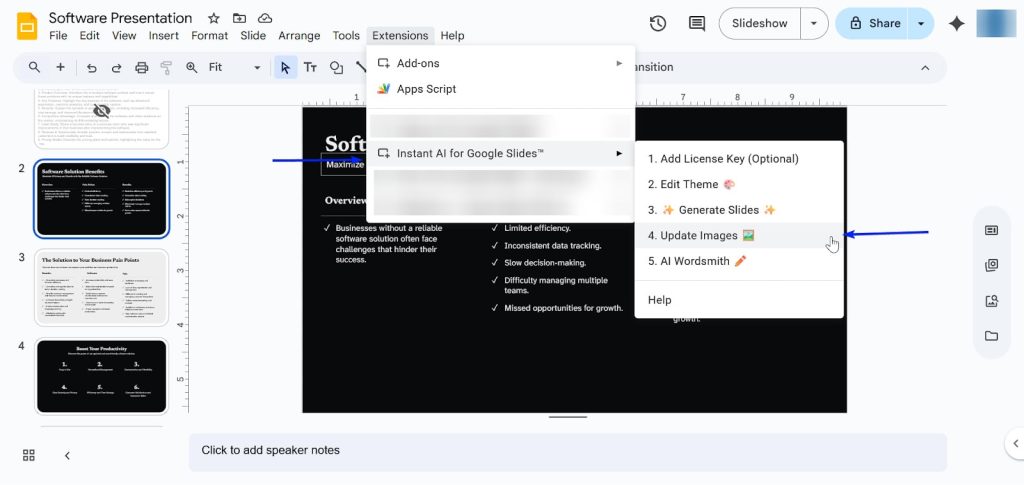
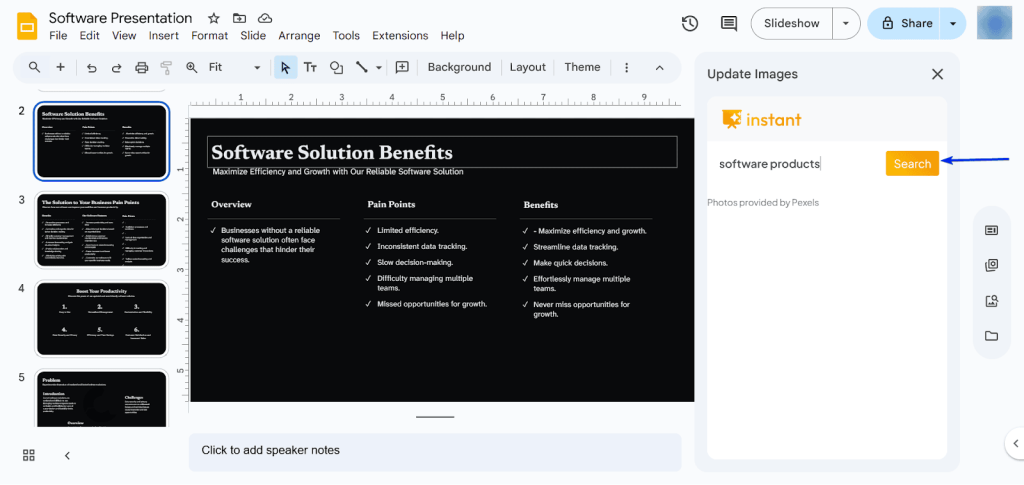
Next, type in the image you’re looking for and hit “Search.”
Instant AI will then generate images for you to include in your presentation.
What I Loved vs What I Struggled With
| What I Loved 👍 ✅ Instant AI generates a really solid outline before creating your presentations. ✅ AI Wordsmith and Update Images features make it easier and faster to clean up your deck. ✅ Integrates with Pexels so you can have access to a vast library of images. | What I Struggled With 👎 ❌ Slides generated have structural inconsistencies, so you will spend some time manually editing presentations. ❌ Free users have access to only 15 templates. |
Best For
- Entrepreneurs looking for an AI presentation tool designed specifically for sales and investor pitches.
Pricing:
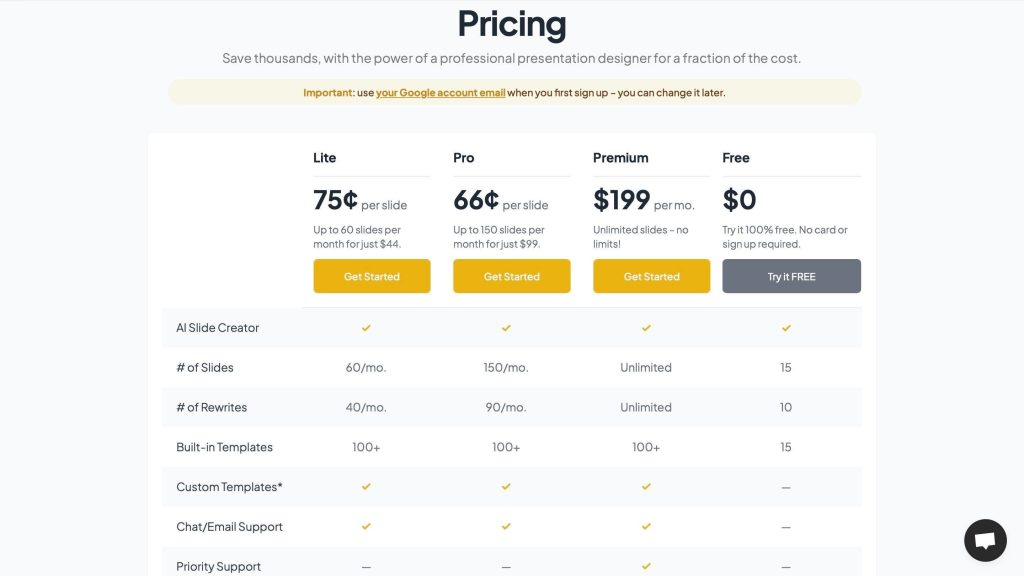
- Lite: 75¢/slide
- Pro: 66¢/slide
- Premium: $199.00/month
- Free: $0.00/month
6. ChatGPT for Google Workspace
| Personal ratings: ⭐️⭐️⭐️ 3.5/5 | Free trial: ✅ Yes, with daily user limits | AI Quality: Early-stage (Generated slides were missing images) | Templates: N/A |
In the sixth position on my list of best AI tools for Google Slides is ChatGPT for Google Workspace. It’s both an add-on and a Chrome extension that works in Google Slides.
This makes it a good choice for users who want a single subscription to cover all their Google Workspace tasks.

With its Generate Slides feature, you can turn a prompt or document into a presentation in minutes.
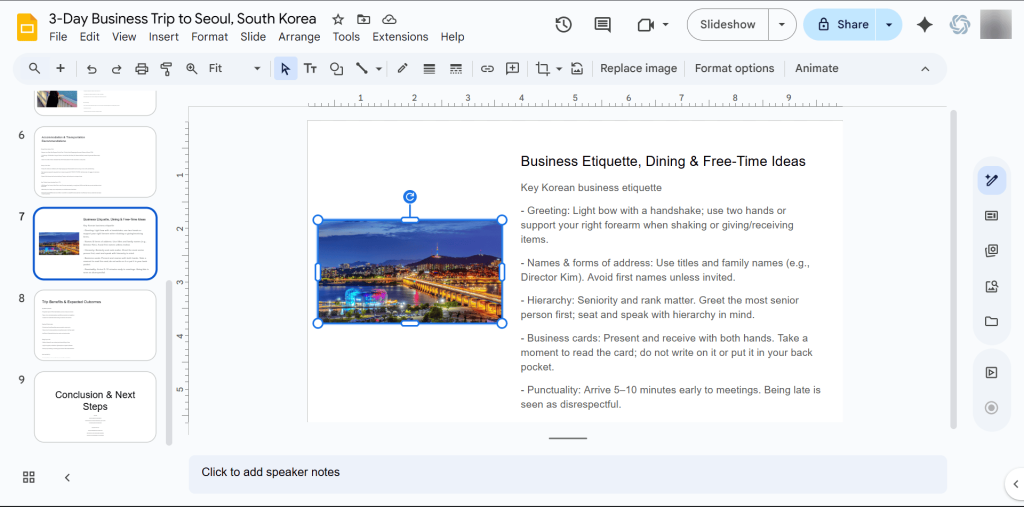
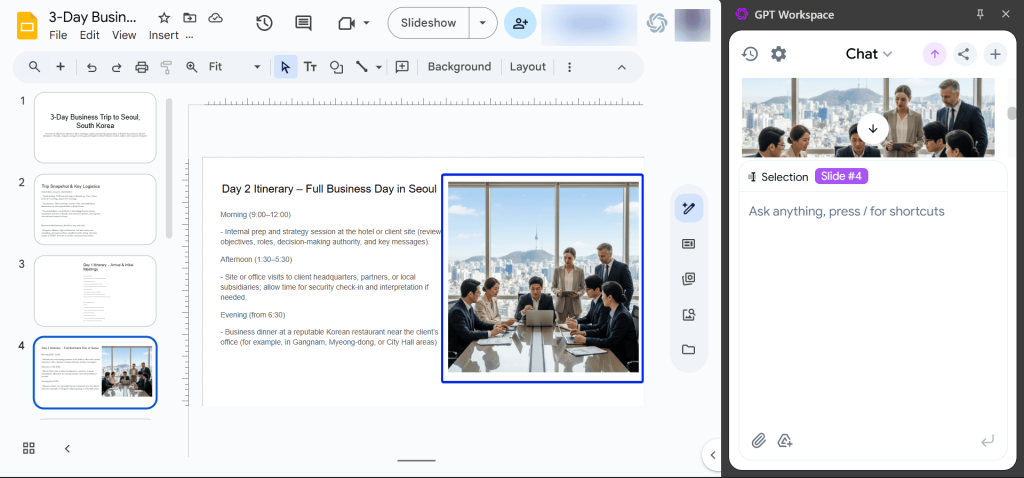
You can also generate custom images using its AI Images feature.
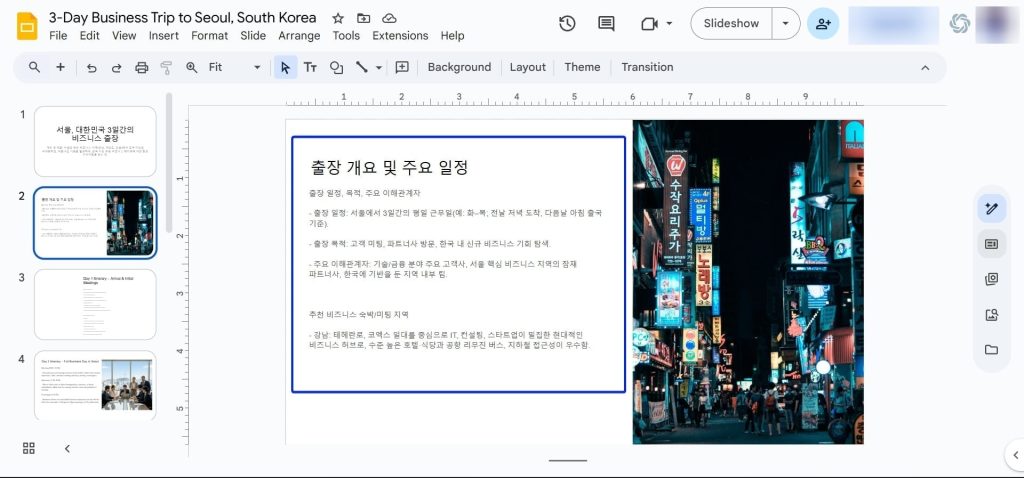
And finally, this tool can also translate your entire slide deck into more than 40+ languages with one click.
What I Loved About ChatGPT for Google Workspace
1. Generate Slides
Generate Slides is a feature that lets you turn prompts and/or documents into presentations instantly.
It creates a basic structure, which you can edit and adjust to your preference.
Let’s go through how to create slides with this tool:
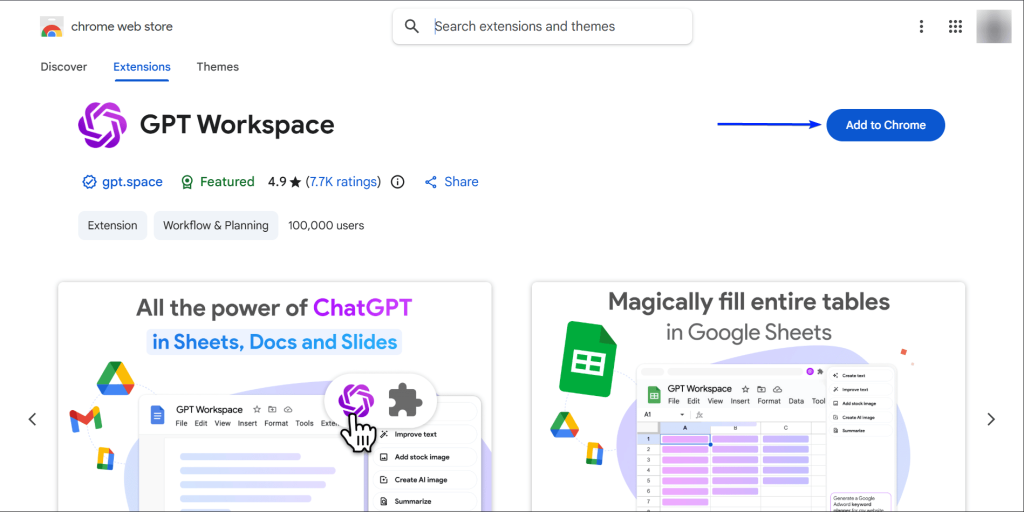
In the Chrome Web Store, click “Add to Chrome” to install the platform.
Next, open a blank presentation in Slides and click on the pen icon. That gives you access to the tool’s menu and features.
Alternatively, you can click on the GPT for Workspace logo at the top right corner of the page.
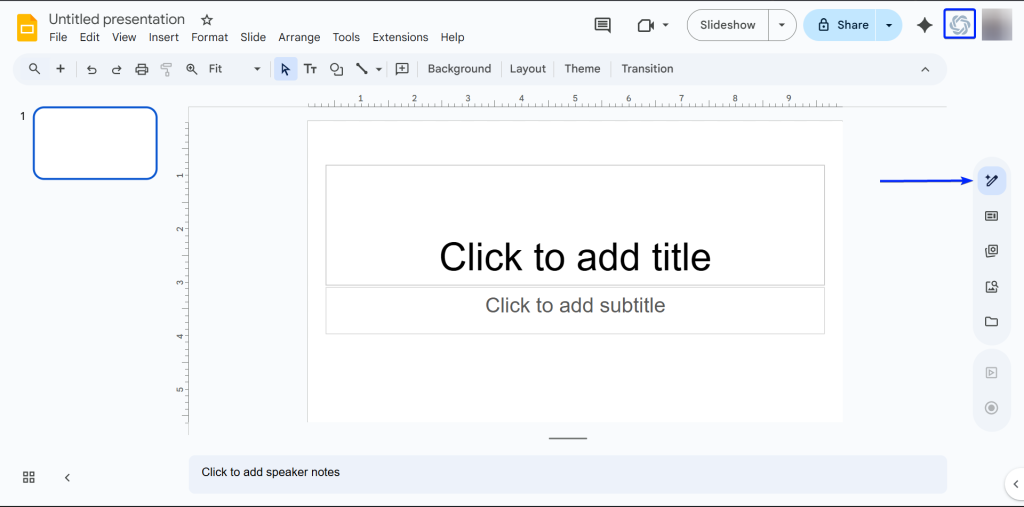
After that, click “Generate a slide deck.”
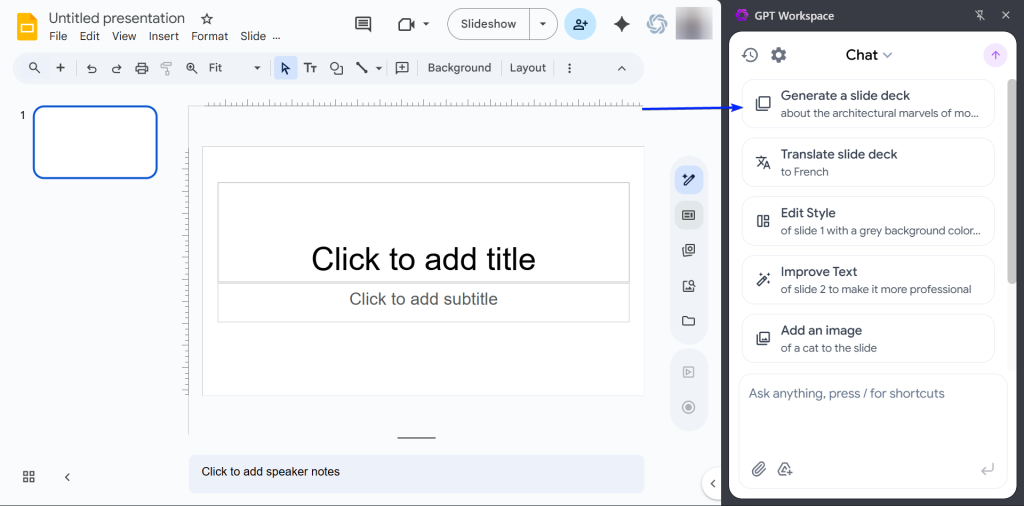
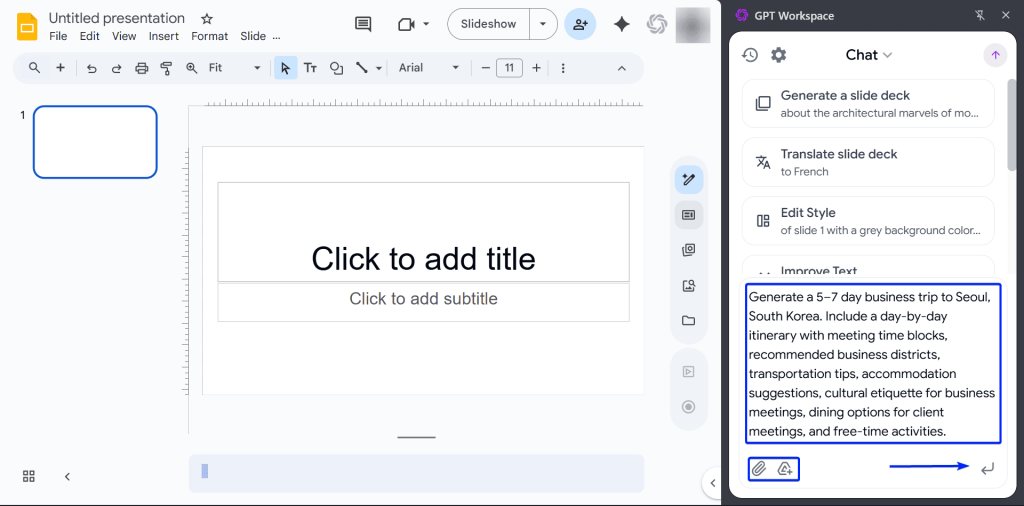
Then you enter your prompt.
Here, you can upload documents from your computer or through Google Drive.
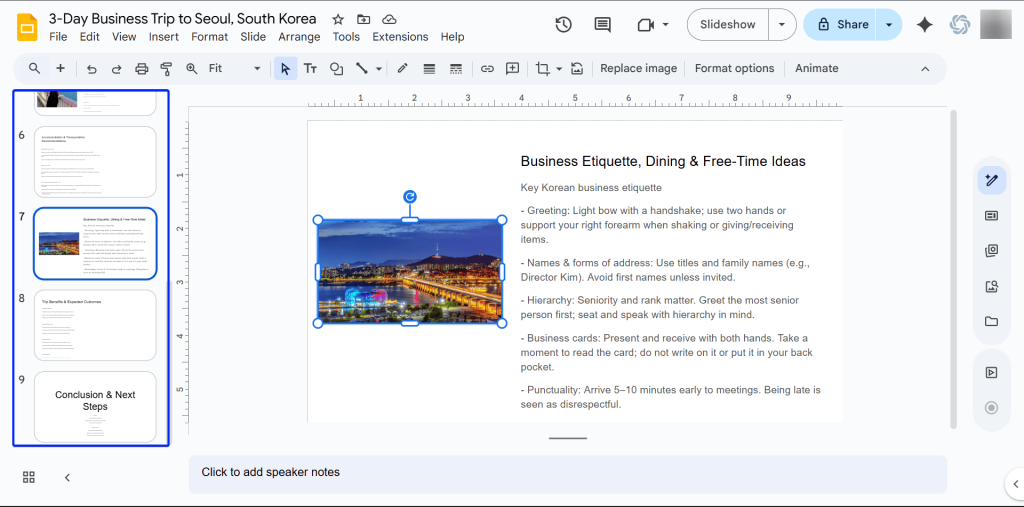
GPT for Workspace will then generate the slides for you, which you can easily edit.
2. AI Image
Up next is the AI Image feature, which lets you create unique images from a prompt.
Let’s take a look at it:
Click on the GPT for Workspace icon and scroll down to “Generate an AI Image.”
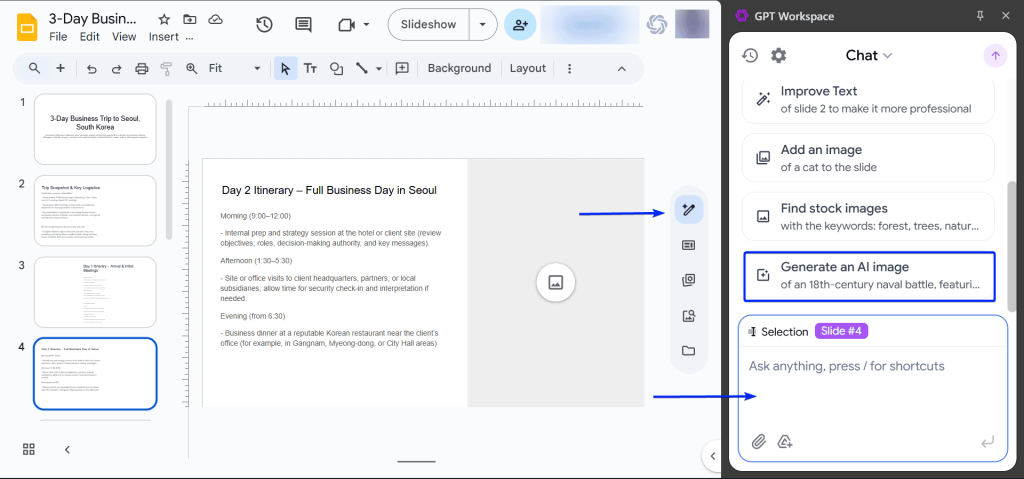
Next, enter your prompt describing the type of image you want it to generate. The more specific you are, the better results you will receive.
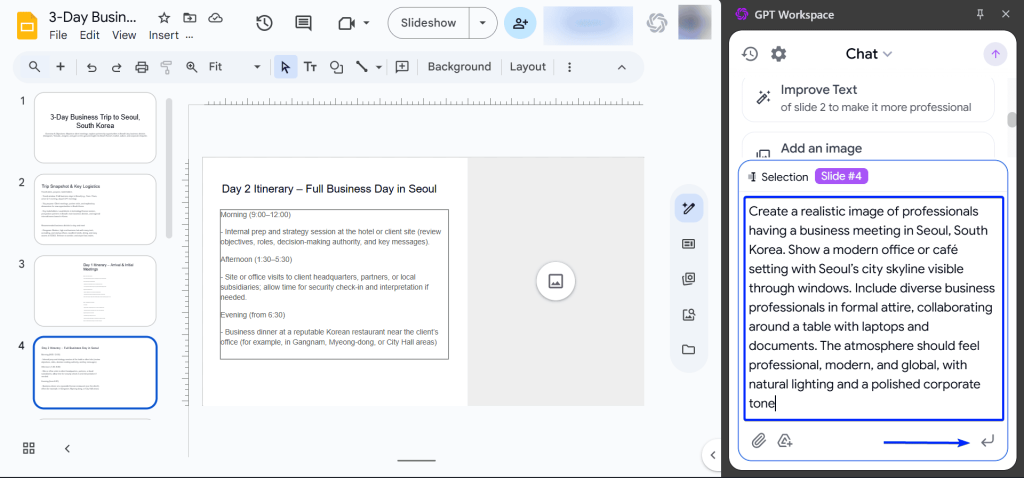
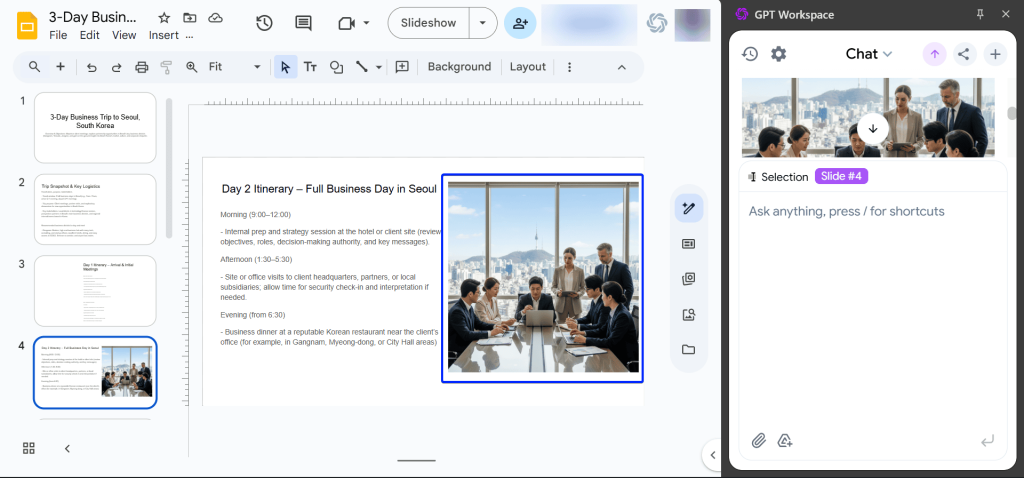
Once it’s done creating the image, you can simply copy and paste it into your presentation.
3. Translation
With the Translation feature, you can change your entire presentation into any language of your choice.
GPT for Workspace has over 30 languages, including French, Korean, Spanish, and German.
Let’s check it out:
First, head to the GPT for Workspace menu and select “Translate slide deck.”
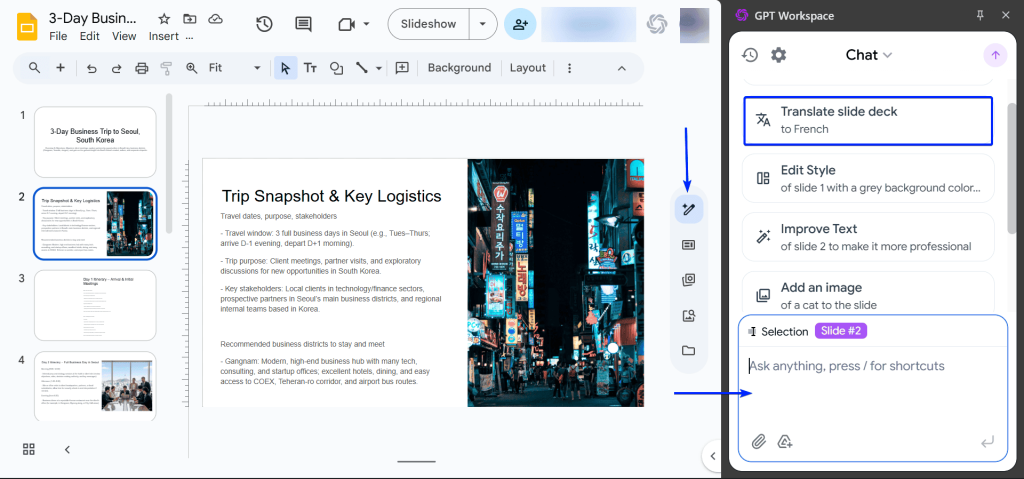
Next, type in your prompt.
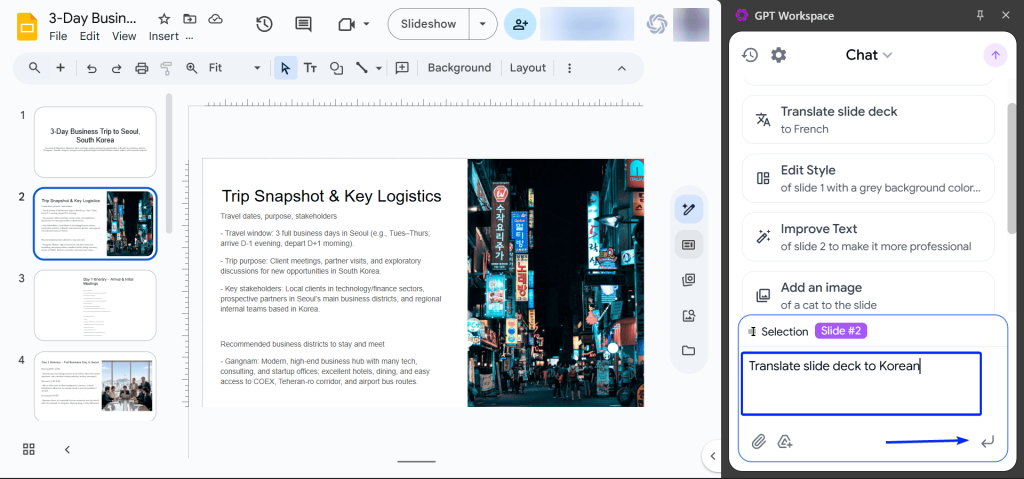
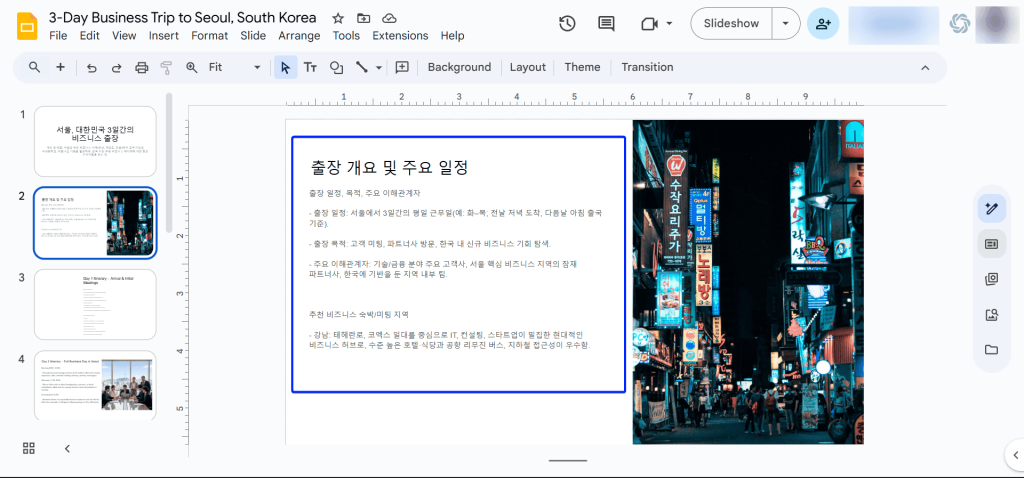
And just like that, the tool will translate your slides.
What I Loved vs What I Struggled With
| What I Loved 👍 ✅ It’s a versatile tool that works across Google’s Workspace, so you don’t need to have different subscriptions for each tool. ✅ Provides users with multiple sources for adding images, like AI generation, uploads, and stock images. ✅ Translation feature works quickly and doesn’t affect the structure of the slides. | What I Struggled With 👎 ❌ Some slides were missing images in the placeholders. ❌ The slide layout is professional but feels lacking in design. |
Best For
- Freelancers who need a single tool that works across the entire Google Workspace suite.
Pricing
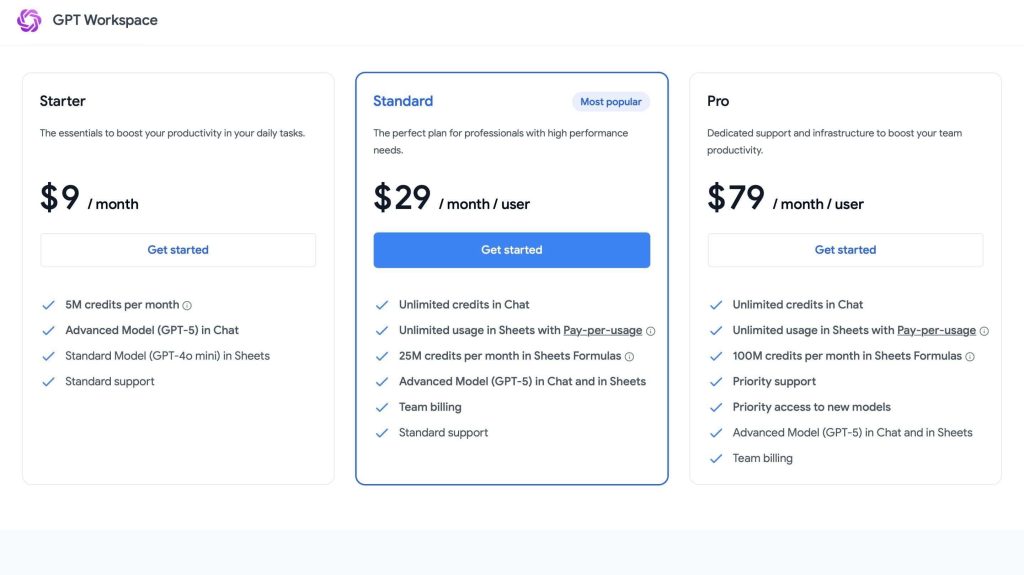
- Starter: $9.00/month
- Standard: $29.00/month
- Pro: $79.00/month
Boost your Google Slides workflow with the ChatGPT presentation maker and create slides in minutes.
7. Alayna AI
| Personal ratings: ⭐️⭐️⭐️⭐️ 4.3/5 | Free trial: ✅ Yes, offers 5 free presentations in Slides | AI Quality: Good (Generated slides required further editing) | Templates: N/A |
Coming in at number seven on my list of the ten best AI tools for Google Slides is Alayna AI.
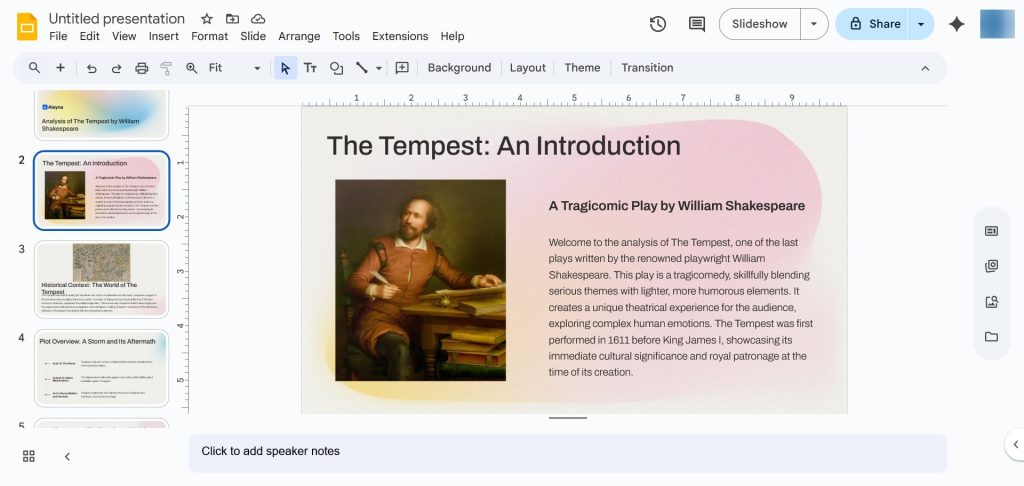
Alayna AI describes itself as the “world’s first slides generator” for educators.
It’s a Google Slides add-on that’s designed specifically for the classroom. It can also pull content from prompts, as well as educational resources like PDF textbooks.
With this platform, teachers can create presentations and lesson plans in minutes, saving them up to 20 hours of prep time every week.

Alayna AI’s Slide Generator can convert any source (text, PDF, or YouTube link) into complete lesson presentations.
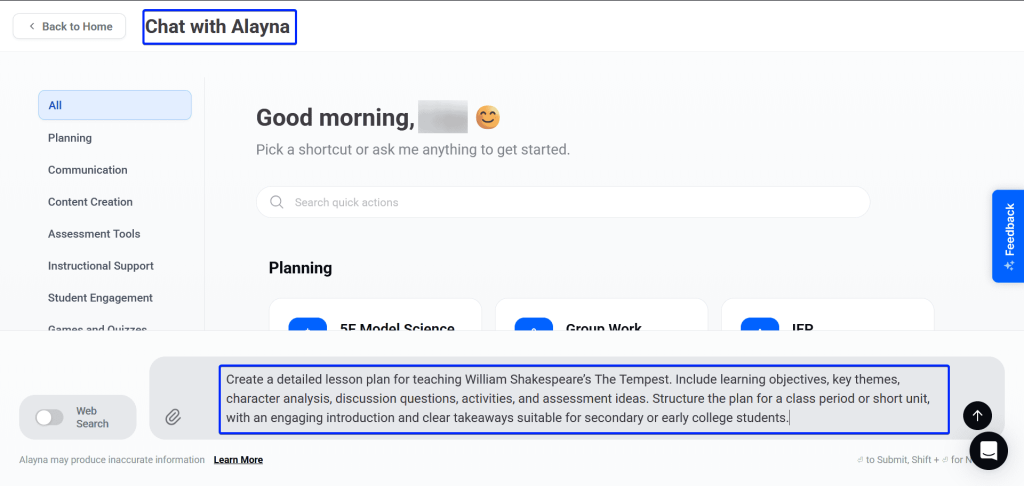
The next feature is AskAlayna, a reliable chat assistant that helps you brainstorm ideas, develop lesson plans, and curricula.
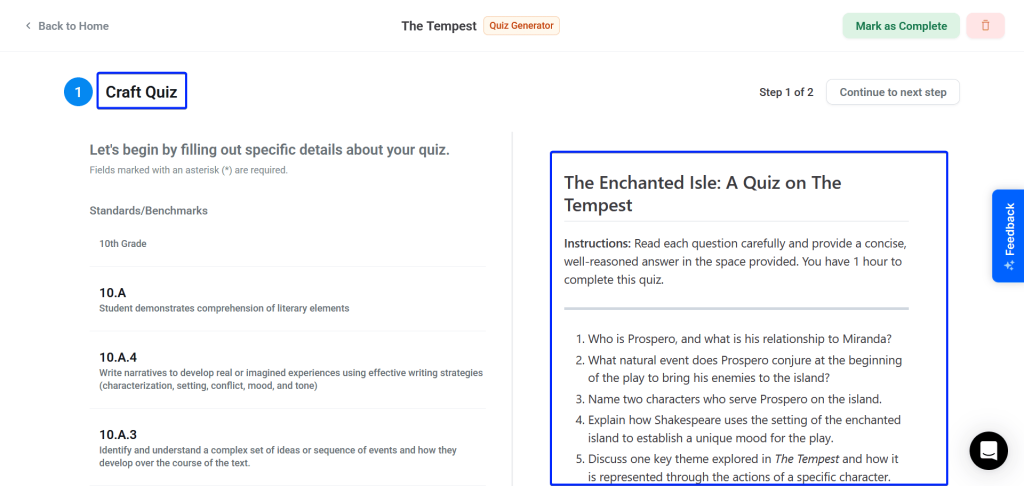
Then there’s the Quiz Generator that helps educators create quizzes for their students within minutes.
What I Loved About Alayna AI
1. Slides Generator
Slides Generator is a feature that lets you create lesson presentations with lecture notes that are appropriate for the grade level you teach.
Let’s see how it works:
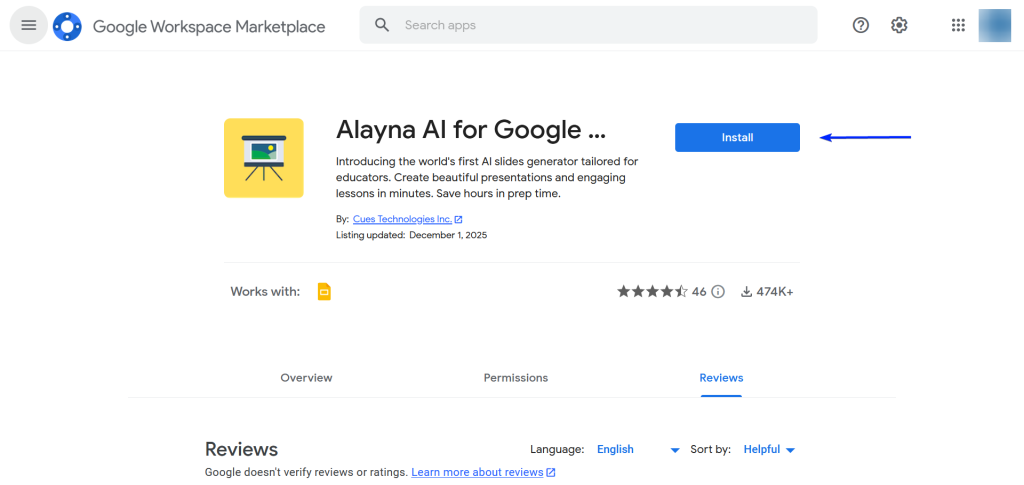
First, install Alayna AI from Google Workspace Marketplace.
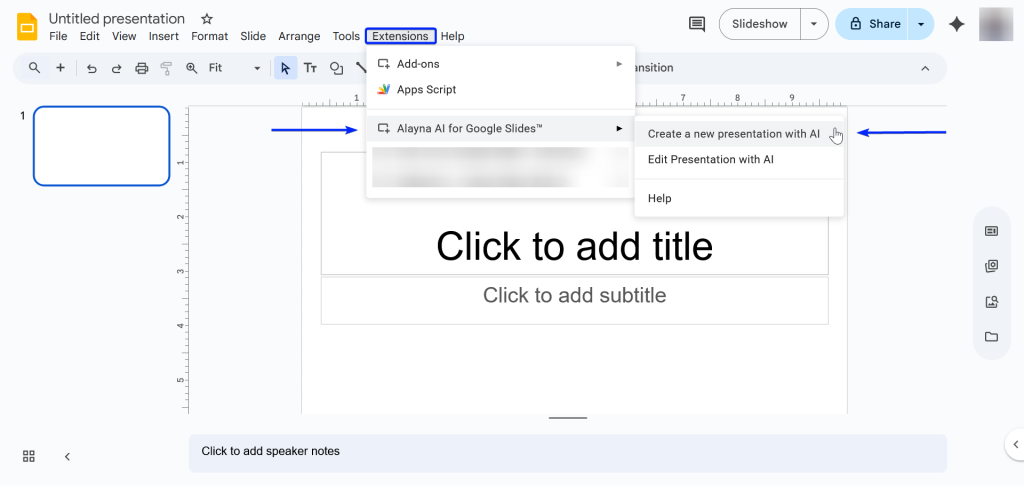
Then create a new presentation in Google Slides.
Head over to Extensions → Alayna AI for Google Slides → Create a new presentation with AI.
Next, enter your topic and prompt.
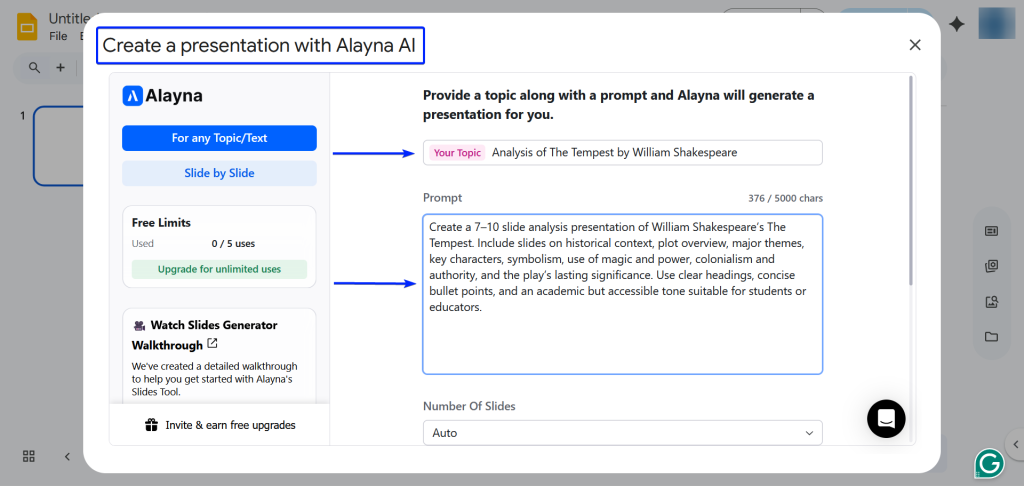
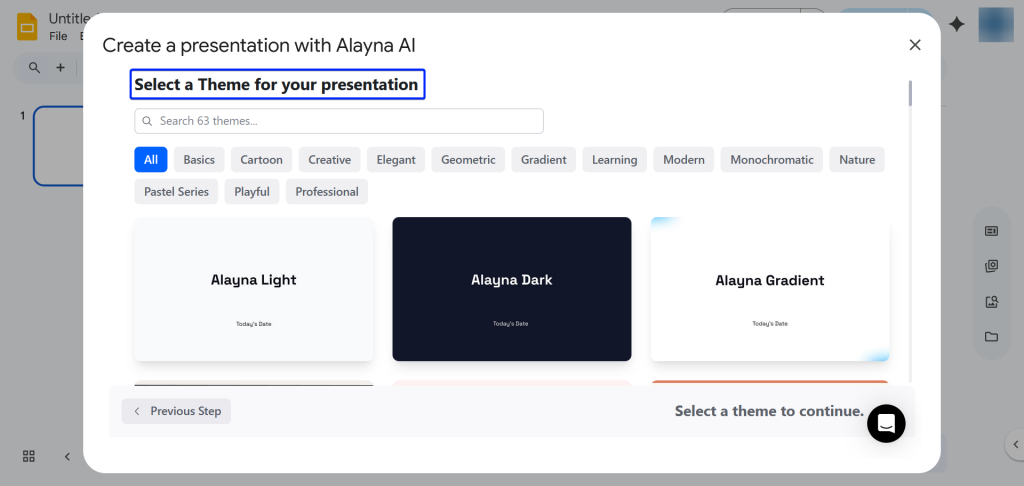
After that, select a theme for your presentation. It gives you an idea of how your slides would look.
Alayna has 63 themes to choose from.
Once you’re done, you generate your presentation, and you can continue editing in Google Slides.
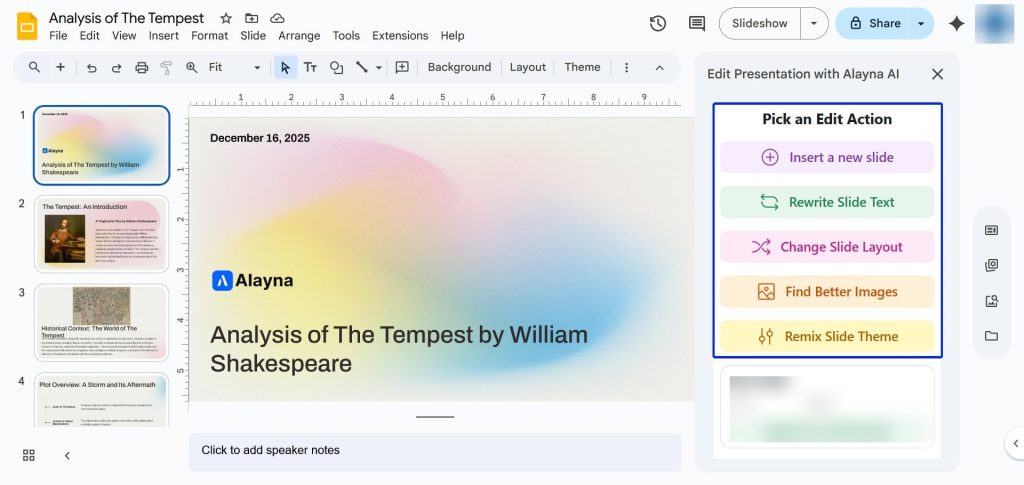
2. AskAlayna
Up next is AskAlayna.
It’s a handy chat assistant that helps you brainstorm ideas or quickly put together teaching documents, including lesson plans and curriculum outlines, for your classes.
Here’s how it works:
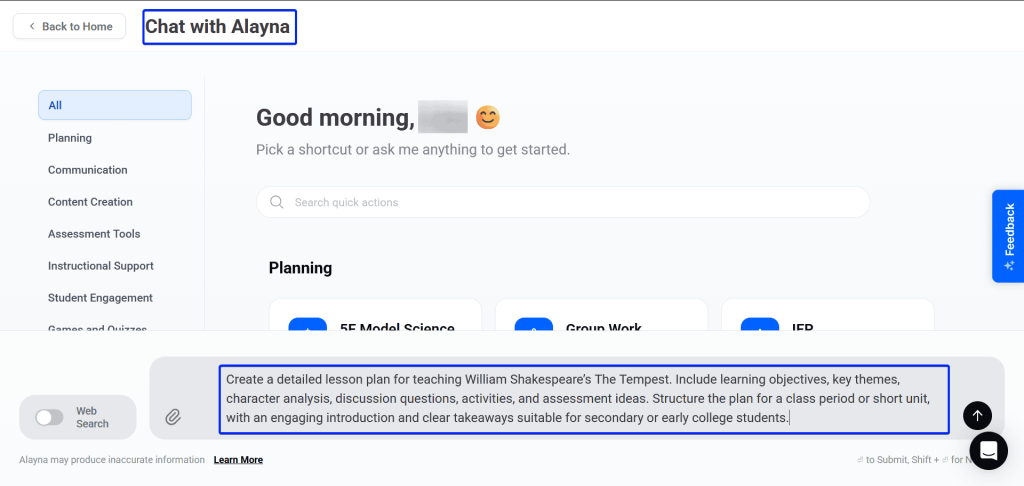
Under the AskAlayna tab, select “Chat with me.”
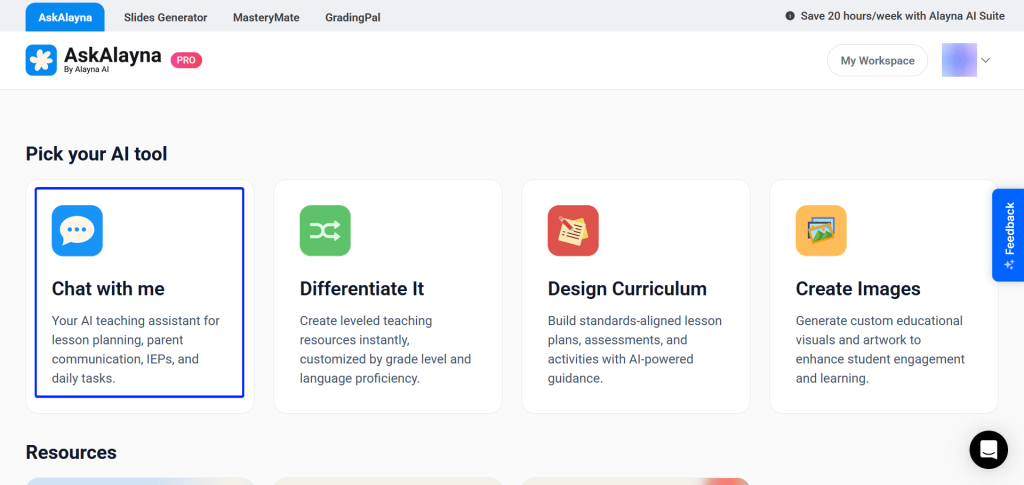
Next, enter your prompt and let the tool generate the content you want.
You can also pick a shortcut from the topics found on the left sidebar to help you generate prompts faster.
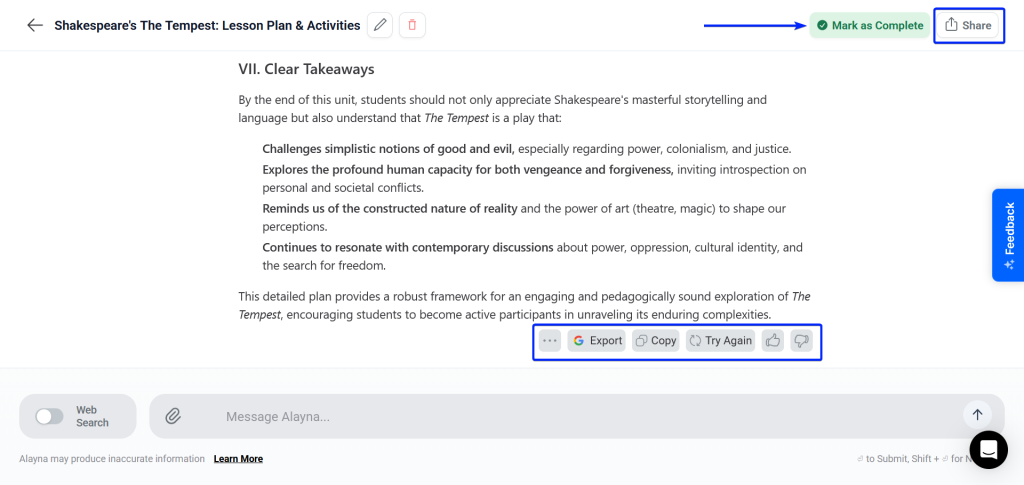
You can let the AI tool read out the content it generates.
AskAlayna also gives you sharing options, including downloading the content as a PDF document, exporting to Google Docs and Forms, copying the text, or sharing a link.
Once you’re done, click “Mark as Complete.”
3. Quiz Generator
Quiz Generator is a feature that takes your prompts and files to create quizzes for students.
Let’s see how it works:
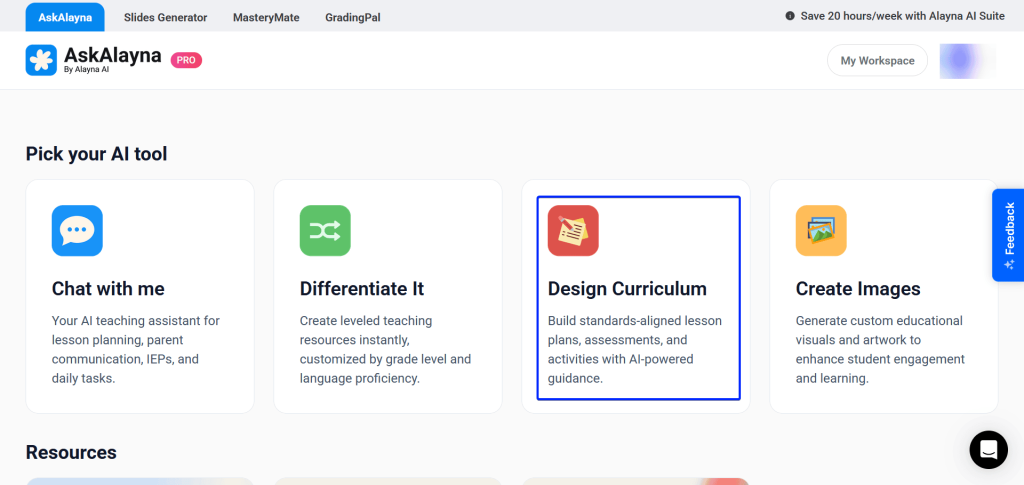
Under AskAlayna, select “Design Curriculum.”
Then you select “Quiz Generator.”
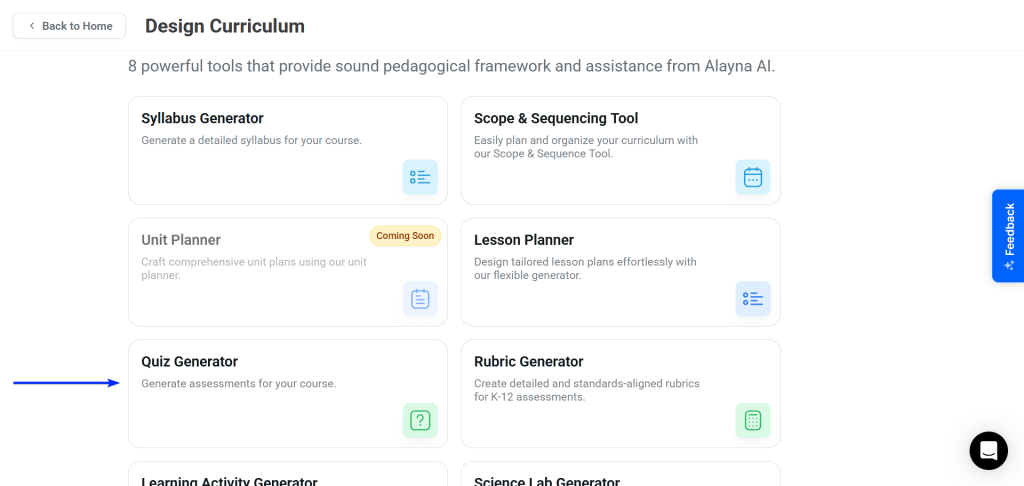
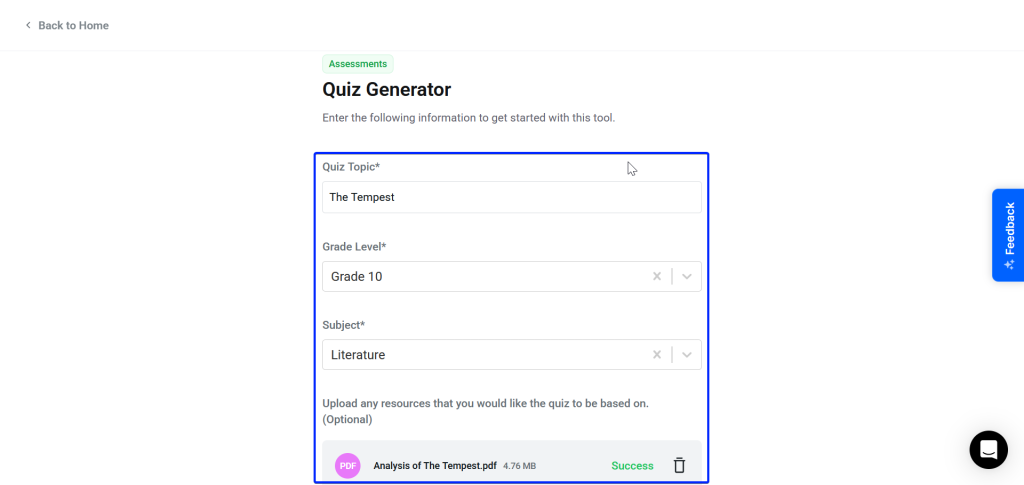
Next, you fill out the Quiz Generator form, where you can set the topic, grade level, and subject.
You can upload up to three documents in the form by uploading them from your computer or through Google Drive/Microsoft OneDrive.
Next, you craft the quiz.
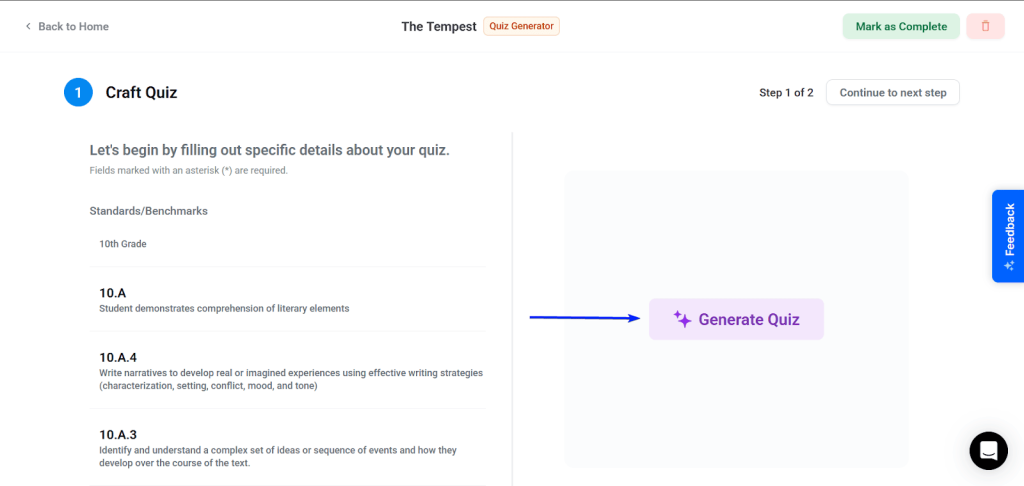
You’ll need to set the quiz standard.
This simply means the questions generated align with official educational frameworks.
With the help of Alayna AI, fill the rest of the form. You’ll need to set the following:
- Content to be covered: You determine the part of the subject you want to put in the quiz.
- Number of questions
- Time duration
- Question types (short answers, true/false, etc.)
- Difficulty level: For example, if you have 10 questions, you can break them up into 3 easy, 4 medium, and 3 difficult questions.
When you’re done, click “Generate Quiz” before continuing to the next step.
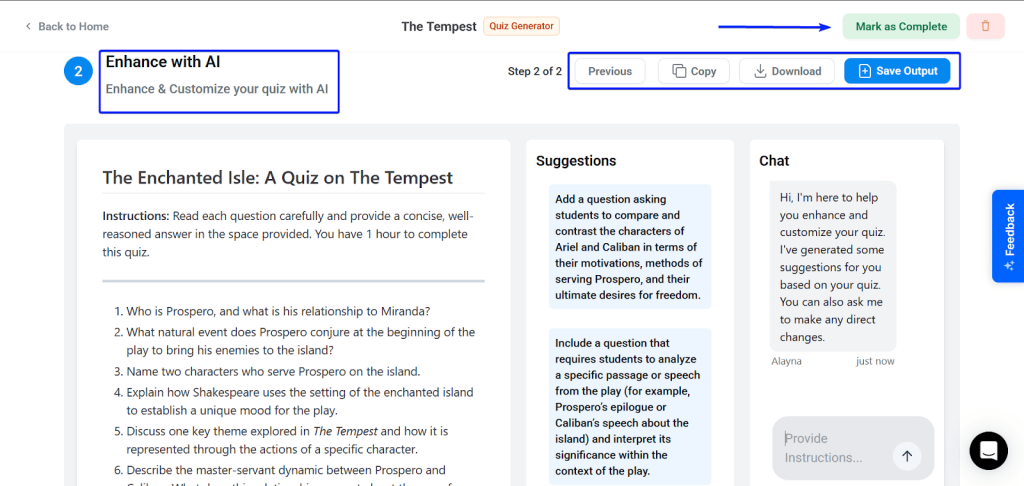
Finally, you can make final edits with AI before downloading the quiz as a PDF or exporting it to Google Docs or Forms.
What I Loved vs What I Struggled With
| What I Loved 👍 ✅ Creates slides from PDFs and YouTube video links, which is useful to teachers and educators. ✅ Has a moderate selection of 60+ themes designed for all grade levels. ✅ Seamless integration with Google Workspace tools, including Google Slides, Docs, and Forms. | What I Struggled With 👎 ❌ Themes are education-focused, so it’s not ideal for corporate teams or marketing pitch decks. ❌ Some generated slides had missing images and wonky design layouts, requiring manual cleanup. |
Best For
- Educators who need a tool to quickly turn educational materials into engaging slides and lesson plans.
Pricing
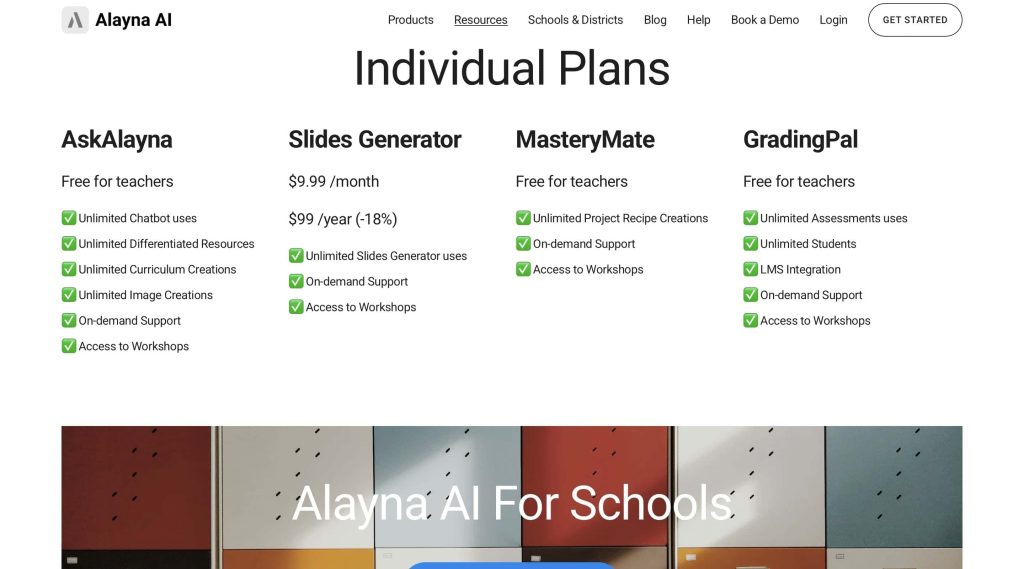
- AskAlayna: Free for teachers
- Slides Generator: $9.99/month
- MasteryMate: Free for teachers
- GradingPal: Free for teachers
8. MagicSlides
| Personal ratings: ⭐️⭐️⭐️ 3.5/5 | Free trial: ✅ Yes, free account | AI Quality: Good (Generated slides required further editing) | Templates: Extensive, 500+ |
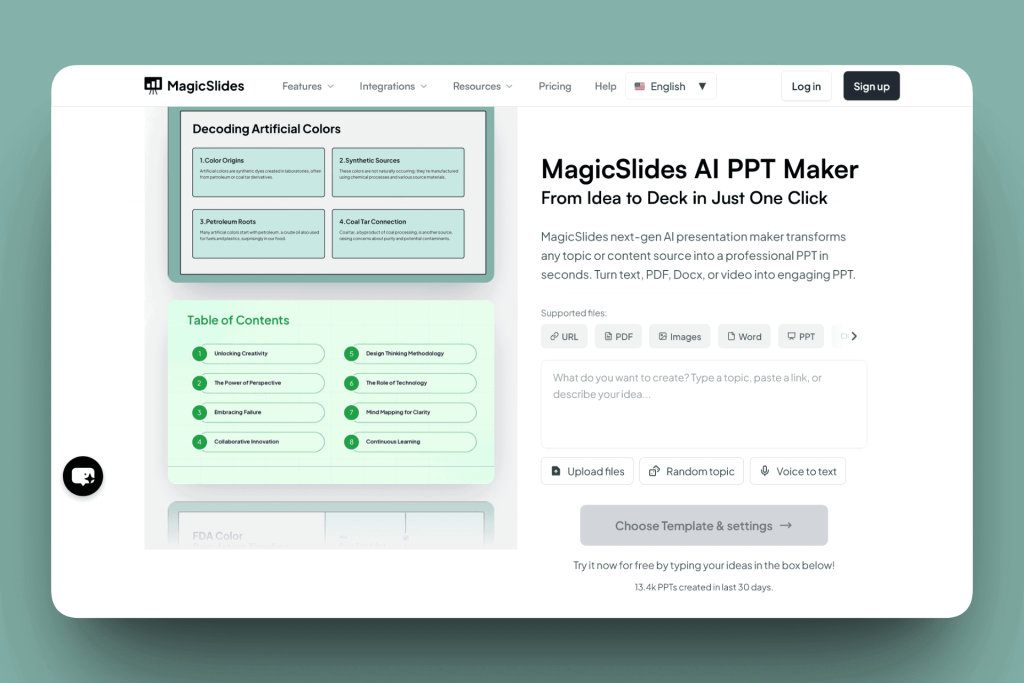
MagicSlides is also on my list of the best AI tools for Google Slides.
It works in two ways: as an add-on to Google Slides and as a standalone AI presentation maker.
This makes it a good choice for users who want flexibility.
So, you can build decks directly within the platform or work within your already familiar Google Slides interface.
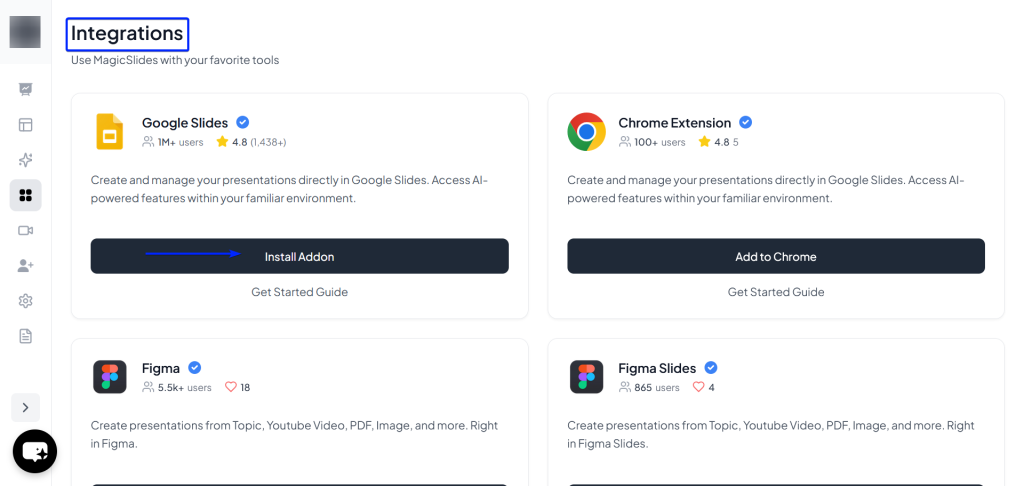
MagicSlides doesn’t just integrate with Google Slides. It pairs with 17 other tools, like Visme, Figma, Microsoft SharePoint, and ActiveCampaign.
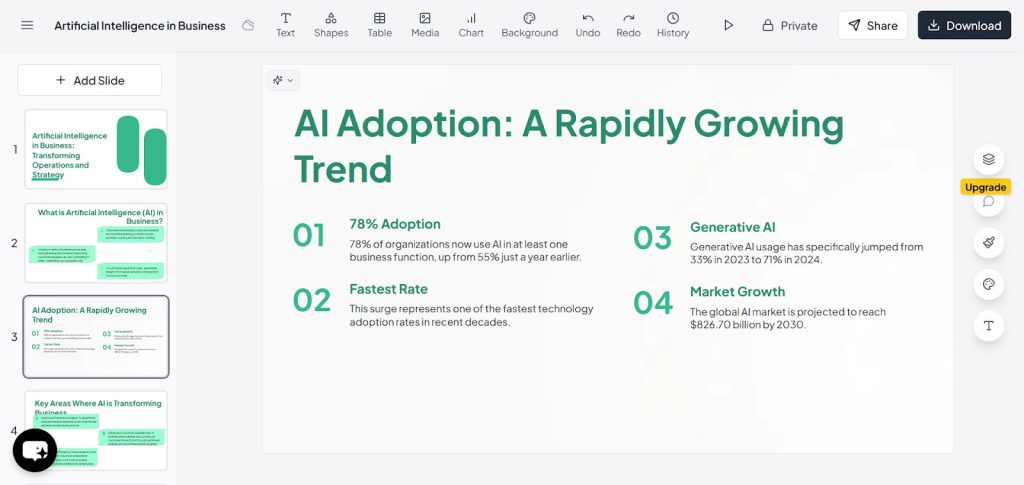
Its AI Presentation feature lets you create presentations within minutes, either on its platform or in Google Slides.
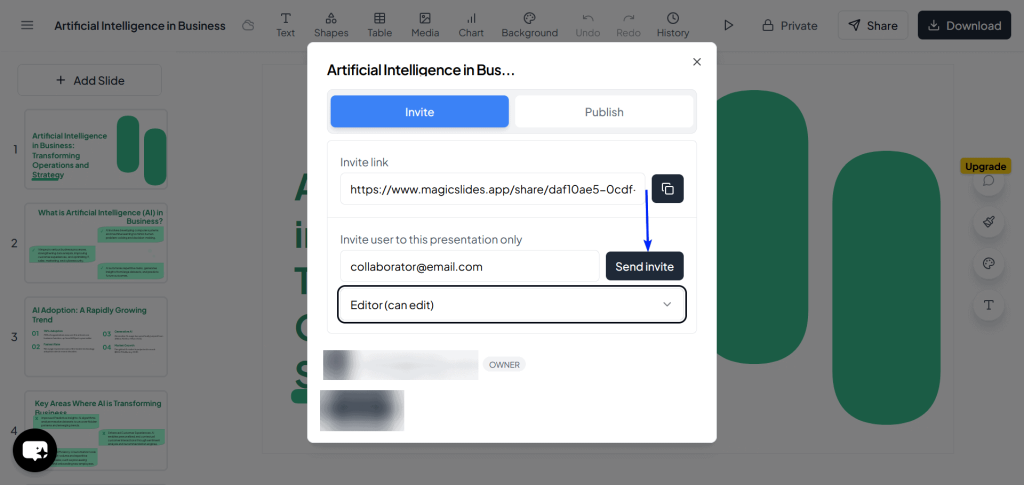
Finally, the Collaboration feature lets you invite team members to work directly on your slides.
What I Loved About MagicSlides
1. Integrations
MagicSlides connects directly with apps like Google Slides and Figma Slides, helping you create slides instantly.
It also offers Zapier integrations. It acts like a bridge that connects MagicSlides to other tools, like Google Docs and Notion.
Let’s see how Integrations works in MagicSlides:
First, click the Integrations button on the sidebar.
Let’s install the Google Slides add-on.
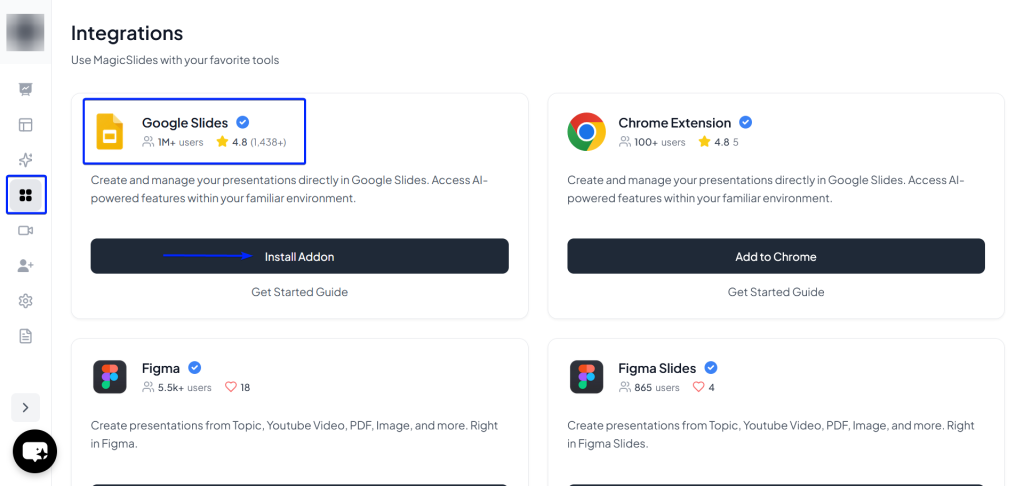
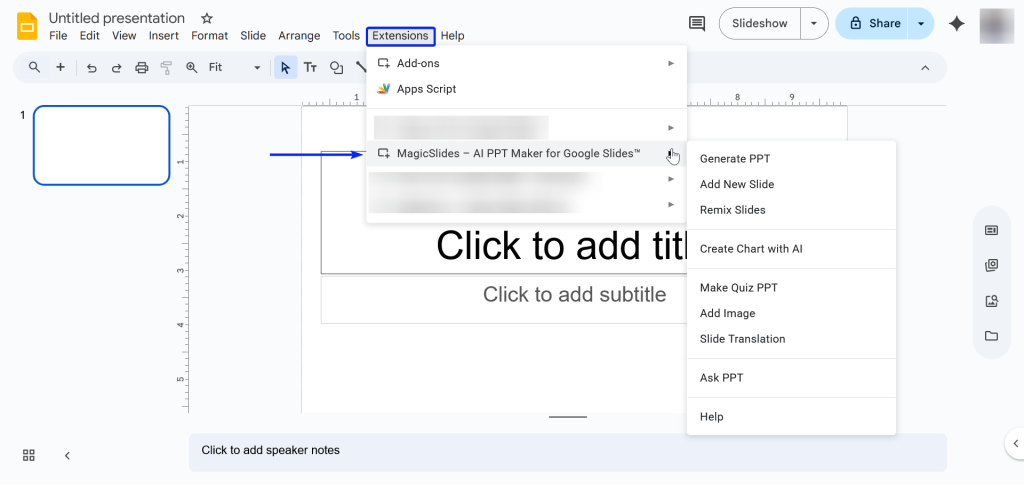
Next, install MagicSlides in the Google Workspace Marketplace.

Open a blank presentation and head to Extensions → MagicSlides → Generate PPT.
2. AI Presentations
Up next is AI Presentations.
This feature lets you create AI-powered presentations either in Google Slides or in MagicSlides.
Let’s see how it works in MagicSlides:
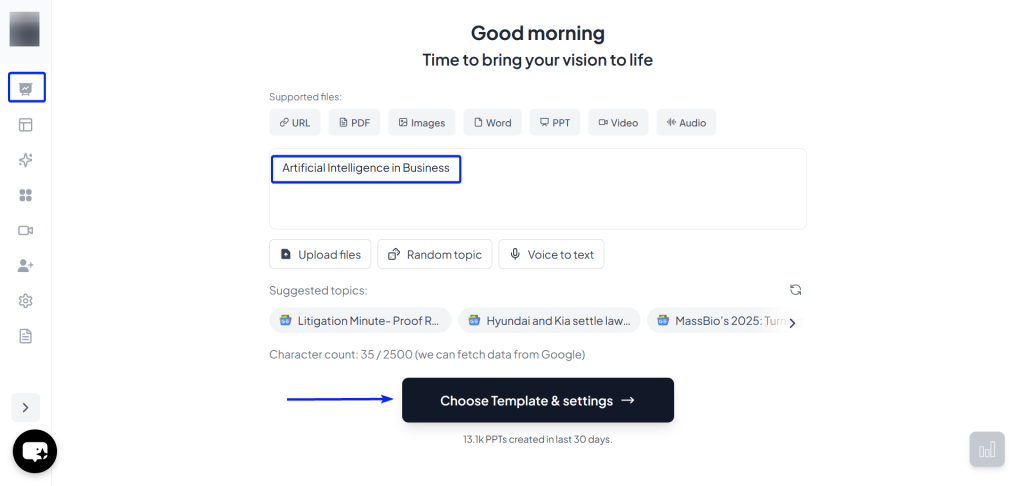
Head on to “My Presentations” and select “Start with AI.”
Then you enter your prompt or use other sources like URLs, PDFs, images, PPTXs, video, and audio.
You can also use voice-to-text or ask the tool to generate a random topic.
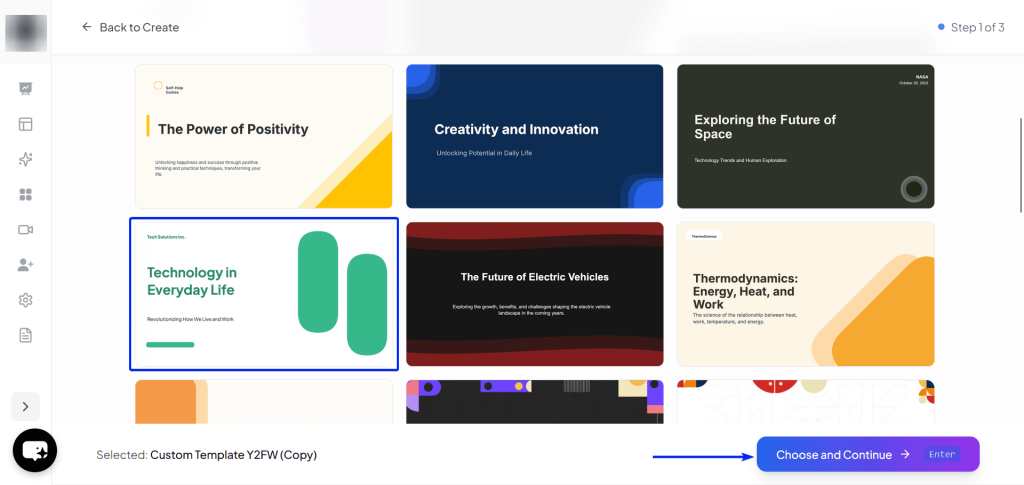
Next, you select your template.
Then you customize your presentation.
You can set the presentation type, audience, tone, and language.
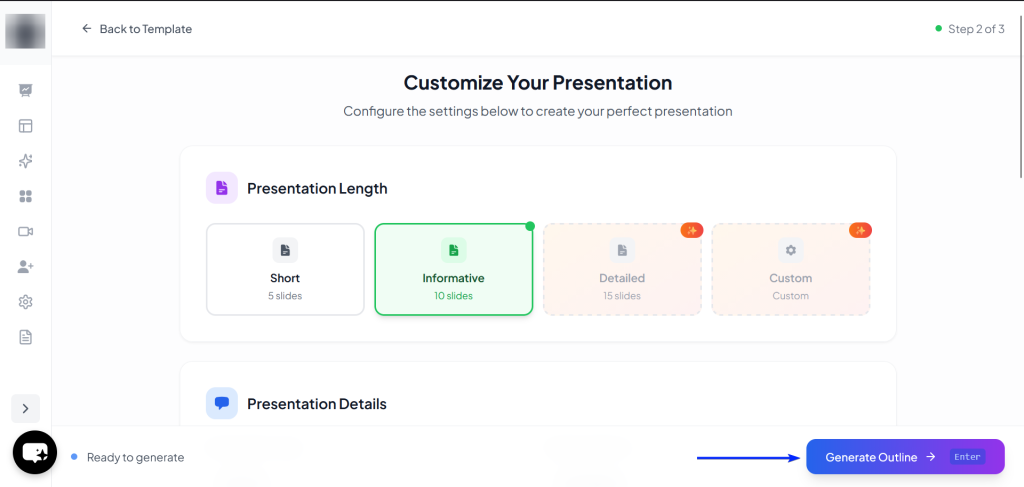
Once you’re done, you can review the outline of your presentation before heading to “Generate Presentation.”
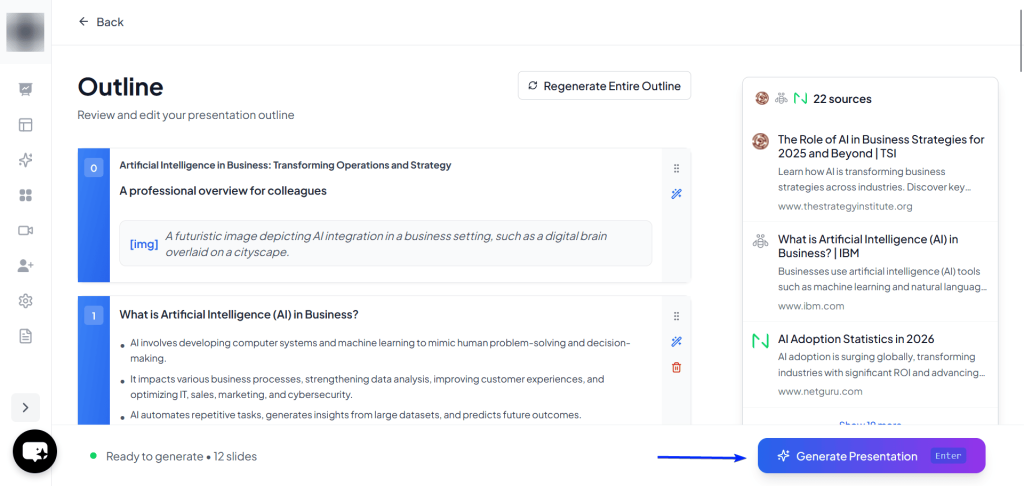
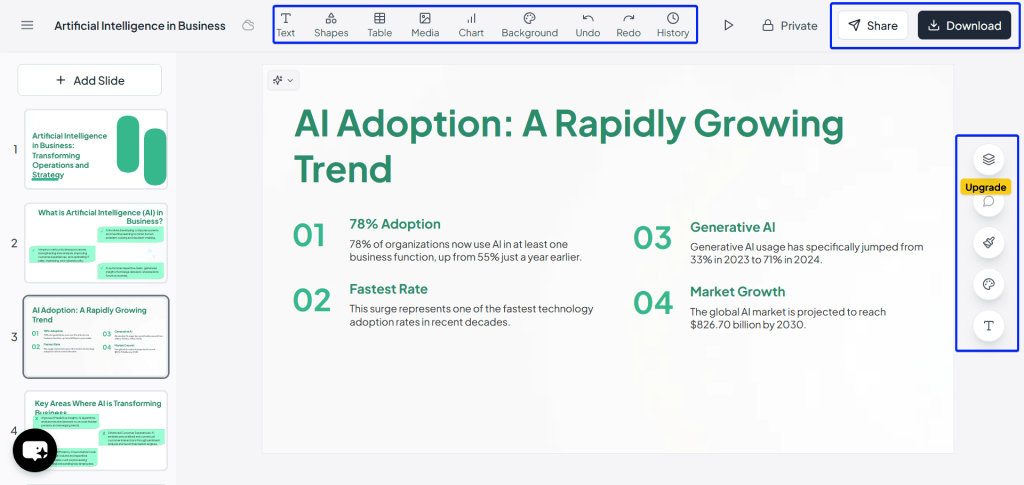
Now, you have your presentation within MagicSlides. You can continue editing, share, and download the presentation in different formats (PDF, PowerPoint, GIF, and JPG).
3. Collaboration
MagicSlides’ Collaboration feature lets you share your presentations with your team either through Google Slides or the platform itself.
Let’s see how it works on MagicSlides’ workspace:
First, click the “Invite Members” button from the sidebar.

Next, you type in your team member’s email address and hit “Send Invitation.”
They will receive an email invitation and accept your request to join your workspace.

You can also invite your team members while editing your presentations and set the level of access they have.
They can edit directly or just view the presentation.
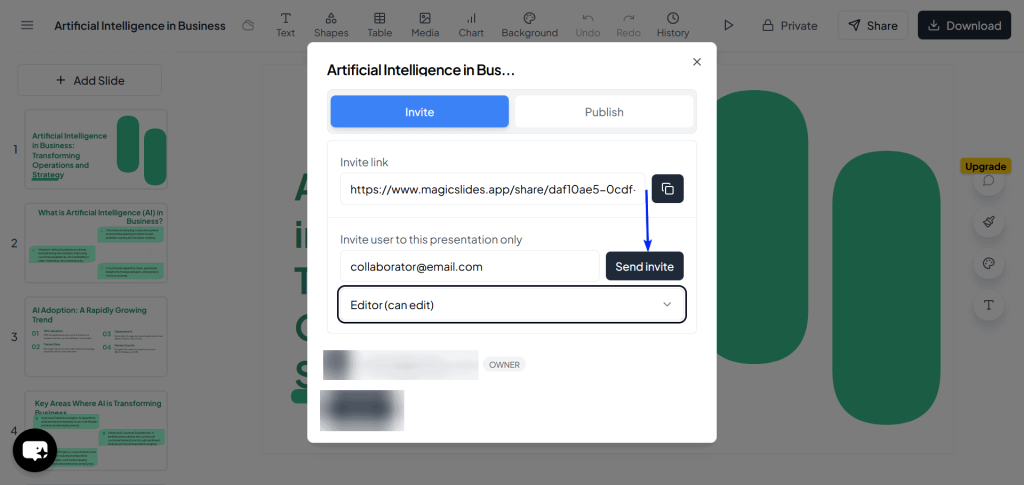
Finally, you can also invite team members through Google Slides.

What I Loved vs What I Struggled With
| What I Loved 👍 ✅ Has a wide selection of sources, like URLs, PDFs, images, PPTX, video, and audio. ✅ Flexible tool that allows users to work directly in Google Slides as an add-on or within its platform. ✅ Supports 133+ languages so you can create presentation for a global audience. ✅ Integrates with tools like Figma, Chrome, ChatGPT, Telegram, Zapier and more. | What I Struggled With 👎 ❌ Free version is very limited, and many features require being on a plan. |
Best For
- Business professionals who want flexibility to create slides from any source.
Pricing
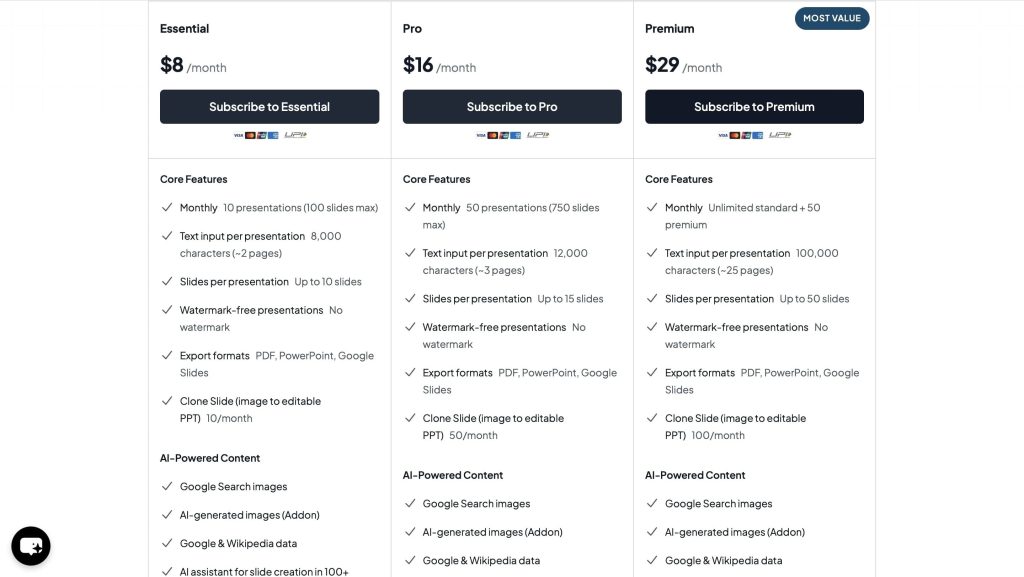
- Download one presentation for $2
- Essential: $8/month
- Pro: $16/month
- Premium: $29/month
SlidesAI vs Gamma vs Plus AI vs MagicSlides: Which Is Better?
SlidesAI is the better alternative to Gamma, Plus AI, and MagicSlides.
I’ll break down how they compare across four critical areas:
1. Design
Gamma takes the cake here for its modern and interactive slide layouts.

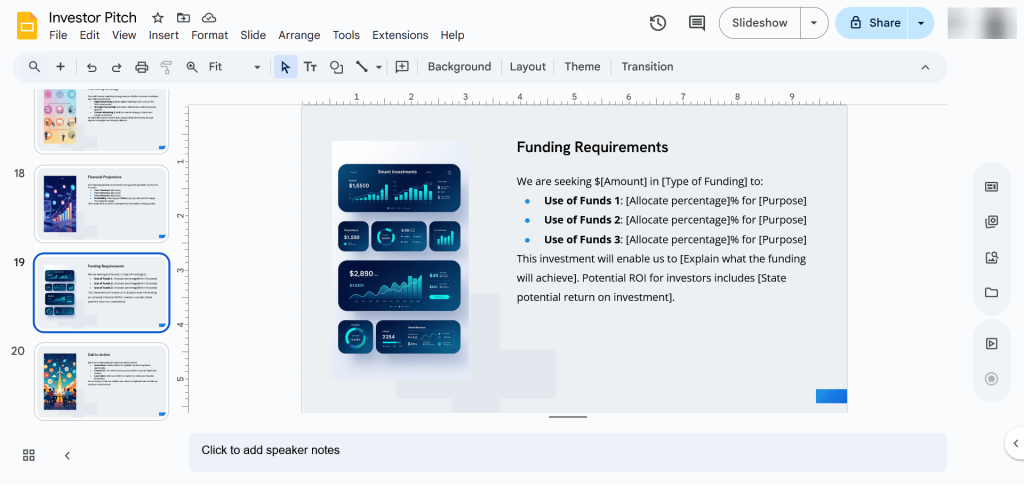
While Plus AI is also design-focused, it’s better suited for corporate teams with more structured branding guidelines.
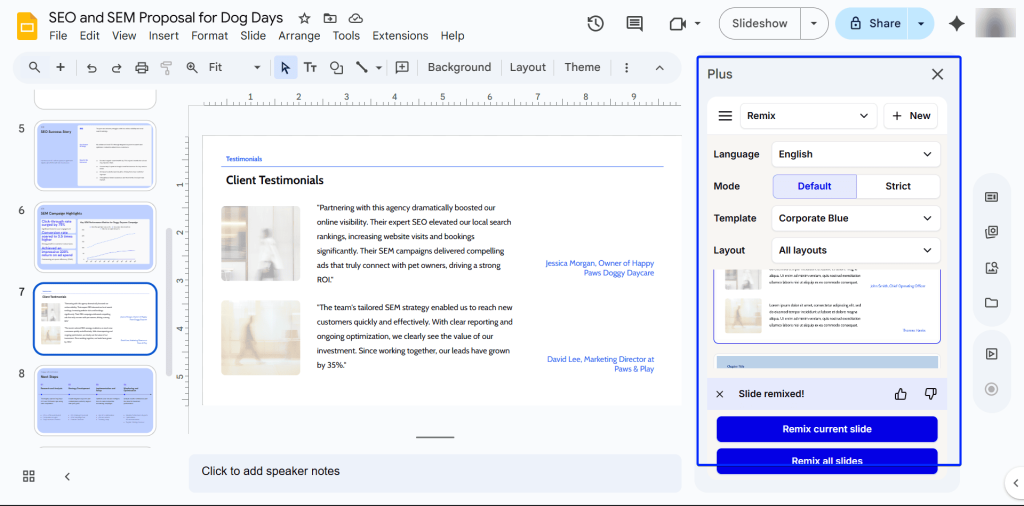
SlidesAI and MagicSlides offer clean and professional slides, but they tend to have more traditional slide design styles.
2. Native Integration to Google Slides
SlidesAI and Plus AI are native Google Slides add-ons. So users don’t have to spend any time learning a new program.

Because these AI tools work directly inside Google Slides, you don’t have to learn where the buttons are or how to collaborate with teammates. You just use the same Google tools, but with an added AI assistant.
MagicSlides is a hybrid platform. That means it acts as both a Google Slides add-on and a website.
Gamma is the only platform that requires you to work on its site. But you can also export your work to Google Slides.
3. Source Flexibility
Source flexibility is the AI’s ability to analyze different types of input, including text prompts, links, PDFs, audio, etc., and turn that information into presentations.
SlidesAI and MagicSlides excel at this. SlidesAI takes it a step further by letting you upload your rough scripts and making sense out of them.
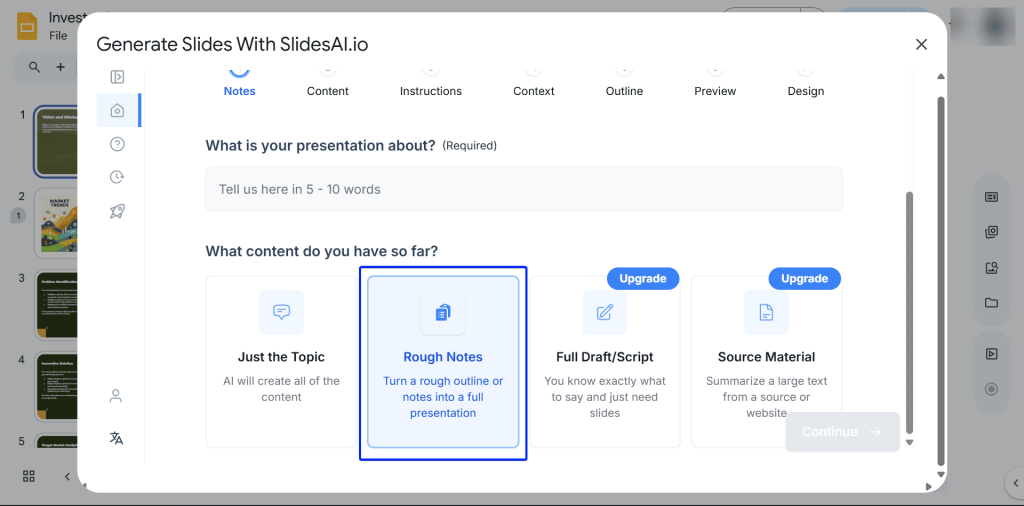
SlidesAI, Plus AI, and Gamma perform better with text prompts or long documents.
4. Collaboration
Since SlidesAI, Plus AI, and MagicSlides are natively integrated inside Google Slides, you get Google’s real-time sharing and commenting features automatically.
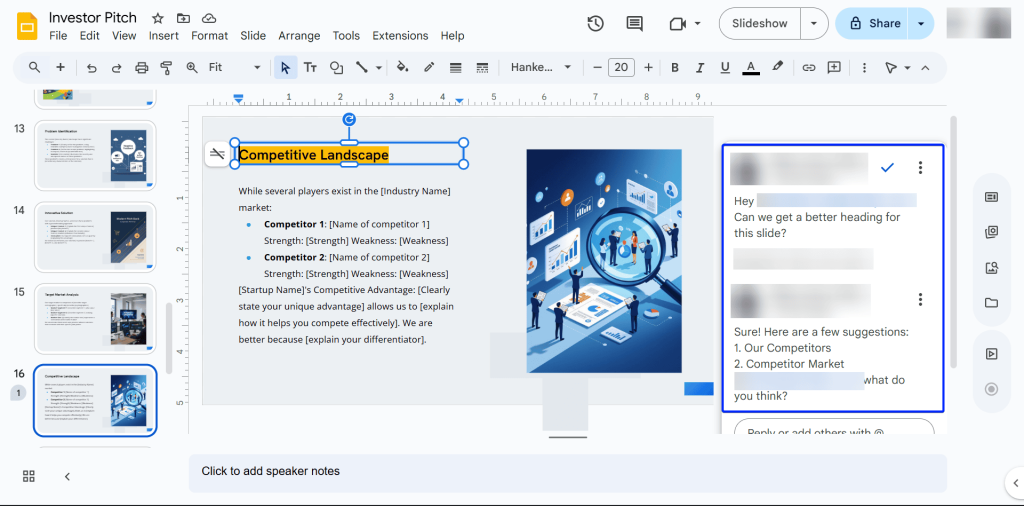
In Gamma, you can share your presentations with teammates and set the level of access they have. They can edit, view, or comment within a presentation.
Here’s a table to help you get a clearer picture.
| AI Tools for Google Slides | SlidesAI | Gamma | Plus AI | MagicSlides |
|---|---|---|---|---|
| Feature | ||||
| Build Speed (to create a deck): | Fast ≈1-2 minutes | Fast ≈1-2 minutes | Moderate ≈2-3 minutes | Moderate ≈2-3 minutes |
| Templates | Extensive: SlidesAI has 150+ templates and 37+ modern, industry-specific themes | Extensive: 40+ modern templates and 100+ themes | Extensive: 100+ templates, layouts, and 54 standard themes | Extensive: 500+ templates and customizable themes |
| Export Options | PPT/PPTX, ODP Document, PDF, Plain Text, MP4, JPEG, PNG, SVG | PPT/PPTX, PDF, PNGs, and post directly on LinkedIn | PPT/PPTX, PDF, ODP Document, Plain Text, JPEG, PNG, SVG | PPT/PPTX, Google Slides, PDF, ODP Document, Plain Text, JPEG, PNG, SVG, GIF |
| Team Collaboration | ✅ via Google Slides: real-time edits, comments, and version history | ✅ via Gamma workspace: real-time edits, comments, view analytics | ✅ via Google Slides: real-time edits, comments, and version history | ✅ via Google Slides and website platform: real-time edits, comments, and version history |
| AI Quality | Excellent: Generates accurate text and images that are simple and reliable | Excellent: High-end design doesn’t affect text quality | Good: Strong text, but visuals can be lacking | Fair: Both text and visuals felt generic |
| Edit Speed | Fast ≈5-7 minutes to edit slides | Slow ≈10-15 minutes to edit slides | Fast ≈5-7 minutes to edit slides | Fast ≈5-7 minutes to edit slides |
How to Choose an AI Tool for Google Slides?
To choose one of the best AI tools for Google Slides, you should consider:
- Ease of use inside Google Slides
- Quality of content and slide design
- Storytelling and content suggestions
- Collaboration and sharing features
- Data privacy and security basics
- Pricing plans and ROI
We’ll take a look at each point in more detail.
1. Ease of Use Inside Google Slides
You should consider ease of use when choosing the right AI tool for Google Slides.
The first question to ask yourself is, “Will this tool make my life easier?”
When choosing an AI tool for Google Slides, you will most likely come across two main types:
- Native Add-ons, and
- Standalone Platforms
I’ll show you what I mean.
Native Add-ons
Tools like SlidesAI act as natural extensions of Google’s tools, so it “lives directly” inside your Google Slides. That’s essentially what a native add-on is.
Think of it as a house guest that never left. But in a good way!
What makes a tool like SlidesAI so great is that, as a native add-on, you don’t have to learn how to explore a new platform or spend your days toggling between tabs.
Basically, if you know how to use Google Slides, you’re already an expert at Slides AI.
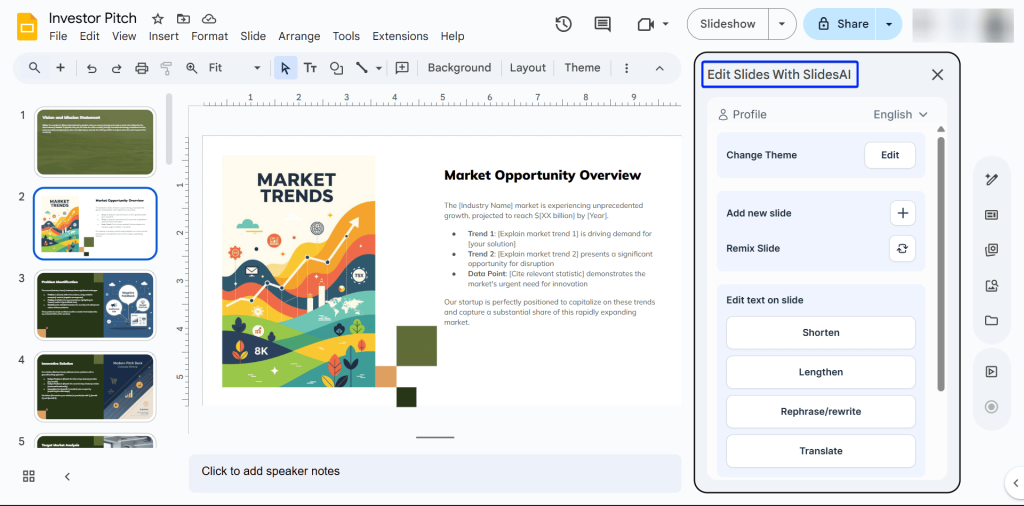
Standalone Platforms
On the other hand, a tool like Gamma would require you to leave Google Slides entirely to build your deck on their website.
While you might have more creative freedom and more powerful editing AI tools, the issue starts when you try to move your work back into Google Slides.
One of the most common issues you might run into will be formatting errors.
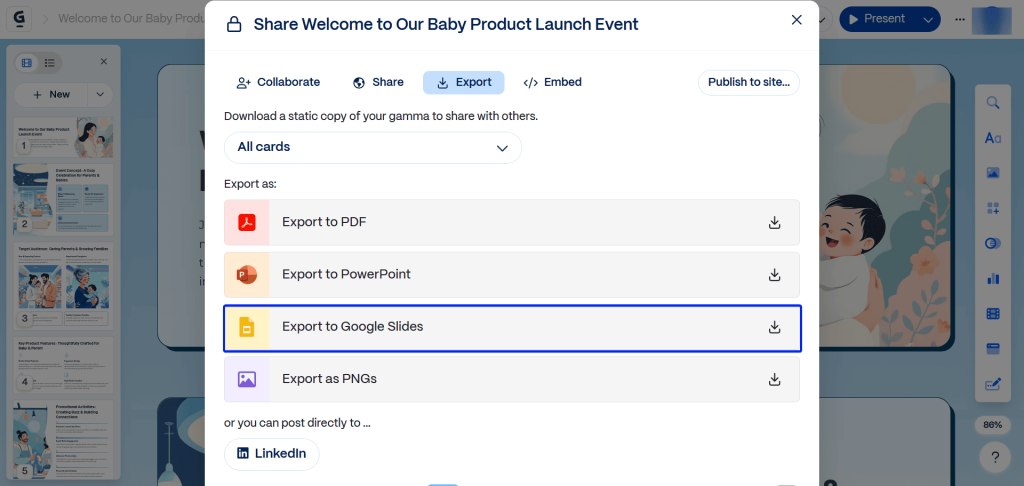
Again, while standalone platforms like Gamma have unique designs, there’s usually a trade-off.
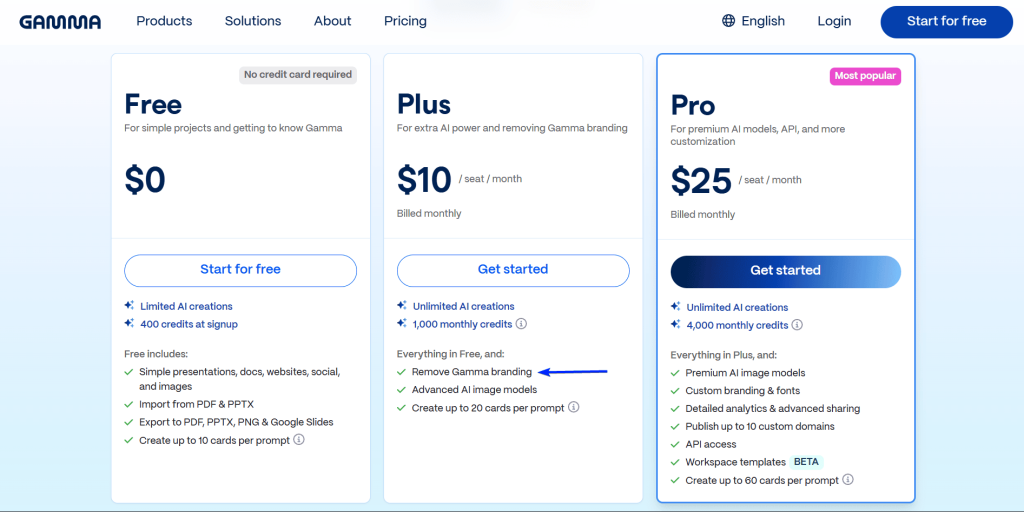
On their free plan, every deck you export to Google Slides comes with a “Made with Gamma” watermark. You would have to upgrade to a paid version to remove it.
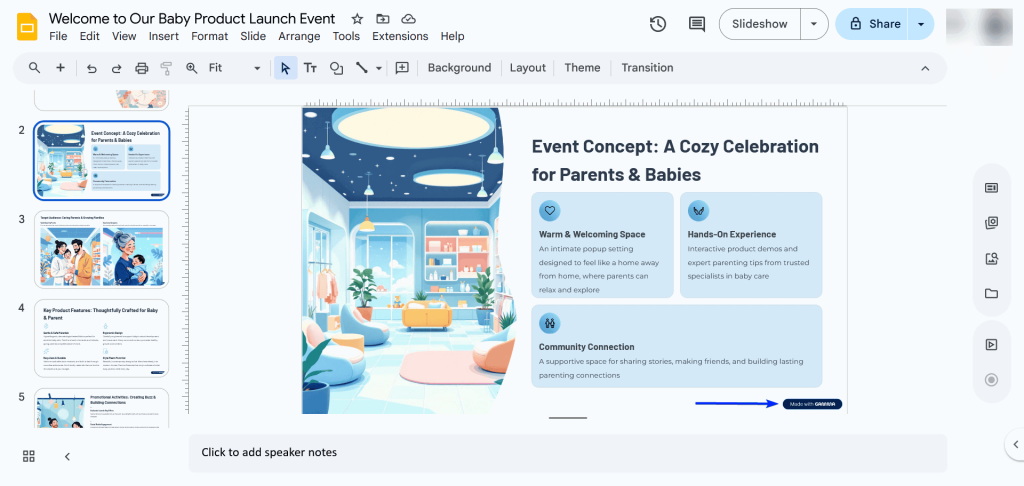
You’re left with two options: pay up or spend more time cleaning up your slides after exporting.
So, if you’re looking for a clean, error and watermark-free instant presentation, a native add-on like SlidesAI is your best bet.
2. Quality of Content and Slide Design
Another point to consider when selecting an AI tool for Google Slides is the quality of content and slide design.
AI can generate tons of content.
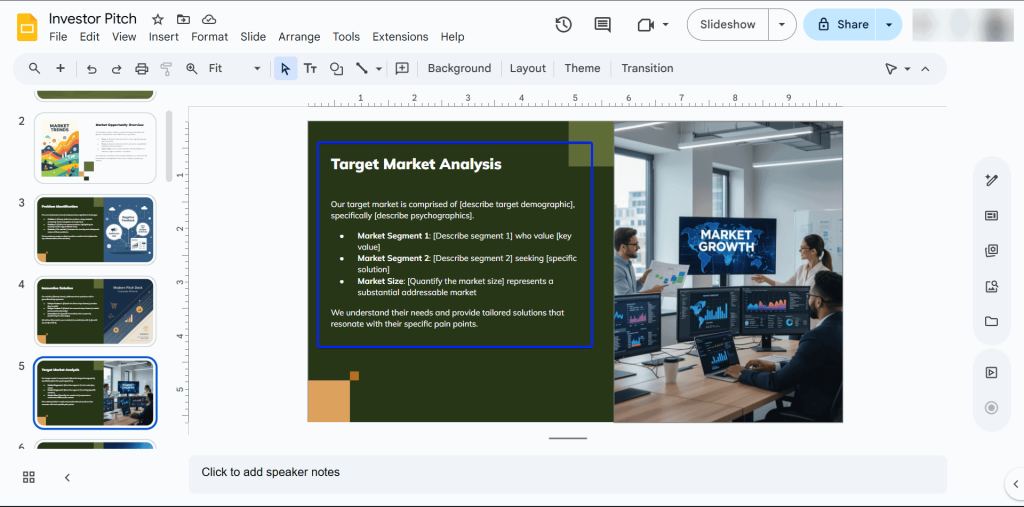
But that doesn’t mean it’s always quality content. So you’ll need a tool that can give you a good balance of accurate information and visual consistency.
SlidesAI shines here because it takes your raw ideas and builds them into professional and readable layouts.
Whether it’s a 500-word document or a simple prompt, it stays on script. So the facts you provide remain the focus of the presentation.
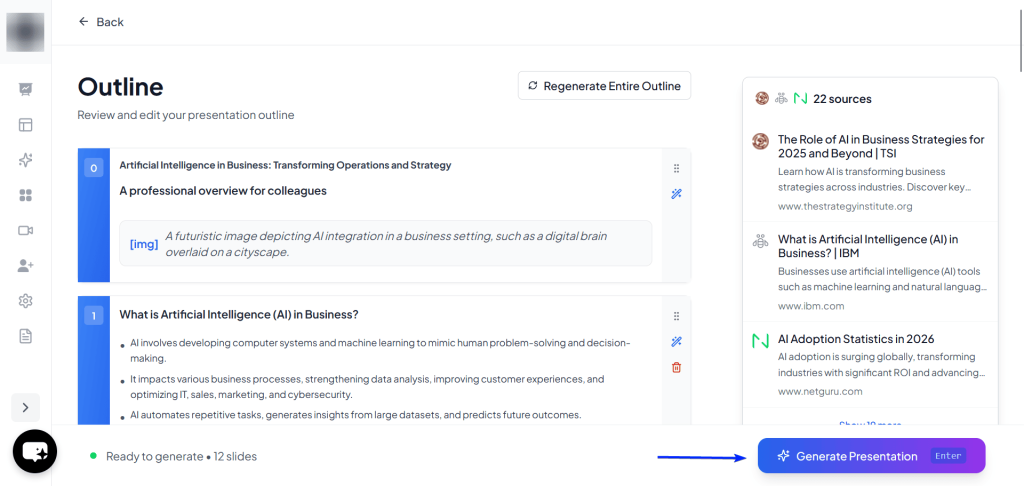
The good news is that most AI tools for Google Slides generate outlines for you to edit before creating your presentation. You can preview the outline and make sure that all the content is accurate.
One of the most important features to look for is the ability to choose your design style before the tool starts building your presentation.
If you’re not that great at design and formatting, most AI tools for Google Slides have themes and templates to make your presentations more attractive.

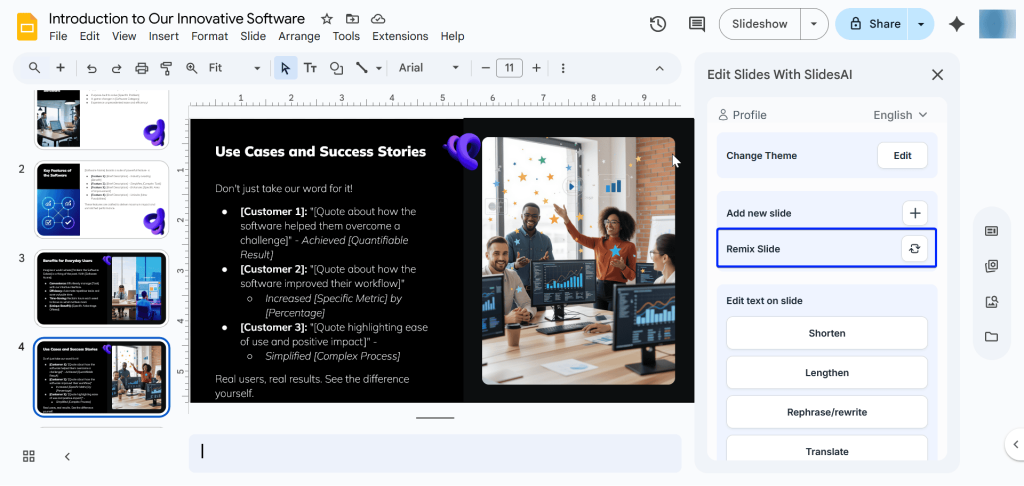
Another useful tip is to choose a tool that has the Remix feature. SlidesAI allows you to instantly change the layout of a slide if you don’t like how it looks.
3. Storytelling and Content Suggestions
You must also consider storytelling and content suggestions when choosing an AI tool for Google Slides.
One of the biggest problems that most people struggle with is how to get from Point A to Point B in a presentation without losing their audience.
This is where these AI tools for Google Slides become your personal editor.
Here’s what you should consider to decide which tool to use:
Outline Generation
A great AI tool would suggest an outline first before it starts designing your presentation.
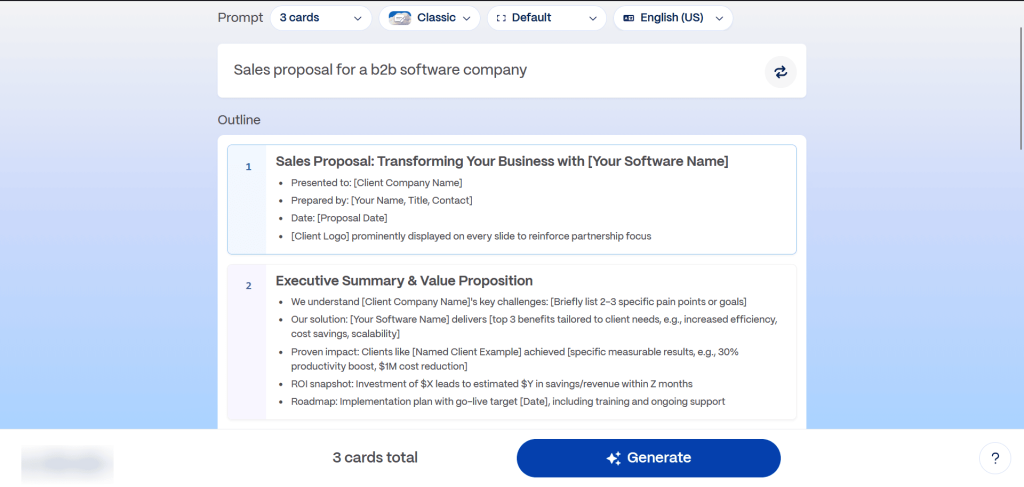
You should be able to rearrange, edit content, and delete unnecessary slides. That way, you can ensure that your presentations actually make sense.
Content Suggestion
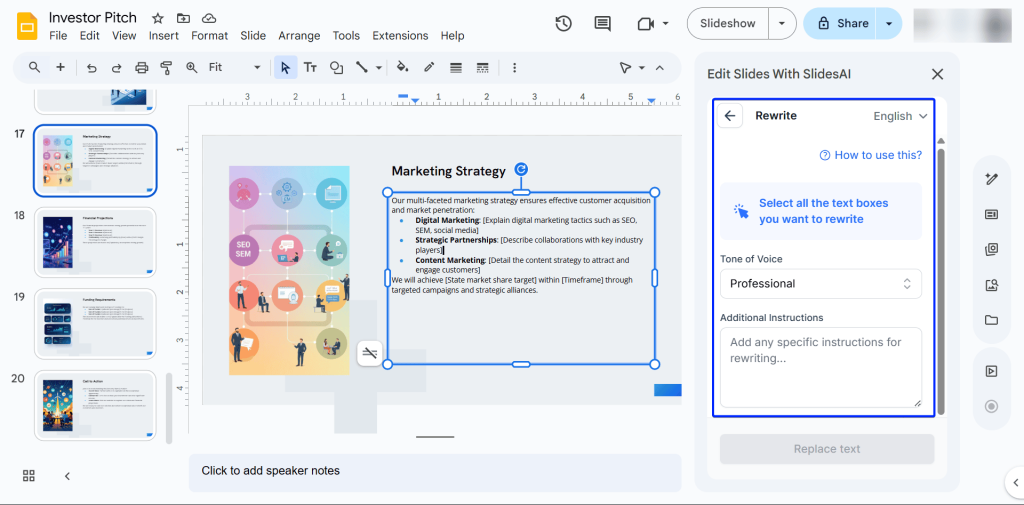
Sometimes you know what to say but not how to say it.
And it can take a lot of your time figuring out how to.
Fortunately, AI tools for Google Slides like SlidesAI have rewrite features that can help you edit text. You can also change the tone of voice and even the language.
4. Collaboration and Sharing Features
If you want the right AI tool for Google Slides, you must factor in collaboration and sharing features.
Your choice of tool should make it easier to work with your team.
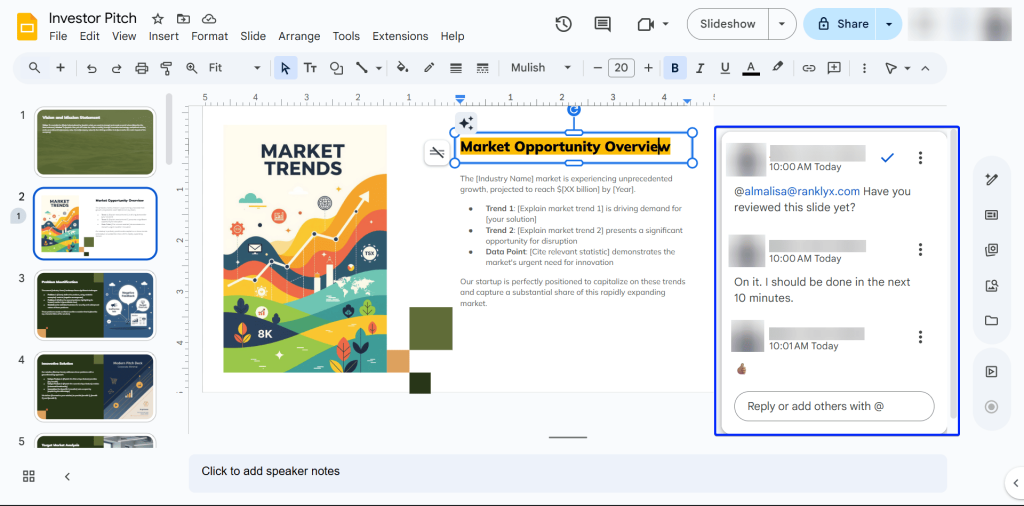
Because SlidesAI and other add-ons like Plus AI and Alayna AI live inside Google Slides, you have access to Google’s excellent collaboration features:
- Real-time Edits: You can generate a slide using SlidesAI, and your team members can immediately start working on it while you work on the next one.
- Comments and Tagging: You can mention a colleague directly to assign a task or ask for feedback.
Sharing your slides should be as simple as possible.
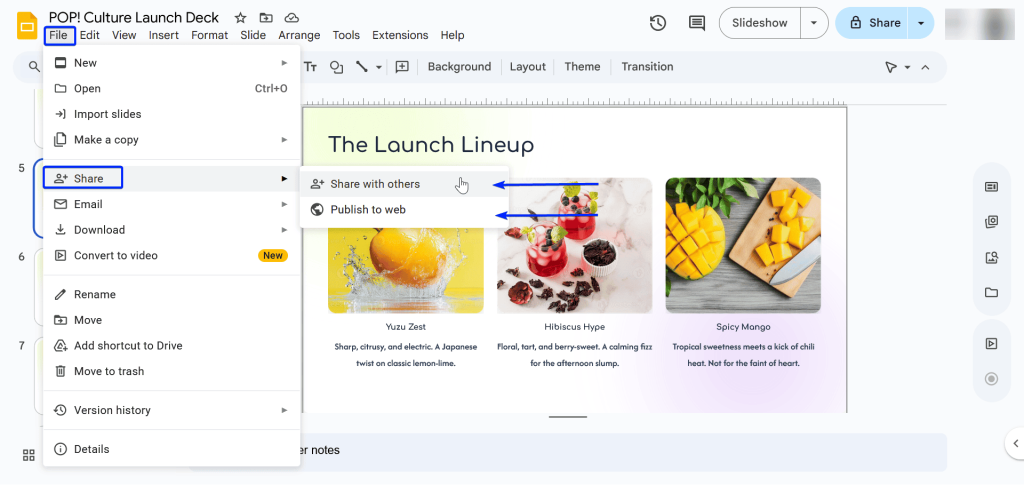
Let’s say you want to send a deck to a client. After using SlidesAI to create your presentation, your client wouldn’t need to install any new software or create an account to view it.
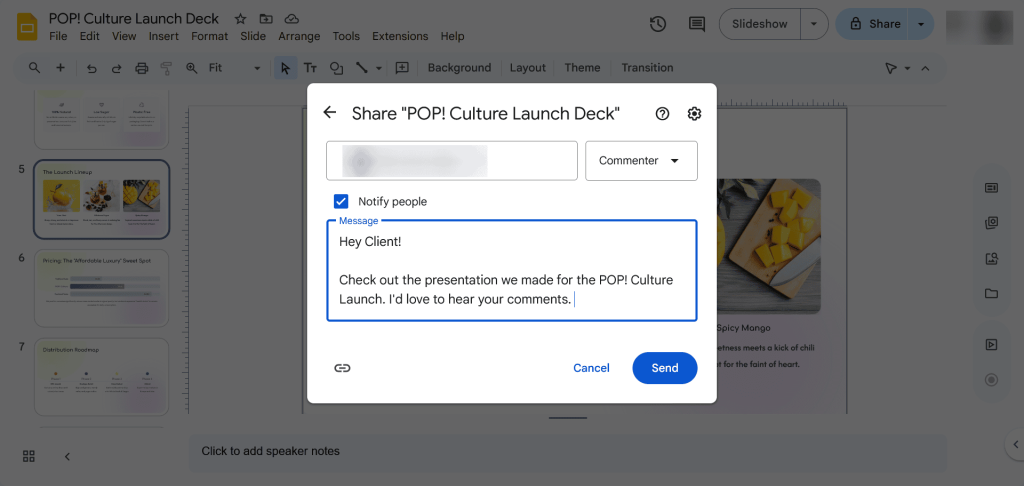
On the other hand, web-based platforms like Gamma have live links, which you can use for tracking views.
But consider this: what if your client is a large company with security systems that block links from external, unknown websites?
Sticking to a Google Drive link is generally your safest bet for corporate clients.
If your workflow involves a lot of back and forth with a team, your best bet is to stay native.
5. Data Privacy and Security Basics
Data privacy and security are important when choosing an AI tool for Google Slides.
A data breach is when your private digital information gets stolen because of a security weakness. Research shows that in the second half of 2025, almost 94 million data records were leaked in data breaches.

So, it’s completely normal to be skeptical about sharing confidential reports or client data with these AI tools for Google Slides.
But add-ons like SlidesAI, Plus AI, Instant AI, and GPT for Workspace natively integrate with Google and have an advantage.
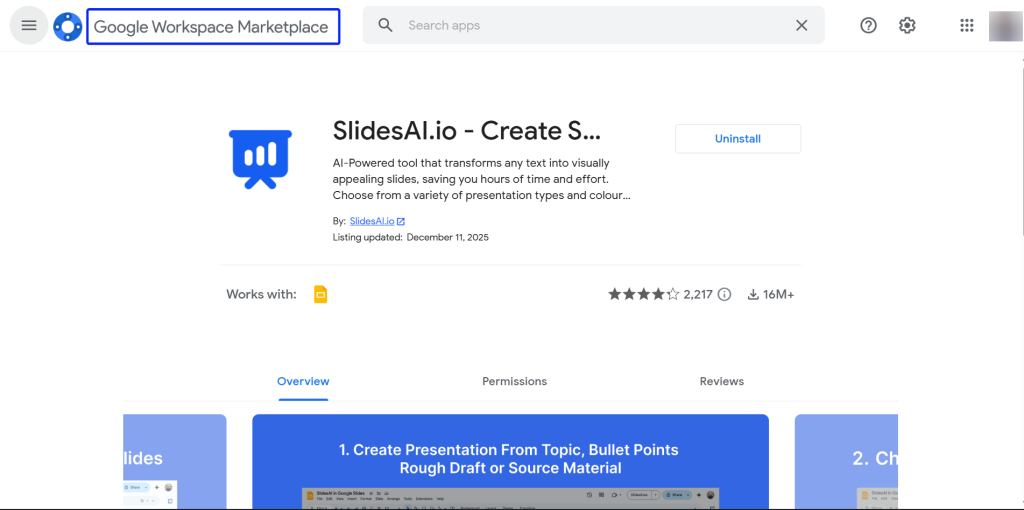
For example, for an add-on to be listed on Google Workspace Marketplace, it goes through a security review by Google.
For web apps like Gamma and MagicSlides, you’re essentially trusting that company’s security measures.
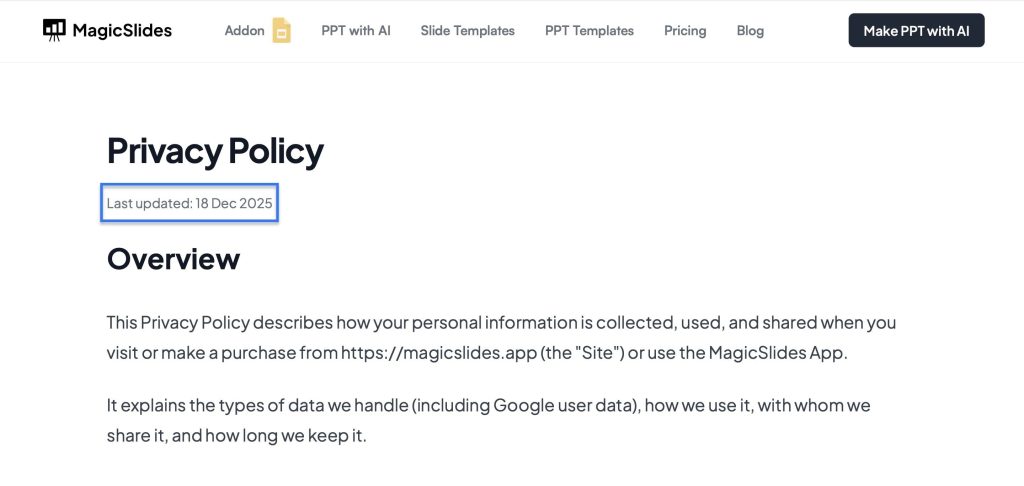
However, the risk is that it might not be as frequently updated as Google’s.
Additionally, moving data between web apps and Google Slides can sometimes increase the risk of a breach, especially if the information is transferred between two different cloud environments.
For peace of mind when handling sensitive information, stick to native Google Workspace add-ons like Slides AI.
6. Pricing Plans and ROI
Finally, you must consider pricing plans and return on investment (ROI) when choosing an AI tool for Google Slides.
You see, when it comes to price, it’s easy to look at the monthly fee and stop there.
But to find the true ROI, you have to look at the hidden factors to determine whether the tool is saving you money or will cost you in the long run:
- Character Limits
- Number of Seats
- Labor Cost
- Branding
I’ll explain further.
1. Character Limits
Most AI tools for Google Slides will set attractive fees, but will limit how much information you can give them.
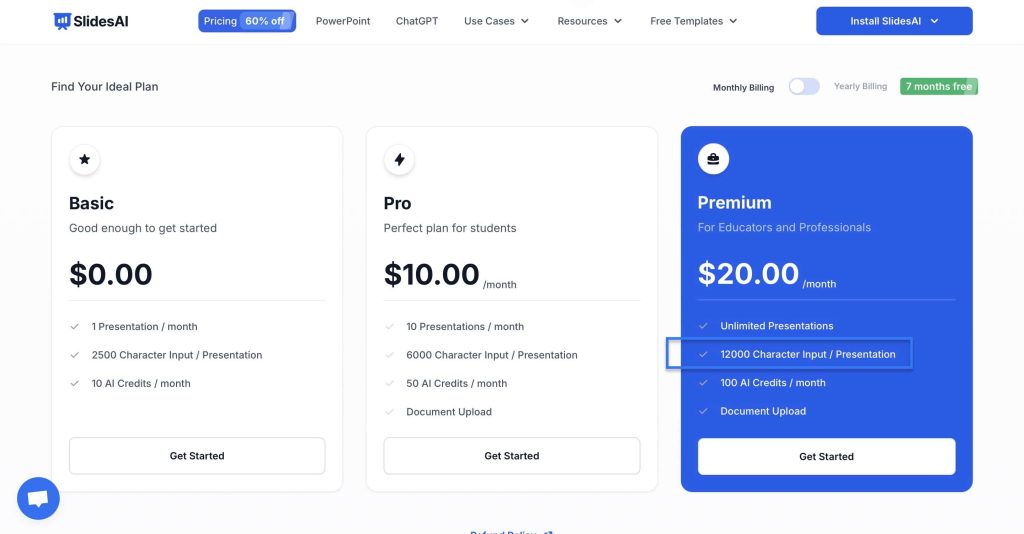
For example, if a tool has a 2,000-character limit, you’ll have to spend time manually summarizing your reports before the AI can even read them.
That defeats the purpose of saving time.
SlidesAI offers up to 12,000+ characters on its premium plans, so you can paste entire documents to create presentations.
2. Number of Seats
Another important thing to check is if the tool charges “Per user” or “Per usage.”
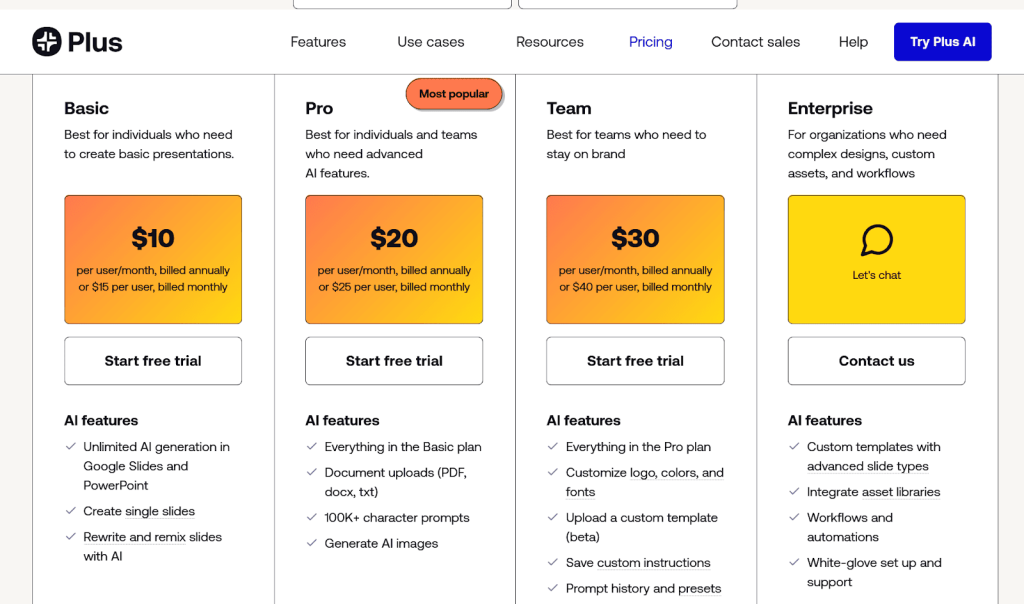
For example, Plus AI charges per user. So, if you’re billed monthly on the Pro Plan for a team of 10, that would be $25 x 10 people = $250 every month.
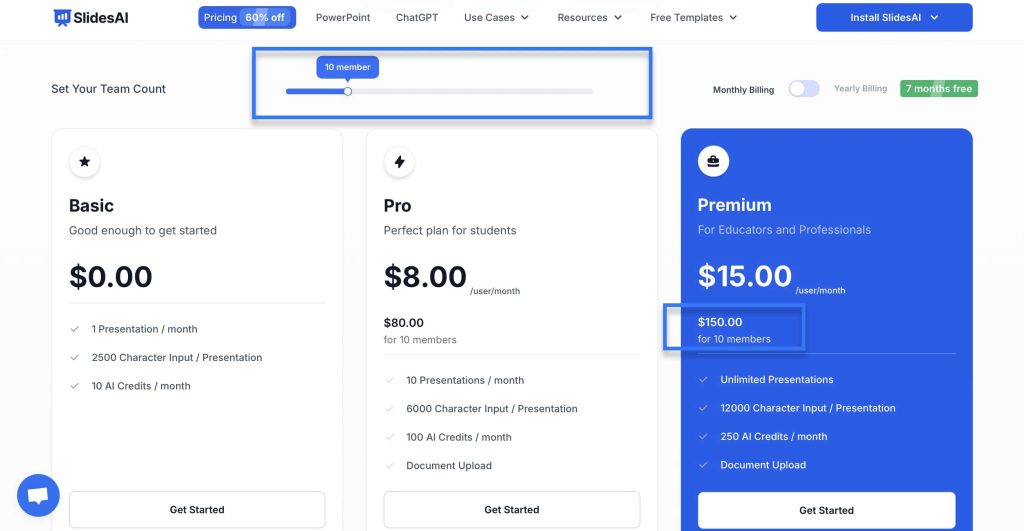
Let’s compare that with SlidesAI’s Premium plan, which charges $15 per user/month.
For a team of 10, that would be $150/month.
3. Labor Costs
The true cost of a tool includes how much time you spend editing what the AI generated.
If a tool costs $5/month but you notice that you’re spending more than 2 hours refining prompts and editing slide decks, that’s costly.
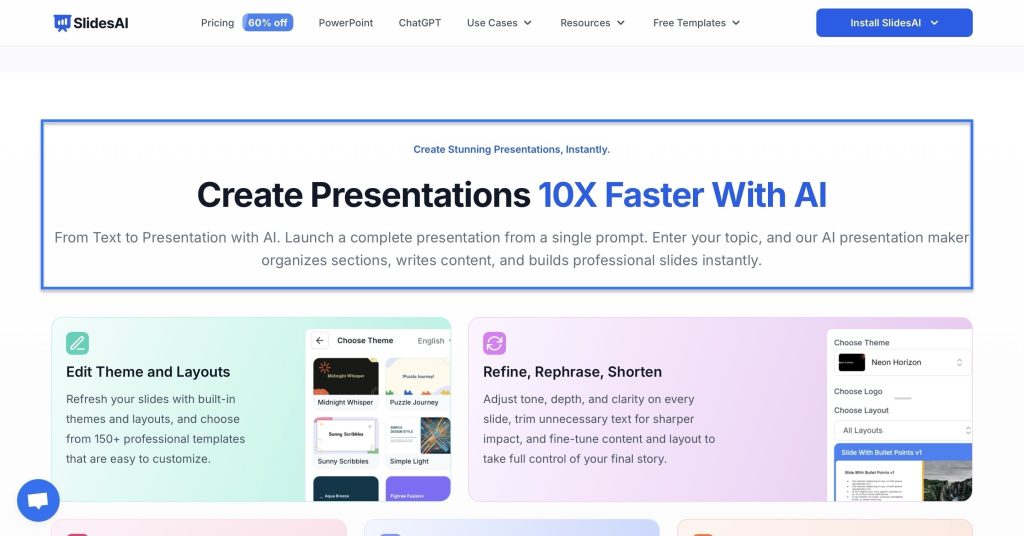
It’s actually more expensive than a $10/month tool that gets it right the first time. A $10/month tool that creates presentations 10x faster.
4. Branding
Many AI tools for Google Slides offer free tiers, which seem like a great deal.
Until you realize that your slides have watermarks on every slide.
To remove that watermark, you are forced to upgrade to a higher tier.
Because it is a Google Slides add-on, tools like SlidesAI produce standard Google Slides files, so you don’t have to pay a premium tax.
Use Top AI Apps for Google Slides
In this guide, I reviewed the top 8 AI tools for Google Slides.
We’ve seen how these integrations can change your workflow through the innovative features that these tools have.
And we’ve also gone through factors to consider when choosing AI tools for Google Slides users, including pricing and ROI, ease of use, and data security.
By choosing a native integration tool like SlidesAI, you’re using AI to reclaim your time, all while staying in the familiar environment of Google Slides.
Build Stunning Slides in Seconds with AI
- No design skills required
- 3 presentations/month free
- Don't need to learn a new software

FAQ
1. What are the best free AI tools for Google Slides?
The best free AI tools for Google Slides are SlidesAI, Google Gemini, Gamma, Instant AI, GPT for Workspace, Alayna AI, and MagicSlides.
Gamma is a standalone web platform. MagicSlides is a hybrid platform that acts as a standalone and a Google Slides add-on. While SlidesAI, Google Gemini, Instant AI, and Alayna AI are Google Slides add-ons. And GPT for Workspace (for slides) is both an add-on and a Chrome extension that works with Google Slides.
2. What can an AI tool do in Google Slides?
An AI tool in Google Slides can instantly generate entire presentations from text prompts, URLs, documents, and audio. They also offer editing features like remix slides, rephrase, and rewrite.
3. Are AI extensions and add-ons for Google Slides safe to use with confidential presentations?
Yes, AI extensions and add-ons for Google Slides are safe to use with confidential presentations. This is because Google ensures that all add-ons undergo security checks before being placed on the Google Workspace Marketplace.
4. What is the best AI to create Google Slides?
The best AI to create Google Slides is SlidesAI. It has over 150 templates for all kinds of users, including entrepreneurs, marketing teams, and educators. It also has an advanced editing suite with features like “Remix Slides” that help you change the layout of your slides in a single click.
5. Can ChatGPT make a Google Slides presentation?
Yes, ChatGPT can make a Google Slides presentation with SlidesAI’s ChatGPT integration. First, you write a prompt then it generates an outline. Then, if the outline works for you, SlidesAI asks you to choose whether you’d like it to generate a presentation for you. If your answer is yes, it creates your presentation in Google Slides.