Virtual presentations have become part of everyday work, learning, and communication. Whether you are presenting to clients, teaching online, pitching an idea, or leading a remote meeting, the way you present on screen matters just as much as what you say. A strong virtual presentation keeps people focused, helps your message land clearly, and makes the experience feel less like a meeting and more like a conversation.
In this blog, we will take a closer look at some of the best tips for virtual presentation success, common mistakes to avoid, a practical checklist, and how tools like SlidesAI can make preparation faster and easier.
Tips for Virtual Presentation
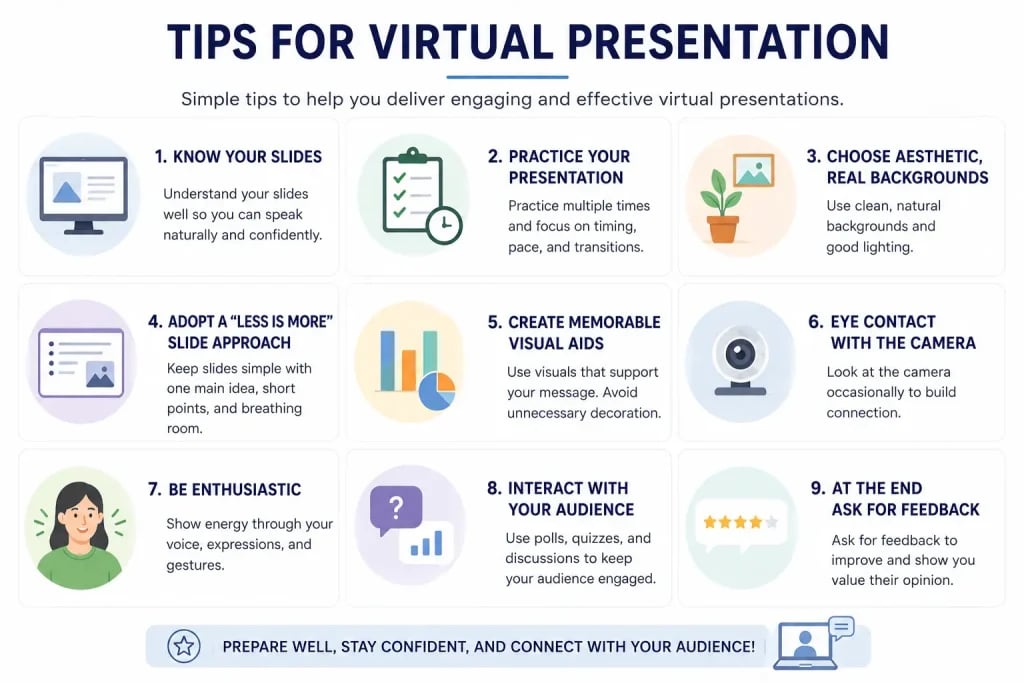
Here’s a closer look at some of the best tips for virtual presentation success:
1. Know Your Slides
Do not depend on your slides to guide you. Go through them beforehand and understand what each slide is trying to say. When you know your content well, you speak more naturally and avoid sounding like you are reading.
2. Practice Your Virtual Presentation
Practice matters even more in virtual settings because online presentations leave less room for improvisation.
Run through your presentation at least two or three times. Pay attention to:
- Timing
- Speaking pace
- Slide transitions
- Areas where you pause too much
- Sections that feel rushed
Practicing also helps you notice technical problems early. You may discover certain slides feel crowded or certain explanations take longer than expected.
The goal is not to memorize every word. It is to become comfortable with your flow.
3. Choose Aesthetic, Real Backgrounds
Your background becomes part of your presentation. A messy room or distracting setup can pull attention away from what you are saying.
Try to choose a clean, natural background. Good options include:
- A simple wall
- Bookshelves
- Plants
- Minimal desk setups
- Professional home office spaces
Avoid overly fake virtual backgrounds unless necessary. Some virtual backgrounds glitch when you move, which can make the presentation feel less polished.
Lighting also matters. Face a light source when possible so your audience can see you clearly.
4. Adopt a “Less is More” Slide Approach
Virtual audiences get overwhelmed quickly when slides contain too much text.
Instead of filling slides with paragraphs, focus on:
- One main idea per slide
- Short bullet points
- Clear headings
- Visual breathing room
A crowded slide forces people to read instead of listen. Simpler slides help your audience stay connected to your explanation.
5. Create Memorable Visual Aids
Use visuals that actually support what you are saying. Charts, icons, and simple graphics can help people understand faster. Avoid adding visuals just for decoration.
Read more: how to create visuals for presentations
6. Eye Contact With the Camera
In virtual presentations, eye contact works differently. Looking at faces on your screen feels natural, but it may appear like you are looking away.
Instead, train yourself to occasionally look directly into the camera.
This creates the feeling of direct conversation and helps your audience feel included.
You do not need to stare into the camera the entire time. Small moments of eye contact during important points are enough.
7. Be Enthusiastic
Energy matters more online than in person.
Virtual platforms naturally reduce emotional connection, which means presenters often appear flatter than they realize.
You can improve engagement by:
- Speaking with vocal variation
- Smiling occasionally
- Showing excitement about the topic
- Using natural hand gestures
- Changing tone for emphasis
A calm voice is fine, but low energy can quickly make virtual audiences disengage.
8. Interact With the Audience Through Quizzes, Polls, and Discussions
Do not let your presentation turn into a one-way talk. Ask questions. Use polls. Invite quick responses in chat. Even small interactions help people stay focused.
9. At the End Ask for Feedback
Before you wrap up, ask your audience for feedback. It shows that you value their opinion and also helps you improve your next presentation.
Common Virtual Presentation Mistakes to Avoid
Here are common virtual presentation mistakes you should avoid:
1. Reading Directly From Slides
Reading slides word for word feels robotic. Your audience can read faster than you speak.
Instead, explain the slide in your own words.
2. Ignoring Chat Completely
The chat section often contains questions, reactions, and confusion points.
Ignoring it makes the session feel one sided.
Check chat at natural pauses.
3. Using Slide Heavy Decks With Too Much Text
Long blocks of text overwhelm virtual viewers.
Break information into smaller ideas and simplify layouts.
4. Not Testing Tech in Advance
Poor audio, broken screen sharing, or unstable internet can damage credibility.
Always test:
- Microphone
- Webcam
- Internet connection
- Slide sharing
- Platform settings
5. Multitasking on Screen During the Presentation
Checking emails or switching tabs while presenting can look unprofessional.
Stay focused on the session.
Your audience notices more than you think.
6. Forgetting to Mute When Not Speaking
Background noise can disrupt the presentation experience.
Mute yourself during pauses or when another speaker takes over.
7. No Clear Structure or Transitions Between Topics
Jumping randomly between ideas makes presentations difficult to follow.
Use simple transitions like:
- “Now let’s move into…”
- “The next point focuses on…”
- “Before we finish, let’s look at…”
These help people follow along.
Virtual Presentation Checklist
1. Pre Event
- Define Your Objective
- Know the purpose of the presentation
- Understand what the audience should learn
- Set one main takeaway
- Prepare Your Content
- Organize information logically
- Keep slides concise
- Add visuals where needed
- Test Your Technology
- Check microphone quality
- Test internet connection
- Confirm screen sharing works
- Set Up Your Environment
- Choose a quiet location
- Improve lighting
- Remove distractions from background
- Rehearse Your Presentation
- Practice timing
- Review transitions
- Test speaking pace
2. During Event
- Maintain Engagement
- Ask questions
- Encourage chat participation
- Use polls or interactions
- Deliver Clearly
- Speak slowly
- Use simple language
- Pause between ideas
- Manage Time
- Stay within schedule
- Avoid rushing
- Keep track of section timing
- Close Effectively
- Summarize key points
- End with a strong takeaway
- Invite feedback or questions
How SlidesAI Helps You Prepare for Your Virtual Presentation
Preparing slides from scratch can take hours. You have to decide structure, wording, design, formatting, visuals, and layout before you even start practicing.
This is where SlidesAI helps simplify the process.
Instead of manually building every slide, you can turn rough content into presentation ready slides quickly. This makes preparation easier, especially when deadlines are tight.
One standout feature that comes with SlidesAI is the Notes to PPT tool. You can take rough notes, meeting points, research summaries, or speaking outlines and convert them into organized slides automatically. This removes the pressure of designing everything yourself.
Another advantage is access to presentation templates. Rather than starting with a blank screen, you can choose layouts that already look polished and structured.
The full SlidesAI Template Library allows you to browse different styles based on topic, tone, and presentation purpose. Whether you need a professional business deck, educational presentation, or workshop format, templates help you save time.
By reducing formatting work, you can spend more energy practicing delivery and improving your presentation flow.
Create Presentations Easily in Google Slides and PowerPoint
14M+Installs
 Install add-in
Closing Thoughts
Virtual presentations require more than simply sharing slides on a screen. They depend on preparation, clarity, engagement, and confidence.
The strongest virtual presenters focus on audience experience. They simplify slides, maintain eye contact, interact regularly, and communicate with purpose.
Even small improvements can make a noticeable difference. Better pacing, cleaner visuals, and stronger preparation often lead to more engaging sessions.
The more intentional your process becomes, the easier virtual presentations start to feel.
FAQs
1. How do I make my virtual presentation more engaging?
You can make your presentation more engaging by asking questions, using polls, simplifying slides, varying your tone, and encouraging audience interaction throughout the session.
2. How long should a virtual presentation be?
Most virtual presentations work well between 20 to 45 minutes depending on audience attention span and topic complexity.
3. What should I do if my tech fails mid presentation?
Stay calm and communicate clearly. Have backup options ready such as a second device, saved PDF slides, or alternate internet access.
4. Can SlidesAI help me prepare slides for a virtual presentation?
Yes. SlidesAI helps speed up slide creation using templates and content to presentation features so you can focus more on delivery.
5. Is it better to sit or stand during a virtual presentation?
Standing often improves energy and posture, but sitting works well if your setup is stable and comfortable. The best choice depends on your presentation style and space.