Creating a presentation from scratch takes more time than most people expect, but SlidesAI can simplify this process.
Instead of spending hours designing every slide manually, you can use ready-made templates and AI-powered tools to create professional presentations much faster. In this guide, you will learn how to use SlidesAI presentation templates and how to generate polished presentations step by step.
Why Use Pre-Designed Presentation Templates?
Using pre-designed templates can improve workflow, consistency, and presentation quality. Here are some major benefits of using presentation templates.
1. Faster Presentation Creation
With pre-designed templates, you don’t have to design slides from scratch. You can start with ready-made layouts and worry less about formatting.
You can create presentations quickly, especially during last-minute meetings, classroom sessions, or client presentations.
2. Better Design Consistency Across Slides
Templates maintain consistent fonts, spacing, colors, and layouts throughout the presentation. This consistency makes every slide look more organized and professional without requiring advanced design skills.
3. Stronger Branding & Professional Appearance
Pre-designed presentation templates help maintain a polished visual identity across presentations. Many templates already include professionally designed color palettes, typography, and layout structures.
4. More Focus on Content
With ready-made templates, the design structure is already handled, allowing you to focus more on improving your message and presentation flow instead of formatting issues.
5. Higher Audience Engagement
Presentations that are visually structured are easier to follow. Templates can help you clearly organize information, improving readability.
6. Easy Editing & Customization
Most modern presentation templates are fully customizable. You can easily change colors, images, text, icons, and layouts based on your needs. This flexibility allows you to personalize presentations without having to start from zero.
How to Create Professional Slides Quickly with SlidesAI Presentation Templates?
SlidesAI offers multiple ways to create presentations faster using templates and AI-powered automation. You can either download ready-made templates or generate a complete AI presentation directly inside the platform. Here’s how:
Method 1: Download a Ready-Made SlidesAI Template
This method works well if you already have presentation content and simply need a professional design template.
Step 1: Open the SlidesAI Template Gallery
- Open SlidesAI and go to the “Free Templates” section.
- Then select “All Templates” to explore SlidesAI template library.

Step 2: Browse the Available Templates
- Browse the SlidesAI presentation template gallery and select one that matches your presentation topic, audience, or design style.
- You can explore different templates for business presentations, education, marketing, startups, reports, and more.

Step 3: Download Your Preferred Template
- Open the template you want to use and choose whether you want to download it for Google Slides or Microsoft PowerPoint.
- SlidesAI supports both platforms, making it easier to work within your preferred ecosystem.

Step 4: Open the Downloaded Template
Once the download is complete:
- Open the file in Google Slides if you selected Google Slides.
- Open the file in Microsoft PowerPoint if you selected PowerPoint.
The template will now be ready for editing.
Step 5: Add Your Content & Customize the Slides
- Replace the placeholder content with your own presentation text, visuals, charts, or branding elements.
- You can also customize colors, fonts, layouts, and images to match your presentation goals.

This is one of the easiest ways to use a presentation template in PowerPoint or Google Slides with SlidesAI without spending hours on manual design.
Build Stunning Slides in Seconds with AI
- No design skills required
- 3 presentations/month free
- Don't need to learn a new software

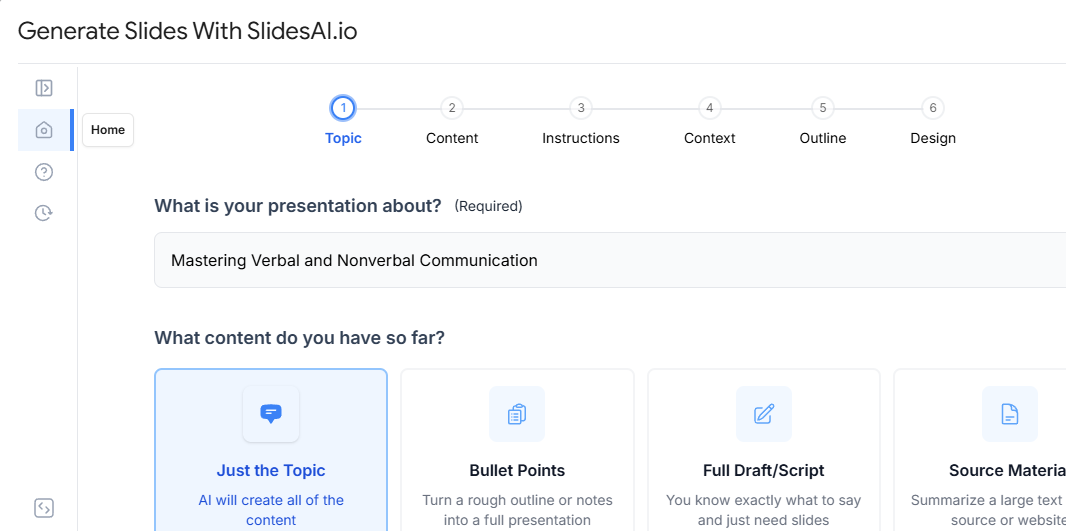
Method 2: Generate an AI Presentation with SlidesAI Templates
With this method, you can generate both the content and slide design automatically in SlidesAI.
Step 1: Open SlidesAI & Log In
- Visit SlidesAI and log in to your account.
- After signing in, you will gain access to the SlidesAI dashboard and AI presentation tools.

Step 2: Open the Dashboard
- After logging in, click on “Visit Dashboard.”
- This is where you can start creating presentations using AI-powered workflows.

Step 3: Select “Start with AI”
- Click on the “Start with AI” option to begin generating a presentation automatically.
- SlidesAI allows users to create presentations using different content formats depending on what they already have prepared.

Step 4: Enter Your Presentation Topic
Add the topic of your presentation and choose one of the following input methods:
- Topic: Choose this option if you only have a presentation topic and want SlidesAI to generate the entire presentation automatically.
- Rough Notes: Use this option if you already have bullet points, rough ideas, or unstructured notes.
- Full Draft or Script: This option works best if your full presentation content is already written and you mainly need design assistance.
- Source Material: Use this option if you want to generate a presentation directly from a website URL or reference source.

Step 5: Select Presentation Preferences
- Choose the appropriate presentation type, audience, tone of voice, and language.
- These settings help SlidesAI generate content that matches your presentation style and audience expectations.

Step 6: Choose the Presentation Mode
- Select “Presenting Live” as the presentation mode.
- This helps optimize the slide structure for live presentations and audience readability.

Step 7: Select a Presentation Template& Visual Preferences
- Choose one of the available SlidesAI templates for your presentation.
- You can also add your own logo, choose AI-generated images, use stock photos, or customize visual styles to personalize the final presentation design.

Step 8: Review the Generated Outline
- SlidesAI will automatically generate a presentation outline.
- Review the outline carefully and make edits if needed. You can also regenerate sections before moving forward.

Step 9: Review & Edit the Slide Content
- SlidesAI will now generate the presentation content slide by slide.
- You can edit existing slides, add new slides, delete unnecessary slides, or refine wording and structure to ensure the presentation matches your exact requirements.

Step 10: Generate & Finalize Your Presentation
- SlidesAI will now create and design the final presentation automatically.
- Make sure to review the completed slides and make final adjustments if needed.
Create Presentations Easily in Google Slides and PowerPoint
14M+Installs

Final Thoughts
Creating presentations manually can slow down productivity. Automating the process not only saves time, but also helps maintain design consistency.
Using SlidesAI templates simplifies presentation creation by combining professional designs with AI-powered automation. Create polished, professional slides much faster with SlidesAI!